Home > Benchmarking > Register for Benchmarking
Download this articleRegister for Benchmarking
To access the benchmarking data of related reports, you need to register your organization. Follow the instructions below to register for benchmarking.
-
Click Benchmarking on the left navigation pane, and then click Register to start the registration from step 1. Opt-in.
-
Choose how would you like to opt-in to tyGraph Benchmarking from the following options:
-
For all tenants
-
For specified tenants
If you choose to opt-in to benchmarking for specified tenants, turn on the toggle to choose which tenants you would like to enable benchmarking for.
-
-
Click Next to proceed to step 2. Organization profile.
-
Select the industry code and size of your organization.
-
Click Next to proceed to step 3. Benchmarking programs.
-
Turn on the toggle to choose which programs you would like to enable benchmarking for. To opt-in to all benchmarking programs, turn on the All programs toggle.
-
Click Next to proceed to step 4. Review.
-
Review the information configured in previous steps including Opt-in preferences, Organization profile, and Programs.
-
After your confirmation of the information, click Register.
To opt-in to benchmarking, you must have the AvePoint Service Administrator role.
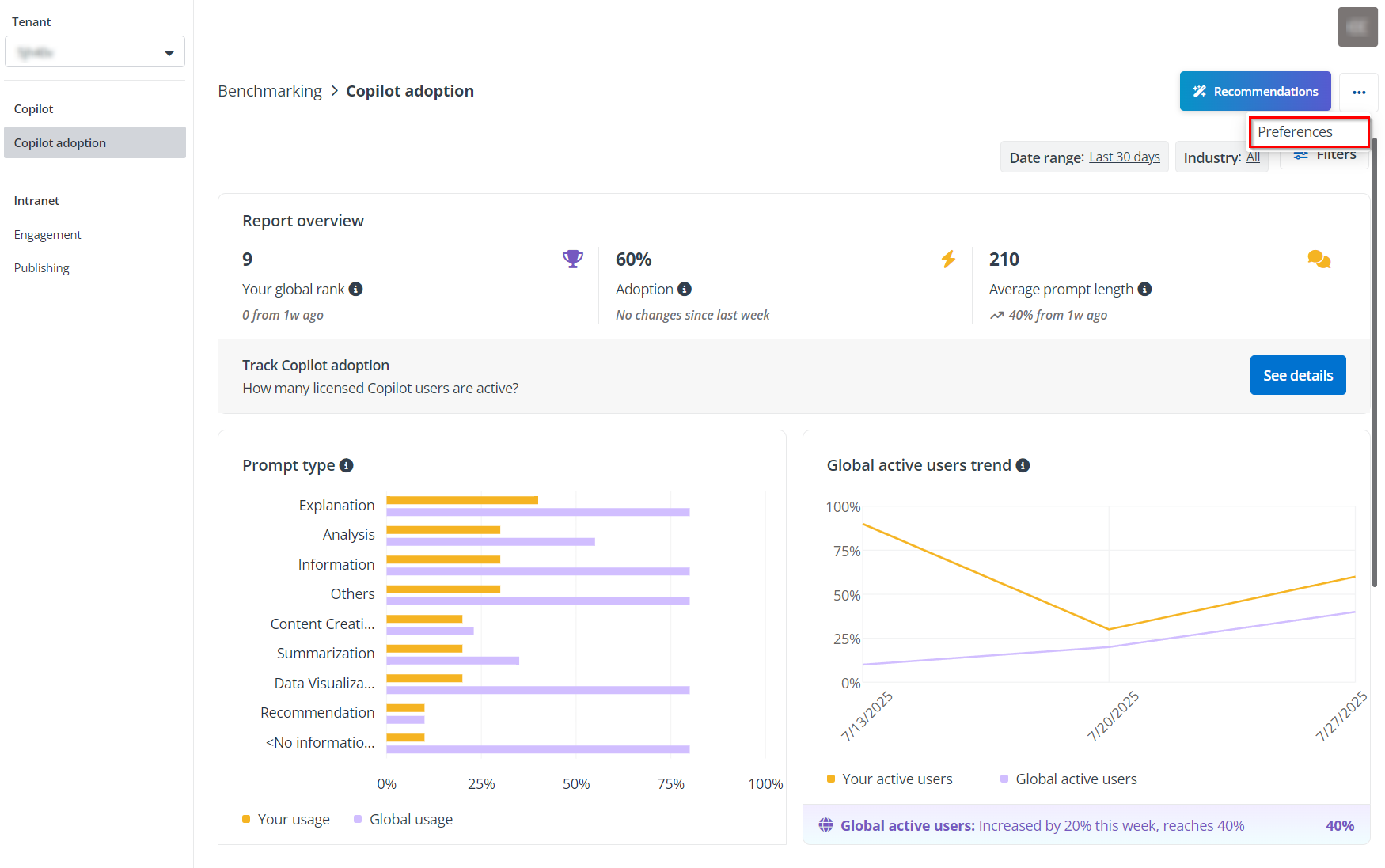
For tenants that have registered in benchmarking, you can go to Preferences to manage your Benchmarking configurations for any of the tenants to align with your data and reporting needs.