
Home > Perform Google Chat Migrations
Download this articlePerform Google Chat Migrations
Google Chat Migration allows you to migrate chats of source Google users to destination Microsoft Teams Chat.
To understand the supported and unsupported elements in the migration, you can refer to the Support Lists for Google Chat Migration.
Prepare for Migrations
Before performing Google Chat migrations in Fly, follow the instructions below to prepare for the migration:
-
Fly does not automatically provision new users in Microsoft 365. Make sure the destination users already exist before the migration. The users must have Microsoft 365 licenses. We recommend that you assign Microsoft 365 licenses to all destination users for easy use.
There are different ways to add new Microsoft 365 users:
-
Please note that there will be a User added notification after chats are created in the destination and destination chat members are added to the chats. Make sure your destination chat users are informed of this information.
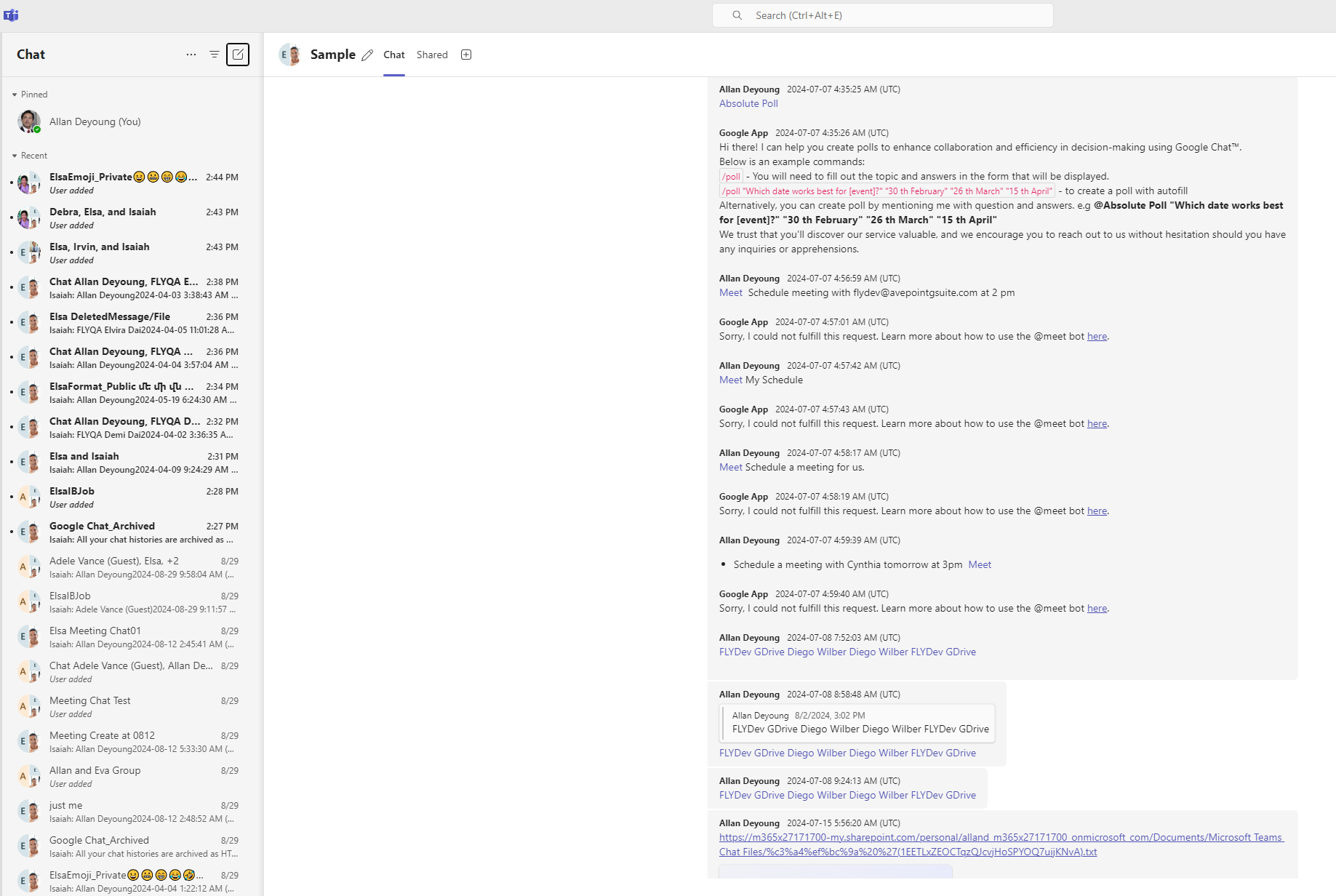
This commonly happens in the following situations:
-
When a full migration job is completed and currently existing users are added to the destination chats.
-
After a full migration job, the source and destination are still in use, and new users are added to source chats. When the next incremental migration job is completed, the newly added users are added to corresponding destination chats.
Also note that the messages will be marked as unread after being migrated to the destination. If the destination chat users have configured their Chat message notifications setting as Show in banner, they will receive notifications about the messages while using the Teams app. If a user is mentioned in a message in the source chat, the destination user of the mentioned user will receive a notification during the migration.
-