
Home > Perform Exchange Online Migrations > Post-migration
Download this articlePost-migration
After migration, you can also perform the following actions:
-
Add X500 email address to destination mailbox – To make sure users can edit the migrated calendar items in the destination and task respond can be sent to destination users correctly.
-
Configure email forwarding – To enable email forwarding to redirect the emails sent to the source mailbox to the destination mailbox. You can also disable email forwarding.
-
Migrate shared calendar permissions – To make sure the shared users can manage the migrated shared calendars in the destination.
-
Change mapping domain – To prepare for a final incremental migration to migrate the new or modified data to the destination, if you have changed your source and destination domains.
-
Migrate mailbox aliases – To migrate mailbox aliases to the destination.
-
Unhide users’ email addressesfrom thedestination global address list (GAL) – When the migration of source mailboxes is finished and the destination mailboxes are ready for use, you can unhide users’ email addresses from the global address list.
NOTEOnly user/shared/resource mailboxes can be unhidden from the destination global addresses list.
-
Migrate auto-mapping properties and the Full Access permissions – To migrate auto-mapping properties and the Full Access permissions of users in the shared mailboxes.
The instructions in the sections below will help you add the X500 email address to the destination mailbox, configure email forwarding, migrate shared calendar permissions, change the domain, unhide users’ email addresses from the destination GAL, and migrate auto-mapping properties and the Full Access permissions.
Add X500 Email Addresses to Destination Mailboxes
Fly provides two methods to add X500 email addresses to destination mailboxes. You can configure to add X500 email addresses to the destination mailbox by running a post-migration job on the Fly interface, or manually add X500 email addresses to destination mailboxes.
Add X500 Email Addresses to Destination Mailboxes on the Fly Interface
Refer to the following steps to add X500 email addresses to destination mailboxes on the Fly interface:
-
Click Projects in the left pane to access the Projects page, and click a project name.
-
On the Project mappings page, select one or multiple mappings for which you want to add X500 email addresses to the destination mailboxes.
-
Click Post-migration and select Add X500 email address to destination mailbox.
Manually Add X500 Email Addresses to Destination User / Resources / Shared Mailboxes
To add the X500 email addresses to users, resources, and shared mailboxes using the scripts provided by Fly, refer to the following steps:
-
Click here and find the GetSourceLegacyExchangeDN.ps1 and Set_X500Address.ps1 scripts, and the MailAddress_LegacyMapping.csv file.
-
Download the GetSourceLegacyExchangeDN.ps1 and Set_X500Address.ps1 scripts, and the MailAddress_LegacyMapping.csv file to the machine where you want to execute the scripts.
-
Connect to your source Exchange environment using Windows PowerShell. Refer to Connect to Exchange Online PowerShell for instructions.
-
Execute the GetSourceLegacyExchangeDN.ps1 script in Windows PowerShell to collect the source LegacyExchangeDN.
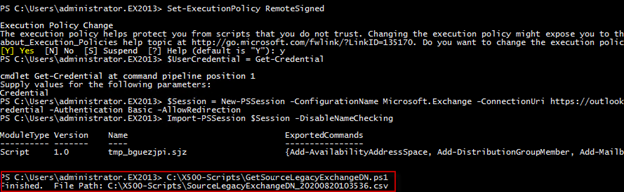
A SourceLegacyExchangeDN_(TimeStamp).csv file will be generated in the same directory as the scripts. In this file, you can find the LegacyExchangeDN of each source mailbox in the LegacyExchangeDN column.
-
Open the MailAddress_LegacyMapping.csv file you downloaded with Excel. Configure the destination email address of the mailbox as the MailAddress column value and enter the LegacyExchangeDN you want to use for it as the LegacyExchangeDN column value.
NOTEThe CSV file name and column names in the file cannot be changed.

-
Connect to your destination Exchange environment using Windows PowerShell. Refer to Connect to Exchange Online PowerShell for instructions.
-
Execute the Set_X500Address.ps1 script in Windows PowerShell to add X500 email addresses to destination mailboxes using the LegacyExchangeDN you configured in the CSV file.

-
After the execution, you can view the report in the same directory as the scripts to check the execution status for each mailbox.
To add X500 email addresses one by one, refer to the steps below:
-
Connect to your source Exchange environment using Windows PowerShell. Refer to Connect to Exchange Online PowerShell for instructions.
-
Execute the following command to collect the source LegacyExchangeDN. Replace full path with the full path of the CSV file you want to create to store the LegacyExchangeDN. For example, C:\Users\LegacyExchangeDN.csv.
Get-mailbox|select-object primarysmtpaddress,legacyexchangedn|Export-csv “full path” -NoTypeInformationAfter the execution, you can find the LegacyExchangeDN of each source mailbox in the LegacyExchangeDN column of the generated CSV file.
-
Log in to your destination Exchange admin center.
-
Under recipients, click mailboxes.
-
Select the mailbox to which you want to add the X500 email address, and click the Edit button.
-
Click email address in the left pane, and click the Add button to add an email address.
-
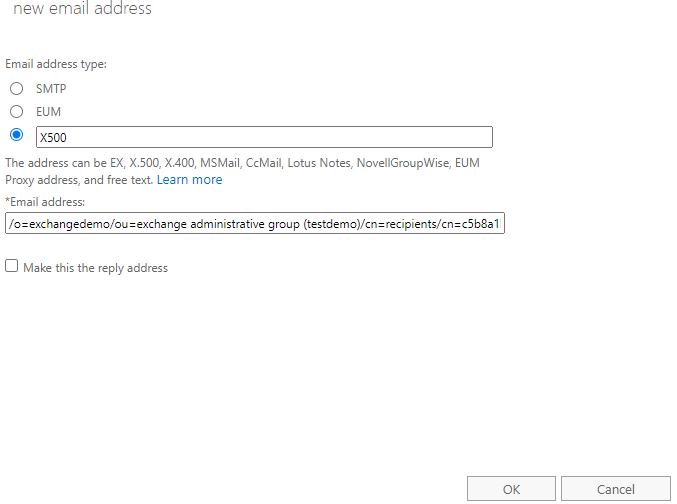
In the new email address window, select the custom address type option, and enter an address type in the text box. For example, X500. In the Email address text box, enter the LegacyExchangeDN you want to use to add the email address.
-
Click OK. The X500 email address is added to the mailbox.
Manually Add X500 Email Addresses to Destination Microsoft 365 Group Mailboxes
To add the X500 email addresses to Microsoft 365 Group mailboxes using the scripts provided by Fly, refer to the following steps:
-
Click here and find the GetSourceLegacyExchangeDN_Group.ps1 and Set_X500Address_Group.ps1 scripts, and the MailAddress_LegacyMapping_Group.csv file.
-
Download the GetSourceLegacyExchangeDN_Group.ps1 and Set_X500Address_Group.ps1 scripts, and the MailAddress_LegacyMapping_Group.csv file to the machine where you want to execute the scripts.
-
Connect to your source Exchange environment using Windows PowerShell. Refer to Connect to Exchange Online PowerShell for instructions.
-
Execute the GetSourceLegacyExchangeDN_Group.ps1 script in Windows PowerShell to collect the source LegacyExchangeDN.

A SourceLegacyExchangeDN_Group_(TimeStamp).csv file will be generated in the same directory as the scripts. In this file, you can find the LegacyExchangeDN of each source mailbox in the LegacyExchangeDN column.
-
Open the MailAddress_LegacyMapping_Group.csv file you downloaded with Excel. Configure the destination email address of the mailbox as the MailAddress column value and enter the LegacyExchangeDN you want to use for it as the LegacyExchangeDN column value.
NOTEThe CSV file name and column names in the file cannot be changed.

-
Connect to your destination Exchange environment using Windows PowerShell. Refer to Connect to Exchange Online PowerShell for instructions.
-
Execute the Set_X500Address_Group.ps1 script in Windows PowerShell to add X500 email addresses to destination mailboxes using the LegacyExchangeDN you configured in the CSV file.

-
After the execution, you can view the report in the same directory as the scripts to check the execution status for each mailbox.
Manually Set X500 Email Addresses to Destination Active Directory Users
If you have synchronized users to Microsoft 365, you need to set the X500 email addresses for the local AD users and run a full sync to add the X500 email addresses to the Microsoft 365 users. Refer to the following steps:
-
Click here and find the GetSourceLegacyExchangeDN.ps1 and Set_X500Address_AD.ps1 scripts, and the Identity_LegacyMapping.csv file.
-
Download the GetSourceLegacyExchangeDN.ps1 and Set_X500Address_AD.ps1 scripts, and the Identity_LegacyMapping.csv file to the machine where you want to execute the scripts.
-
Connect to your source Exchange Online using Windows PowerShell, refer to the URL below for details.
-
Execute the GetSourceLegacyExchangeDN.ps1 script in Windows PowerShell to collect the source LegacyExchangeDN.
A SourceLegacyExchangeDN_(TimeStamp).csv file will be generated in the same directory as the scripts. In this file, you can find the LegacyExchangeDN of each source mailbox in the LegacyExchangeDN column.
-
Open the Identity_LegacyMapping.csv file you downloaded with Excel.

-
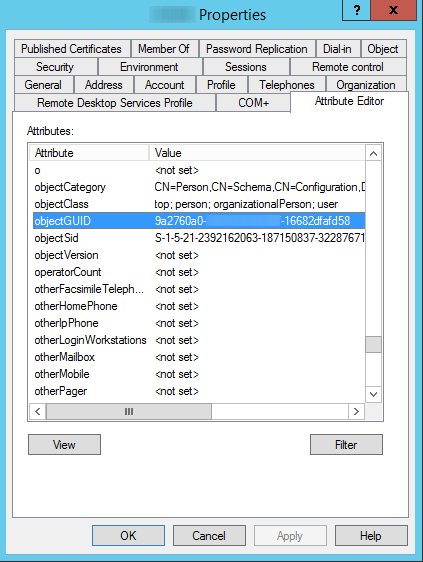
In the Identity column, configure the distinguished name/GUID (objectGUID)/security identifier (objectSid)/SAM account name (sAMAccountName) of the local AD user with the same email address as the destination user configured in the project mapping. You can find the user properties in the Active Directory Users and Computers > user > Properties > Attribute Editor on the domain controller.
If the Attribute Editor tab is not displayed, click View on the ribbon, and click Advanced Features.
-
In the LegacyExchangeDN column, enter the LegacyExchangeDN you want to use for the user.
NOTEThe CSV file name and column names in the file cannot be changed.
-
-
Open Windows PowerShell, and enter the following command in the Windows PowerShell window:
cd “file path”Replace file path with the full path of the Set_X500Address_AD.ps1 file in the extracted folder, and press Enter on the keyboard.
-
Enter the following command in the Windows PowerShell window, and press Enter on the keyboard.
Import-Module ActiveDirectory -
Execute the Set_X500Address_AD.ps1 script in Windows PowerShell to add X500 email addresses to AD users using the LegacyExchangeDN you configured in the CSV file.

-
After the execution, you can view the report in the same directory as the script to check the execution status for each user. Run a full sync to sync local AD users again, and the X500 email addresses will be added to the destination users.
Configure Email Forwarding
Refer to the following steps to see how to configure email forwarding in Fly:
This function is only available for source user/resource/shared mailboxes.
-
Click Projects in the left pane to access the Projects page, and click the name of a project.
-
On the Project mappings page, select one or multiple mappings for which you want to enable email forwarding.
NOTEEmail forwarding is only available for source user, resource, and shared mailboxes.
-
Click Post-migration, and select Email forwarding.
-
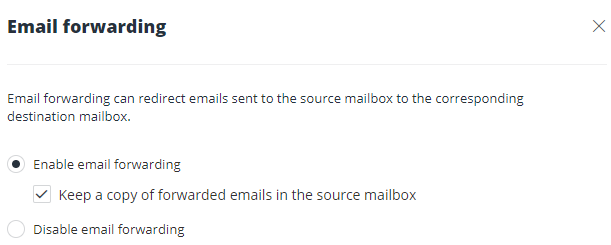
In the Email forwarding panel, select if you want to enable email forwarding and keep a copy of the forwarded email in the source mailbox. Click Save to save your configurations.
Migrate Shared Calendar Permissions
Fly provides two methods to migrate shared calendar permissions, you can automatically migrate shared calendar permissions by running a post migration job on the Fly interface, or manually migrate shared calendar permissions using scripts provided by Fly.
Before you migrate shared calendar permissions, note the following:
-
For Exchange Online to Exchange Online migrations, this function is only available when the source and destination are user/resource/shared mailboxes. For Exchange Online to Gmail migrations, this function is only available when the source is a user/resource/shared mailbox and the destination is a user mailbox/calendar resource. Also, make sure the Exchange PowerShell is available in the source and destination.
-
For Exchange Online to Exchange Online migrations, make sure you have configured user mappings for users/mail-enabled security groups/mail users/room type resource mailboxes that you want to migrate the calendar permissions.
For Exchange Online to Gmail migrations, make sure you have configured user mappings for users/mail-enabled security groups/mail users/room type resource mailboxes/shared mailboxes that you want to migrate the calendar permissions.
-
After calendar permissions are migrated to the destination, notifications will be sent to the shared users. Users must log in to their mailboxes and accept the shared calendars to view them.
-
The permissions configured for People in my organization cannot be migrated.
Migrate Shared Calendar Permissions on the Fly Interface
Refer to the following steps to migrate shared calendar permissions on the Fly interface:
-
Click Projects in the left pane to access the Projects page, and click the name of a project.
-
On the Project mappings page, select one or multiple mappings for which you want to migrate shared calendar permissions.
-
Click Post-migration, and select Migrate shared calendar permissionsto migrate shared calendar permissions.
Migrate Shared Calendar Permissions Using Scripts Provided by Fly
Refer to the following steps to migrate shared calendar permissions using scripts provided by Fly:
-
Click here and find the MigrateCalendarPermissions.zip file.
-
Download the MigrateCalendarPermissions.zip file to the machine where you want to execute the scripts, and extract the ZIP file.
-
In the extracted MigrateCalendarPermissions folder, find the MailboxMappings.csv file and configure the file as shown in the screenshot below. Configure the source and destination email addresses in the migration plan, and save the file.
 NOTE
NOTEFly can retrieve the default calendar folder in the mailbox. The default calendar folder is named Calendar. However, if your calendar folder is not named calendar in another language, enter the folder name in the corresponding language together with the email address in the format of
user@contoso.onmicrosoft.com:\foldername.If you want to migrate a specific calendar, you need to enter the full path of the calendar in the format of
user@contoso.onmicrosoft.com:\foldername\calendarname. -
In the extracted MigrateCalendarPermissions folder, find the UserMappings.csv file and configure the file as shown in the screenshot below. Configure the source and destination users/security groups that you want to map the calendar permissions, and save the file.

-
Connect to your source Exchange Online environment using Windows PowerShell.
Refer to Connect to Exchange Online PowerShell for instructions.
-
In the extracted MigrateCalendarPermissions folder, find the GetCalendarPermissionMappings.ps1 script and execute the script using Windows PowerShell.
When the execution completes, a CalendarPermissionMappings_(TimeStamp).csv file will be generated in the folder. In this file, if the DestinationUser column value is empty, it indicates that Fly cannot find this destination user/group configured in the UserMappings.csv file. You can check and enter the correct email address of the destination user/group in this CSV file.
-
Connect to your destination Exchange Online environment using Windows PowerShell.
Refer to Connect to Exchange Online PowerShell for instructions.
-
In the extracted MigrateCalendarPermissions folder, find the SetCalendarPermissions.ps1 script and execute the script using Windows PowerShell.

-
Enter the path of the CalendarPermissionMappings_(TimeStamp).csv file generated in step 6, and press Enter on the keyboard.
-
After the execution, the calendar permissions will be migrated. You can view the Report_SetCalendarPermissions_(TimeStamp).csv report generated in the extracted MigrateCalendarPermissions folder to check the migration status.
Change Mapping Domain
After the domain name of the source tenant is changed to the destination tenant, or the UPN prefixes of source email addresses are changed, you can choose one of the following options to migrate the source new or modified data:
-
Option 1: Update the domain names of source and destination email addresses configured in project mappings, and then perform an incremental job.
-
Option 2: Directly perform an incremental job since Fly now can migrate data based on the object GUIDs.
If you choose option 1, refer to the following steps to change the mapping domain names of source and destination email addresses:
-
Click Projects in the left pane to access the Projects page, and click the name of a project.
-
On the Project mappings page, select one or multiple mappings for which you want to change domain names.
-
Click Post-migration, and select Change mapping domain to change domain names for the mailboxes/distribution lists/dynamic distribution lists/mail-enabled security groups.
In the Change mapping domain panel, the original source domain and destination domain are automatically displayed.

-
Enter a new source domain and destination domain for the mailboxes/distribution lists/dynamic distribution lists/mail-enabled security groups, and click Change to change the domain names.
After changing the domain names, the original domain names of the source and destination will be updated to the new domain names.
Migrate Mailbox Aliases
Fly provides two methods to migrate mailbox alias to the destination. You can automatically migrate mailbox alias by running a post migration job on the Fly interface, or manually migrate mailbox alias using scripts provided by Fly.
Migrate Mailbox Aliases on the Fly Interface
Refer to the following steps to migrate mailbox aliases on the Fly interface:
For Exchange Online to Exchange Online migrations, this function is unavailable for source archive mailboxes. For Exchange Online to Gmail migrations, this function is unavailable for source archive mailboxes or destination calendar resources.
-
Click Projects in the left pane to access the Projects page, and click the name of a project.
-
On the Project mappings page, select one or multiple mappings for which you want to migrate mailbox aliases.
-
Click Post-migration, and select Migrate mailbox aliases to migrate mailbox aliases.
Migrate Mailbox Aliases Using Scripts Provided by Fly
Fly provides two scripts, BackupMailboxAliases.ps1 and RestoreMailboxAliases.ps1 for you to migrate mailbox aliases. After running the BackupMailboxAliases.ps1 script to back up the email addresses of source mailbox aliases, you can manually remove the custom domain from the source tenant and add it to the destination tenant in Microsoft 365 admin center. Then, run the RestoreMailboxAliases.ps1 script to migrate the email address of mailbox aliases with the source custom domain.
Refer to the following steps for how to run the scripts:
-
Click here and find the MigrateMailboxAliases.zip file.
-
Download the MigrateMailboxAliases.zip file to the machine where you want to execute the scripts, and extract the ZIP file.
-
In the extracted MigrateMailboxAliases folder, find the MailboxMappings.csv file and configure the file as shown in the screenshot below. Configure the source and destination email addresses in the migration plan, and save the file.

Also in the same extracted MigrateMailboxAliases folder, find the DomainMappings.csv file and configure the file as shown in the screenshot below. Configure the source and destination domains of source mailbox aliases, and save the file.

-
Connect to your source Exchange environment using Windows PowerShell. Refer to Connect to Exchange Online PowerShell for details.
-
In the extracted MigrateMailboxAliases folder, find the BackupMailboxAliases.ps1 script and execute the script using Windows PowerShell to retrieve the source mailbox aliases.
When the execution completes, a GetMailboxAliases_(TimeStamp).csv file will be generated in the folder. You can view the details of the retrieved mailbox aliases in this file.
-
Connect to your destination Exchange environment using Windows PowerShell. Refer to Connect to Exchange Online PowerShellfor details.
-
In the extracted MigrateMailboxAliases folder, find the RestoreMailboxAliases.ps1 script and execute the script using Windows PowerShell to migrate retrieved source mailbox aliases to the destination.

-
Enter the path of the GetMailboxAliases_(TimeStamp).csv file generated in step 6, and press Enter on the keyboard.
-
After the execution, the mailbox aliases will be migrated. You can view the Report_MailboxAliases_(TimeStamp).csv report generated in the extracted MigrateMailboxAliases folder to check the migration status.
Unhide Users’ Email Addresses from the Destination Global Address List
Refer to the following steps to unhide email addresses of users/groups from the destination global address list:
-
Navigate to the location on the machine where you store the scripts.
-
Open the configured HiddenUserOrGroupList.csv file you get from step 6 in Prepare for Migrations, remove the information of mailboxes for users/groups you want to hide from the file, and save the file.
-
Locate and execute the HiddenUserOrGroupFromGAL.ps1 script you get from step 6 in Prepare for Migrations using Windows PowerShell.
-
Enter S and press Enter on the keyboard to disable the HiddenFromAddressListsEnabled command to unhide users from the destination global address list. Refer to Set-Mailbox for details about the command.
-
Enter S and press Enter on the keyboard to disable the HiddenFromExchangeClientsEnabled command to unhide groups from the destination global address list. Refer to Set-UnifiedGroup for details about the command.
-
When the execution completes, you can view the HiddenUserOrGroupList_Report_(TimeStamp).csv file generated in the directory displayed in the window.
Migrate Auto-Mapping Properties and Full Access Permissions
Fly provides two methods to migrate auto-mapping properties and the Full Access permissions of users in the shared mailboxes. You can either run a migration job through the Fly interface to automatically migrate these settings, or use the scripts provided by Fly to manually migrate Auto-Mapping Properties and Full Access Permissions.
- Make sure you have configured service accounts for the source and destination, and the service accounts have the Mail Recipients role to manage the Full Access permissions of shared mailboxes.
- When migrating the Full Access permissions, the auto-mapping properties will be automatically set to true in the destination by default.
Migrate Auto-Mapping Properties and Full Access Permissions on the Fly Interface
Refer to the following steps to migrate auto-mapping properties and the Full Access permissions on the Fly interface:
-
Click Projects in the left pane to access the Projects page, and click the name of a project.
-
On the Project mappings page, click the Edit button next to the project name.
-
In the Edit project panel, click View details under the Migration policy field.
-
In the Edit migration policy panel, click Next.
-
In Step 2 Filter & conflict resolution, select Permissions in the Objects section and click Save.
-
Click Save in the Edit project panel
-
On the Project mappings page, select one or multiple mappings for which you want to migrate auto-mapping properties and Full Access Permissions.
-
Click Migration, and select appropriate job type to migrate auto-mapping properties and Full Access permissions.
Migrate Auto-Mapping Properties and Full Access Permissions using Scripts Provided by Fly
Complete the following steps to migrate auto-mapping properties and the Full Access permissions using scripts provided by Fly:
-
Click here and find the MigrateSharedMailboxFullAccess.zip file.
-
Download the MigrateSharedMailboxFullAccess.zip file to the machine where you want to execute the scripts, and extract the ZIP file.
NOTEMake sure Windows PowerShell 5.1 or later has been installed on the machine.
-
In the extracted MigrateSharedMailboxFullAccess folder, find the SharedMailboxMappings.csv file and configure the file as shown in the screenshot below. Configure the source and destination shared mailboxes that you want to map the auto-mapping properties and the Full Access permissions. Then, save the file.
NOTEIf you do not want to change the Full Access permission and the auto-mapping property of a destination shared mailbox, do not configure the mailbox in the file.

-
In the extracted MigrateSharedMailboxFullAccess folder, find the UserOrDomainMappings.csv file and configure the file as shown in the screenshot below. Configure the source and destination user mappings, domain mapping, and the mapping types. Then, save the file.

-
In the extracted MigrateSharedMailboxFullAccess folder, find the BackupSharedFullAccess.ps1 file and execute the file using Windows PowerShell to retrieve the Full Access permissions and auto-mapping properties of users in the shared mailboxes you configured in step 3.
NOTEMake sure you run the Windows PowerShell as administrator.
-
Enter the source service account and press Enter on the keyboard.
-
After the execution, you can view a report named SharedMailboxPermissions_timestamp.csv generated in the extracted MigrateSharedMailboxFullAccess folder. You can also view a log file named BackupSharedFullAccess_timestamp.log generated in the Logs folder of the extracted MigrateSharedMailboxFullAccess folder.
-
In the extracted MigrateSharedMailboxFullAccess folder, find the RestoreSharedFullAccess.ps1 file and execute the file using Windows PowerShell to migrate the Full Access permissions and auto-mapping properties of users in the shared mailboxes based on the shared mailbox mappings, user mappings, and domain mapping you configured in steps 3 and 4.
NOTE- Make sure you run Windows PowerShell as administrator.
- If the permissions of the source and destination mapped users are different, the permissions of destination users will be updated to the same permissions as the source users after the migration. If there is no source user mapped to the destination user, the permission of the destination user will not be changed.
-
Enter the path of the SharedMailboxPermissions_timestamp.csv file generated in step 7, and press Enter on the keyboard.
-
Enter the destination service account and press Enter on the keyboard.
-
After the execution, you can view a report named Report_SharedMailboxPermissions_timestamp.csv generated in the extracted MigrateSharedMailboxFullAccess folder. You can also view a log file named RestoreSharedFullAccess_timestamp.log generated in the Logs folder of the extracted MigrateSharedMailboxFullAccess folder.
If any error occurs when you run the scripts, contact AvePoint Support, and provide all files in the location of the scripts and the screenshot of the encountered error to analyze the error.