
Job Monitor
You can view the details of Aviator jobs across all workspaces in Job monitor.
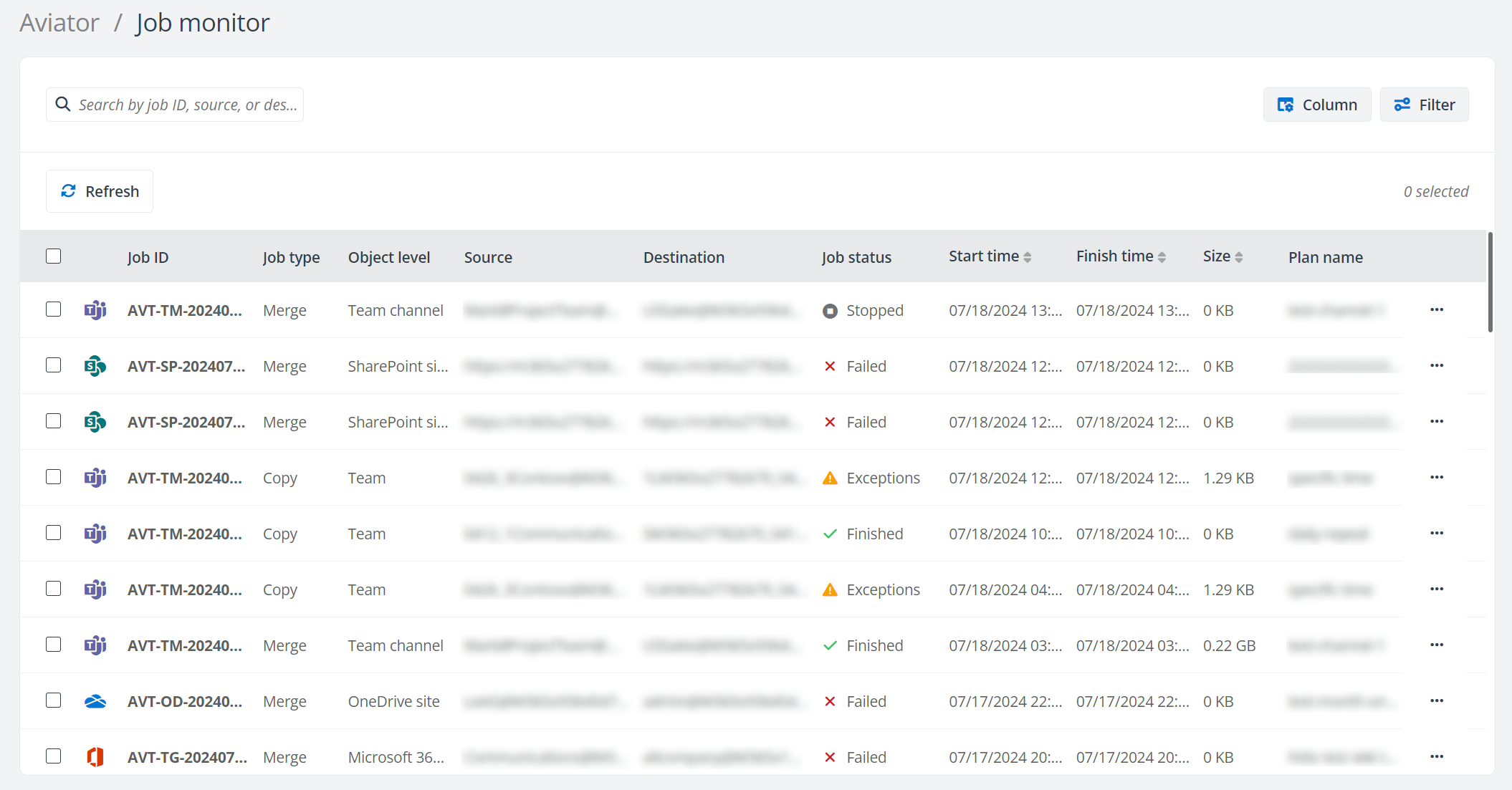
You can perform the following actions on this page:
-
Refresh – Click Refresh to retrieve the latest Aviator job details.
-
Filter – Click Filter to filter Aviator jobs by Workspace, Job type, Object level, Job status, Source tenant and/or Destination tenant.
-
Manage columns – Click Column to select the columns you want to display on the page, and click Apply to apply the configurations. The Job ID column cannot be deselected.
-
Search Aviator jobs – Search Aviator jobs by entering the keyword of the job ID, source tenant or destination tenant in the search box.
-
Stop – Select one or multiple in progress / in queue / waiting to start Aviator jobs and click Stop to stop the jobs. Then the job status will be updated to stopped.
-
View job details – Click the job ID of a job to access the Job details page. On the page, you can view the summary and error details about the job.
-
Summary – In the Summary tab, you can view the general information, Aviator overview, Aviator policy, and the schedule plan name.
-
General information – This section shows the job duration, total data size, copied or merged objects per hour, copied or merged data size per hour, the user who ran the job, and the comment for the job.
NOTEIn the Job run by row, if the Aviator job is a scheduled job, the schedule plan name will be displayed. If the Aviator job is a real-time job, the user who ran the job will be displayed.
-
Aviator overview – This section shows the source and destination tenants, connections, and objects.
-
Aviator policy – This section shows the policy used by the Aviator job. You can click View details to view the details about the Aviator policy.
-
Schedule plan name – This section shows the plan name if the Aviator job is a scheduled job.
-
-
Aviator error – In the Aviator error tab, you can view the error statistics and details for the job.
-
Error statistics – If there are objects with errors in the Aviator job, this report will be generated to show the numbers of objects with errors categorized by error codes.
-
Error details – If there are objects with errors in the Aviator job, this report will be generated to show the objects, error details, error codes, and start time of the Aviator job. To go to the troubleshooting guide for details about the error, click the error code link.
You can click Filter to filter errors by error code, status, and/or category color.
You can also categorize the errors with a desired color. What the applied color represents is left up entirely to your organization.
You can hover your mouse over an error and click the apply color button. Select a color in the Select a color window to apply to the error. Or, you can select one or multiple errors and click Categorize with color. In the Select a color window, select a color and click Apply.

Apply color button.
-
-
-
Generate report – Refer to the following steps to generate Aviator job reports:
-
Select a job and click the More button of the job, then click Generate report.
-
Select the object status you want to generate.
-
Select a report file type to be generated.
-
CSV (recommended format as reports can be large) – The reports will be generated as CSV files. With CSV selected, the report will be generated as multiple CSV files based on object types.
-
Excel – The reports will be generated as Excel files. With Excel selected, the report will be generated as two Excel files, including Aviator job report and summary report.
-
-
Click Generate report to generate the report. When the report is generated, you can click the More button of the job and click Download report to download the report or click Regenerate report to generate the report again.
-
-
Retry error objects – Click the More button of a job whose status is Exceptions, Failed, or Stopped, and click Retry error objects. The Retry error objects window appears. Click Retry in the window to retry the error and exception (warning) objects at an item level.