
Home > Perform Device Migrations > Create a Connection > Install the Device Migration Agent
Download this articleInstall the Device Migration Agent
Refer to the following sections to prepare and install the device migration agent.
The combined total of active Active Directory and Device migration agents in Fly should not exceed 5000. After a migration is complete, we recommend uninstalling the agents and removing them from Fly > Settings > Agents.
System Requirements
Refer to the following table for the system requirements of the Fly Device Migration Agent.
| Components | Requirements |
|---|---|
| Operating System | Windows Server 2016, Windows Server 2019, Windows Server 2022, Windows 10, Windows 11*Note: 32-bit operating systems are not supported. Only operating systems with Desktop Experience are supported. |
| Number of CPU Cores | Recommended: 4 or above. |
| Available Physical Memory | Recommended: 8 GB or above. |
| Available Disk Space | Refer to Comment 1 below the table. |
| .NET Framework Version | .NET Framework 4.7.2 to 4.8. |
| Net.Tcp Port Sharing Service | Net.Tcp Port Sharing Service has started. |
| Transport Layer Security (TLS) Version | TLS 1.2 is enabled. |
| Visual C++ Redistributable Version | Visual C++ Redistributable 2015-2022. |
Comment 1: The Agent server will store the temporary files and job logs of migrations.
-
We recommend 50 GB or above for migration projects with less than 100 GB of data.
-
We recommend 100 GB or above for large migration projects with more than 200 GB of data.
When checking the installation rules, Fly checks the storage space of your drive C by default. Make sure there is available space of 2 GB or above in your drive C.
System Services Port Requirements
Refer to the following information for the system services port requirements of the Fly Device Migration Agent.
| Application Protocol | Protocol | Ports |
|---|---|---|
| Lightweight Directory Access Protocol (LDAP) Server | TCP | 389 |
| Remote Procedure Call (RPC) | TCP | 135 |
| RPC randomly allocated high TCP ports | TCP | 49125 - 65535 |
For more details, refer to How to configure RPC dynamic port allocation to work with firewalls.
Network Requirements
Before performing device migrations in Fly, make sure the network of the server where you want to install the device agent can connect to the AvePoint Online Services, Fly, and the source/destination device.
If your organization has an access policy and only specific IP addresses are allowed, you need to navigate to AvePoint Online Services > Administration > Security > Reserved IP addresses to download the list of reserved IP addresses required by AvePoint Online Services and Fly, and then add the IP addresses to the safe IP address list of the server where you want to install the device agent.
Download Agent
You can either download the device agent when creating a connection for device migration or follow the steps below to download the agent:
-
Click Settings in the left pane, and select Agents .
-
Click the Device Agent tab, and then click Download agent to download the corresponding agent.
-
In the panel, click Download.
-
To verify whether a downloaded file has been tampered with, check its hash value and compare it with the one displayed in the panel.
To obtain the hash value from the downloaded file, open Windows PowerShell and enter the following commands:
Replace
[file path]with the full path of the downloaded file.
Install the Agent
Refer to the following steps to install the device agent:
-
Copy the downloaded file of the device agent to the machine where you want to install the agent.
-
Right-click the file and select Run as administrator.
-
On the installation wizard, click Next and accept the agreement.
-
Click Next.
-
In the Destination Folder step, configure the installation path and click Next.
-
In the Configuration Key step, enter the configuration key or connection key of the device source connection and click Next. You can generate the configuration key in the corresponding source device connection in Fly > Connections.
-
In the Unattended Mode step, you can select the checkbox to enable unattended mode, allowing the agent to run without user intervention. No shortcuts will be created, and the agent popups will not be launched on UI automatically.
-
In the Job Polling interval step, configure the interval for the agent to check if there is a migration job triggered by the administrator. The default value is 60 minutes.
-
In the Power Management step, select the checkbox to keep the device active so it can process the migration.
-
In the Auto Update step, select the checkbox to enable auto update, allowing the agent to automatically update to the latest version when a new version is available.
-
Click Install to install the agent.
-
In the taskbar at the lower-right corner of your screen, right-click the Fly Device Agent icon.
-
Select Configuration.
-
In the Connect AvePoint Online Services step, configure the following settings:
-
AvePoint Online Services application (client) ID – Enter the ID of your app registration in AOS > Administration > App registrations. Note that the fly.admigration.readwrite.all permission is required for this app registration.

-
Client secret value – Enter the client secret value in AOS > Administration > App registrations. For how to get a new client secret, refer to the Register an App section in Configure App Registrations for detailed information.

-
Proxy settings – Configure the following settings:
-
Proxy Host – The hostname or IP address of the proxy server.
-
Proxy Port – The port used to access the proxy server.
-
Username – The username to log in to the proxy server.
-
Password – The password to access the proxy server.
-
-
-
In the Connect connection step, configure the following settings:
-
Connection key – Paste the connection key you copied when you create the connection.
-
Connection name – After you entered and verify the connection key, the name of connection you created will be automatically filled in and cannot be edited.
-
-
Click Finish to save your configurations.
Manage Fly Device Agent
You can also perform the following actions on the Fly Device Agent:
-
Cache user credentials – If Cache user credentials for device logon is selected in the device migration policy, and Rejoin offline using agent is selected for the device destination connection, caching user credentials is required.
Cached user credentials allow you to sign in to your device when the domain controller is unavailable. If you've successfully logged in before, your username and password are stored securely on your device. This allows you to access your account offline or during network disruptions.
To cache user credentials, right-click the Fly Device Agent icon, click Cache User Credentials, and then complete the following configurations:
-
Username – Enter the username of the account.
-
Password – Enter the password of the account.
-
Domain – Enter the domain name.
-
-
Check Status – To check if a domain rejoin job or a permissions migration job has been triggered by the administrator, right-click the Fly Device Agent icon and select Check Status. The system will also automatically scan for a triggered job every hour.
If a domain rejoin job has been triggered, the Domain Rejoining Now Available window will appear. You can click Start to run the domain rejoin job immediately, or click Snooze to delay the job until the selected time. By default, the job will snooze for one hour. Note that if a permission migration job is triggered, the domain rejoin job will be automatically triggered.
Your computer will lock and restart during the domain rejoin job.
Deploy the Agents in Bulk
Domain administrators can also install and configure device agents in bulk using Group Policy. Follow the steps below to perform the bulk installation:
-
Log on to the server as an administrator.
-
Create a shared network folder that is accessible by both the Domain Controller and the target devices.
-
Copy the device agent installation package (.msi file) into the shared folder.
-
Create a script file (.bat or .cmd) in the same folder and add the following content:
-
Replace
<package path>with the full path of the .msi file in the shared folder. -
Replace the following parameter values according to your deployment requirements:
-
UNATTENDED– Set the<value>totrueto enable unattended mode, allowing the agent to run without user intervention. No agent shortcuts will be created, and the agent popups will not be launched on UI automatically. Set tofalseto disable unattended mode.NOTEThe
CONFIGURATIONKEYparameter is required whenUNATTENDEDis set totrue. -
CONFIGURATIONKEY– Replace<key>with the connection key or the configuration key of the source device connection. You can generate the configuration key in the corresponding source device connection in Fly > Connections. -
JOB_DURATION– Set the<duration>to the interval between 10 to 1440 minutes for the agent to check if there is a migration job triggered by the administrator. -
KEEPAWAKE– Set the<value>totrueto keep the device active so it can process the migration. Otherwise, set it tofalse. -
AGENTAUTOUPDATE– Set the<value>totrueto enable auto update, allowing the agent to automatically update to the latest version when a new version is available. Otherwise, set it tofalse.
-
-
-
Save the script file.
-
Open Group Policy Management.
-
Right‑click the source domain controller, or the specific OU that contains the target devices, and then select Create a GPO in this domain, and Link it here… to create a new GPO.
-
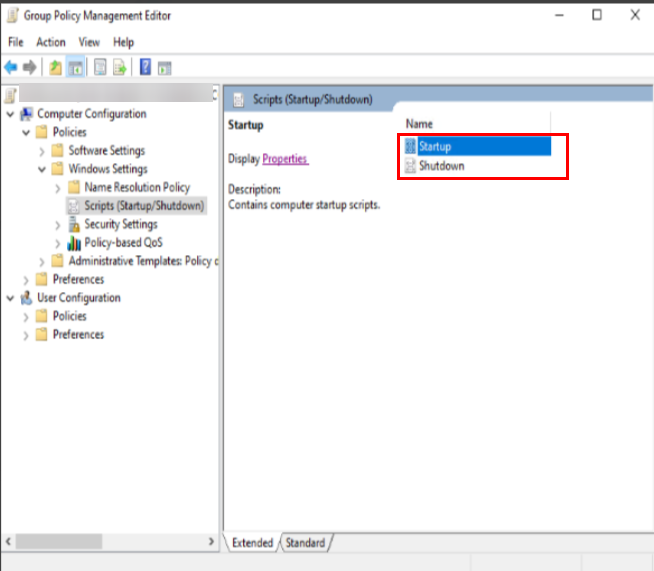
Edit the newly created GPO and navigate to Computer Configuration > Policies > Windows Settings > Scripts.
-
In the right pane, select one of the following options based on when you want the agent to be installed:
-
Startup – Select to install the package when the device starts.
-
Shutdown – Select to install the package when the device shuts down.
-
-
Click Add to add a new script, and then enter the full path starting with
\\of the script file in the shared folder. -
Click OK.
-
Open Windows PowerShell and enter the following commands to update the GPO in the Domain controller and devices immediately:
-
Restart the target devices to apply the GPO.