
Home > Perform Active Directory Migrations > Create a Connection > Install the Active Directory Migration Agent
Download this articleInstall the Active Directory Migration Agent
Refer to the following sections to prepare and install the Active Directory migration agent.
The combined total of active Active Directory and Device migration agents in Fly should not exceed 5000. After a migration is complete, we recommend uninstalling the agents and removing them from Fly > Settings > Agents.
System Requirements
Refer to the following table for the system requirements of the Fly Active Directory Migration Agent.
| Components | Requirements |
|---|---|
| Operating System | Windows Server 2016, Windows Server 2019, Windows Server 2022, Windows 10, Windows 11*Note: 32-bit operating systems are not supported. Only operating systems with Desktop Experience are supported. |
| Number of CPU Cores | Recommended: 4 or above. |
| Available Physical Memory | Recommended: 8 GB or above. |
| Available Disk Space | Refer to Comment 1 below the table. |
| .NET Framework Version | .NET Framework 4.7.2 to 4.8. |
| Net.Tcp Port Sharing Service | Net.Tcp Port Sharing Service has started. |
| Transport Layer Security (TLS) Version | TLS 1.2 is enabled. |
| Visual C++ Redistributable Version | Visual C++ Redistributable 2015-2022. |
Comment 1: The Agent server will store the temporary files and job logs of migrations.
-
We recommend 50 GB or above for migration projects with less than 100 GB of data.
-
We recommend 100 GB or above for large migration projects with more than 200 GB of data.
When checking the installation rules, Fly checks the storage space of your drive C by default. Make sure there is available space of 2 GB or above in your drive C.
System Services Port Requirements
Refer to the following information for the system services port requirements of the Fly Active Directory Migration Agent.
| Application Protocol | Protocol | Ports |
|---|---|---|
| Lightweight Directory Access Protocol (LDAP) Server | TCP | 389 |
| Remote Procedure Call (RPC) | TCP | 135 |
| RPC randomly allocated high TCP ports | TCP | 49125 - 65535 |
| Lightweight Directory Access Protocol over SSL (LDAPS) Server | TCP | 636 |
If you are using port 389 for the connection, you can use the user principal name (UPN) for the service account. If you are using port 636 for the connection, a distinguished name (DN) is required for the service account.
For more details, refer to How to configure RPC dynamic port allocation to work with firewalls.
Network Requirements
Before performing Active Directory migrations in Fly, make sure the network of the server where you want to install the Active Directory agent can connect to the AvePoint Online Services, Fly, and the source/destination Active Directory.
If your organization has an access policy and only specific IP addresses are allowed, you need to navigate to AvePoint Online Services > Administration > Security > Reserved IP addresses to download the list of reserved IP addresses required by AvePoint Online Services and Fly, and then add the IP addresses to the safe IP address list of the server where you want to install the Active Directory agent.
Permission Requirements
Before performing Active Directory migrations in Fly, prepare the following accounts for the migration:
-
Local Administrator of the system where the agent will be installed is required by the installation.
-
Source Active Directory agent: A service account that is the domain admin of the source Active Directory.
You can also prepare a user account with sufficient permissions instead of a domain admin by completing the following steps:
-
Open Active Directory Users and Computers.
-
Locate and right-click the domain name, and then click Properties.
-
On the Security tab, click Add and select the user you want to assign permissions to.
-
In the Permissions section, select Allow for the following permissions:
-
Add/remove replica in domain
-
Reanimate tombstones
-
Enable per user reversibly encrypted password
-
Manage replication topology
-
Add GUID
-
Read only replication secret synchronization
-
Run Protect Admin Groups Task
-
Write domain password & lockout policies
-
Write Other domain parameters (for use by SAM)
-
Migrate SID history
-
Unexpired password
-
Replicating Directory Changes
-
Replication synchronization
-
Replicating Directory Changes All
-
Update password not required bit
-
-
Click the Advanced button. In the Advanced Security Settings window, select one of the permission entries, and click Edit.
-
On the Permission Entry window, select the following permissions and properties:
Type Entries Permissions List contents Permissions Read all properties Permissions Write all properties Permissions Read permissions Permissions Create all child objects Permissions Delete all child objects Properties Read all properties Properties Write all properties -
Once completed, click OK.
-
-
Destination Active Directory agent: If you want to use the default flymigrationExtensionAttribute attribute, a service account that is both a domain admin and a schema admin of the destination Active Directory is required.
If you want to use custom attribute, a service account that is the domain admin of the destination Active Directory is required.
Download Agent
You can either download the Active Directory agent when creating a connection for Active Directory migration or follow the steps below to download the agent:
-
Click Settings in the left pane, and select Agents > Active Directory agent tab.
-
Click the down arrow next to Download agent, and then click Download source agent or Download destination agent to download the corresponding agent.
-
In the panel, click Download.
-
To verify whether a downloaded package has been tampered with, check its hash value and compare it with the one displayed in the panel. Following the steps below to obtain the hash value from the package:
-
Extract the downloaded agent package.
-
Open Windows PowerShell and enter the following commands:
Replace [file path] with the full path of the ZIP file in the extracted package.

-
Install the Source Agent
Refer to the following steps to install the source Active Directory agent:
-
Copy the downloaded ZIP file of the source agent to the machine where you want to install the agent.
-
Extract the file.
-
Right-click the Setup.exe application file in the extracted folder, and select Run as administrator.
-
On the installation wizard, configure the installation path and click Next.
-
Fly will perform a brief pre-scan of the environment to ensure that all rules meet the requirements. The status for each rule will be listed in the Status column.
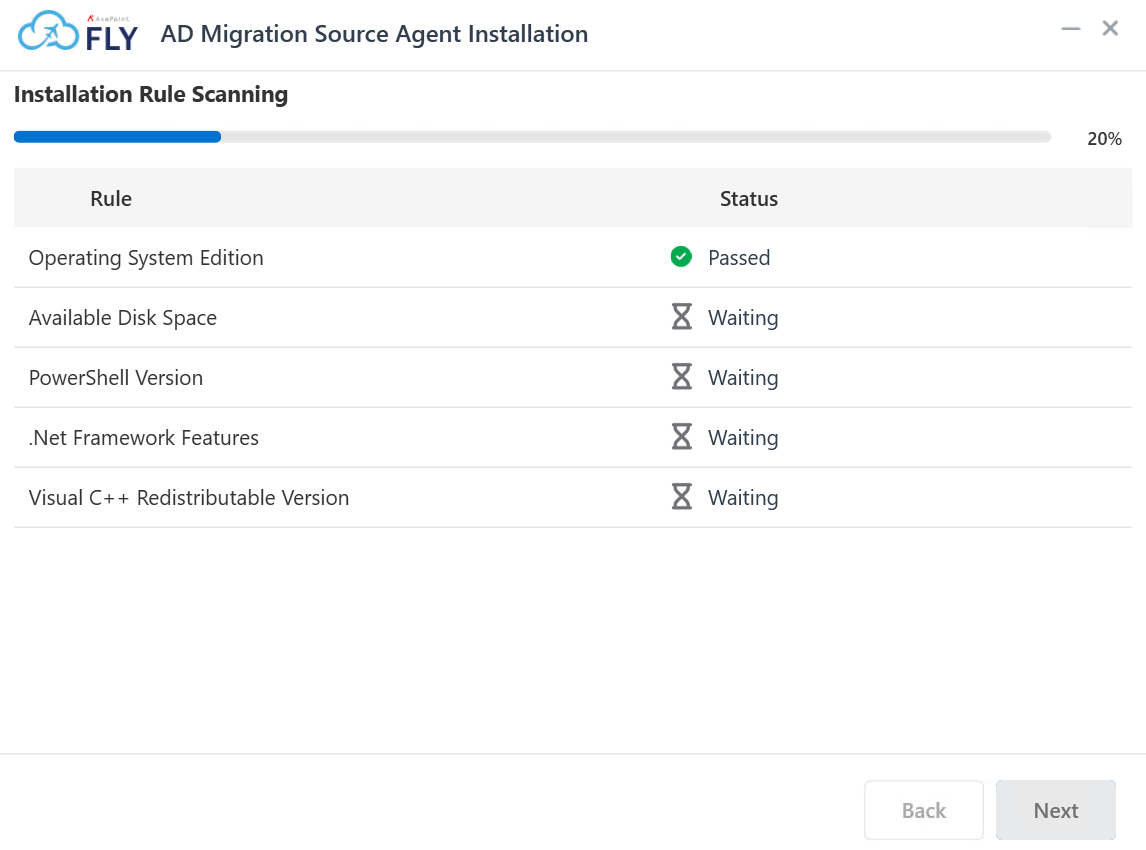
For details about the system requirements, refer to System Requirements.
NOTEYou cannot proceed with the installation if any of the rules have a Status of Failed.
-
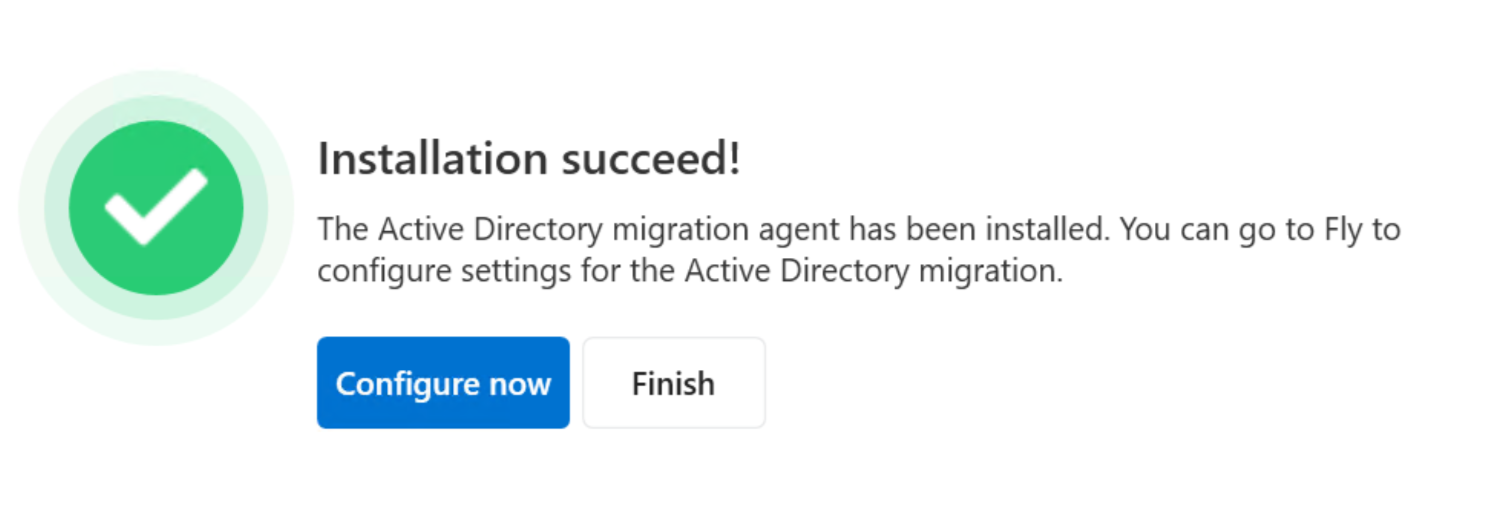
Click Next to install the agent. When the installation is finished, click Configure now to configure settings for the agent.
-
In the Connect AvePoint Online Services step, configure the following settings:
-
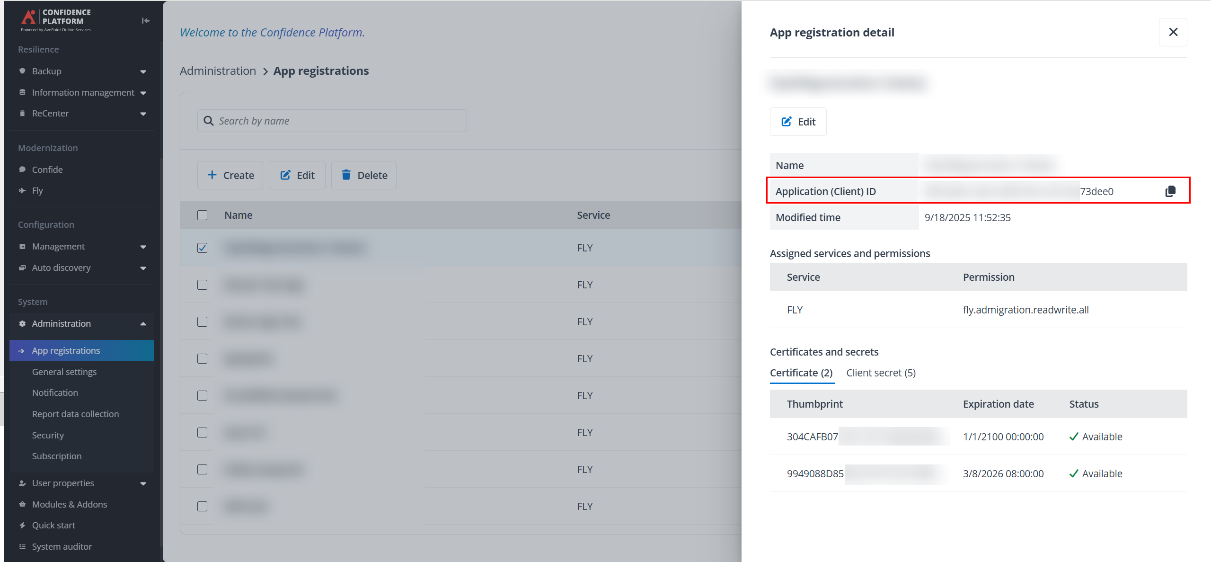
AvePoint Online Services application (client) ID – Enter the ID of your app registration in AOS > Administration > App registrations. Note that the fly.admigration.readwrite.all permission is required for this app registration.
-
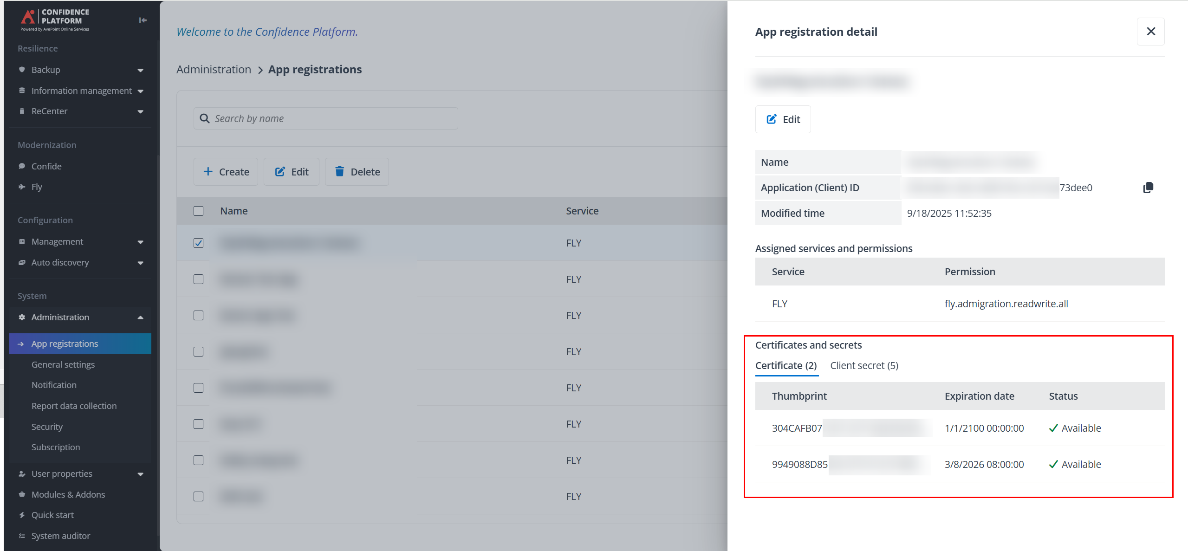
Certificates – Enter the certificate thumbprint in AOS > Administration > App registrations. For how to upload a new certificate, refer to the Register an App section in Configure App Registrations for detailed information.
-
Note the following:
-
Client secrets are not required for the connection.
-
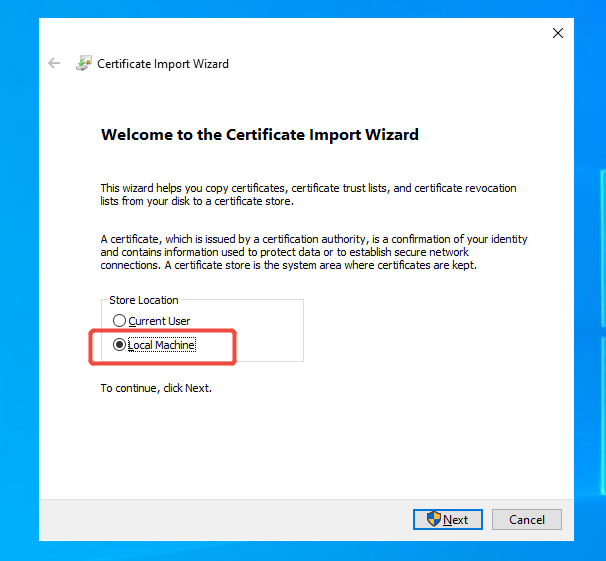
The certificate (.pfx) must be installed on the Local Machine that has source Active Directory agent installed.
-
-
Proxy settings – Configure the following settings:
-
Proxy Host – The hostname or IP address of the proxy server.
-
Proxy Port – The port used to access the proxy server.
-
Username – The username to log in to the proxy server.
-
Password – The password to access the proxy server.
-
-
-
Click Next to go to the Connect Connection step.
-
In the Connect Connection step, configure the following settings:
-
Connection key – Paste the connection key you copied when you create the connection.
-
Connection name – After you entered the API key, the name of connection you created will be automatically filled in and cannot be edited.
-
Shared key – Enter 6 to 15 characters as the shared key. This key is used to encrypt Active Directory user passwords before sending them to the Fly database for migration. You need to save the shared key and provide the identical one to the destination agent for decryption.
NOTEWe recommend that you connect only one Active Directory agent per connection.
-
-
Click Next to go to the Connect Active Directory step.
-
In the Connect Active Directory step, configure the following settings:
-
Active Directory server information – Enter the host or IP: port of the source Active Directory.
NOTEIf you are using port 636 for the connection, a distinguished name (DN) is required for the service account. The SID migration may fail if port 389 is blocked by the source domain controller.
-
Domain – Click Connect to retrieve the domain name of the source Active Directory.
-
Service account – Enter the account of a domain admin of the source Active Directory.
-
Password – Enter the password for the account specified above.
-
Certificate Security – If you are using port 636 for the connection, select how to verify the Active Directory server certificate.
-
Use Certificate Authority (CA) – A Certificate Authority issues trusted certificates for the domain. Refer to Configure Server Certificate for details.
-
Allow self-signed certificates – Self-signed certificates trusted only on the local machine by default. Refer to Configure Server Certificate for details.
-
Validate with certificate thumbprint – Authenticates the connection by strictly matching the unique cryptographic thumbprint of the server certificate.
-
-
-
Click Next to go to the Scan Source Objects step.
-
In the Scan Source Objects step, select the OUs you want to scan. You can also enter the OU name in the search box to search for the OU.
-
Click Next to go to the Scan Schedule step.
-
In the Scan Schedule step, configure the following settings:
-
Scan security properties:
-
User passwords – Select this to scan and migrate the user passwords. Note that the Remote Procedure Call (RPC) server must be available for this migration.
-
Security Identifier (SID) History – Select this to scan and migrate the Security Identifier (SID) History. Note that the Remote Procedure Call (RPC) server must be available for this migration. Before performing the SID History migration, refer to the Prepare for SID History Migration section for detailed preparation steps.
-
-
Scan method:
-
Scan and send now – Select this to scan source objects and send the scanned objects to Fly immediately.
-
Scan on a specific date and time – Configure the start and end date and time, and the interval of recurring jobs.
-
-
-
Click Submit to save your configurations.
If the agent is installed on a domain controller machine, ensure you run the agent as an administrator.
Install the Destination Agent
Refer to the following steps to install the destination Active Directory agent:
-
Copy the downloaded ZIP file of the destination agent to the machine where you want to install the agent.
-
Extract the file.
-
Right-click the Setup.exe application file in the extracted folder, and select Run as administrator.
-
On the installation wizard, configure the installation path and click Next.
-
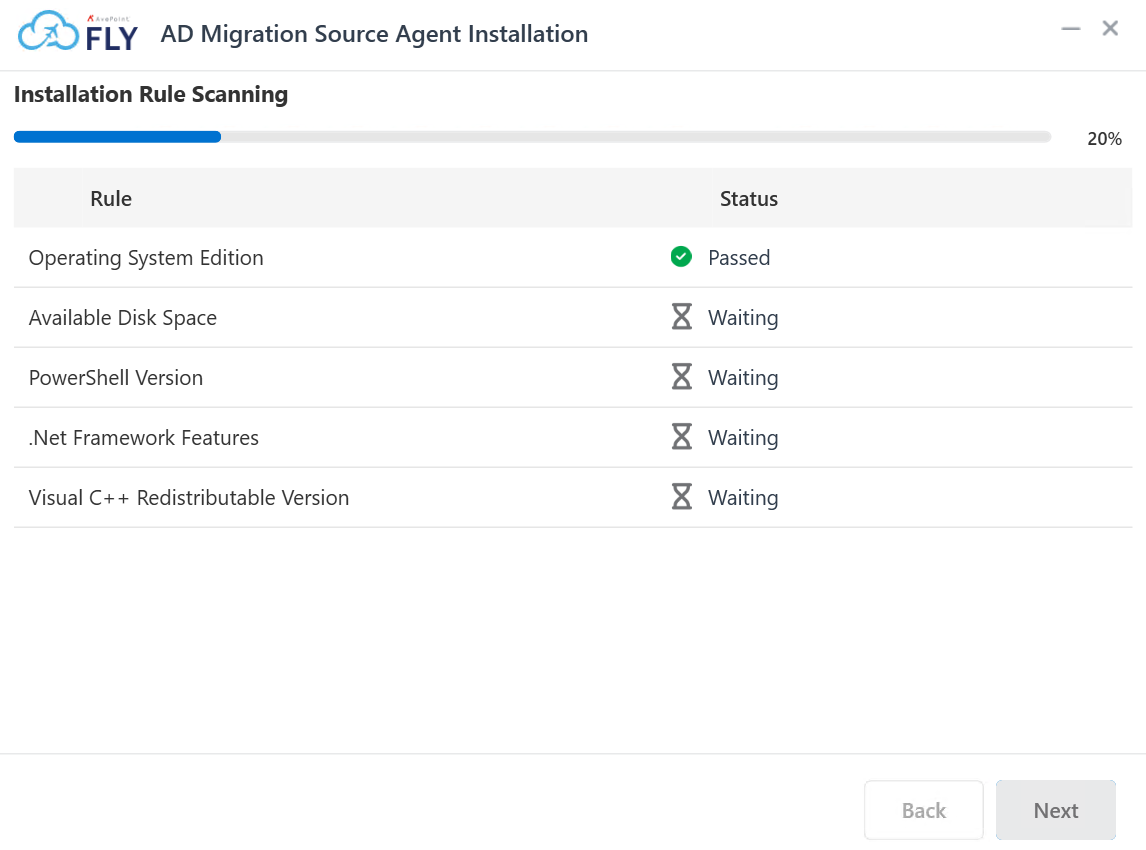
Fly will perform a brief pre-scan of the environment to ensure that all rules meet the requirements. The status for each rule will be listed in the Status column.
For details about the system requirements, refer to System Requirements.
NOTEYou cannot proceed with the installation if any of the rules have a Status of Failed.
-
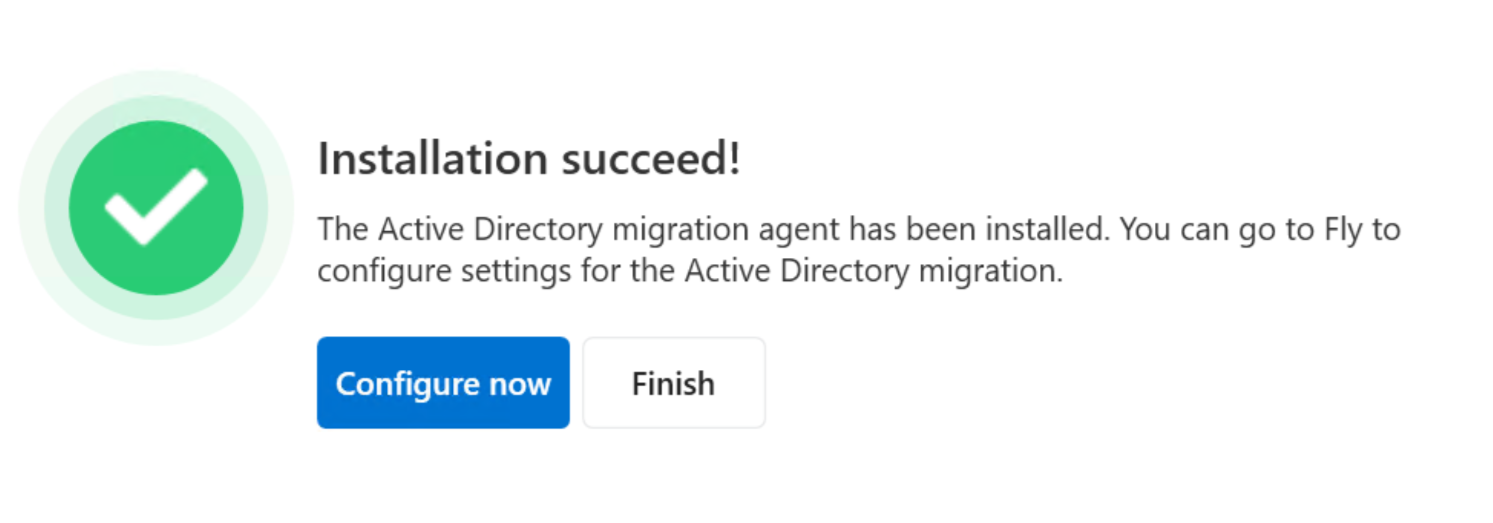
Click Next to install the agent. When the installation is finished, click Configure now to configure settings for the agent.
-
In the Connect AvePoint Online Services step, configure the following settings:
NOTEThe same app registration can be used for both source and destination agents.
-
AvePoint Online Services application (client) ID – Enter the ID of your app registration in AOS > Administration > App registrations. Note that the fly.admigration.readwrite.all permission is required for this app registration.

-
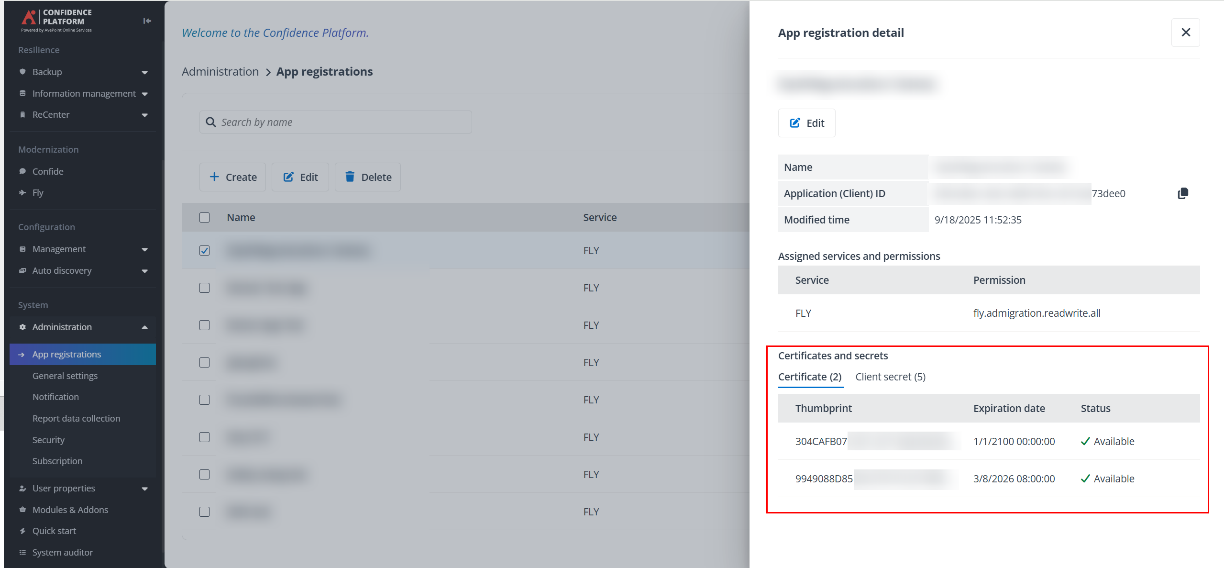
Certificates – Configure the certificate thumbprint in AOS > Administration > App registrations. For how to upload a new certificate, refer to the Register an App section in Configure App Registrations for detailed information.
Note the following:
-
Client secrets are not required for the connection.
-
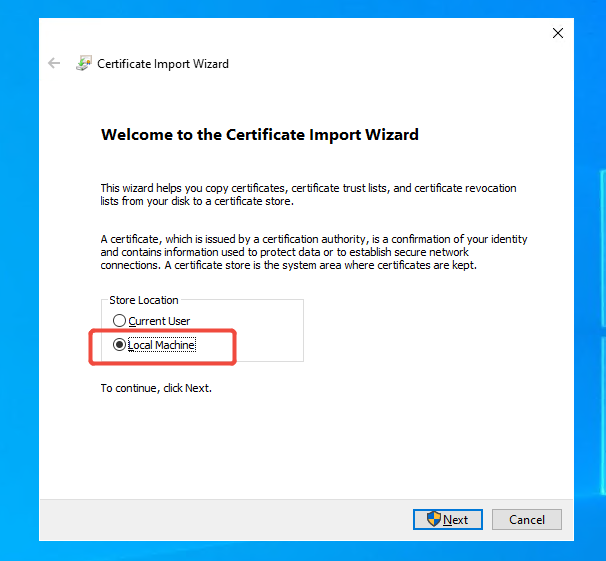
The certificate (.pfx) must be installed on the Local Machine that has destination Active Directory agent installed.
-
You can choose to create a new certificate for the destination agent or use the same one as the source agent. In either case, the certificate (.pfx) must be installed on the Local machine that has destination Active Directory agent installed.
-
-
Proxy settings – Configure the following settings:
-
Proxy Host – The hostname or IP address of the proxy server.
-
Proxy Port – The port used to access the proxy server.
-
Username – The username to log in to the proxy server.
-
Password – The password to access the proxy server.
-
-
-
Click Next to go to the Connect Connection step.
-
In the Connect Connection step, configure the following settings:
-
Connection key – Paste the connection key you copied when you create the connection.
-
Connection name – After you entered the API key, the name of connection you created will be automatically filled in and cannot be edited.
-
Shared key – Enter the same shared key configured in the source agent. It is required to decrypt passwords while syncing the passwords for destination Active Directory users.
NOTEWe recommend that you connect only one Active Directory agent per connection.
-
-
Click Next to go to the Connect Active Directory step.
-
In the Connect Active Directory step, configure the following settings:
-
Active Directory server information – Enter the host or IP: port of the destination Active Directory.
NOTEIf you are using port 636 for the connection, a distinguished name (DN) is required for the service account. The SID migration may fail if port 389 is blocked by the source domain controller.
-
Domain – Click Connect to retrieve the domain name of the destination Active Directory.
-
Service account – Enter an account that is both a domain admin and a schema admin of the destination Active Directory.
-
Password – Enter the password for the account specified above.
NOTEAfter the destination Active Directory is connected to Fly, a new attribute named flymigrationExtensionAttribute will be created in the destination Active Directory by default.
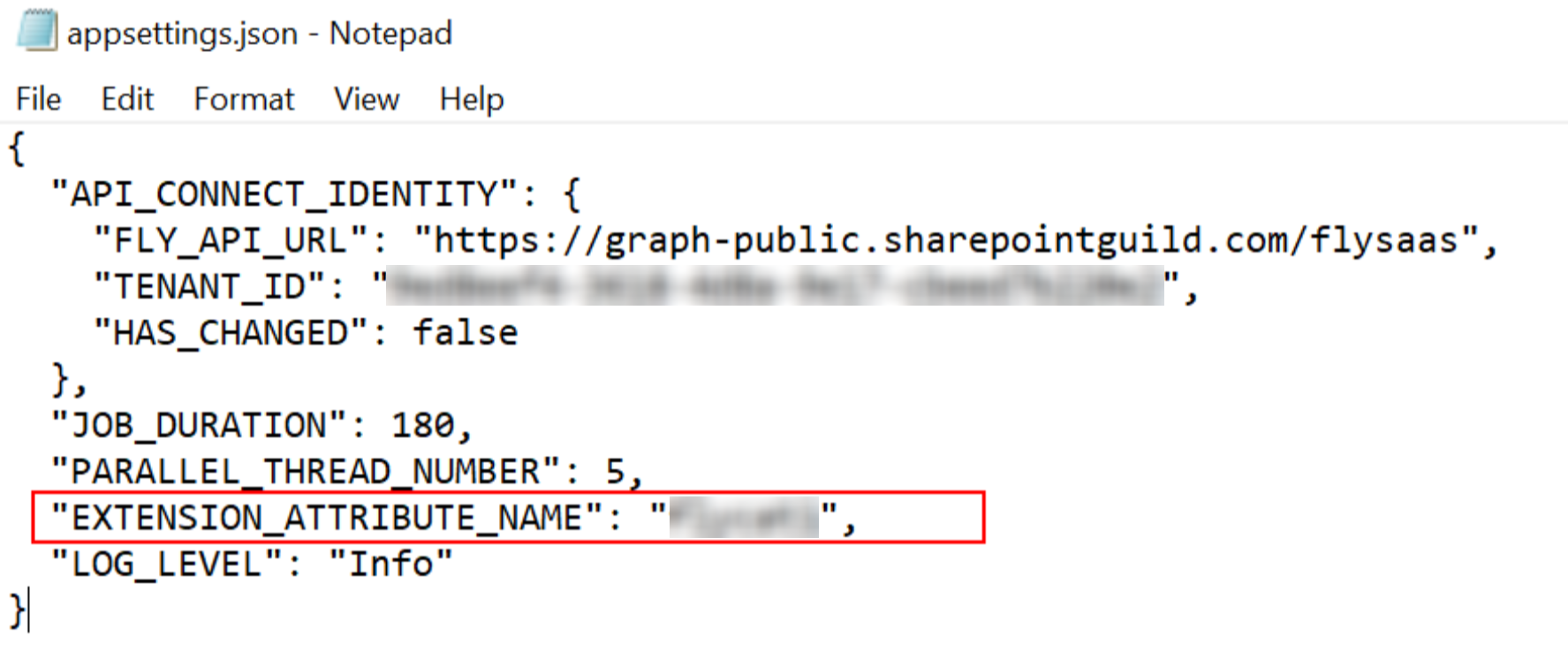
To use your own custom attribute instead of the default flymigrationExtensionAttribute by completing the following steps:
-
On the server where the agent is installed, navigate to...\FlyAdAgent\DestinationAgent\bin.
-
Open the appsettins.json file.
-
Add the following command:
-
Once completed, save your updates. The configured attribute will be used for migration. We recommend you restart your Fly Destination AD Agent Service for the changes to take effect.
-
-
Click Next to go to the Advanced settings step.
-
In the Advanced settings step, you can turn on the toggle to enable the Security Identifier (SID) History migration if required. Note that before performing the SID History migration, refer to the Prepare for a SID History Migration section for detailed preparation steps.
-
Once enabled, configure the following settings:
-
Source Active Directory server – Enter the host or IP: port of the source Active Directory.
-
Domain – Click Connect to retrieve the domain name of the source Active Directory.
-
Service account – Enter the account of a domain admin of the source Active Directory.
-
Password – Enter the password for the account specified above.
-
-
Click Next to go to the Import Objects step.
-
In the Import Objects step, configure the interval time for importing objects from Fly to the destination agent. The unit is Second.
-
Click Finish to finish the installation of the destination agent.
If the agent is installed on a domain controller machine, ensure you run the agent as an administrator.
Prepare for a SID History Migration
Before performing the Security Identifier (SID) History migration, you need to complete the following steps to prepare for the migration:
-
Create a local group in the source domain:
-
Open Active Directory Users and Computers.
-
Locate and right-click the required OU and select New > Group.
-
In the New Object - Group window, enter the group name using the following format: <source domain’s NetBIOS name>$$$.
For example, if the NetBIOS name of your source domain is FLY, the group name must be FLY$$$.
You can run the following commands in PowerShell to retrieve the BIOS name of your source domain: (Get-ADDomain).NetBIOSName.
NOTEThe SID History migration will fail if members are added to this newly created local group.
-
-
Enable TCP/IP client support on the source domain PDC emulator:
-
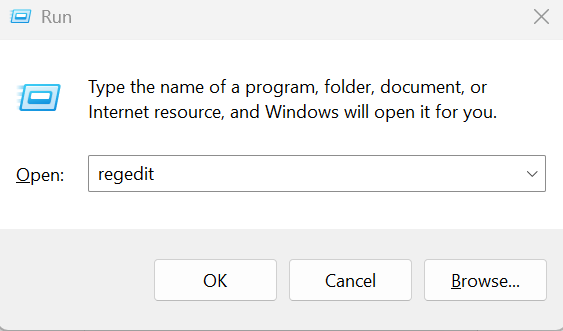
On the domain controller in the source domain that holds the PDC emulator operations master (also known as Flexible Single Master Operations or FSMO) role, navigate to Start menu> Run.
-
In the Run window, enter regedit in the Open field, then click OK.
-
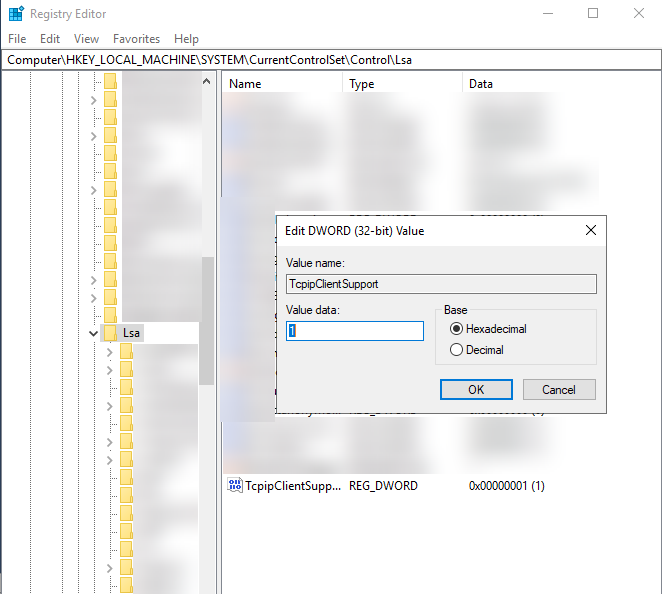
In the Registry Editor window, Go to the following registry key: HKEY_LOCAL_MACHINE\SYSTEM\CurrentControlSet\Control\LSA
-
Locate the TcpipClientSupport registry entry (type: REG_DWORD). Right-click it and select Modify....
-
In the Edit DWORD (32-bit) Value window, enter 1 in the Value data field.
-
Click OK.
-
Close Registry Editor window and restart the computer for the change to take effect.
-
-
Log on as an administrator to any domain controller in the destination and source domain.
-
Navigate to Start menu > Administrative Tools > Group Policy Management.
-
In the Group Policy Management window, navigate to Forest > Domains > Domain Name > Domain Controllers > Default Domain Controllers Policy.
-
Right-click the Default Domain Controllers Policy, and click Edit. The Group Policy Management Editor window appears.
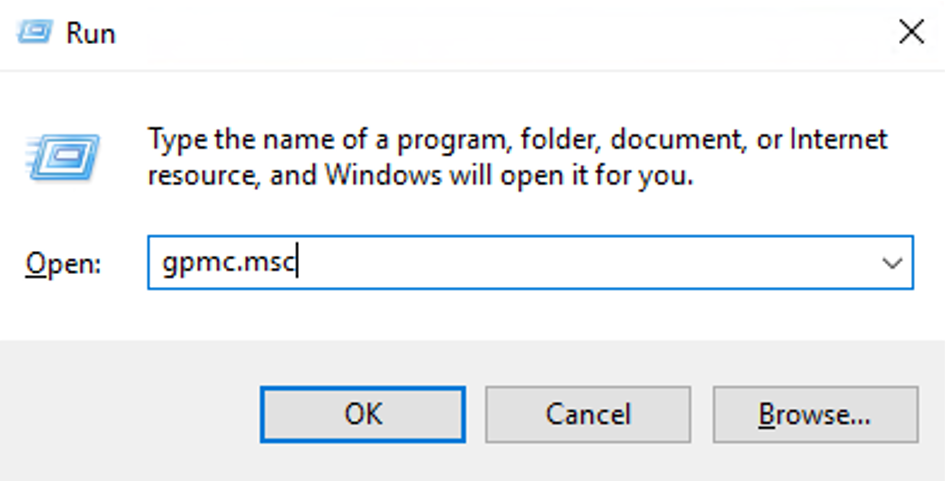
NOTEIf you cannot edit the policy, you can try to re-open the Group Policy Management Editor window by navigating to Start menu> Run. In the Run window, enter gpmc.msc in the Open field, then click OK.
-
Enable auditing in the destination and source domain by following the steps below:
-
In the Group Policy Management Editor window, navigate to Computer Configuration > Policies > Windows Settings > Security Settings > Local Policies > Audit Policy.
-
In the right pane, configure the following audit policies:
-
Audit account management policy – Right-click it, and then click Properties. Select Define these policy settings, select both the Success and Failure checkboxes. Click Apply then OK.
-
Audit directory service access – Right-click it, and then click Properties. Select Define these policy settings, select the Success checkbox. Click Apply then OK.
-
-
To apply the policy immediately, open an elevated Command Prompt and run the following command: gpupdate /force.
-
-
Enable the advanced audit policy in the source and destination domain by following the steps below:
-
In the Group Policy Management Editor window, navigate to Computer Configuration > Policies > Windows Settings > Security Settings > Advanced Audit Policy Configuration > Audit Policies > Account Management.
-
In the right pane, configure the following policies by right-clicking each one and selecting Properties. Then click Configure, select both the Success and Failure checkboxes, and click Apply and then OK.
-
Audit Application Group Management
-
Audit Computer Account Management
-
Audit Distribution Group Management
-
Audit Other Account Management Events
-
Audit Security Group Management
-
Audit User Account Management
-
-
In the Group Policy Management Editor window, navigate to Computer Configuration > Policies > Windows Settings > Security Settings > Advanced Audit Policy Configuration > Audit Policies > DS Access.
-
In the right pane, configure the following policies by right-clicking each one and selecting Properties. Then click Configure, select the Success checkbox, and click Apply and then OK:
-
Audit Detailed Directory Service Replication
-
Audit Directory Service Access
-
Audit Directory Service Changes
-
Audit Directory Service Replication
-
-
To apply the policy immediately, open an elevated Command Prompt and run the following command: gpupdate /force.
NOTEYou may also need to restart the domain controller for auditing to take effect. Even if the group policy for domain auditing is applied to the default domain controller, the server audit setting on the primary domain controller (PDC) may still be disabled. Confirm that this setting is enabled in the local security policy on the PDC. If it is not enabled, use the local security policy to enable it.
-
Set up Trust Between Domain Controllers
Refer to the following steps to set up trust between two domain controllers:
-
Open the DNS Manager console on your local domain controller.
-
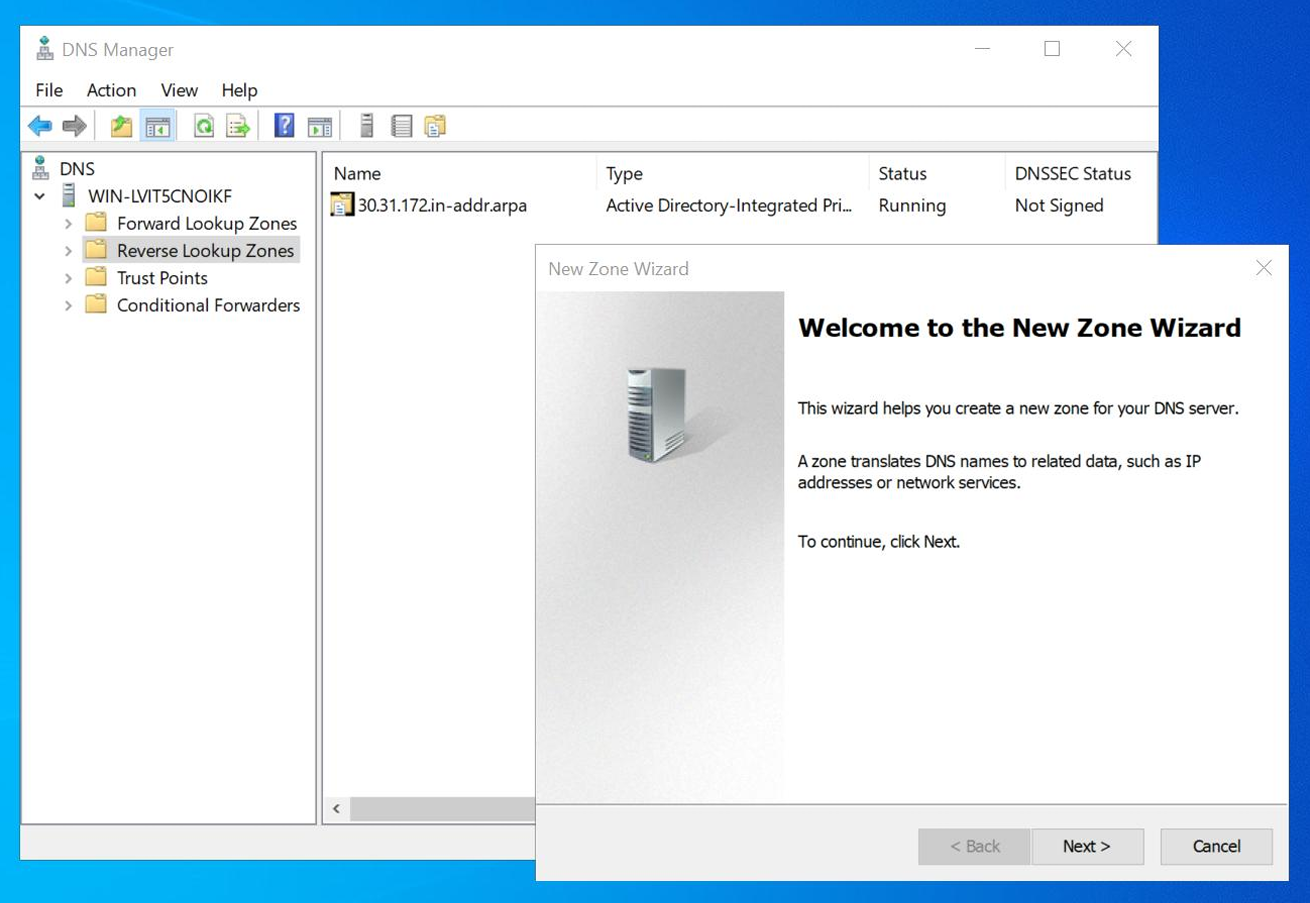
In the left-hand navigation pane, locate and expand your active server node. Right-click directly on the Reverse Lookup Zones folder and select New Zone.
-
On the Welcome to the New Zone Wizard page, click Next to begin the configuration process.
-
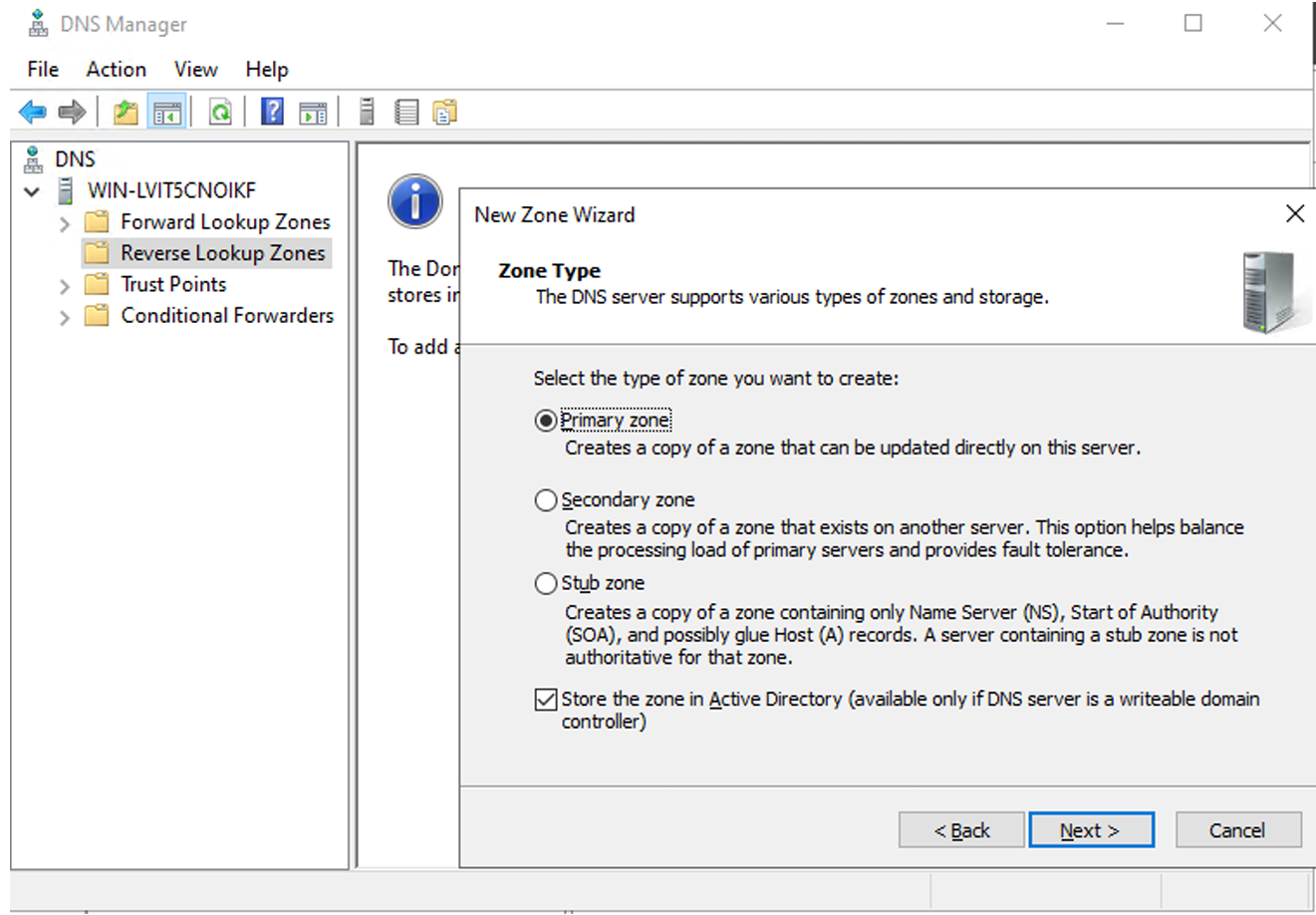
On the Zone Type page, select Primary zone and Store the zone in Active Directory, and then click Next.
-
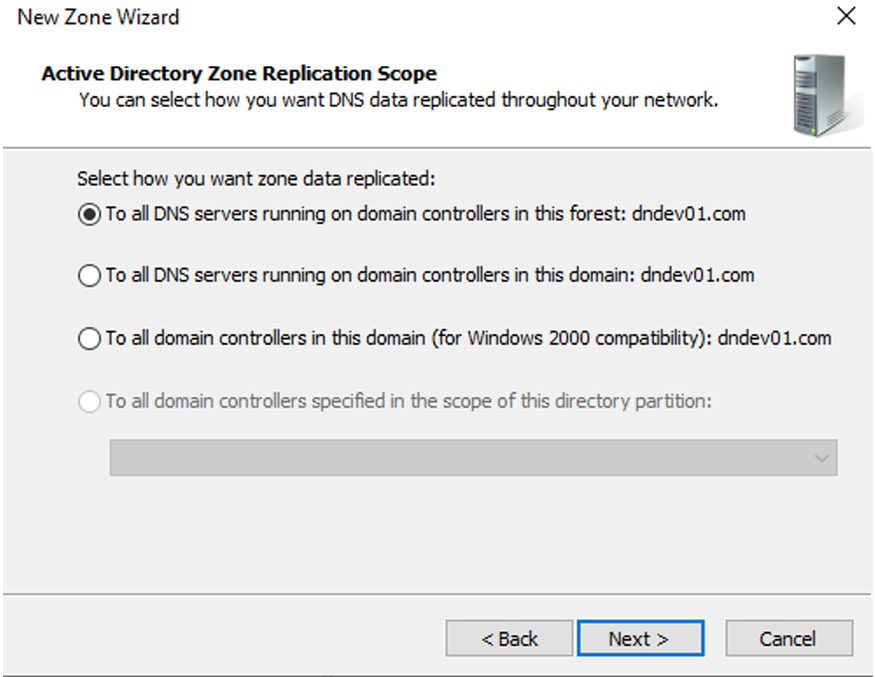
On the Active Directory Zone Replication Scope page, select To all DNS servers running on domain controllers in this forest and then click Next.
-
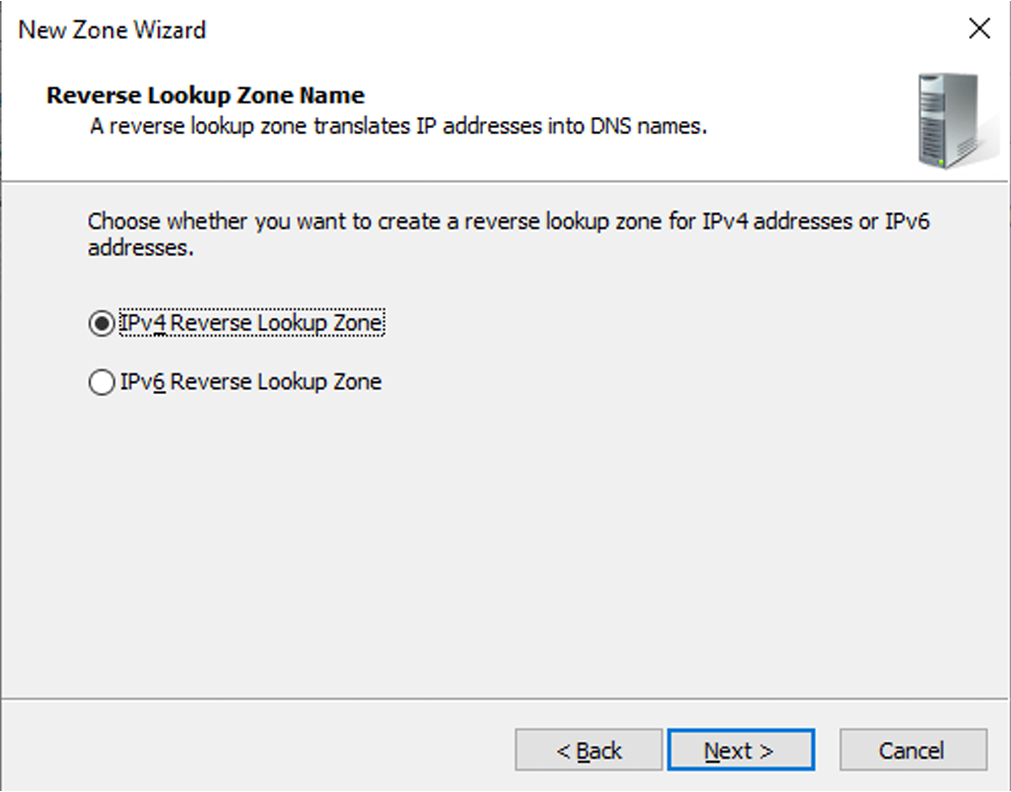
On the Reverse Lookup Zone Name page, select IPv4 Reverse Lookup Zone and then click Next.
-
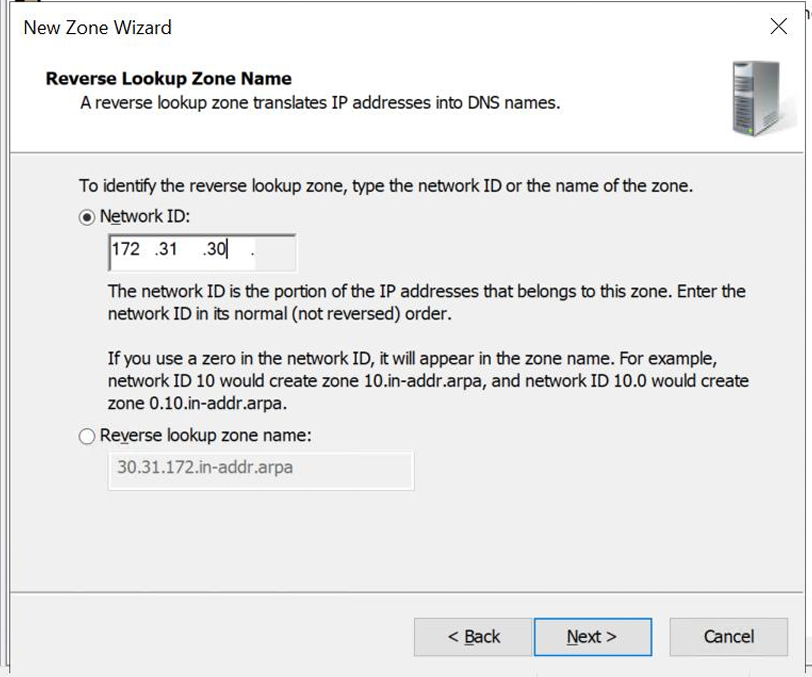
Select Network ID, enter the IP address of your destination and then click Next.
-
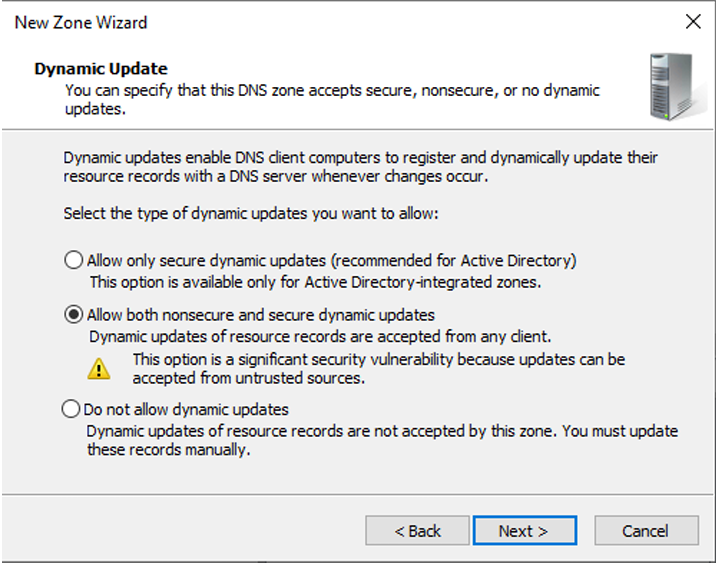
On the Dynamic Update page, select Allow both nonsecure and secure dynamic updates.
-
Click Next to finalize and then create the zone.
-
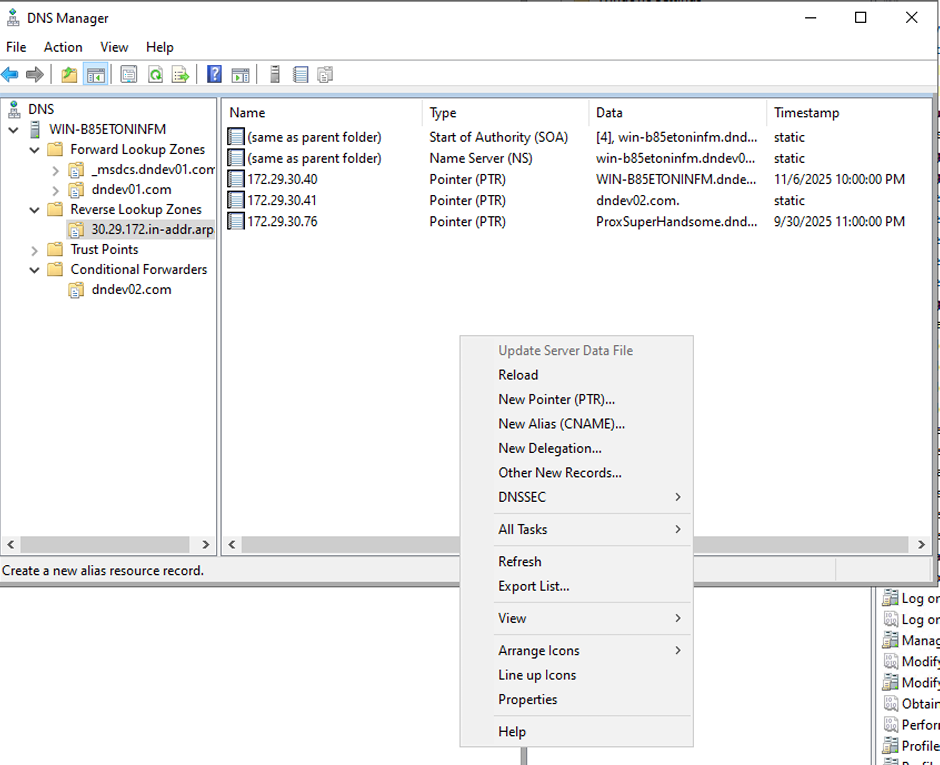
After creating the reverse lookup zone, expand the Reverse Lookup Zones folder within the DNS Manager console and then click the specific network zone you created.
-
Right-click in the empty space in the right-hand pane and then select New Pointer (PTR).
-
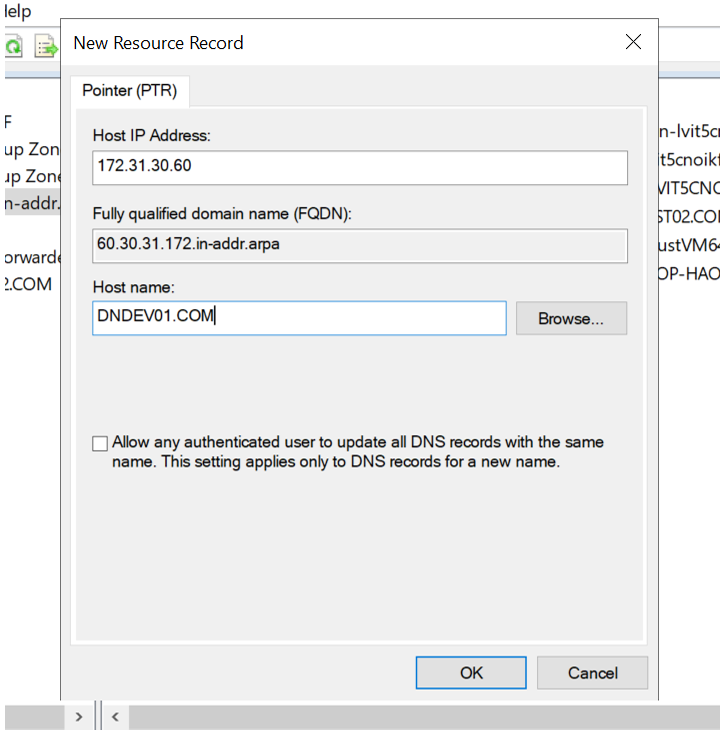
On the New Resource Record page, enter the IP address of the destination server in Host IP Address.
-
Enter the domain name of the target server in Host name. You can also click Browse to locate the server record directly if it is already visible on the network. Then, click OK.
-
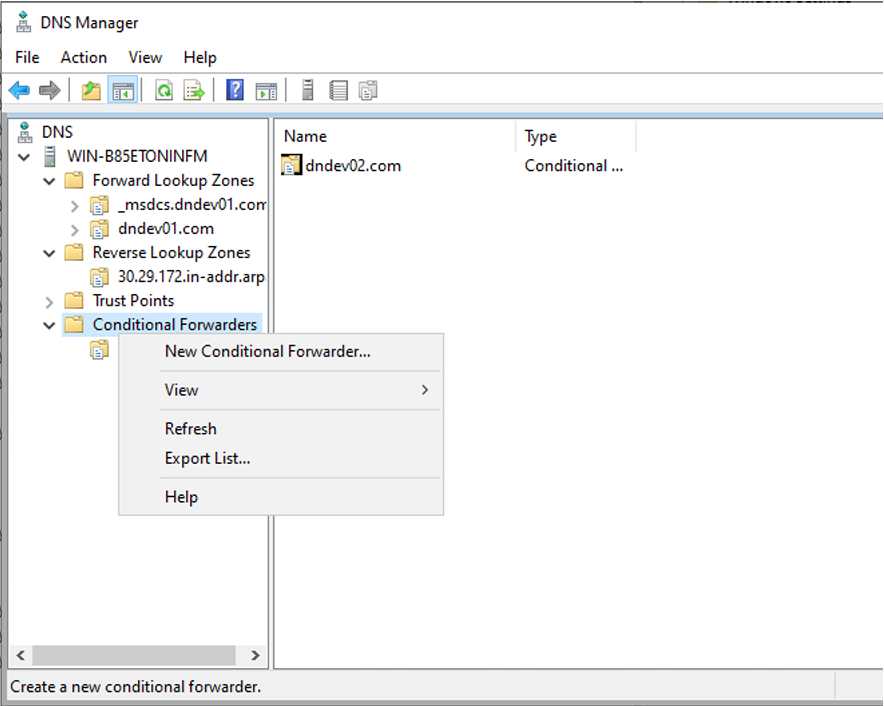
In the left pane of DNS Manager, right-click the Conditional Forwarders folder and then select New Conditional Forwarder....
-
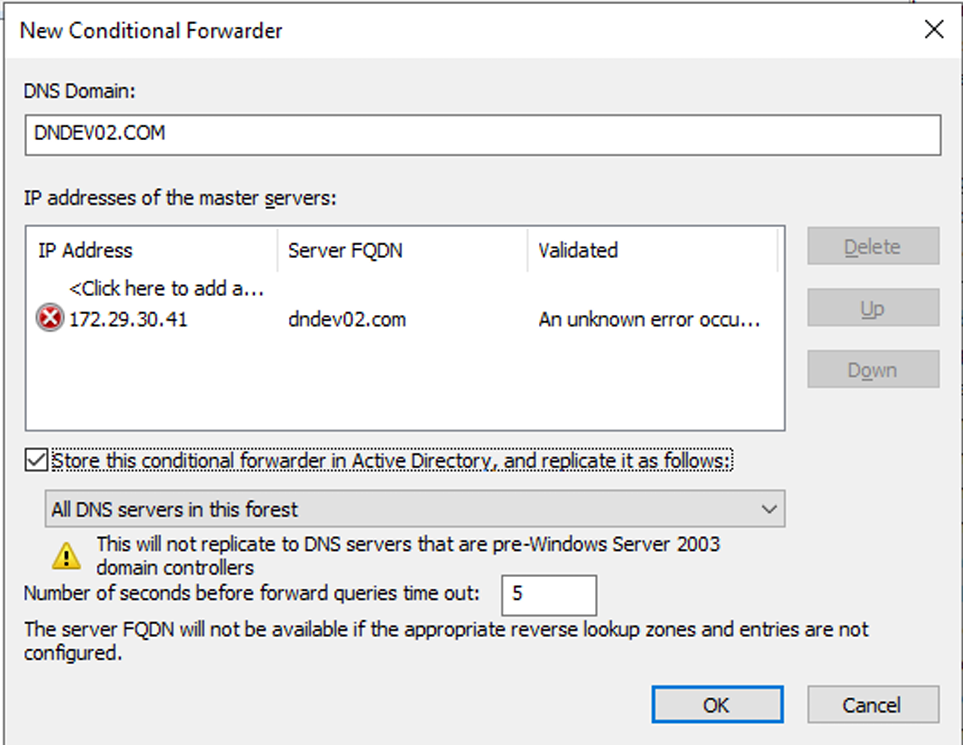
On the New Conditional Forwarder page, enter the domain name of the destination domain in DNS Domain.
-
Click Click here to add a... and add the IP address of the destination server.
-
Select the checkbox of Store this conditional forwarder in Active Directory, and replicate it as follows: and select All DNS servers in this forest from the dropdown list. Then, click OK.
-
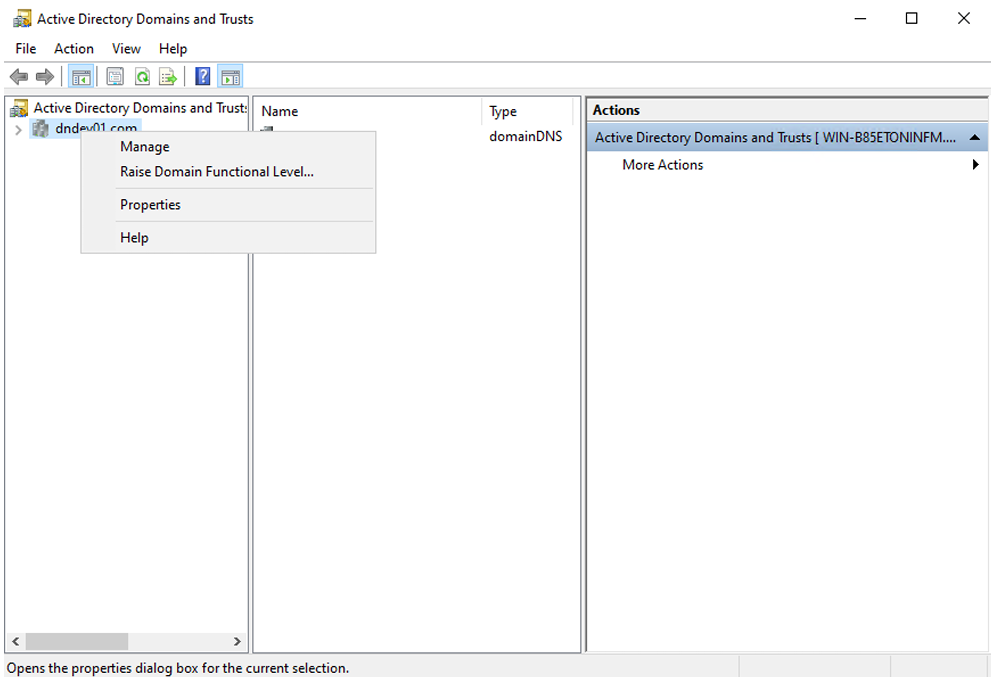
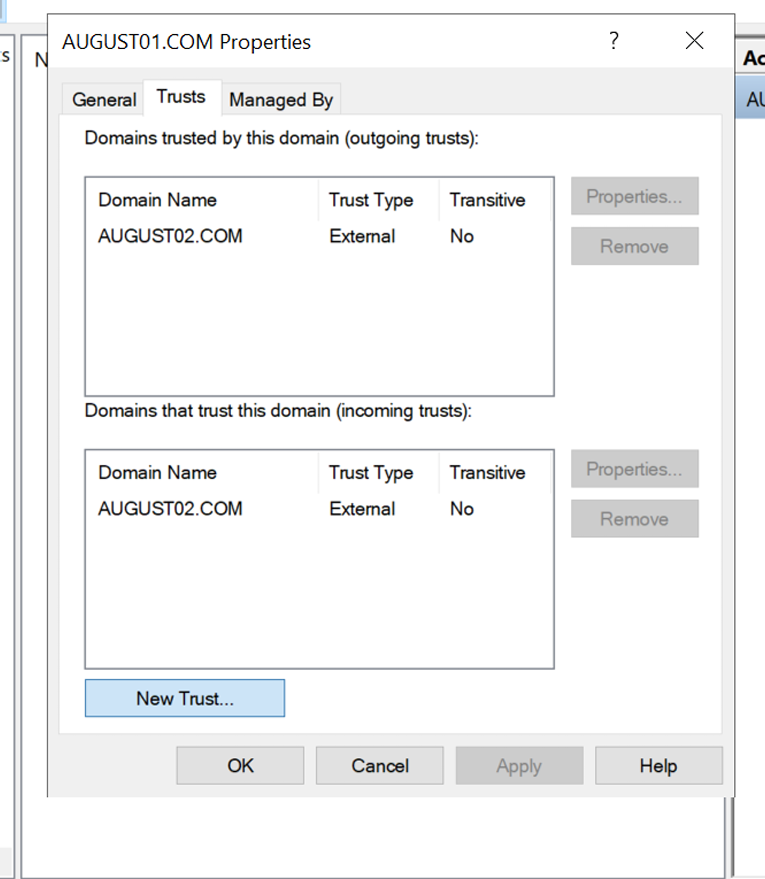
Open the Active Directory Domains and Trusts management console, right-click your domain name in the left-hand navigation pane and then select Properties.
-
Click Trusts tab and then click New Trust....
-
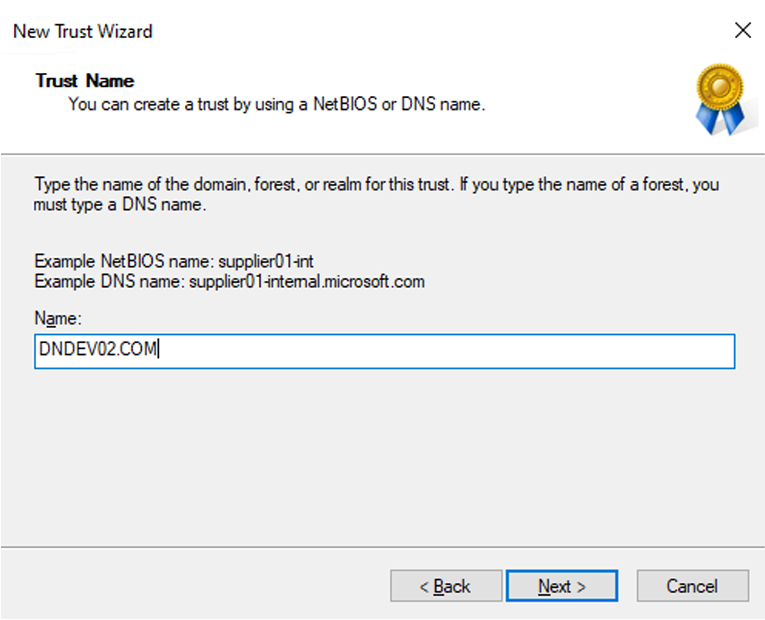
On the Trust Name page, enter the DNS Domain name in Name and then click Next.
-
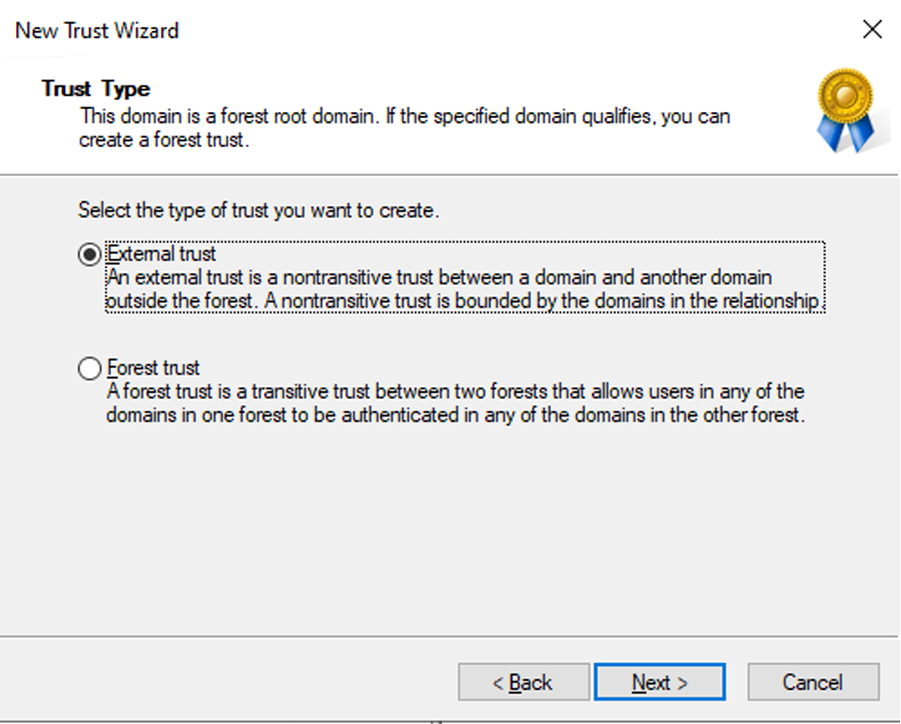
On the Trust Type page, select External trust and then click Next.
-
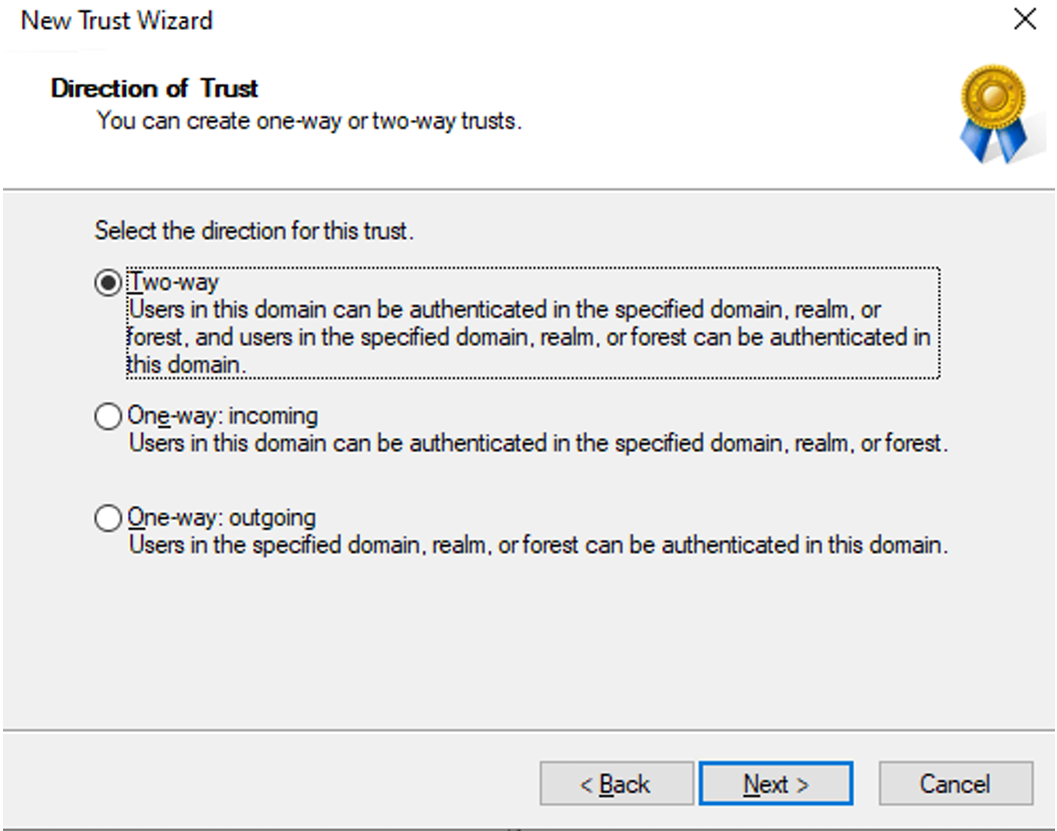
On the Direction of Trust page, select Two-way and then click Next.
-
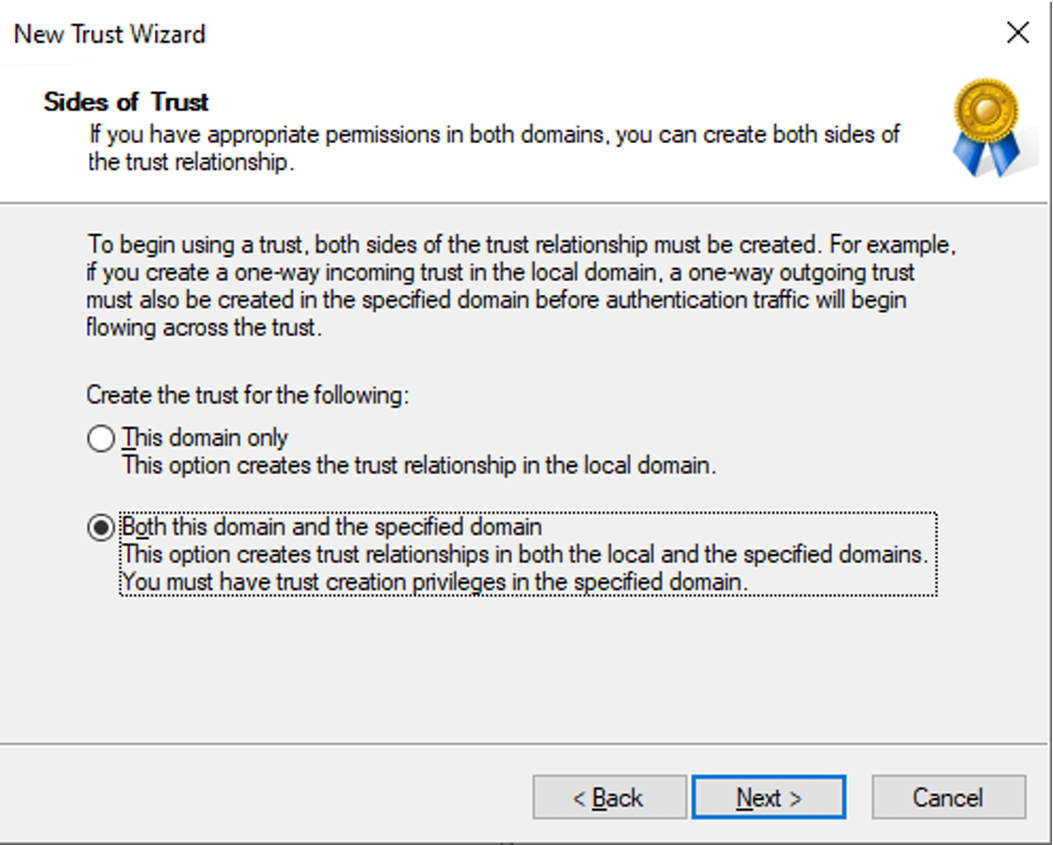
On the Sides of Trust page, select Both this domain and the specified domain and then click Next.
-
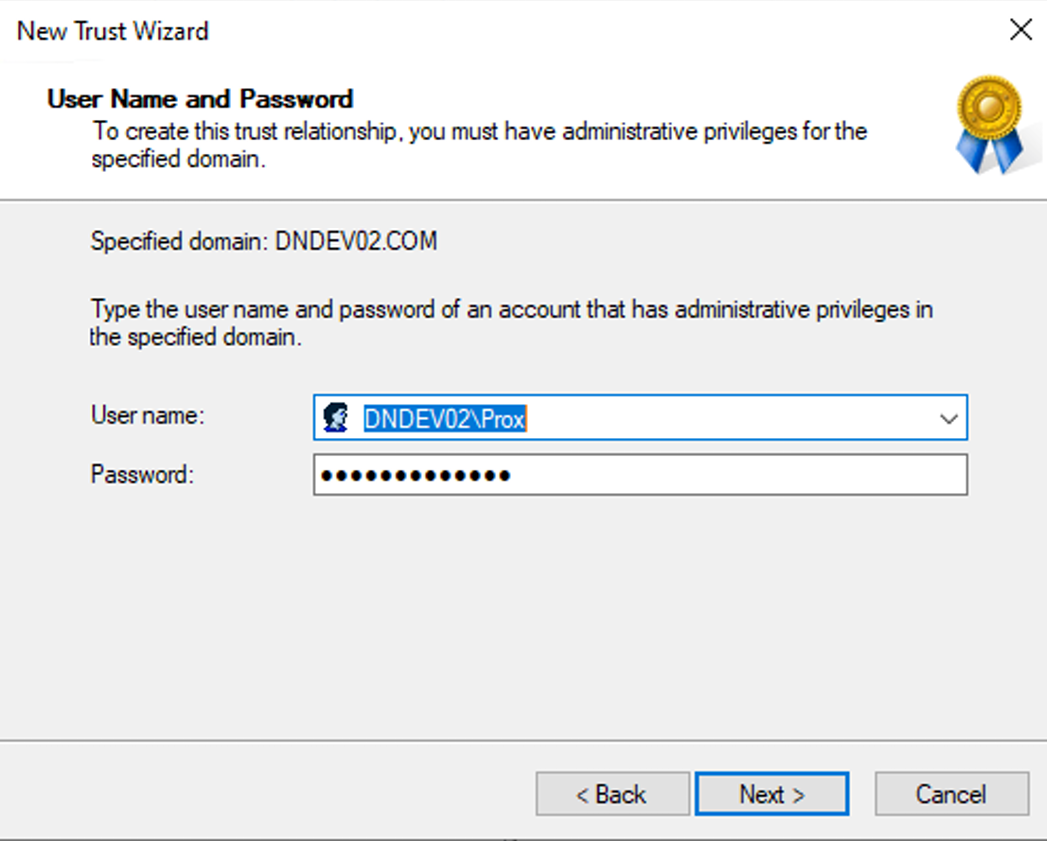
On the User Name and Password page, enter a valid administrator username for the destination domain and the corresponding password, and then click Next.
-
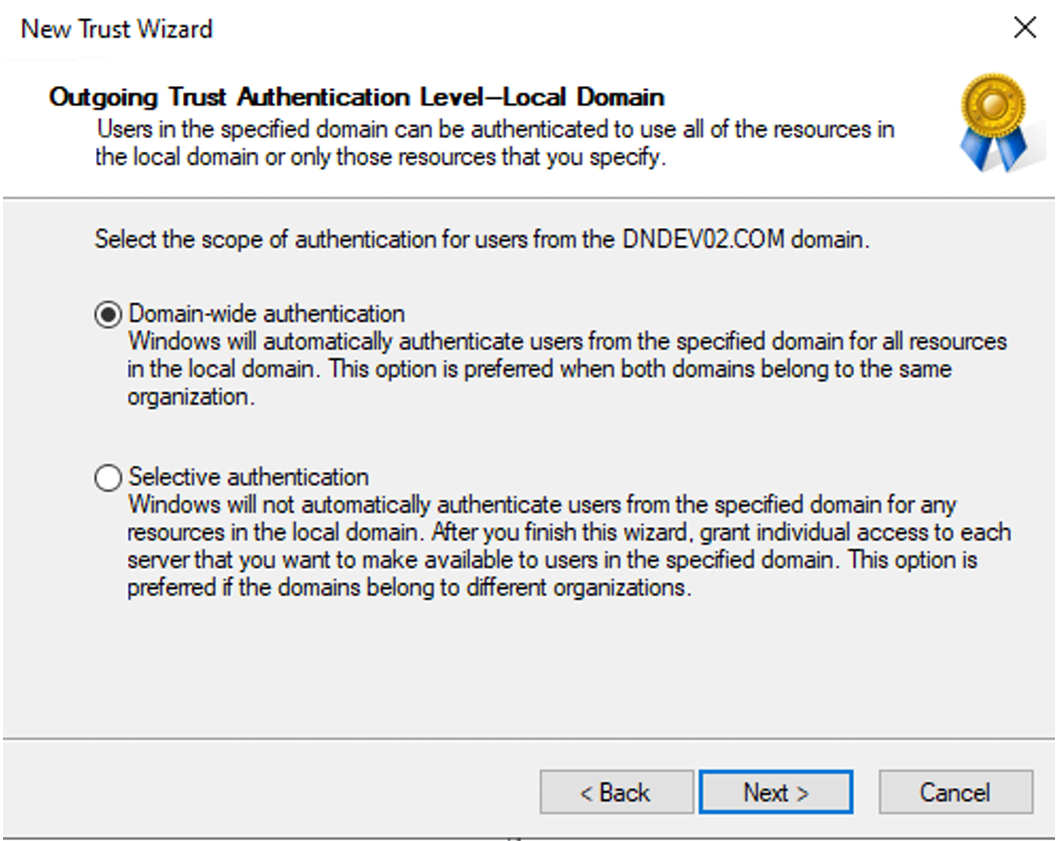
On the Outgoing Trust Authentication Level - Local Domain page, select Domain-wide authentication and then click Next.
-
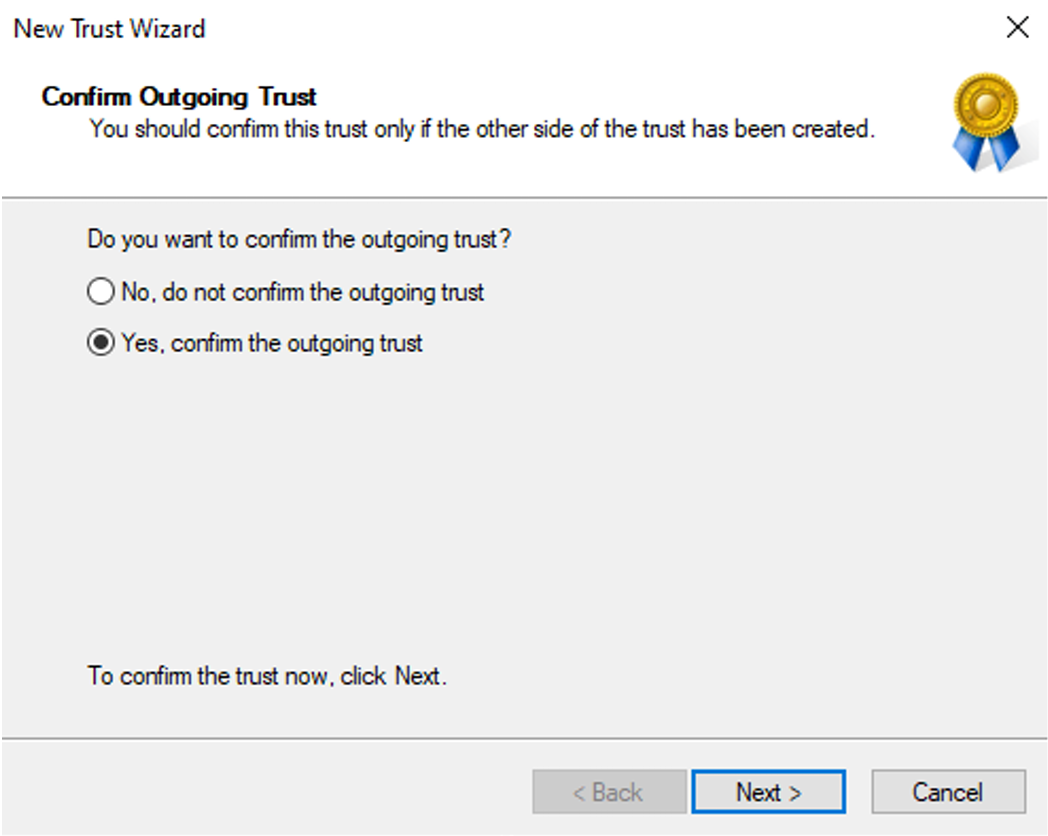
On the Confirm Outgoing Trust page, select Yes, confirm the outgoing trust and then click Next.
-
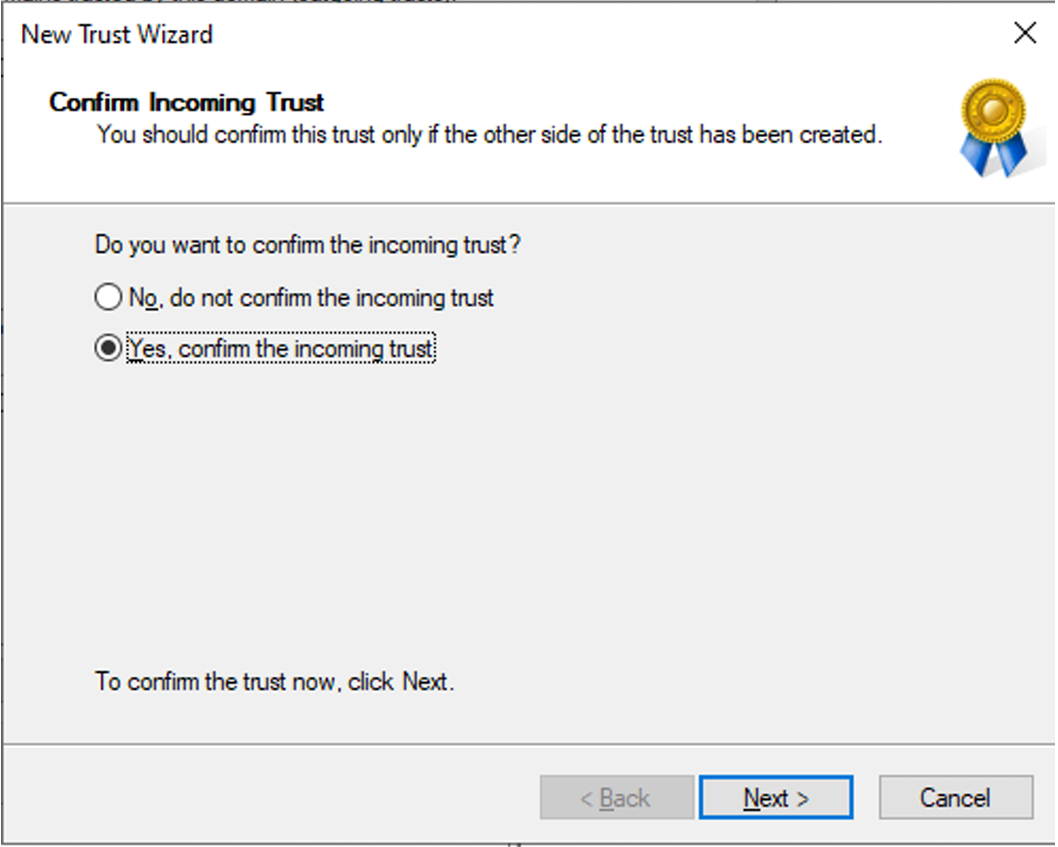
On the Confirm Incoming Trust page, select Yes, confirm the incoming trust and then click Next to finalize the configuration.
Account Permissions
To perform a SID History migration, specific permissions must be configured in both the source and target domains:
-
Migrate SID History permissions in the destination domain. This is typically granted to Domain Admins and Enterprise Admins by default.
-
To grant this permission to a specific user or group:
-
Open Active Directory Users and Computers.
-
Right-click your destination domain and select Properties.
-
In the Properties window, click Security tab.
-
Click Add to add required groups and users, or select an existing one to update.
-
In the Permissions for Everyone section, select the Allow checkbox for Migrate SID history.
-
Click Apply then OK.
-
-
Source credential’s administrator access to the source PDC emulator. This is typically granted to Domain Admins and Enterprise Admins by default.
-
To grant this permission to a specific user or group:
-
Open Active Directory Users and Computers.
-
Navigate to the Builtin container and double-click the Administrators group.
-
On the Members tab, check if the source service account is a member of the group. If not, click Add to add the source service account.
-
Click Apply then OK.
-
Configure Server Certificate
LDAP over SSL (LDAPS) requires a valid server certificate to be bound to the domain controller. Refer to the following approaches to configure a server certificate for the Active Directory secure port (LDAPS):
-
Certificate Authority (CA) – A Certificate Authority issues trusted certificates for the domain. Refer to the domain controller's position in the Active Directory forest, the following two types are available:
-
Enterprise CA – Recommended for production Root Domain Controllers.
-
Sub-domain CA (self-signed chain) – Required for sub-domain Domain Controllers.
NOTEEnterprise CA on sub-domains is not supported by Microsoft.
-
-
Self-signed Certificate – Recommended for quick setup/lab environments — no CA required.
Certificate Authority (CA)
Root Domain Controllers
You can run the following command in Windows PowerShell to install and configure the Active Directory Certificate Services role:
If an error occurs during the installation, please restart the Domain Controller and try again.
Sub-domain Domain Controllers
You can run the following command in Windows PowerShell to create a self-signed Root CA and uses it to issue a signed LDAPS certificate.
After running the command, copy RootCA-<domain>.cer to every client machine that needs LDAPS access and import it into Cert:\LocalMachine\Root.
Self-signed Certificate
For quick setup or lab environments where a CA is not available, you can run the following command in Windows PowerShell to create and configure a self-signed certificate:
After running the command, import the .cer file into Cert:\LocalMachine\Root on each client machine to make clients trust the certificate.
Client machines will show a certificate warning if you do not import the .cer file into their Trusted Root Certification Authorities store.