
Home > Appendices > Fly App Profile Permissions > How to Check and Activate Microsoft Rights Management Service?
Download this articleHow to Check and Activate Microsoft Rights Management Service?
When your app profile using the Fly app cannot be created or authorized, you can check if it is caused by the lack of Microsoft Rights Management Service subscription:
-
When the authentication error occurs after you authorize the app, navigate to the Developer Tools interface by pressing F12 on the keyboard.
-
Check the information under the Console tab.
-
If you can find the access denied error shown in the screenshot below, the error is caused by the lack of Microsoft Rights Management Service subscription.

For this error, we provide you with the following two solutions:
-
Purchase and apply any of the licenses that can provide the rights for a user. After applying the license, assign the license to the authentication user. Refer to Microsoft 365 Guidance for the available licenses.
-
Solve it via Graph Explorer.
-
Log in to Graph Explorer using your Global Administrator account with required permissions. Refer to Create servicePrincipal to view the required permissions.
-
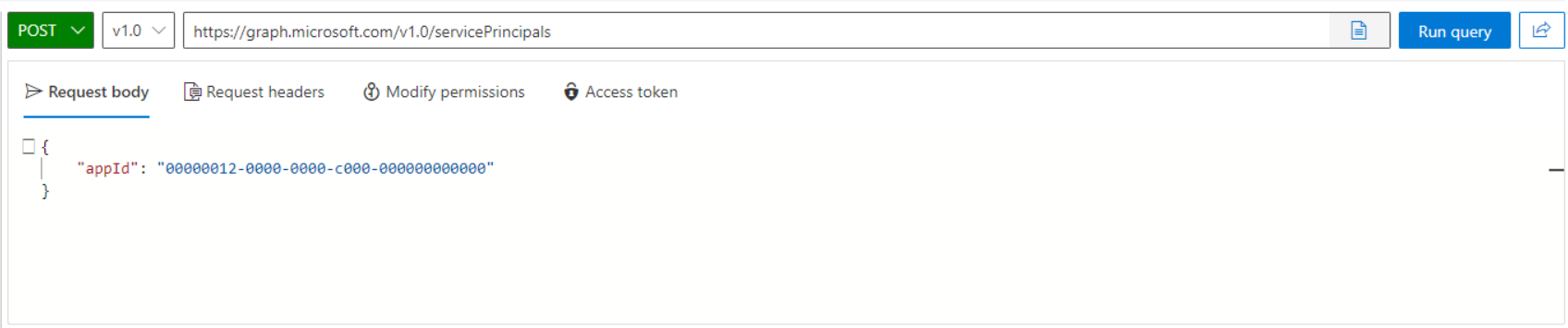
Create a new servicePrincipal object using the following request:
-
Request body:
 NOTE
NOTEEnter the app ID of Microsoft Rights Management Service (00000012-0000-0000-c000-000000000000) in the appId field even if this is different from the app ID reported in the error message.
-
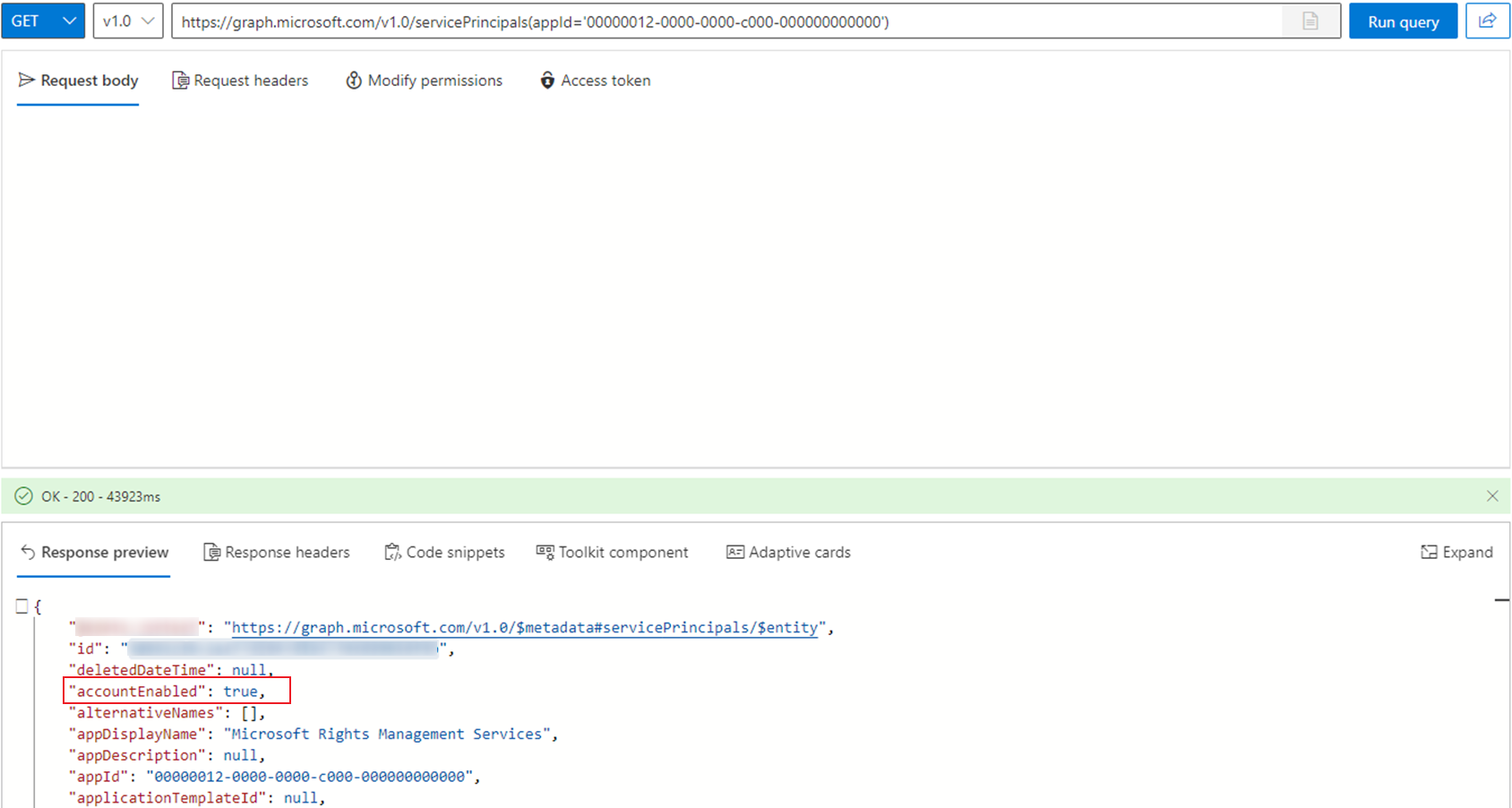
Check if the AccountEnabled value is true using the following request:
-
If the AccountEnabled value is false in the response, enable it using the following request:
Replace {id} with the id value in step iii.
Request body:
-