
Home > Perform Active Directory Migrations > Create a Migration Policy
Download this articleCreate a Migration Policy
An Active Directory migration policy allows you to define how to map the source and destination Active Directory objects and how to create users in the destination Active Directory, configure the conflict resolutions, migration options, and other settings.
Refer to the following steps to configure a migration policy for Active Directory migrations:
-
Click Policies under Settings in the left pane.
-
Click Migration policies to access the Migration policies page.
-
Click the Active Directory tab.
-
Click Create migration policy. The Create migration policy panel appears.
-
Enter a name and an optional description for the policy, and then click Next.
-
In the What do you want to migrate? Section, configure how to map the source and destination Active Directory objects and how to create users in the destination Active Directory:
-
How to map the source and destination Active Directory objects? – Select the attributes you want to map for the source and destination objects from the corresponding drop-down list.
-
You can click the Add button to add more mappings, or click the Remove button to remove an added mapping.
Fly will use the first attribute mapping to map an object. If the object cannot be mapped, Fly will try to map it using the second attribute mapping, and so on. If no destination object can be mapped using the configured attribute mappings, Fly will create a new object in the destination Active Directory.
Note the following:
-
After Fly migrates a source object based on the attribute mappings configured in the migration policy, the GUID of the object will be saved into the Fly database. If you change the attributes of the source object and run a new migration job to migrate the object, Fly will migrate the object based on the saved GUID.
-
If the source object can be mapped to multiple destination objects based on the attribute mappings configured in the migration policy, the migration of the source object will fail.
-
-
User mapping – With a user mapping, you can map a source user/group/contact to a destination one. You can also map a domain in the source to a destination domain. Users, securities, and user-related metadata can be migrated based on user mappings. Click Add button to the right of the field to create a new one. Refer to the Create User Mappings section to view how to create a user mapping. Note that if a mapping exists in both the attribute mappings and the manually-configured user mappings, the manually-configured user mapping will take precedence and override the attribute mapping.
You can also select a previously created user mapping from the drop-down list and click View details to see its details. To find a specific user mapping, enter a keyword in the Search user mapping text box and press Enter.
NOTEWe recommend using a CSV file to import user mappings with the Active Directory agent. If a mapping is configured both manually and through CSV import, the manually configured mapping overrides the CSV mapping. Refer to the Import User Mappings for instructions on how to import user mappings.
-
How to create users in the destination Active Directory? – Select the account format of users that need to be created in the destination.
-
-
In the Conflict resolution section, configure the conflict resolution when the source object conflicts with an existing object in the destination. Refer to the following detailed information on each conflict resolution.
Resolution Conflict No Conflict Skip Ignore the conflicting object and do nothing in the destination. A new object will be created. Overwrite Overwrite the conflicting object attributes in the destination based on the source object attributes. A new object will be created. -
Click Next after you finish configuring the conflict resolutions.
-
In the Additional options & mappings step, you can configure the following settings for migrations.
-
Sync user passwords – With this checkbox selected, the passwords of users created by Fly during the migration will be synced to the destination. If the option is not selected, the newly created destination users will be unavailable after the migration.
-
Sync Security Identifier (SID) History – Select this checkbox to enable the Security Identifier (SID) History migration. Ensure that the Security Identifier (SID) History scan is enabled in the Active Directory Migration Source Agent Configuration, and that a scan job has been run first.
-
Add members to destination Active Directory groups – Select this checkbox if you want to migrate memberships of Active Directory groups.
-
Customized features – you can add customized features by entering the corresponding customized feature strings. Click Add customized feature, and then enter a customized feature string to configure a customized feature. Refer to Customized Features for Active Directory Migration for details.
-
Click Next to configure Notifications setting.
-
-
Select the Send project level notifications (all mappings within a project) checkbox and configure the settings to send migration email notifications to specific recipients after the migration. The migration email notifications are based on the project level, which summarizes the project name and the mapping count of each migration status.
-
Recurrence – Enter a positive integer to define the recurrence days for the notifications.
-
Start date and time – Select a start date and time to send the first notification. The later notifications will be sent at the selected time based on the recurrence.
If you want to configure the end date and time of the notifications, you can select the Configure end date and time checkbox and select a date and time.
-
Send migration email notifications to – Define the recipients who will receive the notifications.
-
Email template – Create an email template for the notifications by clicking the Add button. Refer to Manage Email Settings for details on how to create an email template. You can also select an existing email template from the drop-down list.
-
-
Click Save to save the migration policy.
On the Migration policies page, you can manage existing policies.
-
Set as default – Select a policy and click Set as default to set it as the default policy. The default policy will be automatically selected when you create projects.
-
Edit – Click the policy name link to edit the policy.
-
Delete – Select a policy and click Delete to delete it. You can also select multiple policies and click Delete to delete them.
-
Copy – This allows you to quickly create a new policy with similar configurations by completing the following steps:
-
Select your target policy, and click Make a copy.
You can also open your target policy, and click Make a copy on the Edit migration policy page.
-
Check the settings and make updates if necessary on the Copy migration policy page.
-
Click Save.
-
Import User Mappings
For large-scale data, you can use a CSV file to import user mappings via Active Directory agent.
To import mappings, complete the following steps:
-
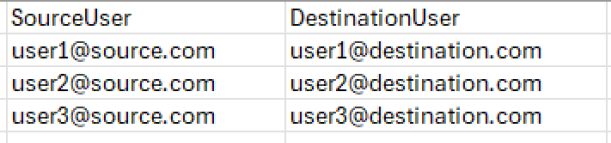
Create a CSV file containing your required user mappings with the following two columns:
-
SourceUser – Lists the source objects.
-
DestinationUser – Lists the destination objects.
-
-
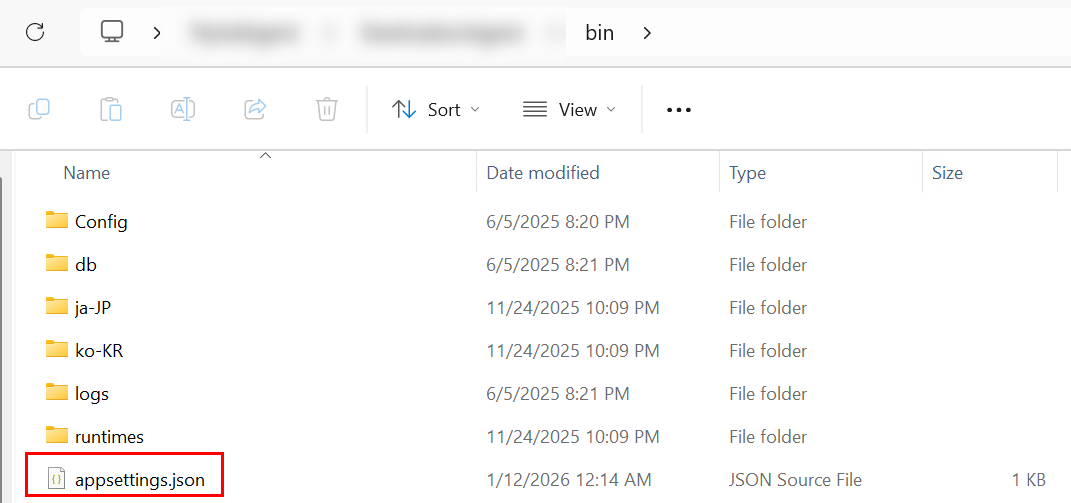
Navigate to the local installation folder of the Active Directory agent, and open the bin folder.
-
Open the appsettings.json file.
-
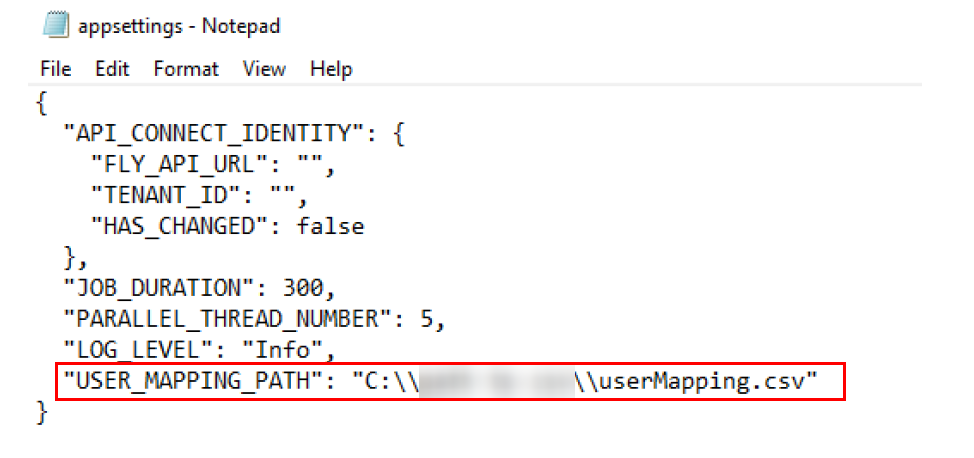
Add or update the command line parameter:
-
Replace the [file path] with the full path of the CSV file. Note that you need to use the double backslashes in the local file path.
-
Save the file.