
Home > Appendices > How to Add Custom Roles to an App?
Download this articleHow to Add Custom Roles to an App?
To add custom roles to an app, you need to add a new role group and add custom roles to the group in the Exchange admin center first, and then add the app to the group.
Refer to the following steps to add a new role group and add custom roles to the group:
-
In the Exchange admin center, go to Roles > Admin roles.
-
On the Admin roles page, click Add role group. The Add role group page appears.
-
In the Basics step, enter a name and an optional description for the group.
-
Click Next to go to the Permissions step.
-
Select the following roles for the group based on the app type.
Type Permission Name Purpose Source Mail Recipients Retrieve mailboxes when migrating mailbox permissions, migrating mailbox aliases, performing email forwarding, etc. Source Distribution Groups Required if you want to migrate distribution lists or dynamic distribution lists. Destination Mail Recipients Retrieve mailboxes when migrating mailbox permissions, migrating mailbox aliases, etc. Destination Mail Recipients Creation Required if you want to create shared mailboxes, resource mailboxes, and dynamic distribution lists in the destination. Destination Distribution Groups Required if you want to migrate distribution lists or dynamic distribution lists. Destination Security Group Creation and Membership Required if you want to create mail-enabled security groups in the destination. -
Click Next to go to the Admins step.
-
Skip the Admins step and click Next to go to the Review and finish step.
-
Click Add role group to add the group with the selected permission.
After you add a new role group, you can refer the following steps to add custom roles to the app via Windows PowerShell:
-
Connect to Exchange Online using PowerShell. Refer to Connect to Exchange Online PowerShell for details.
-
Open Windows PowerShell, enter the following command in the Windows PowerShell window, and press Enter on the keyboard to create a service principal object for application.
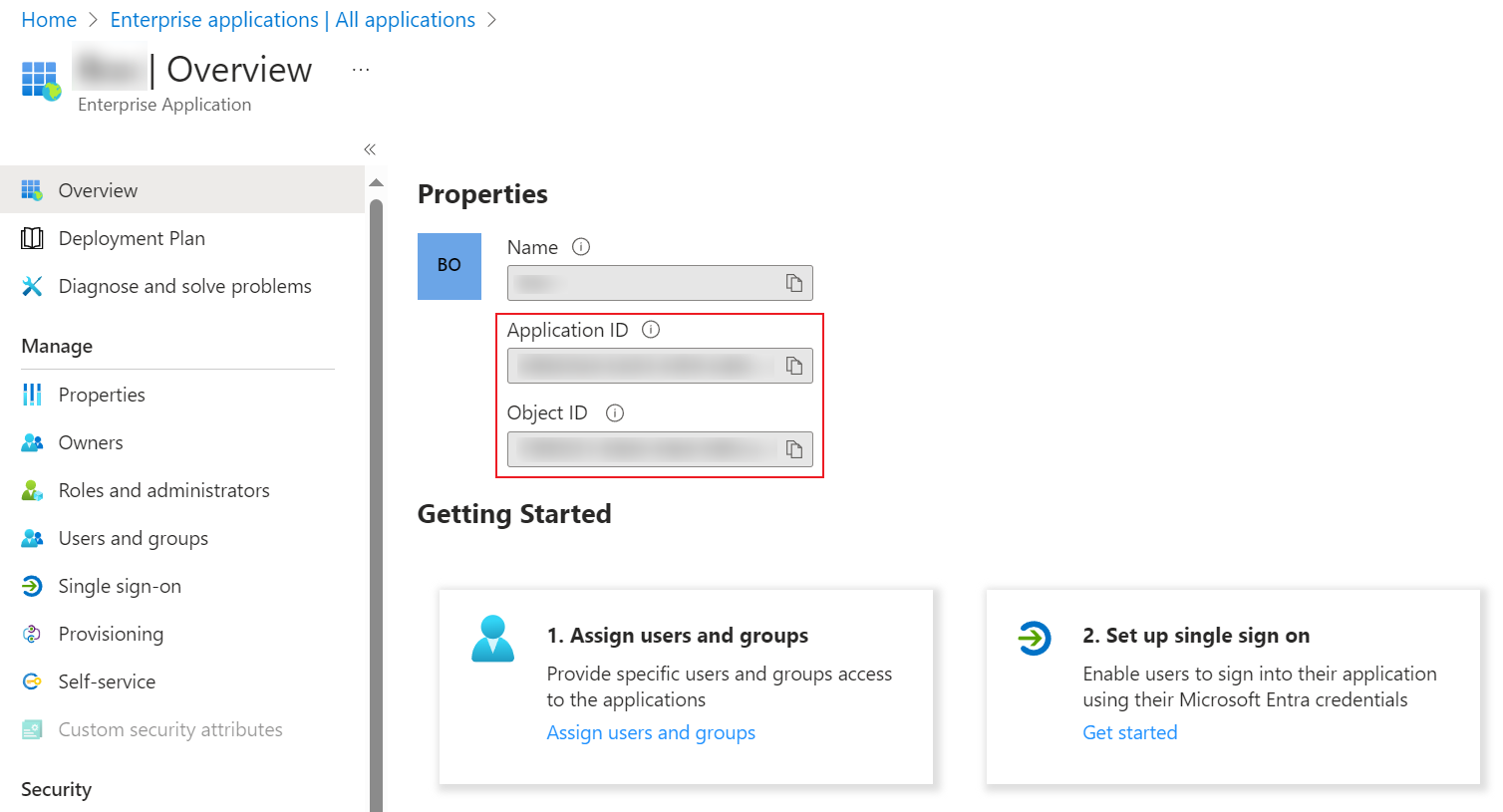
NOTETo get the application ID and object ID of an app, navigate to Microsoft Entra admin center > Identity > Applications > Enterprise applications and click the app.
-
Enter the following command, and press Enter on the keyboard to store the details of the service principal in a variable.
-
Enter the following command, and press Enter on the keyboard to add the service principal as a member of the custom role group.
-
Enter the following command, and press Enter on the keyboard to verify if the service principal has been added to the custom role group.
For more instructions, refer to App-only authentication for unattended scripts in Exchange Online PowerShell and Security & Compliance PowerShell.