
Home > Appendices > Information about Managing Sensitivity Labels
Download this articleInformation about Managing Sensitivity Labels
Before removing/applying sensitivity labels to files/emails/sites in your SharePoint Online, OneDrive, Exchange Online, Microsoft 365 Groups, Microsoft Teams, and/or Microsoft Teams Chat migrations, refer to the following information to prepare and understand known issues.
General
This covers Exchange Online, Microsoft 365 Groups, Microsoft Teams Migration, and Microsoft Teams Chat Migration.
-
If you use the service account authentication method in the source connection, make sure the service account is assigned as super user. Refer to Assign service account as super user for details.
-
If you use the service account authentication method in the destination connection, make sure the destination sensitivity labels to be applied are published to the service account.
-
If you only use the app profile authentication method in the destination connection, make sure the destination sensitivity labels of the Assign permissions now type are published to All.
-
Destination sensitivity labels to be applied should exist in the destination tenant, and Fly removes and applies sensitivity labels according to the label display names.
-
If you select the Apply same label in the destination option in the migration policy, make sure there are existing destination labels using the same display name as the source.
-
If you select the Apply labels in the destination based on label mappings option to define label mappings, configure display names for each source and destination label mapping.
-
-
There may be a time delay after a newly created sensitivity label is published. Therefore, we recommend you create and publish the destination sensitivity labels in advance before the migration.
Exchange Online
This covers Exchange Online Migration and Group mailboxes of Groups/Teams in Microsoft 365 Groups/Microsoft Teams Migration.
-
When you select to apply destination sensitivity labels to the migrated emails, the encryption settings of destination sensitivity labels must be the same as the source labels.
-
When the Assign permissions now or let users decide? setting of the sensitivity label is Let users assign permissions when they apply the label, refer to the following cases to configure user mappings based on the final domain of the destination tenant:
-
If the source and destination tenant domains are different, destination users’ email addresses will be different from those in the source. You need to configure user mappings for these users.
-
If the source and destination tenant domains are the same after cutover, users’ email addresses in the source and destination will also be the same. You do not need to configure user mappings for these users.
-
-
If you select to keep the source sensitivity labels of the emails to the destination, the email addresses in source emails cannot be replaced in the destination.
-
If you pin emails with sensitivity labels applied on the top and select to remove the source sensitivity labels from the emails, the emails cannot be pinned on the top in the destination after the migration due to Microsoft 365 API limitations.
-
If users assign built-in archive and/or retention policies to emails with sensitivity labels applied, and you select to remove source sensitivity labels from the emails and apply destination sensitivity labels, the assigned built-in policies cannot be kept in the destination after the migration due to Microsoft 365 API limitations.
To manage sensitivity labels for emails, also note the following issues:
-
The source content making settings, including headers, footers, and watermarks, cannot be removed from files or emails due to Microsoft API limitations. In this case, though destination sensitivity labels are applied to the files and emails, the files and emails only have source content making settings.
-
Fly does not support removing or applying sensitivity labels that have the Use Double Key Encryption option selected.
-
Sensitivity labels applied to the emails that are not encrypted cannot be migrated.
SharePoint Sites
This covers SharePoint Online Migration, OneDrive Migration, and sites of Groups/Teams/chat users in Microsoft 365 Groups/Microsoft Teams/Microsoft Teams Chat Migration.
-
Before migrating PDF files with sensitivity labels applied, refer to the following steps to prepare for the migration:
-
Right-click Windows PowerShell and click Run as administrator. Enter the following command to connect to the SharePoint admin center.
Enter the SharePoint central admin URL as the attribute value and press Enter on the keyboard. Then, the Microsoft sign in page appears, sign in with a Microsoft 365 Global Administrator account to continue the execution.
-
Enter the following command and press Enter on the keyboard to enable sensitivity labels for PDF files.
-
-
Source sensitivity labels of the Assign permissions now type are not supported to map to destination sensitivity labels of the Let users assign permissions type.
-
For source sensitivity labels of the Assign permissions now type, Fly supports mapping the defined users based on user mappings or the User principal name Prefix/Email address prefix property.
-
If Fly fails to apply destination sensitivity labels to destination sites, Fly will continue the migration job, and will report the error for the sites in the migration job report.
-
If source sensitivity labels are newly applied or updated for source sites after a migration job, the updated Sensitivity setting of the source sites will not be kept to the destination in the next incremental job.
-
For sensitivity columns, the values of sensitivity columns are synced by Microsoft's backend. After the migration, it cannot be ensured whether the column values can be displayed. The names of labels of the Assign permission now type may be displayed as the values in the column, while the names of labels of the Let user assign permissions when they apply the label type cannot be displayed.
-
For PDF files with sensitivity labels applied, if the sensitivity labels are not displayed in the library where the files are stored, Fly cannot process the sensitivity labels in the migration.
-
After the migration, the label classification may not be displayed in Content explorer immediately. Labels will be displayed when the Microsoft backend timer job is finished. Refer to Get started with content explorer for details.
Migration Results of Sensitivity Labels
Refer to the following sections for the migration results of sensitivity labels in different workspaces and situations.
Exchange Online Migration
Refer to the following table for the migration results of sensitivity labels in different situations.
| Source Label Type | If Source Email has Label | If Source Attachment has Label | If Destination Label Exists | Migration result | Comment |
|---|---|---|---|---|---|
| Encrypted | Yes | No | No | Failed with the error code: EX-LabelNotFound. | You select the Apply same label in the destination or Apply labels in the destination based on label mappings option, and configure the MigrateLabelsForEmailAttachments=2 customized feature string in the migration policy. |
| Encrypted | No | Yes | No | Failed with the error code: EX-LabelNotFound. | You select the Apply same label in the destination or Apply labels in the destination based on label mappings option, and configure the MigrateLabelsForEmailAttachments=2 customized feature string in the migration policy. |
| Encrypted | Yes | Yes | No | Failed with the error code: EX-LabelNotFound. | You select the Apply same label in the destination or Apply labels in the destination based on label mappings option, and configure the MigrateLabelsForEmailAttachments=2 customized feature string in the migration policy. |
| Encrypted | Yes | No | Yes | Success. Source email label has been replaced with the destination label, and the attachment has no label applied. | You select the Apply same label in the destination or Apply labels in the destination based on label mappings option, and configure the MigrateLabelsForEmailAttachments=2 customized feature string in the migration policy. |
| Encrypted | No | Yes | Yes | Success. Migrated email has no label applied, and the attachment label has been replaced with the destination label. | You select the Apply same label in the destination or Apply labels in the destination based on label mappings option, and configure the MigrateLabelsForEmailAttachments=2 customized feature string in the migration policy. |
| Encrypted | Yes | Yes | Yes | Success. Labels of the migrated email and attachment have been replaced with the destination labels. | You select the Apply same label in the destination or Apply labels in the destination based on label mappings option, and configure the MigrateLabelsForEmailAttachments=2 customized feature string in the migration policy. |
| Non-encrypted | Yes | No | No | Failed with the error code: EX-LabelNotFound. | You select the Apply same label in the destination or Apply labels in the destination based on label mappings option, and configure the MigrateLabelsForEmailAttachments=2 customized feature string in the migration policy. |
| Non-encrypted | No | Yes | No | Failed with the error code: EX-LabelNotFound. | You select the Apply same label in the destination or Apply labels in the destination based on label mappings option, and configure the MigrateLabelsForEmailAttachments=2 customized feature string in the migration policy. |
| Non-encrypted | Yes | Yes | No | Failed with the error code: EX-LabelNotFound. | You select the Apply same label in the destination or Apply labels in the destination based on label mappings option, and configure the MigrateLabelsForEmailAttachments=2 customized feature string in the migration policy. |
| Non-encrypted | Yes | No | Yes | Success. Source email label has been replaced with the destination label, and the attachment has no label applied. | You select the Apply same label in the destination or Apply labels in the destination based on label mappings option, and configure the MigrateLabelsForEmailAttachments=2 customized feature string in the migration policy. |
| Non-encrypted | No | Yes | Yes | Success. Migrated email has no label applied, and the attachment label has been replaced with the destination label. | You select the Apply same label in the destination or Apply labels in the destination based on label mappings option, and configure the MigrateLabelsForEmailAttachments=2 customized feature string in the migration policy. |
| Non-encrypted | Yes | Yes | Yes | Success. Labels of the migrated email and attachment have been replaced with the destination labels. | You select the Apply same label in the destination or Apply labels in the destination based on label mappings option, and configure the MigrateLabelsForEmailAttachments=2 customized feature string in the migration policy. |
| Encrypted | Yes | No | No | Failed with the error code: EX-LabelNotFound. | You select the Apply same label in the destination or Apply labels in the destination based on label mappings option, and configure the MigrateLabelsForEmailAttachments=1 customized feature string in the migration policy. |
| Encrypted | No | Yes | No | Success. Migrated email has no label applied, and the source attachment label has been kept. | You select the Apply same label in the destination or Apply labels in the destination based on label mappings option, and configure the MigrateLabelsForEmailAttachments=1 customized feature string in the migration policy. |
| Encrypted | Yes | Yes | No | Failed with the error code: EX-LabelNotFound. | You select the Apply same label in the destination or Apply labels in the destination based on label mappings option, and configure the MigrateLabelsForEmailAttachments=1 customized feature string in the migration policy. |
| Encrypted | Yes | No | Yes | Success. Source email label has been replaced with the destination label, and the attachment has no label applied. | You select the Apply same label in the destination or Apply labels in the destination based on label mappings option, and configure the MigrateLabelsForEmailAttachments=1 customized feature string in the migration policy. |
| Encrypted | No | Yes | Yes | Success. Migrated email has no label applied, and the source attachment label has been kept. | You select the Apply same label in the destination or Apply labels in the destination based on label mappings option, and configure the MigrateLabelsForEmailAttachments=1 customized feature string in the migration policy. |
| Encrypted | Yes | Yes | Yes | Success. Labels of the migrated email and attachment have been replaced with the destination labels. | You select the Apply same label in the destination or Apply labels in the destination based on label mappings option, and configure the MigrateLabelsForEmailAttachments=1 customized feature string in the migration policy. |
| Non-encrypted | Yes | No | No | Failed with the error code: EX-LabelNotFound. | You select the Apply same label in the destination or Apply labels in the destination based on label mappings option, and configure the MigrateLabelsForEmailAttachments=1 customized feature string in the migration policy. |
| Non-encrypted | No | Yes | No | Success. Migrated email has no label applied, and the source attachment label has been kept. | You select the Apply same label in the destination or Apply labels in the destination based on label mappings option, and configure the MigrateLabelsForEmailAttachments=1 customized feature string in the migration policy. |
| Non-encrypted | Yes | Yes | No | Failed with the error code: EX-LabelNotFound. | You select the Apply same label in the destination or Apply labels in the destination based on label mappings option, and configure the MigrateLabelsForEmailAttachments=1 customized feature string in the migration policy. |
| Non-encrypted | Yes | No | Yes | Success. Source email label has been replaced with the destination label, and the attachment has no label applied. | You select the Apply same label in the destination or Apply labels in the destination based on label mappings option, and configure the MigrateLabelsForEmailAttachments=1 customized feature string in the migration policy. |
| Non-encrypted | No | Yes | Yes | Success. Migrated email has no label applied, and the source attachment label has been kept. | You select the Apply same label in the destination or Apply labels in the destination based on label mappings option, and configure the MigrateLabelsForEmailAttachments=1 customized feature string in the migration policy. |
| Non-encrypted | Yes | Yes | Yes | Success. Labels of the migrated email and attachment have been replaced with the destination labels. | You select the Apply same label in the destination or Apply labels in the destination based on label mappings option, and configure the MigrateLabelsForEmailAttachments=1 customized feature string in the migration policy. |
| Encrypted | Yes | No | No | Failed with the error code: EX-LabelNotFound. | You select the Apply same label in the destination or Apply labels in the destination based on label mappings option, and configure the MigrateLabelsForEmailAttachments=0 customized feature string in the migration policy. |
| Encrypted | No | Yes | No | Success. Migrated email has no label applied, and the source attachment label has been kept. | You select the Apply same label in the destination or Apply labels in the destination based on label mappings option, and configure the MigrateLabelsForEmailAttachments=0 customized feature string in the migration policy. |
| Encrypted | Yes | Yes | No | Failed with the error code: EX-LabelNotFound. | You select the Apply same label in the destination or Apply labels in the destination based on label mappings option, and configure the MigrateLabelsForEmailAttachments=0 customized feature string in the migration policy. |
| Encrypted | Yes | No | Yes | Success. Source email label has been replaced with the destination label, and the attachment has no label applied. | You select the Apply same label in the destination or Apply labels in the destination based on label mappings option, and configure the MigrateLabelsForEmailAttachments=0 customized feature string in the migration policy. |
| Encrypted | No | Yes | Yes | Success. Migrated email has no label applied, and the source attachment label has been kept. | You select the Apply same label in the destination or Apply labels in the destination based on label mappings option, and configure the MigrateLabelsForEmailAttachments=0 customized feature string in the migration policy. |
| Encrypted | Yes | Yes | Yes | Success. Source email label has been replaced with the destination label, and the source attachment label has been kept. | You select the Apply same label in the destination or Apply labels in the destination based on label mappings option, and configure the MigrateLabelsForEmailAttachments=0 customized feature string in the migration policy. |
| Non-encrypted | Yes | No | No | Success. Both migrated email and attachment have no label applied. | You select the Apply same label in the destination or Apply labels in the destination based on label mappings option, and configure the MigrateLabelsForEmailAttachments=0 customized feature string in the migration policy. |
| Non-encrypted | No | Yes | No | Success. Both migrated email and attachment have no label applied. | You select the Apply same label in the destination or Apply labels in the destination based on label mappings option, and configure the MigrateLabelsForEmailAttachments=0 customized feature string in the migration policy. |
| Non-encrypted | Yes | Yes | No | Success. Both migrated email and attachment have no label applied. | You select the Apply same label in the destination or Apply labels in the destination based on label mappings option, and configure the MigrateLabelsForEmailAttachments=0 customized feature string in the migration policy. |
| Non-encrypted | Yes | No | Yes | Success. Both migrated email and attachment have no label applied. | You select the Apply same label in the destination or Apply labels in the destination based on label mappings option, and configure the MigrateLabelsForEmailAttachments=0 customized feature string in the migration policy. |
| Non-encrypted | No | Yes | Yes | Success. Both migrated email and attachment have no label applied. | You select the Apply same label in the destination or Apply labels in the destination based on label mappings option, and configure the MigrateLabelsForEmailAttachments=0 customized feature string in the migration policy. |
| Non-encrypted | Yes | Yes | Yes | Success. Both migrated email and attachment have no label applied. | You select the Apply same label in the destination or Apply labels in the destination based on label mappings option, and configure the MigrateLabelsForEmailAttachments=0 customized feature string in the migration policy. |
| Non-encrypted | Yes | No | No | Failed with the error code: EX-LabelNotFound. | You select the Apply same label in the destination or Apply labels in the destination based on label mappings option, and configure the MigrateLabelsForNonEncryptedEmails=true and MigrateLabelsForEmailAttachments=0 customized feature strings in the migration policy. |
| Non-encrypted | No | Yes | No | Success. Both migrated email and attachment have no label applied. | You select the Apply same label in the destination or Apply labels in the destination based on label mappings option, and configure the MigrateLabelsForNonEncryptedEmails=true and MigrateLabelsForEmailAttachments=0 customized feature strings in the migration policy. |
| Non-encrypted | Yes | Yes | No | Failed with the error code: EX-LabelNotFound. | You select the Apply same label in the destination or Apply labels in the destination based on label mappings option, and configure the MigrateLabelsForNonEncryptedEmails=true and MigrateLabelsForEmailAttachments=0 customized feature strings in the migration policy. |
| Non-encrypted | Yes | No | Yes | Success. Source email label has been replaced with the destination label, and the attachment has no label applied. | You select the Apply same label in the destination or Apply labels in the destination based on label mappings option, and configure the MigrateLabelsForNonEncryptedEmails=true and MigrateLabelsForEmailAttachments=0 customized feature strings in the migration policy. |
| Non-encrypted | No | Yes | Yes | Success. Both migrated email and attachment have no label applied. | You select the Apply same label in the destination or Apply labels in the destination based on label mappings option, and configure the MigrateLabelsForNonEncryptedEmails=true and MigrateLabelsForEmailAttachments=0 customized feature strings in the migration policy. |
| Non-encrypted | Yes | Yes | Yes | Success. Source email label has been replaced with the destination label, and the attachment has no label applied. | You select the Apply same label in the destination or Apply labels in the destination based on label mappings option, and configure the MigrateLabelsForNonEncryptedEmails=true and MigrateLabelsForEmailAttachments=0 customized feature strings in the migration policy. |
To migrate sensitivity labels of source emails with the MigrateLabelsForEmailAttachments feature enabled, note the following:
-
Attachments cannot be viewed after the migration in the following situations:
-
Source email is applied with a non-encrypted label and the attachment is applied with an encrypted sensitivity label, and you configure the MigrateLabelsForEmailAttachments=0 customized feature string in the migration policy.
-
Source email is applied with an encrypted label and the attachment is applied with an encrypted sensitivity label, and you configure the MigrateLabelsForEmailAttachments=0 customized feature string in the migration policy.
-
Source email has no label applied and the attachment is applied with an encrypted sensitivity label, and you configure the MigrateLabelsForEmailAttachments=0 customized feature string in the migration policy.
-
-
Attachment labels cannot be migrated, or attachments cannot be viewed after the migration in the following situation:
- The source email is applied with a Rights Management Services (RMS) label or a sensitivity label of the Let users assign permissions when they apply the label type and the attachment is applied with an encrypted label, and you configure the MigrateLabelsForEmailAttachments=2 and IsMigrateMIPProtectionTemplateAsLabel=true customized feature strings in the migration policy.
-
Attachment labels cannot be migrated in the following situations:
-
The source email contains a document as an attachment and the attachment is applied with a Rights Management Services (RMS) label or a sensitivity label of the Let users assign permissions when they apply the label type, and you configure the MigrateLabelsForEmailAttachments=1 or MigrateLabelsForEmailAttachments=2 customized feature string in the migration policy.
-
The source email is applied with an encrypted label and contains a document with a non-encrypted label applied as an attachment, and you configure the MigrateLabelsForEmailAttachments=1 or MigrateLabelsForEmailAttachments=2 customized feature string in the migration policy.
-
The source email has no label applied and contains an MSG/EML file with a non-encrypted label applied as an attachment, and you configure the MigrateLabelsForEmailAttachments=2 customized feature string in the migration policy.
-
The source email is applied with a non-encrypted label and contains an MSG/EML file with a non-encrypted label applied as an attachment, and you configure the MigrateLabelsForEmailAttachments=2 customized feature string in the migration policy.
-
The source email is applied with an encrypted label and contains a document with an encrypted label applied as an attachment, and you configure the MigrateLabelsForEmailAttachments=0 customized feature string in the migration policy.
-
The source email is applied with an encrypted label and the attachment is applied with a non-encrypted label, and you configure the MigrateLabelsForEmailAttachments=0 customized feature string in the migration policy.
-
The source email is applied with a Rights Management Services (RMS) label and contains a document with a label applied as an attachment, and you configure the MigrateLabelsForEmailAttachments=0 customized feature string in the migration policy.
-
-
The watermarks of source email attachments will be kept after the migration.
-
Some sensitivity labels may not be migrated as expected due to Microsoft API limitations. For details, you can contact AvePoint Support for assistance.
-
Sensitivity labels of source non-encrypted emails and email attachments can be migrated even if the MigrateLabelsForNonEncryptedEmails feature is disabled.
SharePoint Online / OneDrive Migration
Refer to the following table for the migration results of sensitivity labels in different situations.
| Workload | Source Label Type | If Source File has Label | If Destination Label Exist | Migration Result |
|---|---|---|---|---|
| File | Encrypted | Yes | No | Failed with the error code: SP-MIPLabelNotExist. |
| File | Encrypted | Yes | Yes | Successful. |
| File | Non-encrypted | Yes | No | Failed with the error code: SP-MIPLabelNotExist. |
| File | Non-encrypted | Yes | Yes | Successful. |
| List | Encrypted | Yes | No | Failed with the error code: SP-MIPLabelNotExist. |
| List | Encrypted | Yes | Yes | Successful. |
| List | Non-encrypted | Yes | No | Failed with the error code: SP-MIPLabelNotExist. |
| List | Non-encrypted | Yes | Yes | Successful. |
| Site | Encrypted | Yes | No | Failed with the error code: SP-MIPLabelNotExist. |
| Site | Encrypted | Yes | Yes | Successful. |
| Site | Non-encrypted | Yes | No | Failed with the error code: SP-MIPLabelNotExist. |
| Site | Non-encrypted | Yes | Yes | Successful. |
To verify if sensitivity labels are migrated, make sure the verifier has been assigned permissions to the sensitivity labels and files, and note the following:
-
For sensitivity labels of the Assign permissions now type, the verifier needs to open the file via a browser for verification.
-
For sensitivity labels of the Let user assign permissions when they apply the label type, the verifier needs to open the file via the Word app for verification.
-
If the sensitivity label cannot be seen on the file, the verifier can use the Azure Information Protection application and PowerShell for verification. For details, refer to the Use the Azure Information Protection Application and PowerShell for Verification section below.
For PDF files, in addition to use the Azure Information Protection application and PowerShell for verification, you can also use the PDF-compatible readers for verification. Refer to SharePoint-Compatible PDF readers that support Microsoft Information Rights Management services for details.
Use the Azure Information Protection Application and PowerShell for Verification
Refer to the following steps to use the application and PowerShell to verify if the sensitivity label has been migrated:
-
Download the file you want to verify to your local device. The file will be used in subsequent steps.
-
Click here to download the application and install the application on the device where the download file is located.
-
Right-click Windows PowerShell and click Run as administrator. Enter the following command in the Windows PowerShell window, and press Enter on the keyboard to install the AIPService module for the protection service from Azure Information Protection. Refer to Installing the AIPService PowerShell module for details.
-
Enter the following command, and press Enter on the keyboard to verify if the AIPService module has been installed.
-
Enter the following commands to assign the super user role to a user that will be used to retrieve the sensitivity labels applied to the file.
Enter the email address of the user you want to assign the super user role as the attribute of EmailAddress and press Enter on the keyboard. The Microsoft sign in page appears, sign in with a Microsoft 365 Global Administrator account to continue the execution.
-
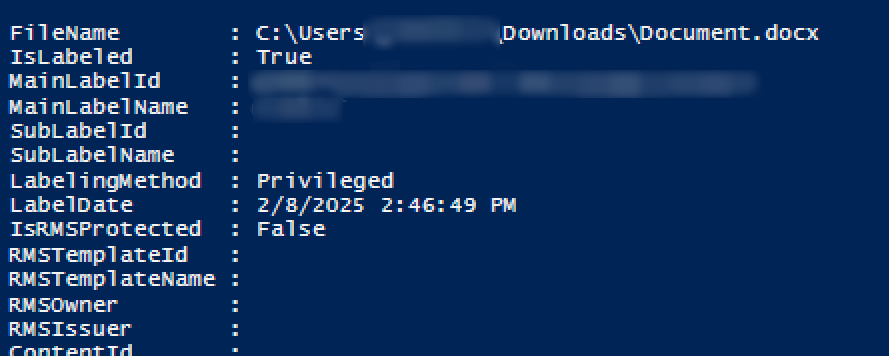
Enter the following commands to retrieve the sensitivity labels applied to the file.
Enter the full path of the downloaded file as the attribute of Path and press Enter on the keyboard. After the execution, the verification result will be displayed.
Microsoft 365 Groups / Microsoft Teams Migration
Refer to the following table for the migration results of sensitivity labels in different situations.
| Workload | Source Label Type | If Source Team/Group has Label | If Destination Label Exist | Migration Result |
|---|---|---|---|---|
| Teams / Groups only (Do not migrate team sites by configuring the migrateteamsite=false customized feature.) | Encrypted | Yes | No | Failed with the error code: CO-NotMatchMipLabel. |
| Teams / Groups only (Do not migrate team sites by configuring the migrateteamsite=false customized feature.) | Encrypted | Yes | Yes | Successful. |
| Teams / Groups only (Do not migrate team sites by configuring the migrateteamsite=false customized feature.) | Non-encrypted | Yes | No | Failed with the error code: CO-NotMatchMipLabel. |
| Teams / Groups only (Do not migrate team sites by configuring the migrateteamsite=false customized feature.) | Non-encrypted | Yes | Yes | Successful. |
If you also migrate group mailboxes and team sites, refer to the table in Exchange Online Migration for details about labels applied to emails and refer to the table in SharePoint Online / OneDrive Migration about labels applied to files.
Microsoft Teams Chat Migration
Refer to the table in SharePoint Online / OneDrive Migration for details about labels applied to files.