
Home > Appendices > Replace Meeting Links in Destination
Download this articleReplace Meeting Links in Destination
The ExchangeTeamsMeetingRepairTool.exe file allows you to replace migrated meeting links with the destination tenant information. After the replacement, users can be redirected to correct meetings in the destination by clicking the meeting links in calendar events.
Microsoft 365 Group mailboxes are not supported.
Refer to the following steps to replace migrated meeting links with the destination tenant information:
-
Click here to download the ExchangeTeamsMeetingRepairTool.zip file.
-
Extract the ZIP file to a machine with a network connection.
NOTEThe .NET Framework version of the machine must be 4.6.2 or later.
-
In the extracted tool folder, open the MailboxList.csv file.
-
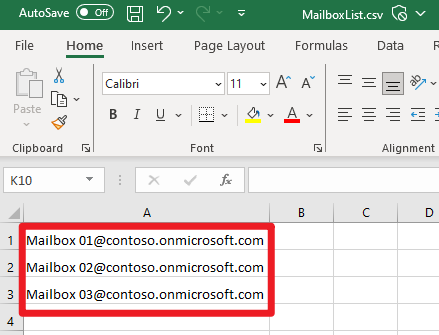
To define the destination mailboxes where you want to replace meeting links in calendar events, enter the email addresses of the mailboxes as the screenshot below.
-
Save the MailboxList.csv file.
-
In the extracted tool folder, open the UserIDMappings.csv file.
-
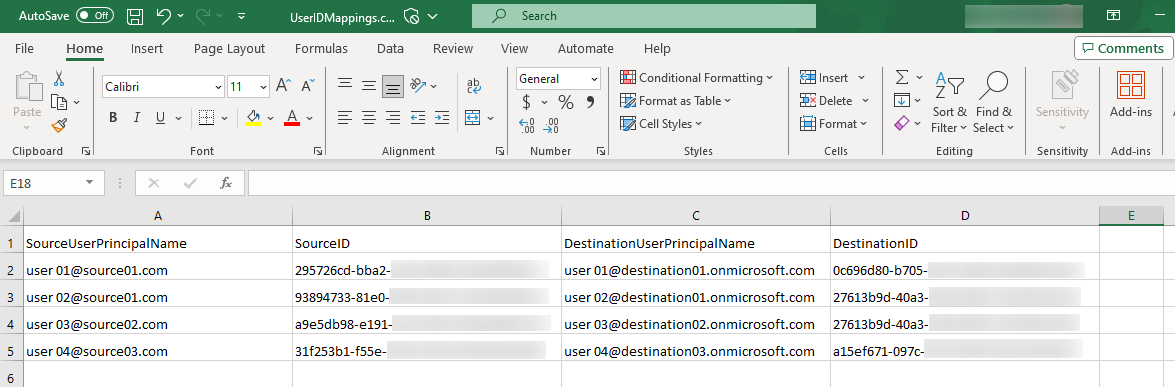
To define the meetings for which you want to replace meeting links, configure user ID mappings for the corresponding meeting organizers as follows:
-
SourceUserPrincipalName – Enter the user principal name of the source organizer.
-
SourceID – Enter the user ID of the source organizer.
-
DestinationUserPrincipalName – Enter the user principal name of the corresponding destination user.
-
DestinationID – Enter the user ID of the corresponding destination user.
-
-
Save the UserIDMappings.csv file.
-
In the extracted tool folder, open the ExchangeTeamsMeetingRepairTool.exe.config file with Notepad.
-
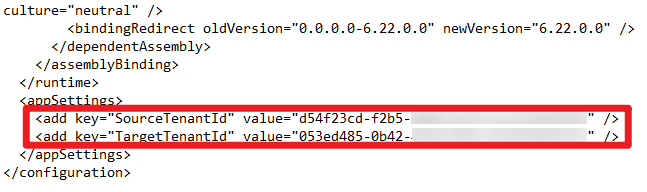
Configure the source tenant ID in the value parameter of the node, and configure the destination tenant ID in the value parameter of the node.
-
Save the ExchangeTeamsMeetingRepairTool.exe.config file.
-
Right-click the ExchangeTeamsMeetingRepairTool.exe file and select Run as administrator.
-
Enter the service account to connect to the destination mailboxes configured in the MailboxList.csv file and press Enter on the keyboard.
NOTEThe service account must have the Full Access permission to the mailboxes.
-
Enter the password of the service account and press Enter on the keyboard.
The job of replacing meeting links will be started. When the job finishes, a CSV file named in the format of ExTMeetingsRepairReport_(TimeStamp).csv will be generated in the extracted tool folder to report the meeting link replacement results.
Meanwhile, a log file named in the format of ExchangeTeamsMeetingRepairTool_(TimeStamp).csv will be generated in the Logs folder of the extracted folder to report the job information. If any error occurs during the job, you can send the log file to AvePoint Support for assistance.
-
Verify the success of replacing a meeting link by asking any related destination user to click the destination meeting link. If the user can join in the meeting under the destination tenant configured in the ExchangeTeamsMeetingRepairTool.exe.config file, the meeting link is replaced successfully.