
Home > Appendices > Impact and Solutions for the Retirement of the ApplicationImpersonation Role in Exchange Online
Download this articleImpact and Solutions for the Retirement of the ApplicationImpersonation Role in Exchange Online
If you use service accounts to migrate mailboxes, the ApplicationImpersonation role is required, while Microsoft has announced the retirement of this role in Exchange Online. Refer to the following sections for the impact and solutions for the retirement of the Application Impersonation role.
Impact in Mailbox Migrations
If you use the service account authentication in mailbox migrations, note the following:
-
Migrations from/to user/resource/shared/archive mailboxes will fail.
-
If the service account is not the owner of the destination Microsoft 365 Group mailbox, items in the source Inbox folder cannot be overwritten.
How to Check which Accounts have been Assigned the ApplicationImpersonation Role?
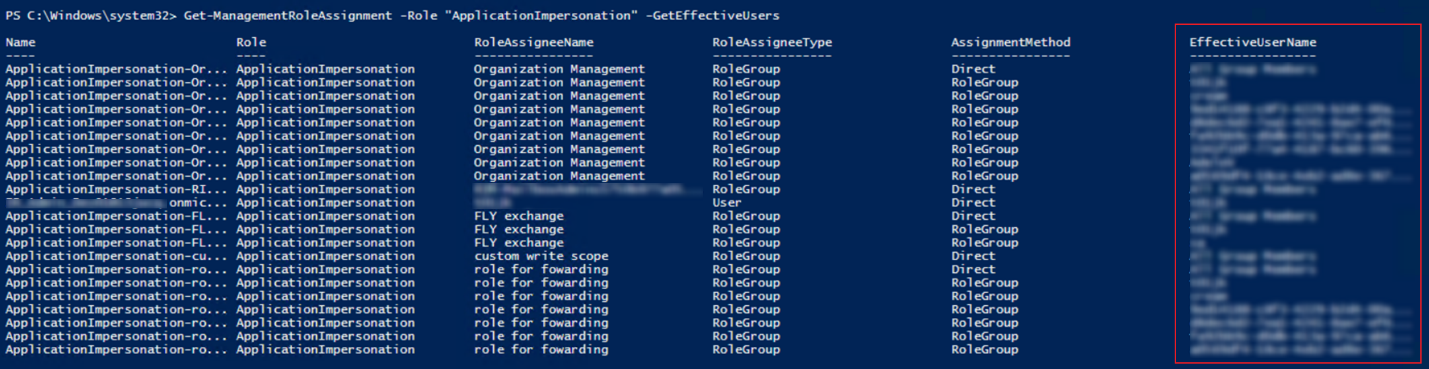
To check which accounts have been assigned the ApplicationImpersonation role, open Windows PowerShell and enter the following commands in the Windows PowerShell window:
Service accounts with the ApplicationImpersonation role assigned will be listed in the EffectiveUserName field as the screenshot shown below.
How to Migrate Mailboxes without the ApplicationImpersonation Role?
Fly provides three options to migrate mailboxes without the ApplicationImpersonation role. Refer to the following instructions for details.
-
Option 1: If you want to use a service account or delegated app profile for mailbox migrations, grant the service account or the consent user of the delegated app profile the Full Access permission to all mailboxes you want to migrate.
NOTEIn this case, Group mailboxes cannot be migrated.
-
Option 2: Use a Fly app profile or custom app profile in the Exchange Online connection for the migration.
-
Option 3: Create a custom app profile and assign required permissions other than the full_access_as_app permission to the app. Then, create an RBAC assignment for the app to only access to specified mailboxes. Refer to the following steps for details:
NOTEThis method is unavailable for delegated app profiles.
-
Before creating an RBAC assignment for an app, you can navigate to Microsoft Entra admin center > Applications > Enterprise applications to get the object ID, application ID, or name of the app. The information will be used later.

-
Connect to your Exchange Online environment using Windows PowerShell. Refer to Connect to Exchange Online PowerShell for details.
-
Open Windows PowerShell and enter the following command to create a new resource scope (Optional):
For example:

Enter a scope name as the attribute value of Name and a scope filter as the attribute value of RecipientRestrictionFilter. Then, press Enter on the keyboard.
Filter query syntax:
For filterable recipient properties, refer to Filterable properties for the RecipientFilter parameter on Exchange cmdlets.
-
Enter the following command to create a pointer to a Microsoft Entra service principal:
For example:

Enter the client application ID as the attribute of AppId, the service principal object ID as the attribute value of ObjectId, and define a name for the service principal as the attribute value of DisplayName. Then, press Enter on the keyboard.
-
Enter the following command to select the appropriate application role:
For example:

Enter a name for the role assignment as the attribute value of Name, the Application EWS.AccessAsApp as the attribute value of Role, the object ID, app ID, or display name of the newly created service principal as the attribute value of App, and a scope name as the attribute value of CustomResourceScope. Then, press Enter on the keyboard.
-RecipientAdministrativeUnitScope limits recipient-related permissions to a specific Entra ID Administrative Unit (AU). To get the AU ID, refer to Get-AdministrativeUnit. If none exists, refer to Create or delete administrative units to create one as needed.
-
Enter the following command to Test the New Service Principal:
For example:

Enter the object ID, app ID, or display name of the newly created service principal as the attribute value of Identify and the email address of a mailbox as the attribute value of Resource to test if the app can access the mailbox. Then, press Enter on the keyboard.
For more details, refer to Role Based Access Control for Applications in Exchange Online.
-
If you choose the option 2 or 3 above for the migration, you also need to choose one of the following options to ensure the Exchange PowerShell is available. Otherwise, functions in Fly will be unavailable. Refer to Working with Exchange PowerShell for details.
-
Assign the Exchange Administrator role to the app, refer to How to Assign the Exchange Administrator Role to an App? for details.
-
Add custom roles to the app, refer to How to Add Custom Roles to an App? for details.