
Home > Appendices > How to Add Roles to the Account?
Download this articleHow to Add Roles to the Account?
Refer to the following sections to add roles to your account.
Add Roles in Exchange On-Premises Admin Center
To add roles to an account in the Exchange on-premises admin center, complete the following steps:
-
Go to the Exchange admin center of Exchange on-premises.
-
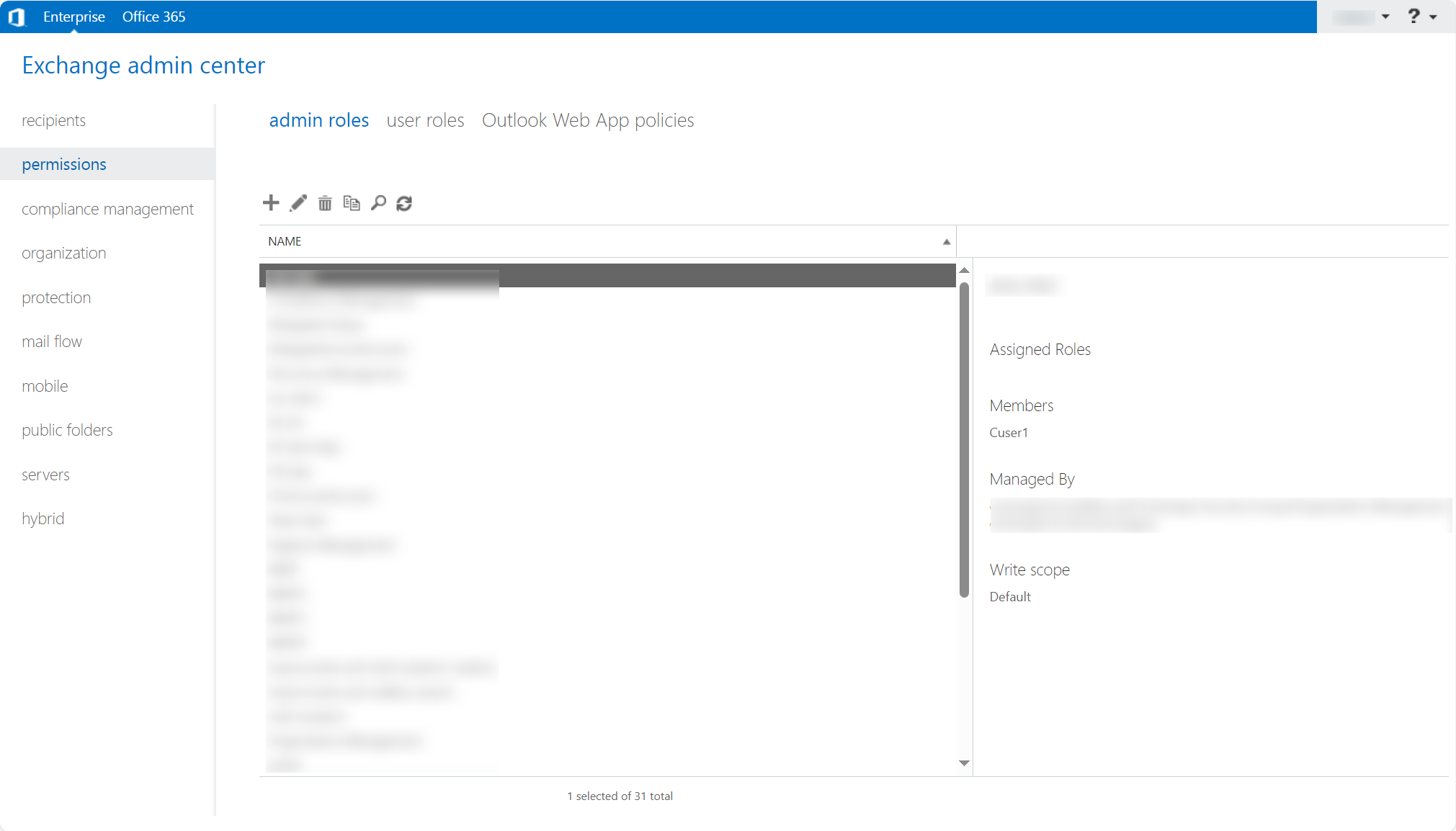
Click permissions in the left pane and click the admin roles tab.
-
Click the New button to add a new role group.
-
Enter a group name, an optional description, and configure the write scope.
-
Click the Add button in the Roles section.
-
Select the required roles and click add ->.
-
Click OK to save the roles.
-
Click the Add button in the Members section.
-
Select desired members and click add ->.
-
Click OK to save the members.
-
Click Save to save the role group.
Add Roles in Exchange Online Admin Center
To add roles to an account in the Exchange Online admin center, complete the following steps:
The ApplicationImpersonation role is in the process of being deprecated. New role assignments referring this role aren't allowed. Refer to Retirement of RBAC Application Impersonation in Exchange Online for details.
-
Go to the Exchange admin center of Exchange Online.
-
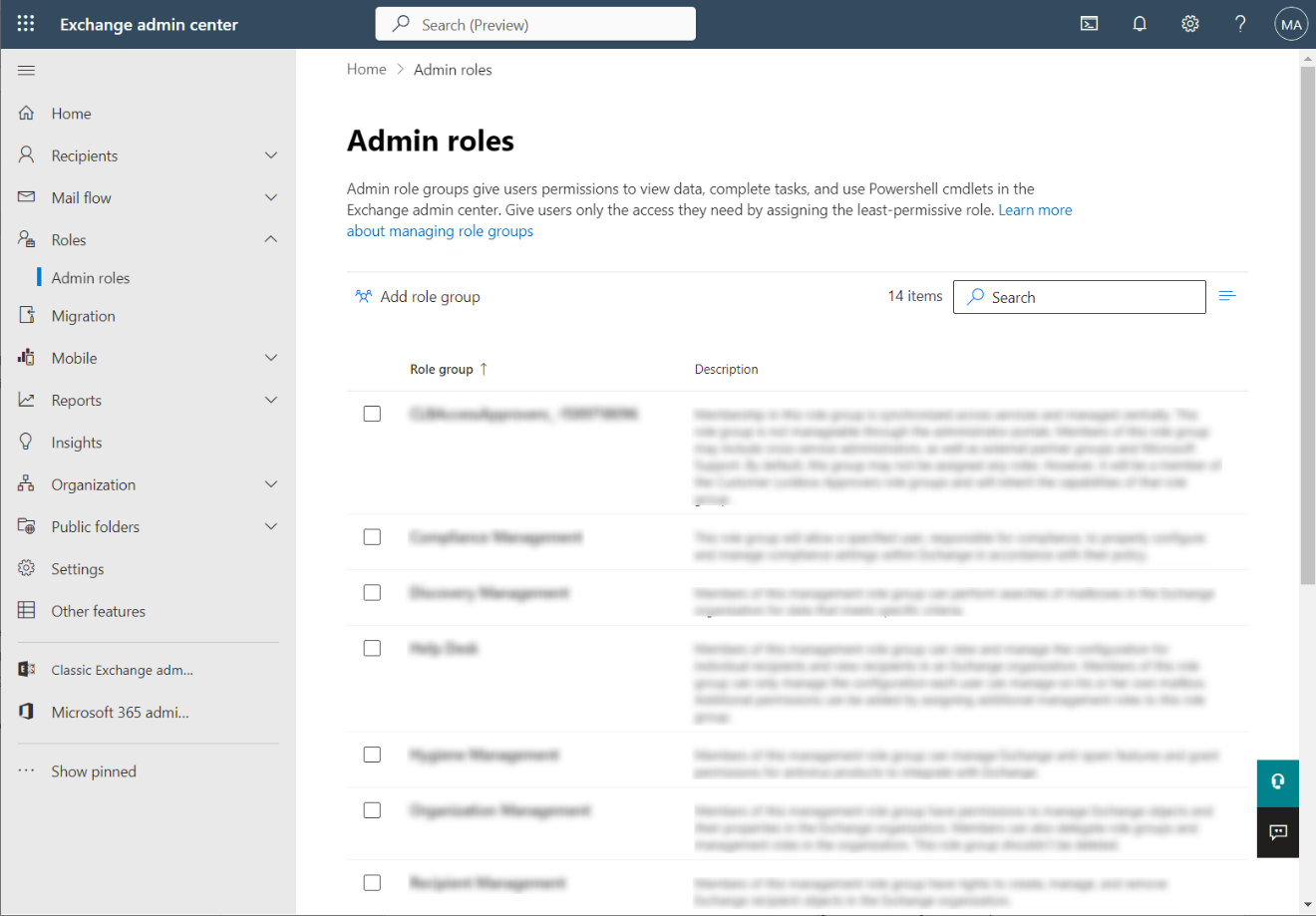
Click Roles > Admin roles in the left pane. The Admin Roles page appears.
-
Click Add role group to add a new role group.
-
In the Basics step, enter a group name, an optional description, and configure the write scope. Click Next.
-
In the Permission step, select all required roles and click Next.
-
In the Admins step, search for the account in the search box and click Next.
-
In the Review and finish step, review the configurations and click Add role group to add the role group.
The roles will take effect approximately half an hour after you add the roles.