
Home > Perform SharePoint Online Migrations > Required Permissions for SharePoint Online Migration > Permissions for Destination Google Drive
Download this articlePermissions for Destination Google Drive
To migrate to destination Google Drive, the Super Admin can refer to Connect Your Tenants to AvePoint Online Services to connect your Google tenant to AvePoint Online Services at first. Then, you need to create a custom Google app profile in AvePoint Online Services > Management > App management to connect to the Google tenant.
Refer to the following section for details about how to create a custom Google app profile with required permissions.
Create a Custom Google App Profile
To use a custom Google app profile, refer to the following steps and required permissions:
-
Click Create on the App management page in AvePoint Online Services.
-
In the Select services step, select a Google tenant, and choose Fly.
-
Click Next to go to the Choose setup methodstep.
-
In the Choose setup method step, select the Custom mode.
-
Click Next to go to the Consent to apps step.
-
In the Consent to apps step, enter the app profile name, admin account, Google service account, and private key of your app.
-
Click Finish.
Refer to the following sections about permissions required for the custom app.
API Requirements
Make sure the following APIs are enabled in the projects where the service accounts are created.
-
Admin SDK API
-
Google Drive API
-
Google Sheets API
Refer to the following steps to enable the APIs:
The user must be the project owner to enable the APIs.
-
Go to Google APIs.
-
Click ENABLE APIS AND SERVICES. The API library page appears.

-
Click the API you want to enable, respectively.
-
Click ENABLE on the top of the page to enable the corresponding API.
Make sure the API Access in your Google Workspace environment is enabled. Follow the instructions provided by Google to ensure all your settings meet the requirements.
Admin Account Permissions
Make sure the Admin account has the following custom roles.
| Type | Admin Account Permission | Purpose |
|---|---|---|
| Google Drive | Users > Read | Migrate to user drives. |
| Google Drive | Groups | Retrieve group members. |
| Google Drive | Drive and Docs > Settings | Migrate to shared drives. |
| Google Drive | Reports | Retrieve source data. |
| Google Drive | Manager of Shared Drive | Migrate to shared drives. If you do not want to give the manager access to the Admin account, you can ignore this requirement, but there must be an available manager in the shared drive. |
To manage the roles of the Admin account, refer to the following steps:
The user must be the super administrator to manage roles.
-
Go to the Google Admin console.
-
Click Manage in the Users section.
-
Click the user you want to assign the roles. The user profile page appears.
-
Click the down arrow button in the Admin roles and privileges section.
-
Click the pencil button in the upper-right corner of the Roles section.

-
Click CREATE CUSTOM ROLE.

-
Click Create new role.
-
Enter a name for the current role, and click CONTINUE.
-
In the Admin console privileges section, select the Read privilege under the Users section. To migrate shared drives, select the Settings checkbox under the Drive and Docs section. Then, click CONTINUE.
-
Click CREATE ROLE. The custom role will be listed in the Roles section.
-
Click SAVE.
To allow users to access Google Drive with the Drive SDK API, refer to the following steps:
-
Go to the Google Admin console.
-
Navigate to Apps > Google Workspace > Drive and Docs.
-
Click Features and Applications.
-
Make sure the Allow users to access Google Drive with the Drive SDK API option is ON.
To give the User/Group account the Manager access to shared drives, refer to the following steps:
The user must have the admin role to provide access.
-
Go to the Google Admin console.
-
Navigate to Apps > Google Workspace > Drive and Docs.
-
Click Manage shared drives.
-
Hover your mouse over the shared drive you want to manage, and click Manage members.
-
Add the User/Group account and click the down arrow button next to the account. Then, select Manager and click Send.
If the User/Group account is already a member of the shared drive, select the Manager access and click Done to save your changes.
Google Service Account Permissions
To use a Google service account, refer to the following steps:
The user must be the project owner to manage service accounts.
-
Go to the Google Service Accounts.
-
Select the desired project. The accounts in the projects are displayed.
-
To create a new service account, refer to the following steps:
NOTEIf you want to use an existing service account to add the Google Workspace connection, ignore this step.
-
Click CREATE SERVICE ACCOUNT.

-
Enter a service account name.
-
Enter the service account ID.
-
Enter the description for the service account.
-
Click CREATE AND CONTINUE. The service account is created.
-
Select the Owner role to the project from the drop-down list and click CONTINUE.
-
Click DONE.
-
-
A private key will be used when adding the connection. To obtain the private key of the service account, click the Actions (three dots) button of an existing service account, click Manage keys, click ADD KEY, and then select Create new key. Select the JSON type and click CREATE to download the private key file.
NOTEIf the service account key creation is disabled in your organization, enable it first by following the steps.
-
Navigate to Google Cloud > IAM & Admin > IAM.
-
Click the resource tab and click the domain name as the resource.

-
Click Grant access to access the Grant access to "[Tenant]" panel.
-
In the Add principals field, enter the email address of the signed-in user.
-
In the Assign roles field, select the Organization Policy Administrator role from the drop-down list.
-
Click Save to grant the role for the user to access the selected tenant.
-
Go to IAM-Disable Service Account Key Creation.
NOTEMake sure the current project is the project where you create the service account.
-
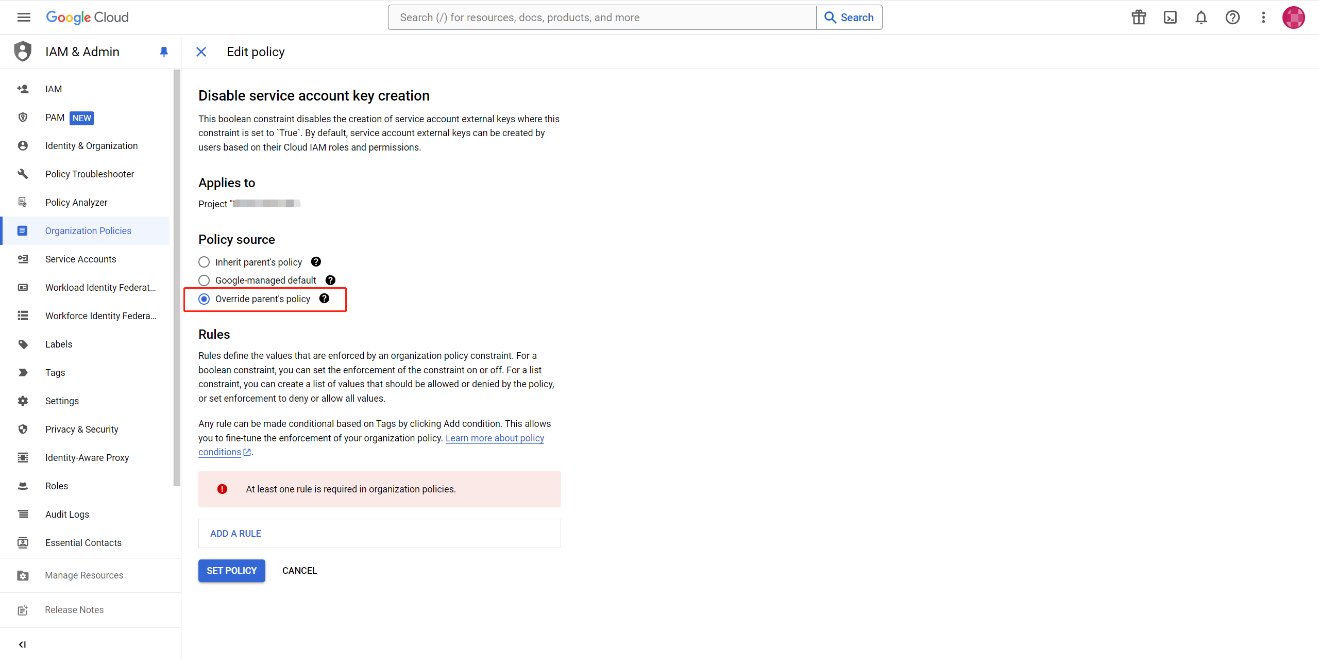
Click MANAGE POLICY.

-
Select Override parent's policy to set a unique policy for this project.
-
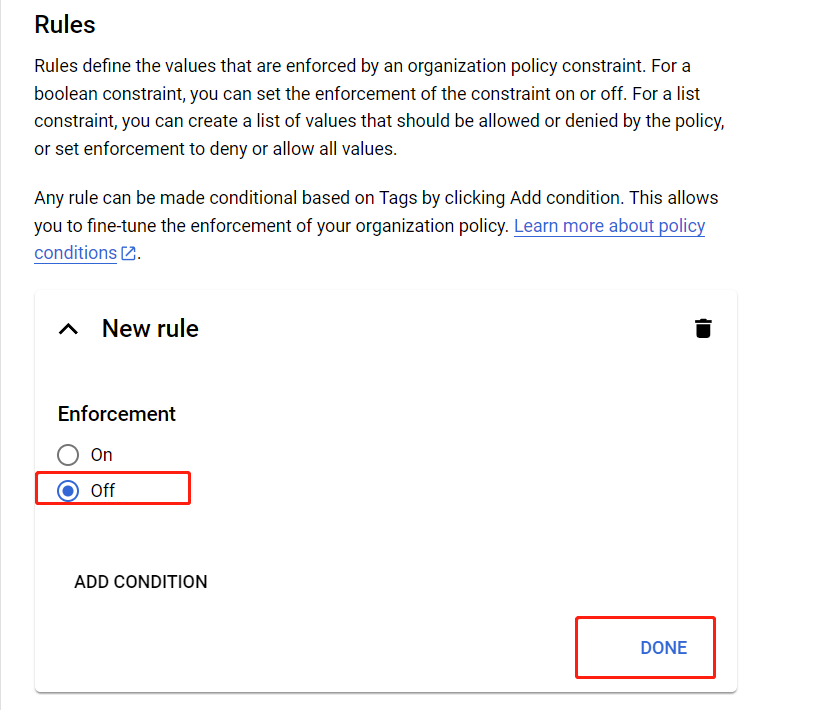
Click ADD A RULE to add a new rule.

-
Select Off to disable the enforcement of the new rule, and click DONE.
-
Click SET POLICY.
NOTEIf you are required to have the Organization Policy Administrator role, refer to Granting Changing Revoking Access for details.
-
-
Open the .json file with Notepad and find the private key after the "private_key": node. The private key will be used when adding the connection.

-
Go to the Google Admin console using the Super administrator credentials.
-
Navigate to Security > Overview > API controls.
-
Click MANAGE DOMAIN WIDE DELEGATION.
-
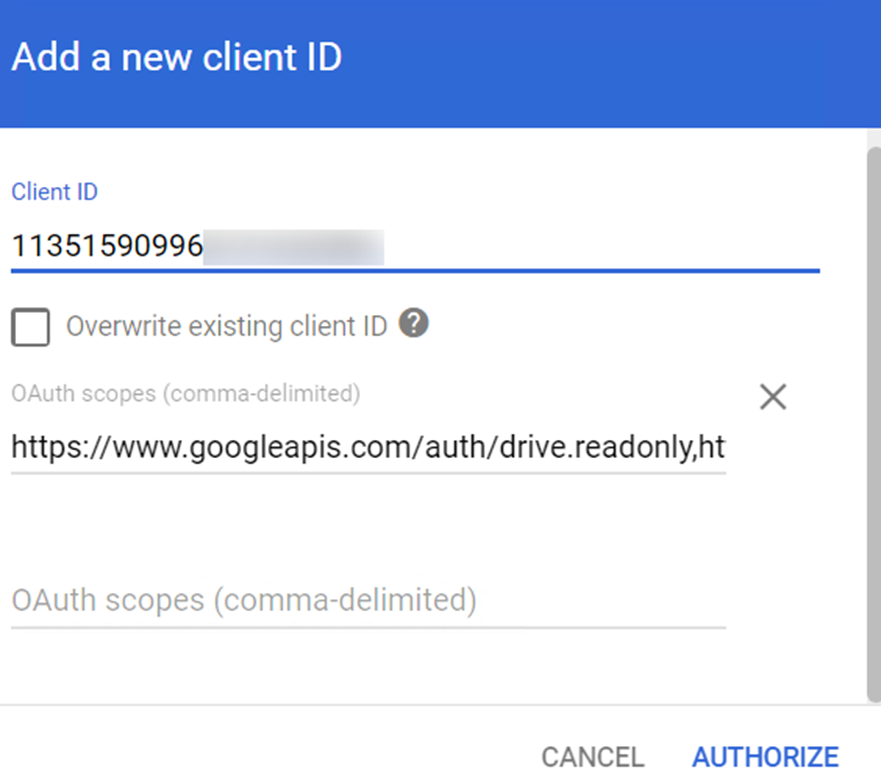
On the Domain-wide Delegation page, click Add new.
-
Enter the client ID of the service account in the Client ID field. The client ID can be found in the "client_id": " " node of the .json file in step 5.
-
Enter the following scopes in the OAuth scopes field:
https://www.googleapis.com/auth/admin.directory.user.readonly,https://www.googleapis.com/auth/admin.directory.group.readonly,https://www.googleapis.com/auth/drive,https://www.googleapis.com/auth/admin.reports.usage.readonly,https://www.googleapis.com/auth/spreadsheets**`The table below lists why the scopes are needed:
Google Scopes Permission Purpose https://www.googleapis.com/auth/admin.directory.user.readonlyRetrieve destination users. https://www.googleapis.com/auth/admin.directory.group.readonlyRetrieve destination groups. https://www.googleapis.com/auth/driveMigrate folders and files. https://www.googleapis.com/auth/admin.reports.usage.readonlyRetrieve size usage of users. https://www.googleapis.com/auth/spreadsheetsRetrieve, edit, create, and delete Google Sheets spreadsheets. -
Click AUTHORIZE.