
Home > Perform Microsoft Teams Migrations > Post-migration
Download this articlePost-migration
Refer to the following sections to run the post migration jobs.
Migrate Membership
After you complete your migrations but the source membership is not included in the migrations, to make the destination Team/Google Chat Space available for users, you can run a migration to only migrate the source membership, including owners, members, and guests.
-
On the Project mappings page, select one or multiple mappings for which you want to migrate the source membership.
-
Click Post-migration and select Migrate membership. The Migrate membership panel appears.
By default, only internal users will be migrated. To also migrate guest users and/or external users, select the External users and/or Guest users checkboxes.
-
Click Run to migrate the source membership for the Teams.
Fly will start a migration to only migrate the source membership. Once finished, source owners, members, and guests are migrated to the destination.
After the Migrate membership job of mappings starts, if you want to stop the job, you can select the mappings and click Stop, then the Migrate membership job of the selected mappings will be stopped. If you run another job for the stopped mappings, the job will start from the beginning.
Complete Migration
Generally, the job is for Teams/spaces that are newly created in Advanced migrations. If all source data have been migrated to destination, you can run the Complete migration job to make destination Teams/spaces available for end users.
Migration to Microsoft Teams
Refer to the following steps to run the Complete migration job:
If the destination Teams already exist before the migration, you can also run this job for mappings to only migrate source private channels, share channels, or membership.
-
Click Projects in the left pane to access the Projects page, and click the name of a project.
-
On the Project mappings page, select one or multiple mappings for which you want to complete destination Teams.
-
Click Post-migration and click Complete migration.
-
In the Complete migration panel, the checkboxes of private channels, shared channels, and membership (Guest users) are selected by default. If you do not want to migrate any data, deselect the corresponding checkbox. To also migrate external users, select the External users checkbox.
-
Click Run to run the Complete migration job.
If the job is finished, the Completed icon will be displayed in front of the destination Team of the mapping.
Migration to Google Chat Space
Refer to the following steps to run the Complete migration job:
-
Click Projects in the left pane to access the Projects page, and click the name of a project.
-
On the Project mappings page, select one or multiple mappings for which you want to complete destination spaces.
-
Click Post-migration and click Complete migration.
-
In the Complete migration panel, Fly will also replace the URLs of attachments within the current Team with corresponding destination Google Drive URLs during the migration. To replace URLs of the attachments from other Teams or OneDrive, select the Replace external attachment URLs checkbox.
You can also select the Migrate membership checkbox to migrate the source membership, including owners, members, and guests.
NOTETo migrate external users and guest users, make sure the Guest user and External user checkboxes are selected in the migration policy.
-
Click Run to run the Complete migration job.
Change Mapping Domain
This feature is only available for Microsoft Teams to Microsoft Teams migrations.
After the domain name of the source tenant is changed to the destination tenant or the UPN prefixes of source Team email addresses are changed, you can choose one of the following options to migrate the source new or modified data:
-
Option 1: Update the domain names of the source and destination Team email addresses configured in project mappings, and then perform an incremental job.
-
Option 2: Directly perform an incremental job since Fly now can migrate data based on the object GUIDs.
If you choose option 1, refer to the following steps to change the domain names of source and destination Teams:
-
Click Projects in the left pane to access the Projects page, and click the name of a project.
-
On the Project mappings page, select one or multiple mappings for which you want to change domain names.
-
Click Post-migration, and select Change mapping domain to change domain names for the Teams. Note that the source domains of your selected mappings must be the same. The destination domains of your selected mappings must be the same.
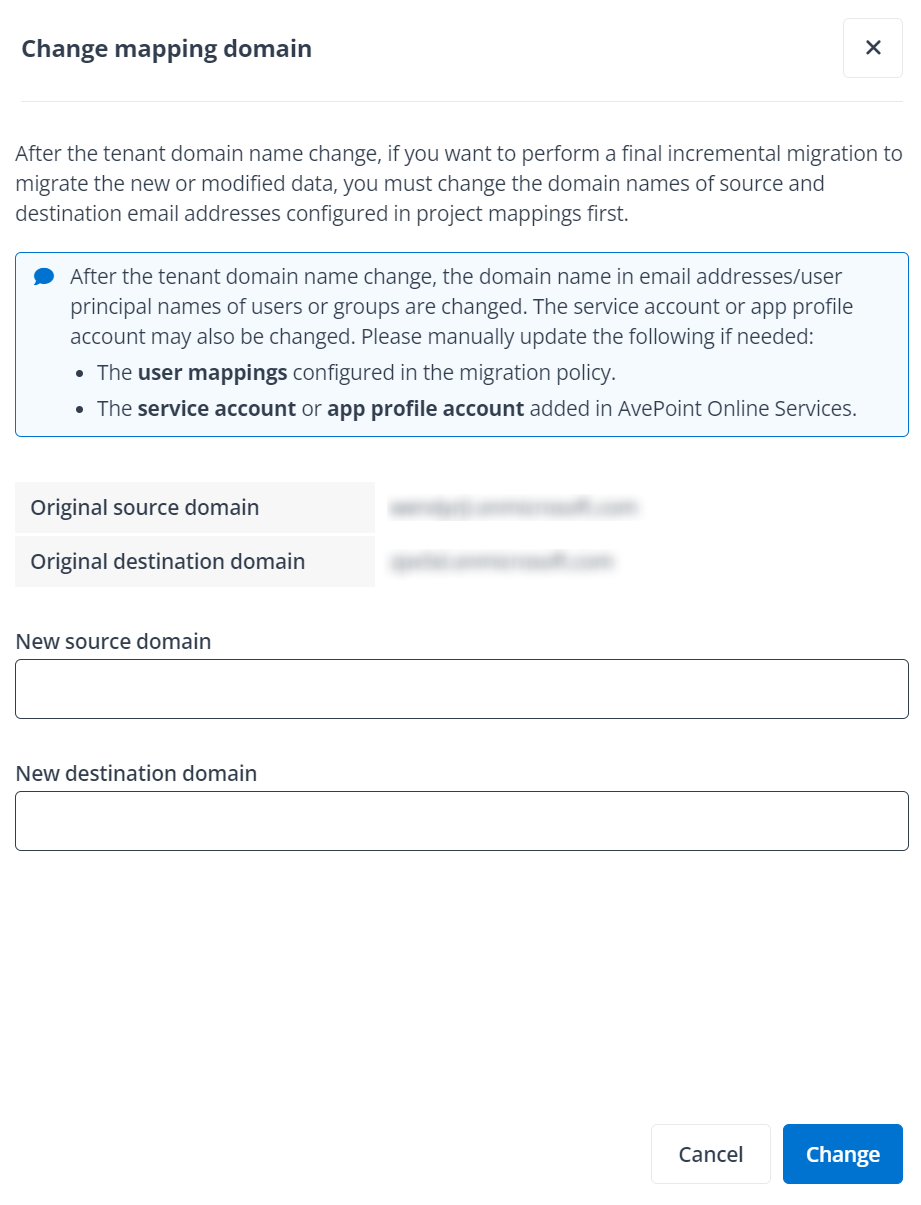
In the Change mapping domain panel, the original source domain and destination domain of Teams are automatically displayed.
-
Enter a new source domain and/or destination domain for the Teams, and click Change to change the domain names.
After changing the domain names, the original domain names of the source and destination Teams are updated to the new domain names.
Replace Attachment URLs
This feature is only available for Microsoft Teams to Google Chat Space migrations.
After the full migrations, you can run a Replace attachment URLs job to replace the source attachment URLs with corresponding destination Google Drive URLs. Refer to the following steps for details:
By default, Fly will only replace the URLs of attachments within the current Team. For attachments from other Teams or OneDrive, before you run the Replace attachment URLs job, you need to generate a URL mapping report for them to get the attachment URLs, and configure URL mappings for these attachments.
-
Click Projects in the left pane to access the Projects page, and click the name of a project.
-
On the Project mappings page, select one or multiple mappings for which you want to replace the attachment URLs.
-
Click Post-migration and click Replace attachment URLs. To replace the URLs of attachments from other Teams or OneDrive, select the Replace external attachment URLs checkbox.
-
Click Run to replace attachment URLs.