
Home > Aviator > Aviator for OneDrive > Create an Aviator Policy for OneDrive
Download this articleCreate an Aviator Policy for OneDrive
Aviator - OneDrive policy allows you to define how to migrate meeting recordings and permissions. Fly provides a system default policy for you. You can directly use the system default policy, or refer to the following steps to create a OneDrive policy based on your needs:
-
Click Settings in the left pane, and click Policies > Aviator policies > OneDrive.
-
Click Create Aviator policy. The Create Aviator policy panel appears.
-
Enter a name and an optional description for the policy, and then click Next.
-
In the Filter & conflict resolution step, complete the following settings:
-
Team – Select whether you want to migrate the meeting recording files stored in the OneDrive site.
-
Permissions – Select whether you want to migrate the direct permissions and shared links in the OneDrive site. With Shared links selected, after the Aviator job, new shared links will be created in the destination. No notifications will be sent to end users about the new links. They can be viewed within the Shared with you section of their OneDrive.
Guest users are added via the Microsoft 365 admin center, and can be added as SharePoint administrators, permission users and users related to shared links.
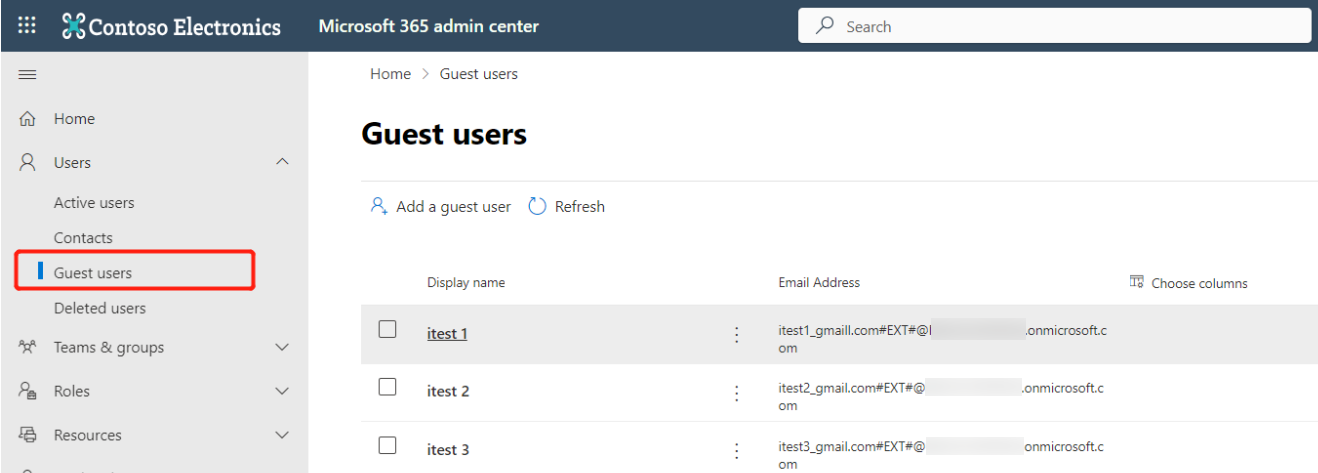
External users can be added as permission users and users related to shared links if the two related tenants have enabled cross-tenant access for each other. You can enable the cross-tenant access by completing the following steps:
-
Log into the Microsoft Entra ID admin center.
-
Click External Identities.
-
Click Cross-tenant access settings.
-
Click Add organization under the Organization settings tab.
-
In the Add organization panel, enter the tenant ID or domain name of the tenant for which you want to allow the member, and click Add.
Then after about 24 hours, you can manually add the member to the target shared channel.
-
-
Filter policy – A filter policy can help you set up filter rules to define what objects can be included in your jobs. Select the checkbox and select a filter policy to include/exclude the defined objects. You can enter the keyword of a filter policy in the Search filter policy text box and click the Search button to search the filter policy.
You can also click the plus button to create a new filter policy, enter a name and an optional description for the filter policy, and define the filter rules for each object level. Refer to SharePoint/OneDrive Filter Policies for examples of filter policies that users can configure.
-
Conflict Resolution – Specify the content level conflict resolution when the source object conflicts with an existing object in the destination. (The Content level includes documents and list items.)
The conflict resolution applies when you merge containers or copy files to the destination.
Resolution Conflict No Conflict Skip Ignore the conflicting object and do nothing in the destination. A new object will be created. Overwrite Delete the conflicting object in the destination first and overwrite it with the source content. A new object will be created. Overwrite by Last Modified Time The conflicting object with the latest modified time will be preserved in the destination. A new object will be created. Append The conflicting object will not be deleted. The destination conflicting file will be renamed as filename_bak. The migrated file will be renamed as filename_site name_trimmedfileID. A new object will be created.
-
-
Click Next to continue.
-
In the Additional options & mappings step, define how to manage the sensitivity labels, IRM restrictions, and configure user mappings for the Aviator job.
-
To manage the sensitivity labels of files during the Aviator job, select an option below:
NOTEIf the source does not have the Microsoft Information Protection (MIP) service implemented or source files do not have any sensitivity labels applied, select the first option for your Aviator job to ensure a successful job.
NOTEFly cannot manage sensitivity labels of PDF files during the Aviator job.
-
No label in source, or migrate files with source label to destination (if file has label encryption, it will be inaccessible in the destination) – Select this option if there is no sensitivity label applied on source files, or you want to keep the source sensitivity labels of the files to the destination.
After the Aviator job, the migrated files that have label encryption may not be accessed in the destination.
-
If a label exists, remove it during the migration (source label remains, it is removed from the file in the destination) – Select this option if you want to remove the source sensitivity labels from the files.
After the Aviator job, the migrated files do not have any sensitivity labels and can be accessed in the destination.
-
Apply same label in the destination (same label must exist in the destination) – This option removes the source sensitivity labels from the migrated files during the Aviator job, and applies existing destination sensitivity labels with the same display name to the migrated files in the destination. The source sensitivity labels applied to source files will not be removed from the source tenant.
-
Apply labels in the destination based on label mappings (labels must exist in both source and destination) – With this option, you can configure sensitivity label mappings to replace the source sensitivity labels applied to the migrated files with existing destination sensitivity labels.
According to the label mappings, Fly will remove the source sensitivity labels from the migrated files during the Aviator job, and apply the destination sensitivity labels to the migrated files in the destination. The source sensitivity labels applied to source files will not be removed from the source tenant.
Click the plus button to Create Sensitivity Label Mappings to map the source and destination labels based on their display names. You can also select a previously created label mapping from the drop-down list to use it (Clicking View details can view and edit the detailed information of the selected label mapping.).
-
-
Information rights management – Select the Remove source IRM restrictions from files checkbox if you want to remove the source IRM restrictions during the Aviator job. If you deselect this checkbox, the source IRM restrictions will be kept to the destination, and the migrated files may be inaccessible in the destination.
-
Version setting – Select the Enable content approval in library version settings checkbox to enable the content approval version setting for the destination library. Note that enabling the content approval may affect the OneDrive sync function.
-
User mapping – With the user mapping, you can map a source user/group to a destination one. You can also map a domain in the source to a destination domain. Users, securities, and user-related metadata can be migrated based on user mappings. Click the plus button to the right of the field to create a new one. Refer to the Create User Mappings section to view how to create a user mapping.
You can also select a previously created user mapping from the drop-down list and click View details to view the detailed information of the selected user mapping. You can enter the keyword of a user mapping in the Search user mapping text box and click the Search button to search the user mapping.
NOTEFor the users/groups that have not been configured in user mappings, you can choose to map the users/groups based on User principal name prefix, Display name, and/or Email address prefix.
Property User Principal Name User Principal Name Prefix Display Name Email Address Email Address Prefix Property Example JohnSimon@onmicrosoft.comJohnSimon@ JohnSimon JohnSimon@onmicrosoft.comJohnSimon@ -
Switch on/off the button of each property to configure whether you want to map users based on that property.
-
Click the Up or Down button of a property to configure the sequence for mapping users.
NOTEIf all properties are disabled, user mappings are required.
-
-
-
Click Save to save the policy. After creating the policy, you can click Set as default to set the policy as the default policy.
On the Aviator policies page, you can manage existing policies.
-
Set as default – Select a policy and click Set as default to set it as the default policy. The default policy will be automatically selected when you create an Aviator job.
-
Edit – Click the policy name link to edit the policy. Note that the system default policy cannot be edited.
-
Delete – Select one or multiple policies and click Delete to delete them. Note that the system default policy cannot be deleted.
-
Copy – This allows you to quickly create a new policy with similar configurations by completing the following steps:
-
Select your target policy, and click Make a copy.
-
You can also open your target policy, and click Make a copy on the Edit migration policy page.
-
Check the settings and make updates if necessary on the Copy migration policy page.
-
Click Save.
-
-