
Home > Appendices > Tools for Teams Chat Migration
Download this articleTools for Teams Chat Migration
Fly provides the following tools to assist you with Microsoft Teams Chat Migration.
Chat Migration Assist Tool
The Assist Tool can help you make the following management on destination chats created by Fly:
-
0 – Assign the Microsoft 365 Global Administrator role to the destination delegated app’s consent user.
-
1 – Keep the placeholder account, and remove other chat members (including the delegated app’s consent user) from specific destination chats.
-
2 – Remove the consent user of the destination delegated app and placeholder account from all destination chats that are newly created by Fly.
NOTEWe recommend you execute this function after all migrations are finished and destination chats are managed.
NOTEIf the delegated app's consent user is not only used by the chats you want to remove them from, you need to use the Function 4 to remove them.
-
3 – Remove specific internal user from all destination chats.
-
4 – Remove the delegated app’s consent user and placeholder account from specific chats.
-
5 – Remove all external users from all destination chats.
-
6 – Delete specific chats from all destination chat users.
-
7 – Add the delegated app’s consent user to specific destination chats.
-
8 – Scan all chats from specific users.
-
9 – Replace links in migrated chat messages.
Refer to the following steps to prepare and run the Assist Tool:
-
Access the storage location of tool package to download the ChatMigrationAssistTool.zip file, and extract the ZIP file.
-
In the extracted tool folder, open the ChatMigrationAssistTool.exe.config file with Notepad.
-
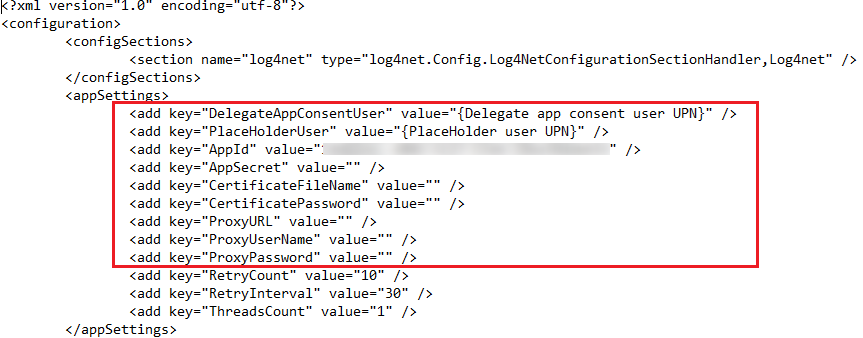
Configure the accounts in the following nodes of the CONFIG file.
-
<add key="DelegateAppConsentUser" value=" "/> – Configure the user principal name of the destination delegated app’s consent user as the value=" " parameter value.
-
– Configure the user principal name of the placeholder account as the value=" " parameter value.
-
– If your machine where the tool will be run has a network connection, you can skip this node. Otherwise, configure a proxy as the value=" " parameter value in the format of IP:\Port. Then, configure the username in the node to log in to the proxy server, and configure the password in the node to access the proxy server.
-
<add key="AppId" value=" " /> – By default, Fly will retrieve and use the built-in app of the tenant for connection. If you want to use a custom app, configure the custom app ID as the value=" " parameter value.
NOTEMake sure you have configured a client secret or certificate for the custom app to encrypt the app. If you choose to use a certificate to encrypt the custom app, store the certificate in the same directory as the ChatMigrationAssistTool.exe file. Then, continue configuring the following nodes:
-
– Enter the certificate file name as the value=" " parameter value.
-
– Enter the certificate’s password as the value=" " parameter value.
-
-
Steps from 1 to 2 apply to all functions. To use any function, make sure you have configured the <add key="DelegateAppConsentUser" value=" "/> and nodes in the CONFIG file.
To use Function 2, Function 3, or Function 5, ignore this step and proceed directly to step 5.
To use other functions, copy the IDs of related chats for preparation first. To find the ID of a chat, you can:
-
Right-click a chat, copy the link and paste it to view the chat ID.

-
Generate and download the migration report of a chat to view the chat ID.
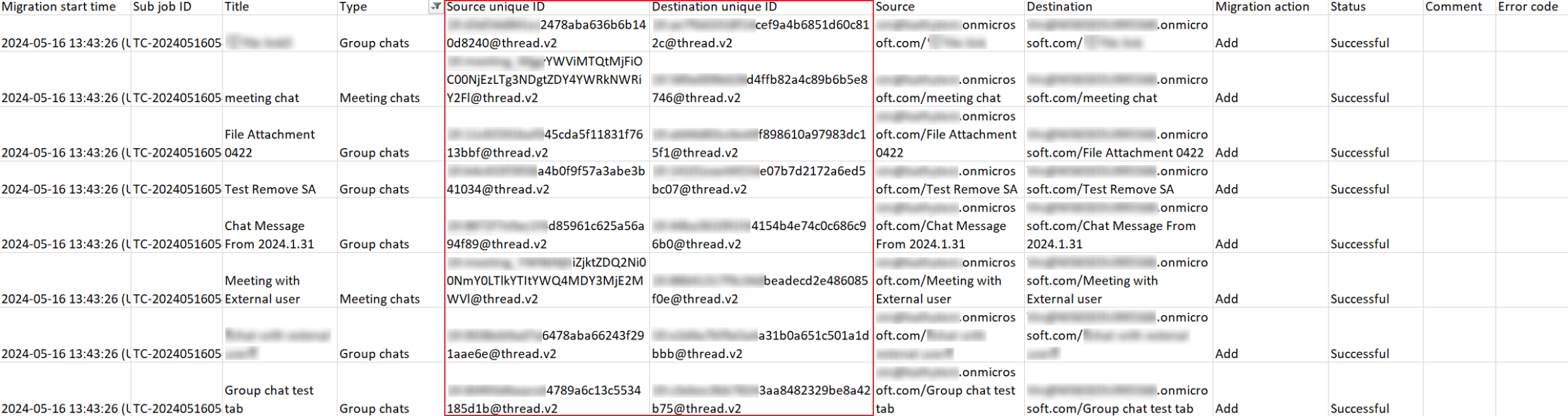
Then, you can complete the following setup steps.
-
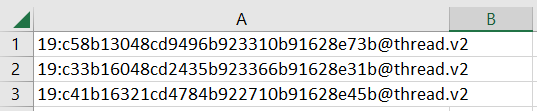
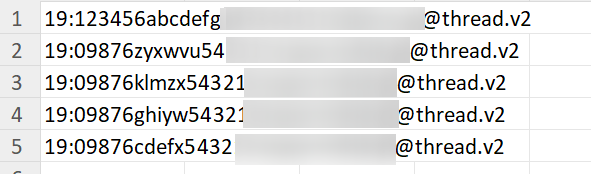
Function 1 – Prepare a CSV file, and configure the chat ID of the chats where the chat members you want to remove, as shown in the screenshot below.
-
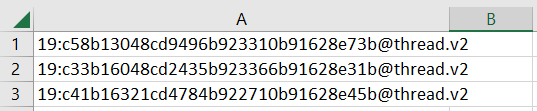
Function 4 – Prepare a CSV file, and configure the chat ID of the chats where the chat members you want to remove, as shown in the screenshot below.
-
Function 6– Create a CSV file, and enter the ID of chats you want to delete in each row.
-
Function 7:
-
Create a custom app in destination tenant and add the following permissions to the app.
API Permission Type Description Microsoft Graph User.Read.All Application Retrieve information of chat user profiles. Microsoft Graph Chat.ReadWrite.All Application Retrieve and modify chat members. -
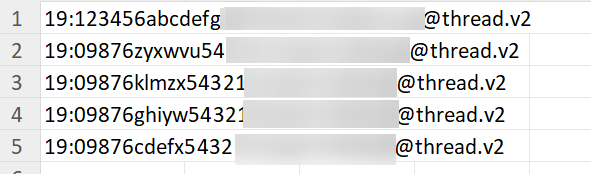
Create a CSV file, and configure the ID of chats you want to add the delegated app’s consent user in each row.
-
Configure the custom app ID as the value=" " parameter value in the <add key="AppId" value=" " /> node.
-
-
Function 8:
-
Create a custom app in destination tenant and add the following permissions to the app.
API Permission Type Description Microsoft Graph User.Read.All Application Retrieve information of chat user profiles. Microsoft Graph Chat.ReadBasic.All Application Retrieve chat information. Microsoft Graph ChatMember.Read.All Application Retrieve chat users. -
Create a CSV file, and enter the username of destination chat members whose chats you want to scan in each row.

-
Configure the custom app ID as the value=" " parameter value in the <add key="AppId" value=" " /> node.
-
-
Function 9:
-
In the extracted tool folder, open the UrlMapping.csv file.
-
To replace links for specific destination chat users, configure URL mappings using their full OneDrive site URLs with the current domain in the Original Url column and with the final domain in the New Url column, as the screenshot below.

To replace links for all destination chat users, you can configure only one URL mapping using the current domain name in the Original Url column and the final domain name in the New Url column for easy use, as the screenshot below.

-
-
-
Right-click the ChatMigrationAssistTool.exe file and select Run as administrator.
-
Enter 0, 1, 2, 3, 4, 5, 6, 7, 8, or 9 to indicate the function depending on whether the consent user of the destination delegated app is a Microsoft 365 Global Administrator.
-
If the destination delegated app’s consent user is a Microsoft 365 Global Administrator, enter 1, 2, 3, 4, 5, 6, 7, 8, or 9 to execute the corresponding function directly, and press Enter on the keyboard.
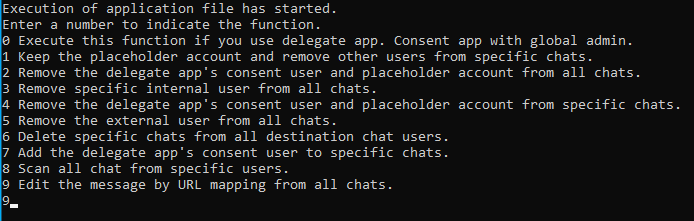
On the Microsoft sign in page, use the destination delegated app’s consent user to sign in to the destination tenant, and select the Consent on behalf of your organization option.
-
If the destination delegated app’s consent user is not a Microsoft 365 Global Administrator, you need to consent permissions to the delegated app’s consent user first by entering 0. Press Enter on the keyboard.
On the Microsoft sign in page, use the Microsoft 365 Global Administrator to sign in to the destination tenant, and select the Consent on behalf of your organization option on the authentication page.
Then, right-click the ChatMigrationAssistTool.exe file again and select Run as administrator. Enter 1, 2, 3, 4, 5, 6, 7, 8, or 9 to execute the corresponding function, and press Enter on the keyboard. On the Microsoft sign in page, use the destination delegated app’s consent user to sign in to the destination tenant.
NOTEThe following functions also requires additional input:
-
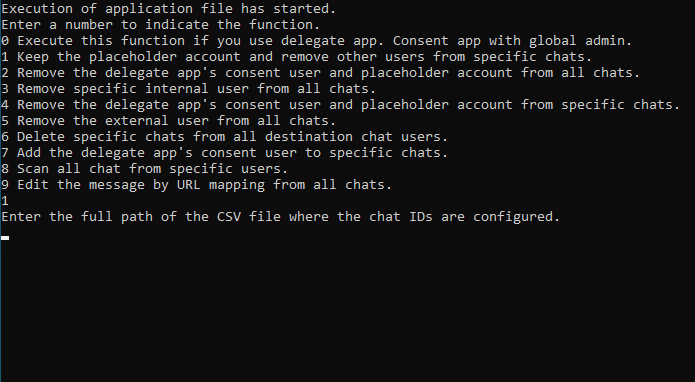
Function 1 – After entering 1, enter the full path of the CSV file containing the chat IDs configured in step 4 for this function, and press Enter on the keyboard.
-
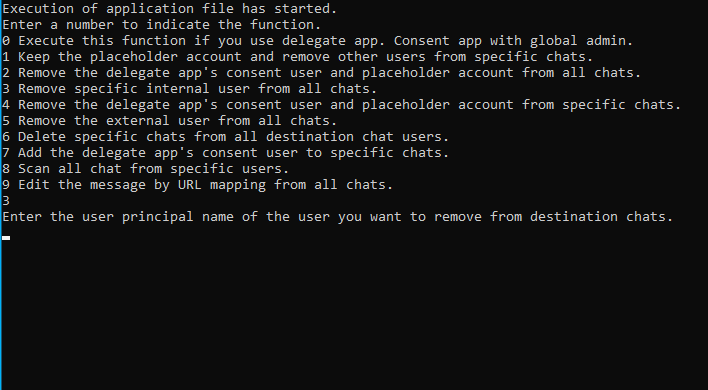
Function 3 – After entering 3, enter the user principal name of the user you want to remove, and press Enter on the keyboard.
-
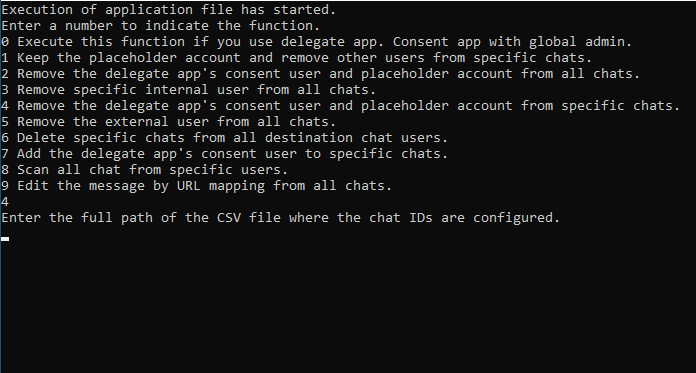
Function 4 – After entering 4, enter the full path of the CSV file containing the chat IDs configured in step 4 for this function, and press Enter on the keyboard.
-
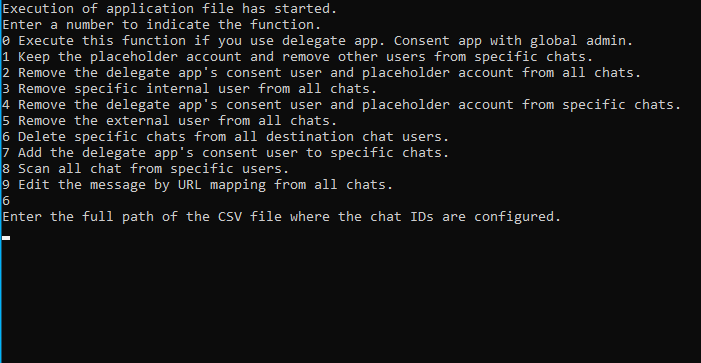
Function 6– After entering 6, enter the full path of the CSV file containing the chat IDs configured in step 4 for this function, and press Enter on the keyboard.
-
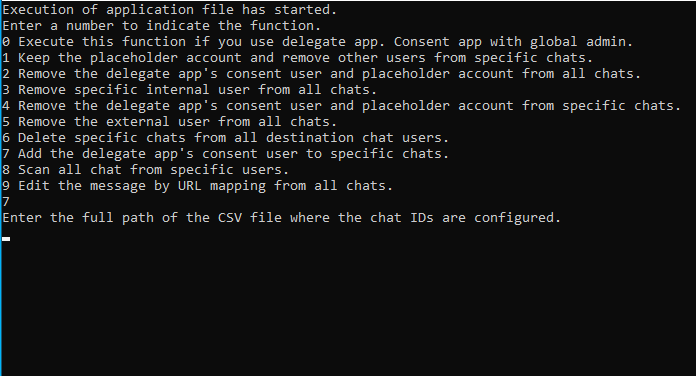
Function 7 – After entering 7, enter the full path of the CSV file containing the chat IDs configured in step 4 for this function, and press Enter on the keyboard.
-
Function 8 – After entering 8, enter the full path of the CSV file containing the usernames configured in step 4 for this function, and press Enter on the keyboard.

The process will be started. After the process finishes, a CSV file will be generated to report the results.
NOTEIf you enter 1, 2, or 4 in step 6 to remove the consent user, and want to recreate the chats in the destination, you can add the CreateNewChatIfServiceAccountIsLeave=true feature string in the Customized feature section in the Microsoft Teams Chat migration policy, and rerun the full migration job. Make sure you configure correct user mappings for source chat users.
NOTEIf you enter 9 to replace links in migrated chat messages, pay attention to the following results:
-
If the destination delegated app’s consent user does not exist in a chat, the whole chat will be skipped in the job.
-
If a migrated message’s sender is not the destination delegated app’s consent user, the message will be skipped in the job.
-
If links in a chat or message have been replaced in the last job, the chat or message will be skipped in the current job. In this situation, if you want to update the URL with the final domain to another one in the UrlMapping.csv file and replace the links to the new URL, you need to delete the Cache folder from the extracted tool folder before running another job.
-
Only the links sent in original messages and replies can be replaced. Links in replied messages as the screenshot below will be skipped in the job.

-
Tool to Hide Chats from Users
If you have mapped your source chat members to unexpected destination users, and do not want to those destination users see the destination chats and chat messages, you can refer to the following steps hide the destination chats and chat messages from specific destination users:
-
Scan the source chats to identify where the source chat members of those destination users reside by completing the following steps:
-
Create a custom app in source tenant and add the following permissions to the app.
API Permission Type Description Microsoft Graph User.Read.All Application Retrieve information of chat user profiles. Microsoft Graph Chat.ReadBasic.All Application Retrieve chat information. Microsoft Graph ChatMember.Read.All Application Retrieve chat users. -
Access the storage location of tool package and download the ChatScanTool.zip file.
-
Extract the ZIP file to a location with a network connection.
-
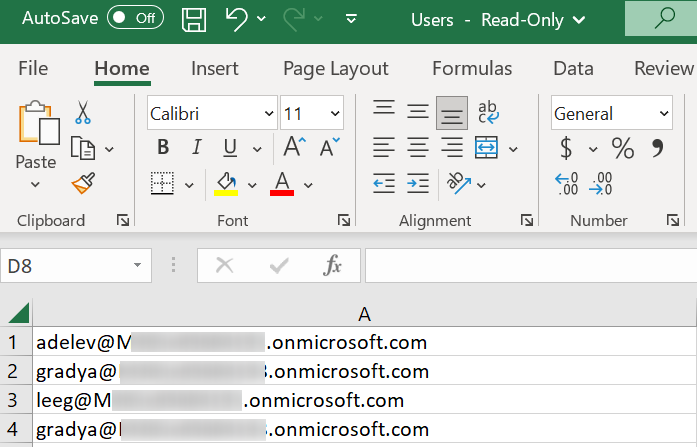
Create a CSV file in the extracted folder, and name the file as Users.
-
In each row of the CSV file, enter the username of source chat members whose chats you want to scan.
-
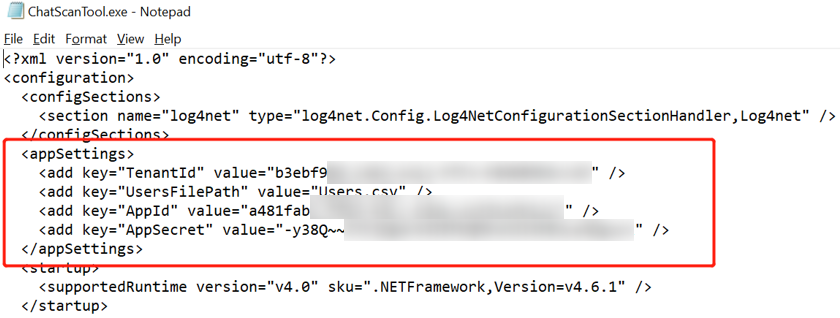
In the extracted tool folder, locate the ChatScanTool.exe.config configuration file and open it with Notepad.
-
In the configuration file, configure the tenant ID, csv file path of the user list, and the app ID and secret key of the custom app you create in step a.
-
Create a Reports folder in the extracted folder.
-
Double-click the ChatScanTool.exe application file to scan the chats of the configured users.
After the scan is finished, a report file with the scanned source chats will be generated in the Reports folder.
-
-
Hide the chats from those destination users by completing the following steps:
-
Access the storage location of tool package and download the LeaveAndHideChats.zip file.
-
Extract the ZIP file to a location with a network connection.
-
Run the Consent User.ps1 file with Windows PowerShell to consent required permissions.
-
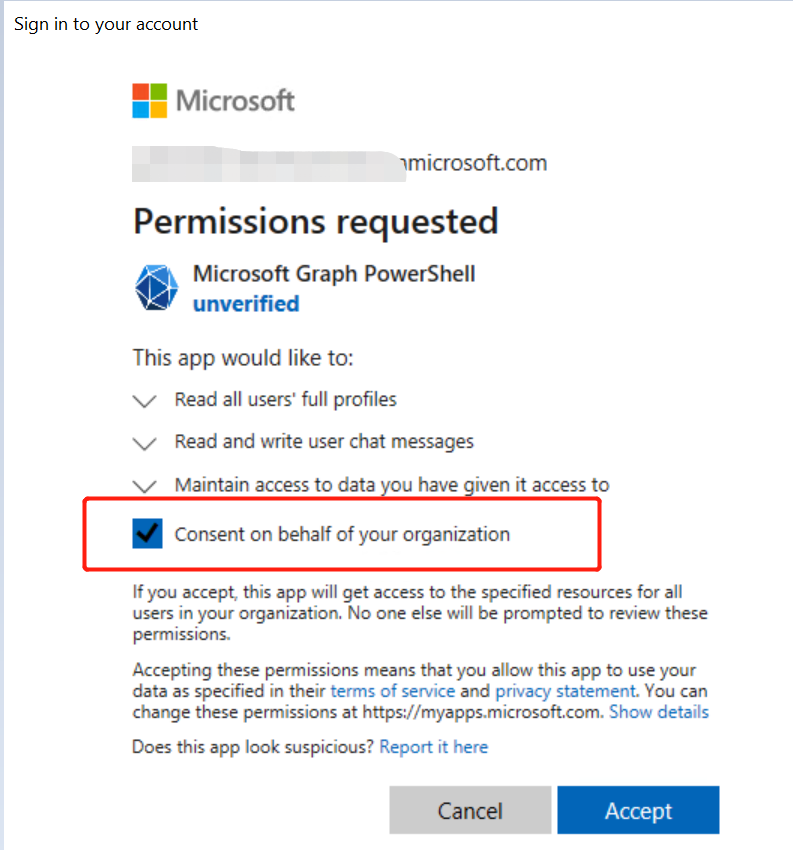
On the sign-in page, sign in using a Global Administrator of the destination tenant.
-
Select the Consent on behalf of your organization option, and click Accept to consent permissions to users of your organization.
-
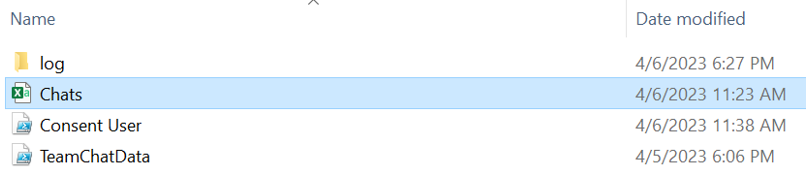
In the extracted folder, create a CSV file and name it as Chats.
-
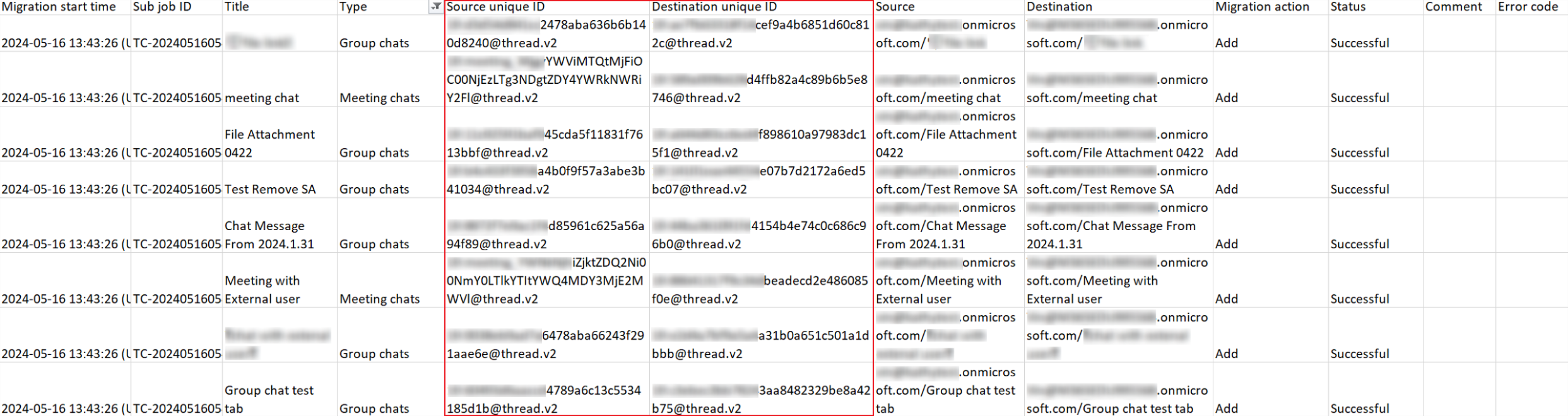
According to the source chat IDs scanned in step 1 > i, find the corresponding destination chat IDs in your migration job report.
-
Copy the IDs of destination chats that you want to hide from those destination users to the Chats.csv file.
-
Ask those destination users for which you want to hide the destination chats to run the TeamChatData.ps1 file with Windows PowerShell, and sign in with their credentials.
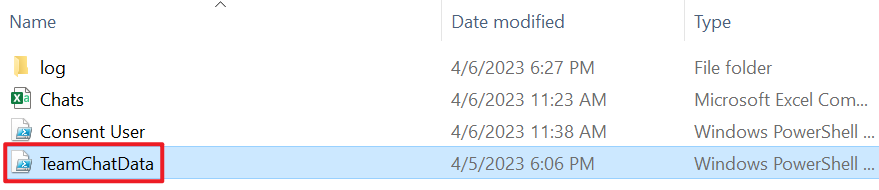
After the job is finished, the chats will be hidden from those destination users. A report file with the hidden results will be generated in the tool folder.
-
-
To migrate the chats to desired destination chat members, update the user mappings to map source chat members to the destination users, and rerun the migration job.