
Home > Download Center
Download this articleDownload Center
The Fly download center allows you to view the report generation job progress and other details of generated migration reports, and download the reports from a central page.
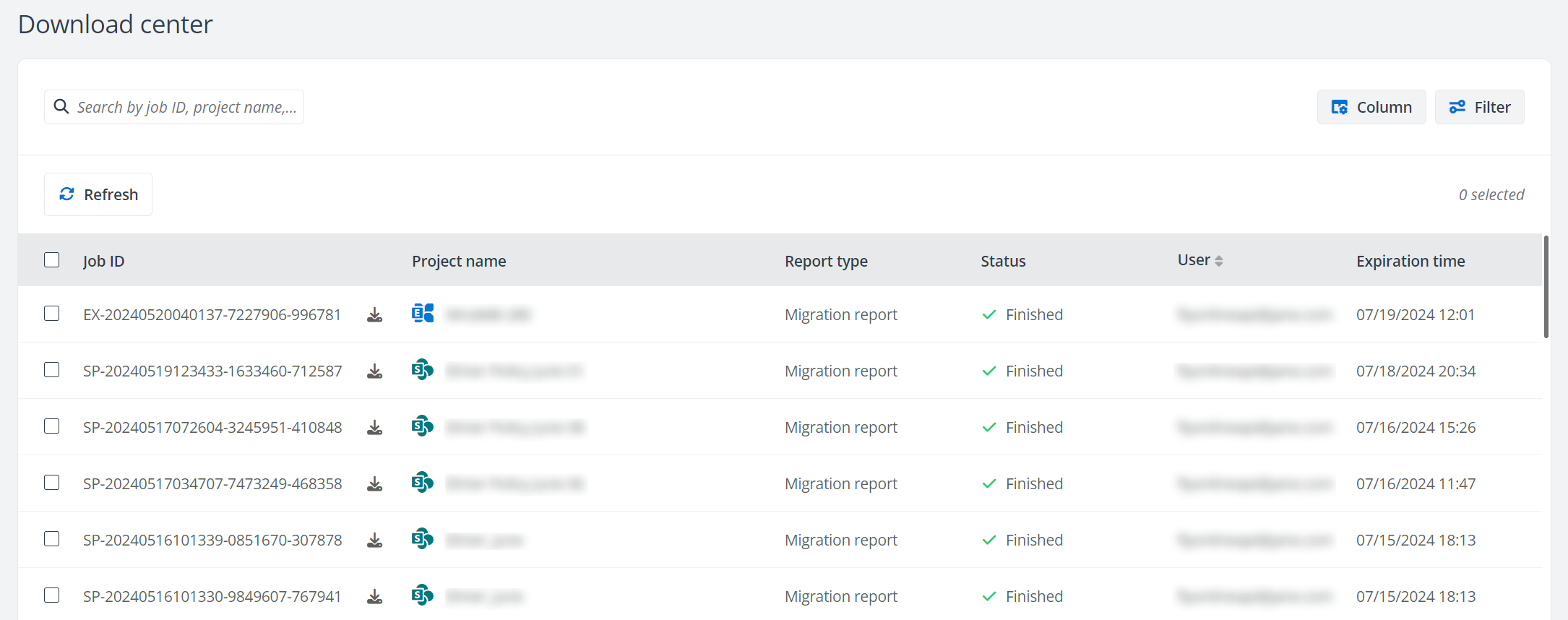
You can perform the following actions to manage the report migration jobs on this page.
-
Download – When the job is finished, you can click the Download button next to the job ID to download the migration reports before the expiration time of the reports. A ZIP file of the reports will be downloaded to the current browser’s download location.
-
Refresh – Click Refresh to retrieve the latest status of report generation jobs.
-
Stop – To stop in queue or in progress report generation jobs, select one or multiple jobs, then click Stop to stop the generation.
-
Delete – To delete migration reports that are not needed, select one or multiple jobs, then click Delete to delete them.
-
Filter – Click Filter to filter report generation jobs by Project type and/or Status.
-
Manage columns – Click Column to select the columns you want to display on the page, and click Apply to apply the configurations. The Job ID column must be displayed and cannot be deselected.
-
Search – Search report generation jobs by entering the keyword of the job ID, project name, or user who has generated the reports in the Search by job ID, project name, or user search box.
-
View the project names in the error reports – Click the specific number projects link in the project name of an error report to view all project names in this error report.