
Home > Perform Gmail Migrations > Required Permissions for Gmail Migration > Permissions for Destination Exchange Online
Download this articlePermissions for Destination Exchange Online
To connect to the destination, you can choose to only use a service account, Fly app profile, or custom app profile as the authentication method. You can also use the combination of a service account and a Fly app profile, or the combination of a service account and a custom app profile.
Refer to the following sections to view the permissions required by the authentication methods.
Fly App Profile Permissions
With the Tenant Owner or Service Administrator role, you can create a Fly app profile in AvePoint Online Services > Management > App management to connect to the Microsoft 365 tenant using the Fly app.
Refer to Fly App Profile Permissions about how to create a Fly app profile and required permissions of the Fly app profile.
-
If you want to perform Exchange Online tenant discovery or Exchange Online to Exchange Online migrations, make sure the account that authorizes the app has a mailbox (either by assigning the Exchange license or using PowerShell to create a mailbox).
-
You need to assign the Exchange Administrator role to the AvePoint Fly app in the following situations. Refer to How to Assign the Exchange Administrator Role to an App? for instructions.
- To create shared mailboxes/distribution lists/mail-enabled security groups in the destination.
If you do not want to assign the Exchange administrator role to the app authorization user, you can add custom roles to the app to ensure the availability of above functions. Refer to How to Add Custom Roles to an App? for details.
Custom App Profile Permissions
AvePoint Online Services is transitioning from Exchange Web Services (EWS) to Microsoft Graph. As part of this transition, for Gmail to Exchange Online migrations, administrators must re-authorize AvePoint applications to grant the required Microsoft Graph permissions, or add the following Microsoft Graph API application permissions to their destination custom Azure apps:
- Contacts.ReadWrite
- Mail.ReadWrite
- MailboxFolder.ReadWrite.All
- MailboxItem.ImportExport.All
- MailboxItem.Read.All
- MailboxSettings.ReadWrite
- Tasks.ReadWrite.All
With the Tenant Owner and Service Administrator role, you can create a custom app profile in AvePoint Online Services > Management > App management to connect to the Microsoft 365 tenant using a custom Azure app.
Refer to the following procedures to create a custom app profile:
-
Prepare a certificate in Microsoft Entra ID. Refer to Prepare a Certificate for the Custom Azure App for more information.
You can ignore this step if you have a certificate.
-
Create a custom Azure app in Microsoft Entra ID. Refer to Create Custom Azure Applications for more information.
-
Create an App Profile for a Custom Azure App in AvePoint Online Services.
After you re-authorize the app profile, you need to wait about one hour before using the app profile for your migration to refresh the token if there are permissions updated.
Refer to the following tables to add API permissions required by Exchange Online.
Note the following:
-
To perform Exchange Online tenant discovery, make sure the account that authorizes the app has a mailbox (either by assigning the Exchange license or using PowerShell to create a mailbox).
-
You need to assign the Exchange Administrator role to the custom app in the following situations. Refer to How to Assign the Exchange Administrator Role to an App? for instructions.
-
To create a mailbox for the account that authorizes the app using Exchange Online PowerShell.
-
To create shared mailboxes/distribution lists/mail-enabled security groups in the destination.
If you do not want to assign the Exchange administrator role to the app authorization user, you can add custom roles to the app to ensure the availability of above functions. Refer to How to Add Custom Roles to an App? for details.
-
| API | Permission | Type | Purpose |
|---|---|---|---|
| Office 365 Exchange Online | full_access_as_app (Use Exchange Web Services with full access to all mailboxes) | Application | Retrieve and migrate items from all mailboxes. *Note: If you do not want to add this permission to the app, you can create an RBAC assignment for the app to only access to specified mailboxes. Refer to the option 3 in the How to Migrate Mailboxes without the ApplicationImpersonation Role? section for details. (Required when using the EWS for migration.) |
| Office 365 Exchange Online | Exchange.ManageAsApp (Manage Exchange As Application) | Application | Migrate Google groups and mailbox aliases. (Required when using either the Graph API or EWS for migration.) |
| Microsoft Graph | User.Read.All (Read and write all users’ full profiles) | Application | Retrieve the information of Microsoft 365 user profiles. (Required when using either the Graph API or EWS for migration.) |
| Microsoft Graph | Calendars.ReadWrite (Read and write calendars in all mailboxes) | Application | Required if you want to keep the source Response statuses of event attendees to the destination. (Required when using either the Graph API or EWS for migration.) |
| Microsoft Graph | Contacts.ReadWrite (Read and write contacts in all mailboxes) | Application | Retrieve contacts and update them to replace email address. (Required when using the Graph API instead of EWS for migration.) |
| Microsoft Graph | Mail.ReadWrite (Read and write mail in all mailboxes) | Application | Retrieve mails and delete conflicted mails. (Required when using the Graph API instead of EWS for migration.) |
| Microsoft Graph | MailboxFolder.ReadWrite.All (Read and write all the users' mailbox folders) | Application | Retrieve and restore mailbox folders. (Required when using the Graph API instead of EWS for migration.) |
| Microsoft Graph | MailboxItem.ImportExport.All (Allows the app to perform backup and restore for all mailbox items) | Application | Retrieve mailbox items. Required if involved in archive mailbox. (Required when using the Graph API instead of EWS for migration.) |
| Microsoft Graph | MailboxItem.Read.All (Read all the users' mailbox items) | Application | Retrieve mailbox items to judge conflicted items. (Required when using the Graph API instead of EWS for migration.) |
| Microsoft Graph | MailboxSettings.ReadWrite (Read and write all user mailbox settings) | Application | Restore mailbox settings, for example, the Inbox rules. (Required when using the Graph API instead of EWS for migration.) |
| Microsoft Graph | Tasks.ReadWrite.All (Read and write all users’ tasks and tasklists) | Application | Delete conflicted tasks. (Required when using the Graph API instead of EWS for migration.) |
| Microsoft Graph | Group.ReadWrite.All (Read and write all groups) | Application | Required when you do not assign the Exchange Administrator role to the app. Retrieve Microsoft 365 Group mailboxes and mailbox types, and create Microsoft 365 Group mailboxes in the destination. (Required when using the EWS for migration.) |
For easy use, you can directly use the following commands to add required API permissions through Manifest for Microsoft 365 Commercial tenants.
Service Account Permissions
The Tenant Owner and Service Administrators can also create a service account profile for Microsoft 365 to connect AvePoint Online Services to your Microsoft 365 tenant.
Users with Multi-Factor Authentication (MFA) enabled cannot be used as the service account to perform migrations. You can use a delegated app profile instead.
Make sure the service account has a mailbox (either by assigning the Exchange license or using PowerShell to create a mailbox) and meets the following requirements:
To make sure the source service account has a mailbox, go to the Microsoft 365 admin center > Users > Active users, and select Exchange Online under the Licenses and apps tab of the service account.
| Required Permission | Note |
|---|---|
| ApplicationImpersonation role or Full Access permission to destination mailboxes in the migration | Microsoft has announced the retirement of the ApplicationImpersonation role in Exchange Online. Refer to Impact and Solutions for the Retirement of the ApplicationImpersonation Role in Exchange Online for details. If you do not migrate Google groups in the migration, you can grant the Full Access permission without adding the ApplicationImpersonation role. |
| Mail Recipients role | Retrieve mailboxes when performing Gmail migrations. |
| Mail Recipient Creation role | Required if you want to create shared mailboxes and resource mailboxes in the destination. |
| Distribution Groups role | Required if you want to migrate Google groups to distribution groups. |
| Security Group Creation and Membership role | Required if you want to migrate Google groups to mail-enabled security groups. If the service account is the Exchange Administrator, this role is not required. |
| Groups administrator role in the admin centers | Required if you want to migrate Google groups to existing Microsoft 365 Groups. |
What permissions are required if I also use an app profile?
If you use both service account and app profile authentications for the destination Exchange Online, and the app profile has the Exchange Administrator role, there are no permission requirements for the service account. If the app profile does not have the Exchange Administrator role, some service account permissions will not be required and you need to make sure the service account has a mailbox and the following permissions:
To make sure the destination service account has a mailbox, go to the Microsoft 365 admin center > Users > Active users, and select Exchange Online under the Licenses and apps tab of the service account.
| Destination Service Account Permissions | Note |
|---|---|
| Mail Recipients role | Retrieve mailboxes when performing Gmail migrations. |
| Mail Recipient Creation role | Required if you want to create shared mailboxes and resource mailboxes in the destination. |
| Distribution Groups role | Required if you want to migrate Google groups to distribution groups. |
| Security Group Creation and Membership role | Required if you want to migrate Google groups to mail-enabled security groups. |
Delegated App Profile Permissions
Fly allows you to use the Fly delegated app profile or custom delegated app profile to connect to your workspace.
To use a delegated app profile, note the following:
-
The license and permission requirements for the consent user are the same as those for the service account. For details, refer to Service Account Permissions.
-
If the consent user of the delegated app profile has Multi-Factor Authentication (MFA) enabled, you must authorize or re-authorize the delegated app profile after MFA is enabled. Otherwise, the migration jobs using the delegated app profile will fail.
-
If you re-authorize the app profile, you need to wait about one hour before using the app profile for your migration to refresh the token when there are permissions updated.
-
Exchange PowerShell is unavailable when you only use a delegated app for a 21Vianet tenant.
To use the Fly delegated app profile with required permissions, refer to Fly Delegated App Profile Permissions.
To use a custom delegated app profile with required permissions, refer to the following steps:
-
After registering an app in Microsoft Entra ID, add the permissions in the table below to the app.
API Permission Type Purpose Office 365 Exchange Online EWS.AccessAsUser.All
(Access mailboxes as the signed-in user via Exchange Web Services)Delegated Access specified user and import data. Office 365 Exchange Online Exchange.Manage
(Manage Exchange configuration)Delegated Use Exchange PowerShell to migrate mailbox permissions, distribution lists, and dynamic distribution lists. Microsoft Graph Domain.Read.All
(Read domains)Delegated Create Microsoft 365 Group mailboxes. Microsoft Graph Group.ReadWrite.All
(Read and write all groups)Delegated Create Microsoft 365 Group mailboxes. For easy use, you can directly use the following commands to add required API permissions through Manifest for Microsoft 365 Commercial tenants.
-
Click Authentication in the left navigation of the app.
-
Click Add a platform.
-
Select Web in the Configure platforms panel.
-
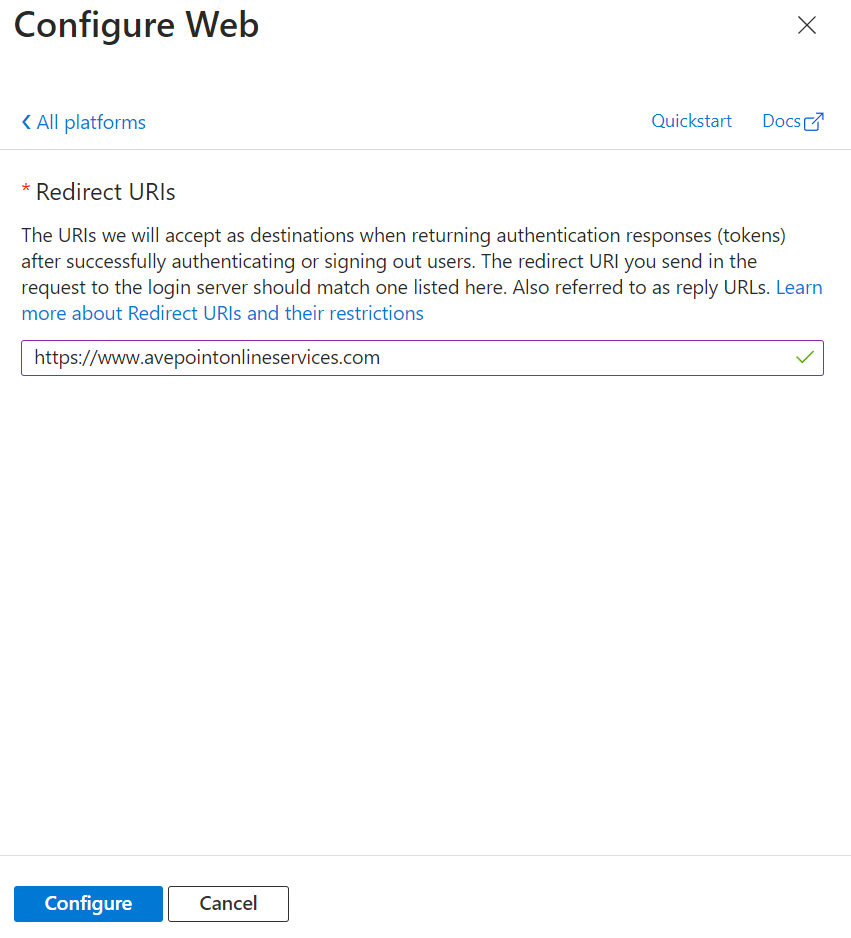
In the Configure Web panel, enter the AvePoint Online Services URL: https://www.avepointonlineservices.com for your commercial environment or https://usgov.avepointonlineservices.com for your U.S. Government environment in the Redirect URIs field.
-
Click Configure.
-
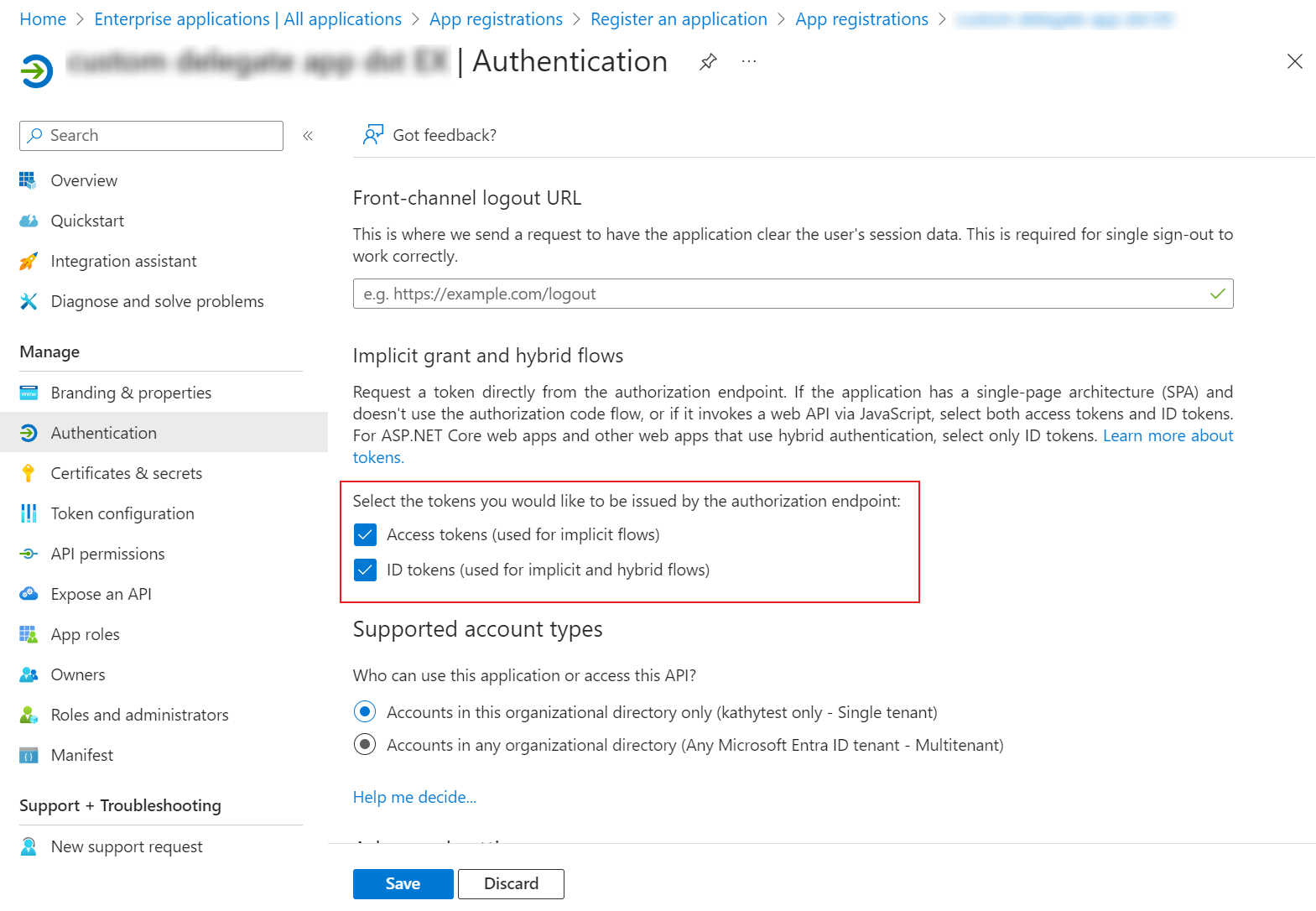
Select the Access tokens and ID tokens checkboxes on the Authentication page.
-
Click Save.
-
Create an app profile for the app using the Custom mode in AvePoint Online Services by referring to Consent to a Custom Azure App with Delegated Permissions.
NOTEWhen consenting to the app, if you have granted the admin consent and allowed public client flows for the permissions, you can choose to use the Global Administrator consent or the User consent method. If not, you can only use the Global Administrator consent method.