
Home > Tenant Discovery
Download this articleTenant Discovery
Before initiating migrations for Microsoft 365 or Google workspaces, such as Exchange Online, Microsoft Teams, and Gmail, you can run a tenant discovery job to scan and report the object count, object type, object size, and other details of the workspace. According to the discovery reports, you can better understand your workspaces and plan for your migrations.
- Tenant discovery does not support 21Vianet tenants.
Make sure your tenant meets the following requirements before running a tenant discovery:
-
Tenant discovery must be enabled in your subscription agreement for your tenant in AvePoint Online Services.
-
Deselect the Display concealed user, group, and site names in all reports option in Settings > Org Settings > Reports in Microsoft 365 admin center. If you perform tenant discovery with this option selected, the following errors will occur:
-
Some data in Exchange cannot be scanned and reported. Refer to Exchange Online for details.
-
The last activity date of Groups/Teams cannot be retrieved.
-
The number of total files and information about the top 10 OneDrive sites by file count cannot be scanned and reported.
-
-
Exchange PowerShell must be available in your tenant if you want to run an Exchange Online tenant discovery for the tenant.
Refer to the following steps to run a tenant discovery to scan your workspace:
-
Create a Fly app profile or custom app profile in AvePoint Online Services. Refer to the steps in Fly App Profile Permissions or Create an App Profile for a Custom Azure App for details.
-
Run an Auto Discovery job in AvePoint Online Services. Refer to Manage Scan Profiles for details.
-
Go back to Fly, click Tenant discovery in the left pane, and click Microsoft 365 workspace or Google workspace.
-
Select a tenant where you want to scan the workspace from the Tenant drop-down list. You can also enter the keyword of a tenant name in the search box to search for the tenant.
-
Select the workspace that you want to scan from the Workspace drop-down list.
-
Click Run discovery.
-
In the Run discovery window, select a Fly app profile or custom app profile from the drop-down list to run the discovery with the app profile. You can also click the Create new in AvePoint Online Services link to create a new one.
-
Check the selected workspaces that will be scanned.
Note the following:
-
If you select Microsoft Teams in step 5 to scan Teams, SharePoint Online is automatically selected to scan and report team site data of the Teams at the same time. You can deselect SharePoint Online if you do not want to scan and report team site data.
-
If you select Microsoft 365 Groups in step 5 to scan Groups, SharePoint Online is automatically selected to scan and report team site data of the Groups at the same time. You can deselect SharePoint Online if you do not want to scan and report team site data.
-
If you select Exchange Online in step 5, Microsoft 365 Groups is automatically selected to scan and report data of group mailboxes, distribution lists, and mail-enabled security groups at the same time. You can deselect Microsoft 365 Groups if you do not want to scan and report group data.
-
-
Click Run to start the discovery job. You can click Stop to stop the running job if needed.
After the discovery job finishes, object details of your workspace will be reported on the Tenant discovery page.
The source may contain data that cannot be migrated by Fly. We do not recommend you compare the data consistency via the discovery reports of source and destination after the migration.
To view the discovery reports of different workspaces, you can switch the workspaces from the Workspace drop-down list or switch the tenants from the Tenant drop-down list to view discovery reports of workspaces in different tenants.
Refer to the following sections to understand the discovery reports for each workspace.
Exchange Online
In the Tenant overview tab, you can view the following information of Exchange Online:
If the Display concealed user, group, and site names in all reports option is selected in the Microsoft 365 admin center, the total items, total storage used (GB), total deleted items, deleted item size (GB), total inactive mailboxes, and the information of mailboxes by storage used cannot be scanned and reported.
-
General information – A bar showing the total mailboxes, total items, total deleted items, deleted item size, and total inactive mailboxes.
-
Mailboxes by type – A pie chart showing the total number of total mailboxes and the number of user/shared/resource mailboxes.
-
Mailboxes by storage used – A bar chart showing the number of mailboxes by the storage used.
-
Groups by type – A pie chart showing the total number of groups and the number of group mailboxes, mail-enabled security groups, distribution lists, and dynamic distribution lists.
In the Mailbox details tab, details about each mailbox will be reported as the screenshot below.
If the Display concealed user, group, and site names in all reports option is selected in the Microsoft 365 admin center, the items in primary mailbox, storage used by primary mailbox (GB), deleted item size in primary mailbox (GB), and last activity date cannot be scanned and reported.

You can also perform the following actions on this page:
-
Search – Enter the keyword of an email address in the search box to search for the mailbox.
-
Manage columns – Click Column to select the columns you want to display on the page, and click Apply to apply the configurations. The Email address column cannot be deselected.
-
Filter – Click Filter to filter mailboxes by type, archive mailbox status, and/or last activity date.
-
Export – Select desired mailboxes and click Export to export the details of the mailboxes to an Excel file to analyze locally.
Note the following:
-
To report the data information of group mailboxes, distribution lists, dynamic distribution lists, and mail-enabled security groups, the Microsoft 365 Groups checkbox must be selected together with the Exchange Online checkbox in the Run discovery window.
-
If the Display concealed user, group, and site names in all reports option is selected in the Microsoft 365 admin center, the last activity date cannot be scanned and reported.
In the Group details tab, details about each group mailbox will be reported as the screenshot below.
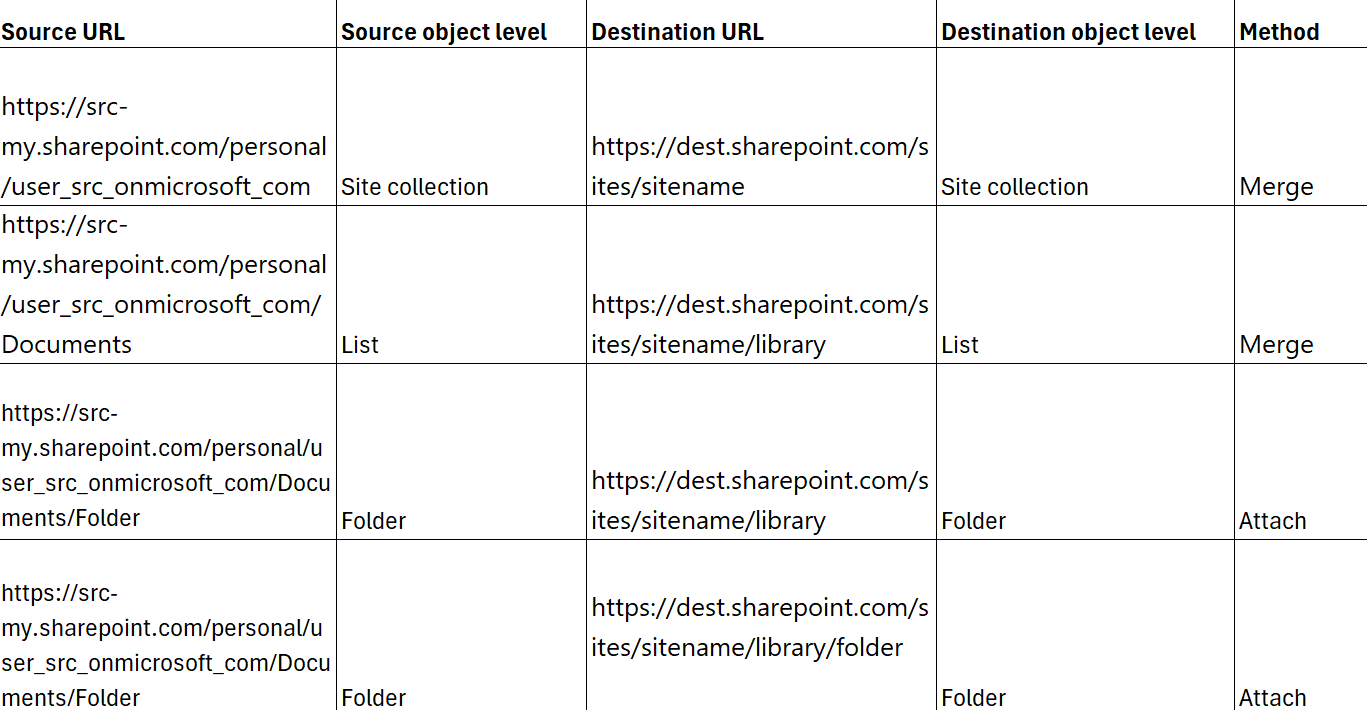
You can also perform the following actions on this page:
-
Search – Enter the keyword of a group name or email address in the search box to search for the group mailbox.
-
Manage columns – Click Column to select the columns you want to display on the page, and click Apply to apply the configurations. The Email address column cannot be deselected.
-
Filter – Click Filter to filter group mailboxes by type and/or last activity date.
-
Export – Select desired group mailboxes and click Export to export the details of the group mailboxes to an Excel file to analyze locally, or click Download failed group mailboxes to download the detailed information of failed group mailboxes to an Excel file for analysis.
Microsoft Teams
In the Tenant overview tab, you can view the following information of Microsoft Teams:
-
General information – A bar showing the total Teams, total items, Teams without owners, Inactive Teams, Teams with guest users, Total channels.
-
Team privacy distribution – A pie chart showing the total number of total Teams and the number of public/private/hidden membership Teams.
-
Channel type distribution – A pie chart showing the total number of total channels and the number of standard/private/shared channels.
-
SharePoint team sites by site storage used – A bar chart showing the total number of SharePoint team sites by the storage used.
In the Team details tab, detailed information about each Team will be reported as the screenshot below.
Note the following:
-
To report the data information of team sites, the SharePoint Online checkbox must be selected together with the Microsoft Teams checkbox in the Run discovery window.
-
To report the size of team mailboxes, make sure the Fly app profile or custom app profile has the Exchange Administrator role. Refer to How to Assign the Exchange Administrator Role to an App? for instructions.

You can also perform the following actions on this page:
-
Search – Enter the keyword of an email address or Team name in the search box to search for the Team.
-
Manage columns – Click Column to select the columns you want to display on the page, and click Apply to apply the configurations. The Team email address column cannot be deselected.
-
Filter – Click Filter to filter Teams by privacy, status, and/or last activity date.
-
Export – Select desired Teams and click Export to export the details of the Teams to an Excel file to analyze locally, or click Download failed Teams to download the details of failed Teams to an Excel file for analysis.
SharePoint Online
In the Tenant overview tab, you can view the following information of SharePoint Online:
-
General information – A bar showing the total mailboxes, total items, total deleted items, deleted item size, and total inactive mailboxes.
-
Site collections by storage used – A bar chart showing the number of mailboxes by the storage used.
-
Site collections by last activity date – A bar chart showing the number of site collections by the last activity date.
-
Top 10 site templates by site collection count – A bar chart showing the top 10 site templates most used by site collections in this tenant.
-
Top site collections by file count – A bar chart showing the top 10 site collections with the most files.
In the Site collection details tab, details about each site collection will be reported as the screenshot below.

You can also perform the following actions on this page:
-
Search – Enter the keyword of a site name in the search box to search for the site.
-
Manage columns – Click Column to select the columns you want to display on the page, and click Apply to apply the configurations. The Site name column cannot be deselected.
-
Filter – Click Filter to filter sites by site template, last activity date, and/or site connection status.
-
Export – Select desired sites and click Export to export the details of the sites to an Excel file to analyze locally, or click Download failed site collections to download the details information of failed sites to an Excel file for analysis.
Microsoft 365 Groups
In the Tenant overview tab, you can view the following information of Microsoft 365 Groups:
To report the size of group mailboxes, make sure the Fly app profile or custom app profile has the Exchange Administrator role. Refer to How to Assign the Exchange Administrator Role to an App? for instructions.
-
General information – A bar showing the total Groups, total items, Group without owners, inactive Groups, and Group with guest users.
-
Group privacy distribution – A pie chart showing the total number of total Groups and the number of public/private/hidden membership Groups.
-
SharePoint team sites by site storage used – A bar chart showing the number of SharePoint team sites by the storage used.
In the Microsoft 365 Group details tab, details about each Group will be reported as the screenshot below.
To report the data information of team sites, the SharePoint Online checkbox must be selected together with the Microsoft 365 Groups checkbox in the Run discovery window.
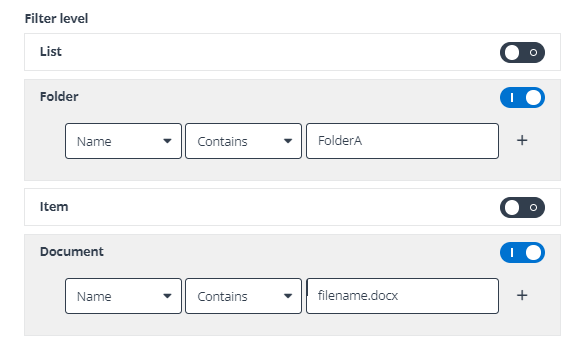
You can also perform the following actions on this page:
-
Search – Enter the keyword of an email address or Group name in the search box to search for the Group.
-
Manage columns – Click Column to select the columns you want to display on the page, and click Apply to apply the configurations. The Group email address column cannot be deselected.
-
Filter – Click Filter to filter Groups by privacy, Teams status, and/or last activity date.
-
Export – Select desired Groups and click Export to export the details of the Groups to an Excel file to analyze locally, or click Download failed Microsoft 365 Groups to download the details of failed Groups to an Excel file for analysis.
OneDrive
In the Tenant overview tab, you can view the following information of OneDrive:
Orphaned OneDrive sites are not supported.
If the Display concealed user, group, and site names in all reports option is selected in the Microsoft 365 admin center, the number of total files and information about top 10 OneDrive sites by file count cannot be scanned and reported.
-
General information – A bar showing the total OneDrive sites, total storage used, and total files.
-
Storage used – A bar chart showing the number of OneDrive sites by the storage used.
-
Top 10 OneDrive sites by file count – A bar chart showing the top 10 OneDrive.
In the OneDrive site details tab, details about each site will be reported as the screenshot below.
Orphaned OneDrive sites are not supported.
If the Display concealed user, group, and site names in all reports option is selected in the Microsoft 365 admin center, the number of total files cannot be scanned and reported.
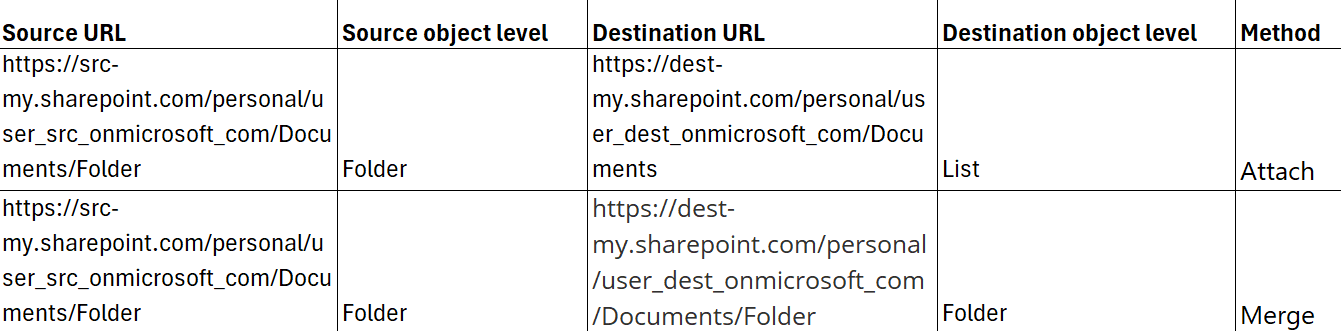
You can also perform the following actions on this page:
-
Search – Enter the keyword of a user principal name or user display name in the search box to search for the site.
-
Manage columns – Click Column to select the columns you want to display on the page, and click Apply to apply the configurations. The User principal name column cannot be deselected.
-
Filter – Click Filter to filter sites by last activity date.
-
Export – Select desired sites and click Export to export the details of the sites to an Excel file to analyze locally, or click Download failed OneDrive sites to download the details of failed sites to an Excel file for analysis.
Gmail
In the Tenant overview tab, you can view the following information of Gmail:
-
General information – A bar showing the total mailboxes, total items, total storage used, total inactive mailboxes, and total Google groups.
-
Mailboxes by type – A pie chart showing the total number of total mailboxes and the number of user/resource mailboxes.
-
User mailboxes by storage used – A bar chart showing the number of mailboxes by the storage used.
-
Items in user mailboxes by storage used – A bar chart showing the number of items in user mailboxes by the storage used.
-
Items in resource mailboxes by storage used – A bar chart showing the number of items in resource mailboxes by the storage used.
In the Mailbox details tab, details about each mailbox will be reported as the screenshot below.

You can also perform the following actions on this page:
-
Search – Enter the keyword of the email address or display name of a mailbox in the search box to search for the mailbox.
-
Manage columns – Click Column to select the columns you want to display on the page, and click Apply to apply the configurations. The Email address column cannot be deselected.
-
Filter – Click Filter to filter mailboxes by type, status, and/or last activity date.
-
Export – Select desired mailboxes and click Export to export the details of the mailboxes to an Excel file to analyze locally, or click Download failed mailboxes to download the detailed information of failed mailboxes to an Excel file for analysis.
In the Group details tab, details about each group mailbox will be reported as the screenshot below.

You can also perform the following actions on this page:
-
Search – Enter the keyword of a group name or email address in the search box to search for the group.
-
Manage columns – Click Column to select the columns you want to display on the page, and click Apply to apply the configurations. The Group name column cannot be deselected.
-
Export – Select desired group mailboxes and click Export to export the details of the group mailboxes to an Excel file to analyze locally.
Google Drive
In the Tenant overview tab, you can view the following information of Google Drive:
Tenant discovery will only report active users, but will not report suspended users.
-
General information – A bar showing the number of user drives, shared drives, folders, and files, and total size.
-
User drives by storage used – A bar chart showing the number of user drives by the storage used.
-
Shared drives by storage used – A bar chart showing the number of shared drives by the storage used.
In the Google Drive details tab, details about each drive will be reported as the screenshot below.

You can also perform the following actions on this page:
-
Search – Enter the keyword of an email address or drive name in the search box to search for the drive.
-
Manage columns – Click Column to select the columns you want to display on the page, and click Apply to apply the configurations. The Google Drive column cannot be deselected.
-
Filter – Click Filter to filter mailboxes by type and/or last activity date.
-
Export – Select desired drives and click Export to export the details of the drives to an Excel file to analyze locally, or click Download failed drives to download the details of failed drives to an Excel file for analysis.