
Home > Reporting
Download this articleReporting
You can have an overview of your migrations across all projects and workspaces in Reporting.
Fly retrieves and generates reports for completed migration jobs in your tenant every day. Click Reporting in the left pane to access the Reporting page. On the page, select the source and destination tenants as the data scope and a date range as the time scope for the migration report. In the drop-down lists of source and destination tenants, you can enter the keyword of a tenant name in the search box and press Enter on the keyboard to search the tenant. The migration jobs that are not finished within the time scope for Fly to retrieve data will not be included in the report.
The information of a completed project or mapping that are removed from Projects will still be displayed in Reporting.
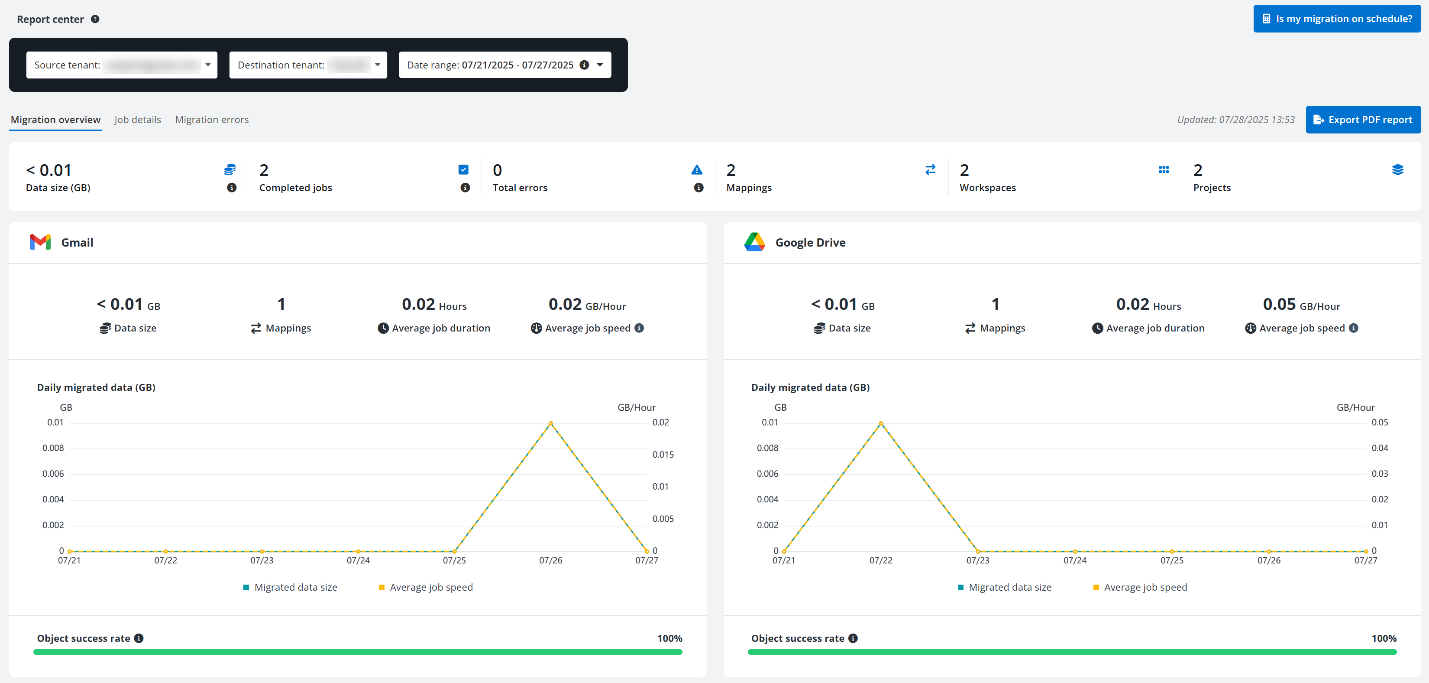
In the Migration overview tab, the general information of migration jobs in the report scope is displayed in tiles on the top, including the data size, the number of complete jobs, mappings, workspaces, and projects. You can click the number in the Errors field to access the Migration errors tab to view the error details.
When the number in the Errors field is zero, the number is not clickable.
The migration job information is also displayed in tiles by workspaces. In each tile, you can view the data size, number of mappings, average job duration, average job speed, daily migrate data size, and object success rate of corresponding workspace.
You can click Export PDF report to download a PDF report of the current page to the current browser’s download location.
In the table of the Job details tab, you can view the detailed information of migration jobs in the report scope, including job ID, job type, job finish time, etc.
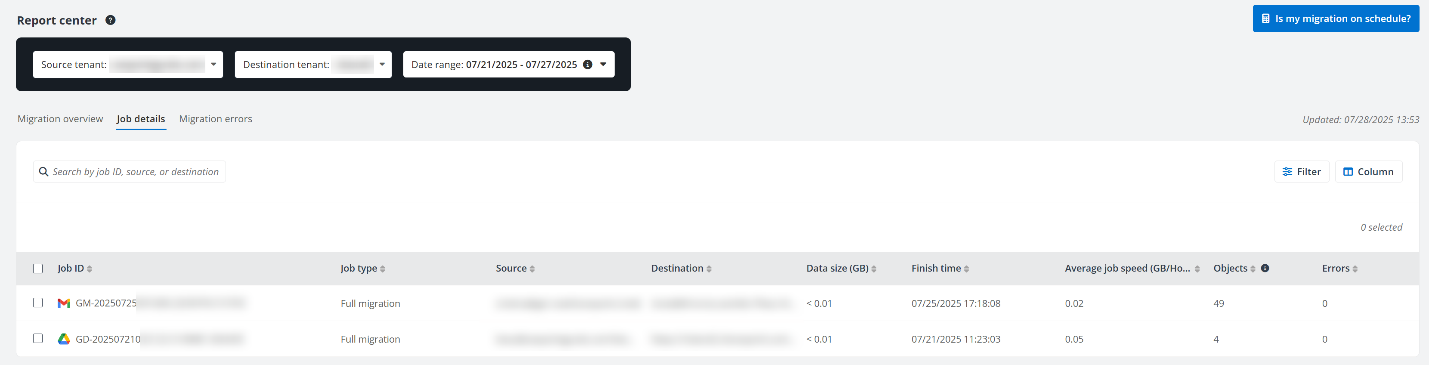
You can perform the following actions on this page:
-
Search – Search jobs by entering the keyword of the job ID, source, or destination in the search box.
-
Filter – Click Filter to filter jobs by Workspace and/or Job type.
-
Manage columns – Click Column to select the columns you want to display on the page, and click Apply to apply the configurations. The Job ID column must be displayed and cannot be deselected.
-
Export – Select your desired jobs and click Export to export the details of the jobs to an Excel file.
-
Analyze – Select your desired jobs and click Analyze to analyze total and average data information of migration jobs to compare full and incremental migration job speeds.
In the Migration errors tab, you can view the detailed information of errors occurred in the migration jobs.
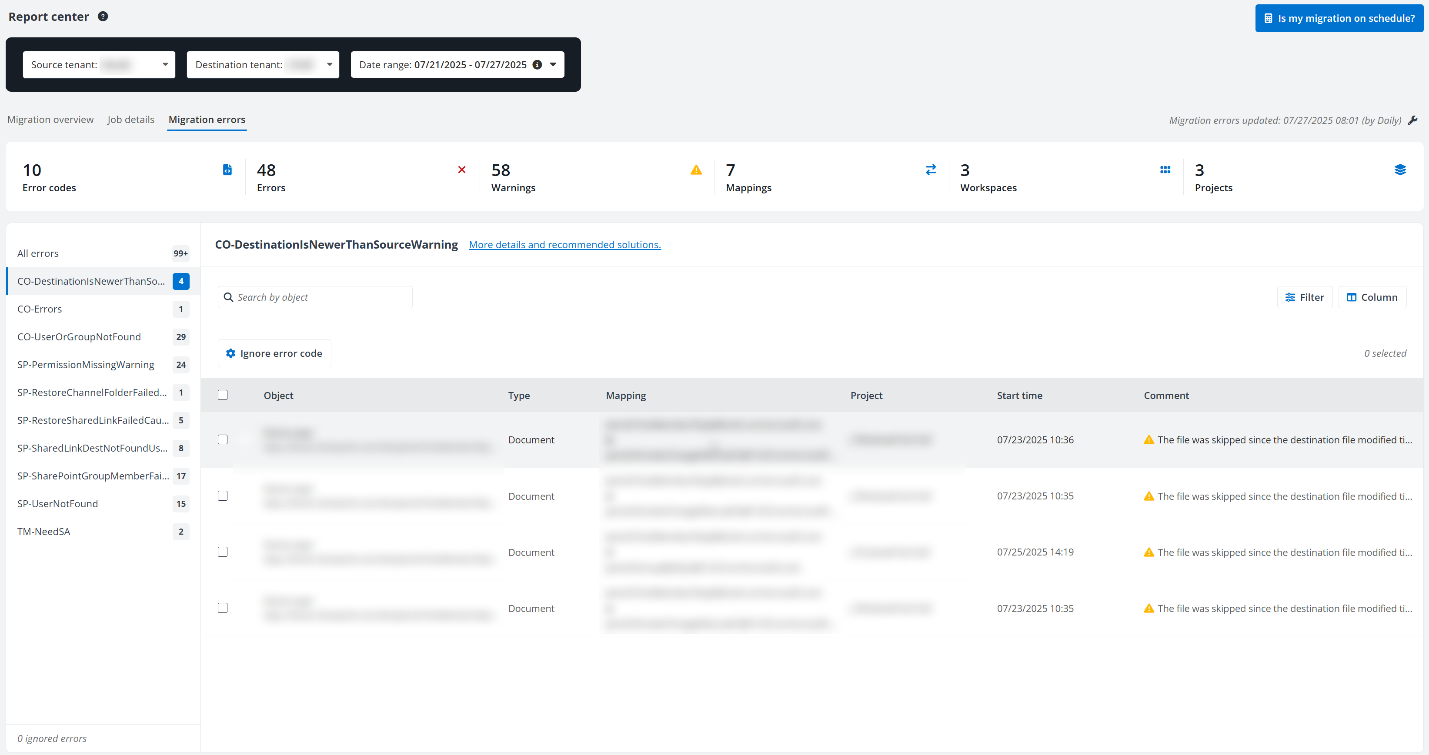
You can perform the following actions on this page:
-
Configure update frequency – Click the wrench button next to the update time, select an update frequency, and click Apply to update the update frequency.
-
Search – Search errors by entering the keyword of an object in the search box.
-
Filter – Click Filter to filter errors by Status and/or Category color.
-
Ignore error code – Click Ignore error code and complete the following steps to ignore an error code:
-
If you click Ignore error code in the All errors tab without any error code selected, select an error code from the drop-down list.
-
If you click an error code in the All errors tab and click Ignore error code, the Error code field will be automatically filled in.
NOTEIf the error code has an inactive record in the Settings > Ignored errors section, the Error code field will be automatically filled in and cannot be edited.
-
Switch on the button to ignore this error.
-
Configure an ignore scope for the error.
-
Click Save to ignore the error code.
-
-
Ignore errors – Select one or more items with the errors and click Ignore. The Ignore errors window appears. Click Ignore items to hide items with selected errors from the Migration errors section. The hidden items will no longer be displayed in the subsequent migrations. To hide all items with selected errors, click the error code from the error list and click Ignore error code to configure an ignore scope for the error.
-
Configure settings for ignored errors – Click an error code in the ignored errors section and click Configure settings for ignored errors to access the Ignore error code panel. The Error code field will be automatically filled in and complete the following steps to update settings for the error:
-
By default, the error is ignored. If you do not want to ignore the error, you can switch off the button and directly click Save to save the updates.
-
If you want to keep the error ignored, update the ignore scope for the error and click Save to save the updates.
-
-
Remove ignore – Click Show from the left panel to view all ignored errors. Click an error code to view items with this error. Select one or more items and click Remove ignore to show the items in the Migration errors section again.
-
Categorize with color – You can categorize the errors with a desired color. What the applied color represents is left up entirely to your organization.
-
You can hover your mouse over an error and click the apply color button. Select a color in the Select a color window to apply to the error. Or, you can select one or multiple errors and click Categorize with color. In the Select a color window, select a color and click Apply.

Apply color button.
-
Export report – Select one or more items with errors and click Export report to export the details of the items to an Excel file.
In-Progress Migration Calculator
When your migration project is in progress, you can use the in-progress migration calculator to estimate whether your Microsoft 365 and Google migrations will complete on the target date in Reporting. This feature analyzes your migration scope and historical migration performance to provide timeline estimates.
To estimate future timelines for in-progress migrations, refer to the following steps:
-
Click Reporting in the left pane.
-
Click Is my migration on schedule? in the upper-right corner of the page.
-
In Step 1. Source and destination, select the Source tenant and Destination tenant for your migration, and completed Date range for your previous migration jobs.
The Source tenant, Destination tenant, and Date range fields you selected in the Reporting page will be displayed here by default.
NOTEWe recommend using a broader date range that covers all your previous full migration jobs. This enables us to leverage more data to calculate your per-mapping speed with greater precision. By default, only objects and data migrated within this date range will be considered migrated objects and their size in our prediction.
-
Click Next to go to the Migration scope step.
-
In Step 2. Migration scope, define the migration scope by the following two different ways:
-
Use the tenant discovery results data – Turn on the toggle next to the workspaces you plan to migrate. The remaining migration scope will be calculated based on the tenant discovery results of your selected workspace. For instructions on running a tenant discovery job, refer to Tenant Discovery.
NOTEFor Microsoft Teams, tenant discovery cannot retrieve the number of messages. Fly will estimate the migration timeline based on an average of 10,000 messages per team.
-
Customize scope – Turn on the toggle next to the workspaces you plan to migrate and configure the total number of mappings and the total combined size per workspace.
-
-
Click Next to go to the Migration target step.
-
In Step 3. Migration target, select the Target end date for your migration.
-
Click Next to go to the Review and calculate step.
-
In Step 4. Review and calculate, review your migration configurations and the following actions are available:
-
Configure migration scope – Actions are available according to your selection in Step 2. Migration scope:
-
If you selected to Use the tenant discovery results data in Step 2. Migration scope, you can hover over the migrated or remaining objects on this page for detailed objects included. In the Migration scope section, click the action button. To delete a workspace, click Delete. You can also click Edit migrated objects or Edit remaining objects to select the desired objects and move them to the Migrated or Remaining as needed.
-
If you selected to use the Customize scope in Step 2. Migration scope, you can click Add to include a new workspace in the migration scope in the Migration scope section. To delete an existing workspace, or edit the remaining data count and size, click the action button next to the workspace, then select Delete or Edit remaining objects.
-
-
Configure advanced settings – Click the action button in the upper-right corner of the page, then click Advanced settings and complete the following configurations:
-
Data size increase – Fly calculates the remaining data size by subtracting the migrated size from the total size. You can adjust the remaining data size by entering the percentage increase here.
-
Daily migration hours – Enter the number of hours migration jobs are run each day.
-
-
-
Once completed, click Calculate. Click Continue in the pop-up window, and then the Calculation results page appears.
View Calculation Results
You can view the estimated migration calculation results on the Calculation results page, which includes the following sections:
-
Timeline breakdown – View the timeline breakdown of workspace durations for the migration job, along with the estimated completion date compared to the target date. Note that if you purchase an annual order, mailbox and content migration can be performed in parallel, so the longest phase between mailbox and content migration will determine the overall migration timeline.
-
Workspace overview – View the workload details for each migration workspace. Note the following:
-
The migrated objects and sizes are collected from successful, exception, and failed migrations. This data represents the size of the migrated objects at the time of migration and some data is unsupported for migration, so this data may differ from the size discovered before migration.
-
The remaining objects include failed and exception objects from migration, and not migrated objects. The remaining size represents the total size of not migrated data in these objects.
-
The total count and size of migrated and remaining objects may not match the figures from tenant discovery or custom scope due to data growth or migration filters.
-
-
Calculation details – View a detailed breakdown of the factors affecting the migration calculation process.
The calculations are estimates only and do not guarantee migration outcomes. Actual results may vary due to external factors such as throttling. While we strive to account for these variables, 100% accuracy cannot be guaranteed.
You can click Download at the bottom of the page to download the calculation results as a PDF file.