
Home > Perform OneDrive Migrations > Required Permissions for OneDrive Migration > Permissions for Source OneDrive
Download this articlePermissions for Source OneDrive
To connect to the source, you can choose to only use a service account/delegated app profile, Fly app profile, or custom app profile as the authentication method. You can also use the combination of a service account/delegated app profile and a Fly app profile, or the combination of a service account/delegated app profile and a custom app profile.
Fly App Profile Permissions
With the Tenant Owner or Service Administrator role, you can create a Fly app profile in AvePoint Online Services > Management > App management to connect to the Microsoft 365 tenant using the Fly app.
Refer to Fly App Profile Permissions about how to create a Fly app profile and required permissions of the Fly app profile.
Custom App Profile Permissions
With the Tenant Owner and Service Administrator role, you can create a custom app profile in AvePoint Online Services > Management > App management to connect to the Microsoft 365 tenant using a custom Azure app.
Refer to the following procedures to create a custom app profile:
-
Prepare a certificate in Microsoft Entra ID. Refer to Prepare a Certificate for the Custom Azure App for more information.
You can ignore this step if you have a certificate.
-
Create a custom Azure app in Microsoft Entra ID. Refer to Create Custom Azure Applications for more information.
-
Create an App Profile for a Custom Azure App in AvePoint Online Services.
After you re-authorize the app profile, you need to wait about one hour before using the app profile for your migration to refresh the token if there are permissions updated.
The required API permissions to the custom Azure app are different according to your destination.
When Destination is OneDrive
To migrate all OneDrive sites, add the following API permissions to the custom Azure app.
| API | Permission | Type | Purpose |
|---|---|---|---|
| Microsoft Graph | RoleManagement.Read.Directory (Read all directory RBAC settings) | Application | Retrieve Microsoft global groups and check required roles of the service account. |
| Microsoft Graph | Files.Read.All (Read files in all site collections) | Application | Retrieve the users’ OneDrive site URLs. |
| Microsoft Graph | User.Read.All (Read all users’ full profiles) | Application | Retrieve Microsoft 365 users for user mapping and retrieve users’ OneDrive site URLs. |
| Microsoft Graph | Sites.Read.All (Read items in all site collections) | Application | Only required if you want to run tenant discovery. |
| Microsoft Graph | ReportSettings.Read.All (Read all admin report settings) | Application | Only required if you want to run tenant discovery. |
| Microsoft Graph | Reports.Read.All (Read all usage reports) | Application | Only required if you want to run tenant discovery. |
| Microsoft Graph | Group.Read.All (Read all groups) | Application | Retrieve details of Microsoft 365 Groups. |
| Microsoft Information Protection Sync Service | UnifiedPolicy.Tenant.Read (Read all unified policies of the tenant) | Application | Only required if you want to manage the sensitivity labels of files. |
| Azure Rights Management Services *Note: For 21Vianet tenants, the API name is Microsoft Rights Management Services. | Content.SuperUser (Read all protected content for this tenant) | Application | Only required if you want to manage the sensitivity labels of files. |
| SharePoint/Office 365 SharePoint Online | Sites.FullControl.All (Have full control of all site collections) | Application | Retrieve settings and permissions of OneDrive sites. |
| SharePoint/Office 365 SharePoint Online | User.Read.All (Read user profiles) | Application | Retrieve SharePoint user profile service. |
For easy use, you can directly use the following commands to add required API permissions through Manifest for Microsoft 365 Commercial tenants.
The permissions listed above are required to migrate all OneDrive sites in your tenant. If you only want to migrate specific OneDrive sites, change to another custom app with different set of permissions. Refer to the following instructions:
-
Add the following permissions to your app to be used.
API Permission Type Purpose Microsoft Graph Files.Read.All
(Read files in all site collections)Application Retrieve the users’ OneDrive site URLs. Microsoft Graph User.Read.All
(Read all users' full profiles)Application Retrieve Microsoft 365 users for user mapping and retrieve users’ OneDrive site URLs. Microsoft Graph Sites.Selected
(Access selected site collections)Application Retrieve and migrate data of specified OneDrive sites. Microsoft Graph ReportSettings.Read.All
(Read all admin report settings)Application Only required if you want to run tenant discovery. Microsoft Graph RoleManagement.Read.Directory
(Read all directory RBAC settings)Application Retrieve Microsoft global groups and check required roles of the service account. Microsoft Graph Group.Read.All
(Read all groups)Application Retrieve details of Microsoft 365 Groups. Microsoft Graph Reports.Read.All
(Read all usage reports)Application Only required if you want to run tenant discovery. Microsoft Information Protection Sync Service UnifiedPolicy.Tenant.Read
(Read all unified policies of the tenant.)Application Only required if you want to manage the sensitivity labels of files. Azure Rights Management Services
*Note: For 21Vianet tenants, the API name is Microsoft Rights Management Services.Content.SuperUser
(Read all protected content for this tenant)Application Only required if you want to manage the sensitivity labels of files. SharePoint/Office 365 SharePoint Online Sites.Selected
(Access selected site collections)Application Retrieve and migrate data of specified OneDrive sites. SharePoint/Office 365 SharePoint Online User.Read.All
(Read user profiles)Application Retrieve SharePoint user profile service. For easy use, you can directly use the following commands to add required API permissions through Manifest for Microsoft 365 Commercial tenants.
-
Install PnP PowerShell in your environment.
-
Access the storage location and download the RegisterAzureADAppForGrantFullControl.ps1, GrantFullControlForOneDriveUser.ps1 and OneDriveUsers.csv files to a custom folder on a machine with a network connection.
-
In the custom folder, open the RegisterAzureADAppForGrantFullControl.ps1 file with Notepad, and configure the following parameters based on your needs. Then, save the file.
-
Tenant – The name of your tenant. For example, mytenant.onmicrosoft.com.
-
AzureEnvironment – The Azure environment for authentication.
-
ApplicationName – (Optional) The name of the Azure AD app to be created. By default, the name will be PnP PowerShell For Grant Full Control.
-
-
Open Windows PowerShell and enter the following commands in the Windows PowerShell window:
. "file path"Replace file path with the full path of the RegisterAzureADAppForGrantFullControl.ps1 file in the extracted folder, and press Enter on the keyboard.
-
Enter a password for the app certificate, and press Enter on the keyboard.
-
Sign in with a user in your tenant to create the app.
NOTEWhile registering the Azure AD app, the Permissions requested page will appear. Sign in using the Global Administrator account, and click Accept to continue the registration.
The table below lists the required permissions by the app.
API Permission Type Microsoft Graph Sites.FullControl.All
(Have full control of all site collections)Application Microsoft Graph User.Read.All
(Read all users’ full profiles)Application SharePoint/Office 365 SharePoint Online Sites.FullControl
(Have full control of all site collections)Application SharePoint/Office 365 SharePoint Online User.Read.All
(Read user profiles)Application After the execution, the client ID of the Azure AD app and the path of the generated PFX certificate for the app will be displayed in the Windows PowerShell window. Note that they will be used when you execute the GrantFullControlForOneDriveUser.ps1 script.
A Register Azure AD App_(TimeStamp).log file will be generated in the same directory as the script. You can view the execution details in the file.
-
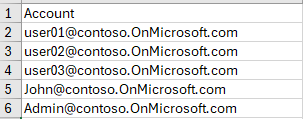
In the custom folder, open the OneDriveUsers.csv file, and enter the usernames of the OneDrive sites to be migrated as below.
-
In the custom folder, open the GrantFullControlForOneDriveUser.ps1 file with Notepad.
-
Configure the following parameters with required information.
-
$appId = ' ' – Enter the client ID of your custom app.
-
$appName = ' ' – Enter the display name of your custom app.
-
$AzureEnvironment = ' ' – Enter the Azure environment for authentication.
-
$certPath = 'PnP PowerShell For Grant Full Control AppCertificate Path(.pfx)' – Enter the full path of the generated app certificate.
-
$connection = Connect-PnPOnline
-
Url – Enter the SharePoint admin center URL of your tenant.
NOTEYour custom app may not have permissions to the SharePoint admin center URL. To avoid verifying the tenant domain while adding the connection in Fly, you can add the IsCheckAdminUrl=false string to the Customized features section in the migration policy.
-
ClientId – Enter the client ID of the PnP PowerShell For Grant Full Control app.
-
Tenant – Enter the ID of your tenant.
-
-
-
Open Windows PowerShell and enter the following commands in the Windows PowerShell window:
. "file path"Replace file path with the full path of the GrantFullControlForOneDriveUser.ps1 file in the extracted folder, and press Enter on the keyboard.

-
Enter the certificate key of your custom app, and press Enter on the keyboard.
-
Enter the certificate password of the PnP PowerShell For Grant Full Control app, and press Enter on the keyboard.
When Destination is Google Drive
To migrate OneDrive sites to Google Drive, add the following API permissions to the custom Azure app.
| API | Permission | Type | Purpose |
|---|---|---|---|
| Microsoft Graph | RoleManagement.Read.Directory (Read all directory RBAC settings) | Application | Retrieve Microsoft global groups and check required roles of the service account. |
| Microsoft Graph | Files.Read.All (Read files in all site collections) | Application | Retrieve the users’ OneDrive site URLs. |
| Microsoft Graph | User.Read.All (Read all users’ full profiles) | Application | Retrieve Microsoft 365 users for user mapping and retrieve users’ OneDrive site URLs. |
| Microsoft Graph | Sites.Read.All (Read items in all site collections) | Application | Only required if you want to run tenant discovery. |
| Microsoft Graph | ReportSettings.Read.All (Read all admin report settings) | Application | Only required if you want to run tenant discovery. |
| Microsoft Graph | Reports.Read.All (Read all usage reports) | Application | Only required if you want to run tenant discovery. |
| Microsoft Graph | Group.Read.All (Read all groups) | Application | Retrieve details of Microsoft 365 Groups. |
| Microsoft Information Protection Sync Service | UnifiedPolicy.Tenant.Read (Read all unified policies of the tenant) | Application | Only required if you want to manage the sensitivity labels of files. |
| Azure Rights Management Services For 21Vianet tenants, the API name is Microsoft Rights Management Services. | Content.SuperUser (Read all protected content for this tenant) | Application | Only required if you want to manage the sensitivity labels of files. |
| SharePoint/Office 365 SharePoint Online | Sites.FullControl.All (Have full control of all site collections) | Application | Retrieve settings and permissions of OneDrive sites. |
| SharePoint/Office 365 SharePoint Online | User.Read.All (Read user profiles) | Application | Retrieve SharePoint user profile service. |
For easy use, you can directly use the following commands to add required API permissions through Manifest for Microsoft 365 Commercial tenants.
Service Account Permissions
The Tenant Owner and Service Administrators can also create a service account profile for Microsoft 365 to connect AvePoint Online Services to your Microsoft 365 tenant.
Users with Multi-Factor Authentication (MFA) enabled cannot be used as the service account to perform migrations. You can use a delegated app profile instead.
If you use both app profile and service account authentications for the source, there are no permission requirements for the service account.
If you only use service account authentication for the source, make sure the service account meets the following requirements:
-
Site Collection Administrator
NOTEIf Fly detects that the service account is not the Site Collection Administrator, but the service account has the SharePoint Administrator or Global Administrator role, Fly will automatically add the service account as the Site Collection Administrator of the site collection.
-
SharePoint Administrator is also required in the following cases:
-
To use the scan profile to scan OneDrive sites in AvePoint Online Services, the service account must be the SharePoint Administrator.
-
(Only required when the destination is OneDrive.) To create new OneDrive sites in the destination during the migration, the destination service account must be the SharePoint Administrator.
NOTEIf the SharePoint Administrator cannot access the SharePoint admin center, the Global Administrator is required.
-
-
To manage sensitivity labels of files during the migration, the source service account must have the super user role. Refer to Assign service account as super user for details.
-
Service account pool is no longer available in migrations. If you have used the service account pool for the source and/or destination OneDrive before, and you want to continue using the service account pool, you can select multiple service accounts when creating OneDrive connections, and make sure all selected service accounts have the roles mentioned above.
Delegated App Profile Permissions
Fly allows you to use the Fly delegated app profile or custom delegated app profile to connect to your workspace.
If the consent user of the delegated app profile has Multi-Factor Authentication (MFA) enabled, you must authorize or re-authorize the delegated app profile after MFA is enabled. Otherwise, the migration jobs using the delegated app profile will fail.
If you re-authorize the app profile, you need to wait about one hour before using the app profile for your migration to refresh the token when there are permissions updated.
To use the Fly delegated app profile with required permissions, refer to Fly Delegated App Profile Permissions.
To use a custom delegated app profile with required permissions, refer to the following steps:
-
After registering an app in Microsoft Entra ID, add the permissions in the table below to the app.
-
When Destination is OneDrive, make sure the custom delegated app profile has the following permissions.
API Permission Type Purpose Microsoft Graph RoleManagement.Read.Directory
(Read directory RBAC settings)Delegated Retrieve Microsoft global groups and check required roles of the service account. Microsoft Graph User.Read.All
(Read all users’ full profiles)Delegated Retrieve Microsoft 365 users for user mapping and retrieve users’ OneDrive site URLs. Microsoft Graph Files.Read.All
(Read files in all site collections)Delegated Retrieve users’ OneDrive site URLs. Microsoft Graph Group.Read.All
(Read all groups)Delegated Retrieve details of Microsoft 365 Groups. Microsoft Information Protection Sync Service UnifiedPolicy.User.Read
(Read all unified policies of the tenant)Delegated Only required if you want to manage the sensitivity labels of files. Azure Rights Management Services
For 21Vianet tenants, the API name is Microsoft Rights Management Services.user_impersonation
(Create and access protected content for users)Delegated Only required if you want to manage the sensitivity labels of files. SharePoint/Office 365 SharePoint Online AllSites.FullControl
(Have full control of all site collections)Delegated Retrieve OneDrive sites. SharePoint/Office 365 SharePoint Online User.Read.All
(Read user profiles)Delegated Retrieve OneDrive sites. For easy use, you can directly use the following commands to add required API permissions through Manifest for Microsoft 365 Commercial tenants.
When Destination is Google Drive, make sure the custom delegated app profile has the following permissions.
API Permission Type Purpose Microsoft Graph RoleManagement.Read.Directory
(Read directory RBAC settings)Delegated Retrieve Microsoft global groups and check required roles of the service account. Microsoft Graph User.Read.All
(Read all users’ full profiles)Delegated Retrieve Microsoft 365 users for user mapping and retrieve users’ OneDrive site URLs. Microsoft Graph Files.Read.All
(Read files in all site collections)Delegated Retrieve users’ OneDrive site URLs. Microsoft Graph Group.Read.All
(Read all groups)Delegated Retrieve details of Microsoft 365 Groups. Microsoft Information Protection Sync Service UnifiedPolicy.User.Read
(Read all unified policies of the tenant)Delegated Only required if you want to manage the sensitivity labels of files. Azure Rights Management Services
For 21Vianet tenants, the API name is Microsoft Rights Management Services.user_impersonation
(Create and access protected content for users)Delegated Only required if you want to manage the sensitivity labels of files. SharePoint/Office 365 SharePoint Online AllSites.FullControl
(Have full control of all site collections)Delegated Retrieve OneDrive sites. SharePoint/Office 365 SharePoint Online User.Read.All
(Read user profiles)Delegated Retrieve OneDrive sites. For easy use, you can directly use the following commands to add required API permissions through Manifest for Microsoft 365 Commercial tenants.
-
Click Authentication in the left navigation of the app.
-
Click Add a platform.
-
Select Web in the Configure platforms panel.
-
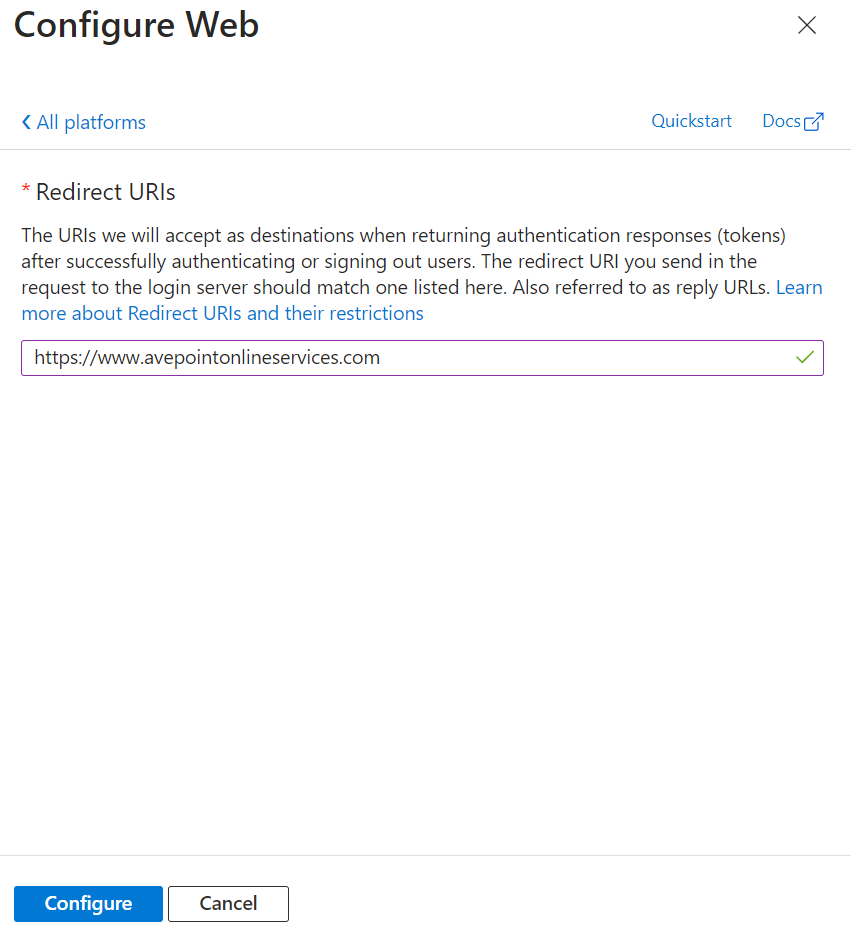
In the Configure Web panel, enter the AvePoint Online Services URL: https://www.avepointonlineservices.com for your commercial environment or https://usgov.avepointonlineservices.com for your U.S. Government environment in the Redirect URIs field.
-
Click Configure.
-
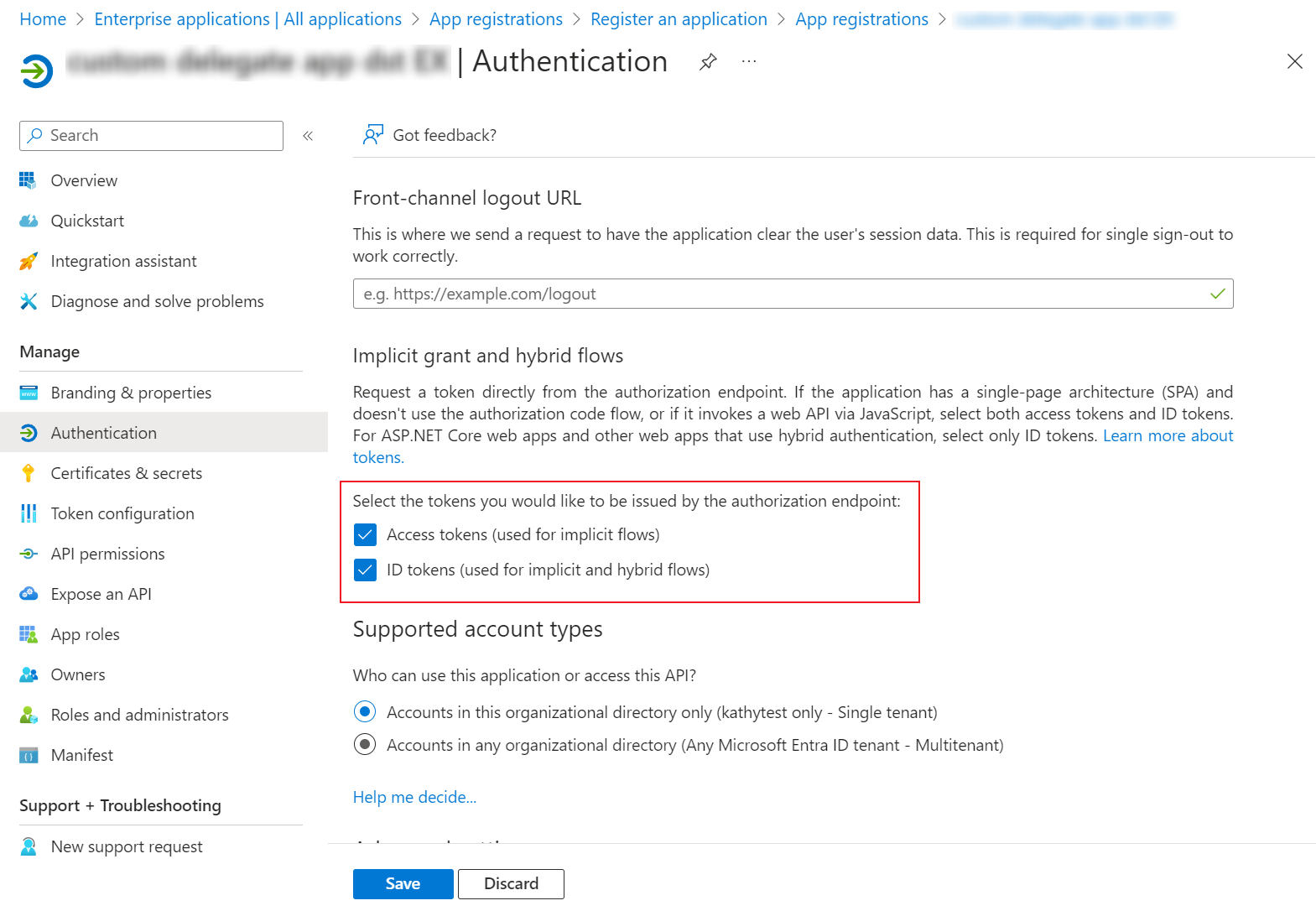
Select the Access tokens and ID tokens checkboxes on the Authentication page.
-
Click Save.
-
Create an app profile for the app using the Custom mode in AvePoint Online Services by referring to Consent to a Custom Azure App with Delegated Permissions.
NOTEWhen consenting to the app, if you have granted the admin consent and allowed public client flows for the permissions, you can choose to use the Global Administrator consent or the User consent method. If not, you can only use the Global Administrator consent method.