
Home > Perform Exchange On-Premises Migrations > Create a Migration Policy
Download this articleCreate a Migration Policy
An Exchange On-Premises migration policy allows you to define the migration scope of Exchange On-Premises objects, the conflict resolutions, how to map users/groups, and advanced options for migrations.
Refer to the following steps to configure a migration policy for Exchange On-Premises migrations:
-
Click Policies under Settings in the left pane.
-
Click Migration policies to access the Migration policies page.
-
Click the Exchange On-Premises tab.
-
Click Create migration policy. The Create migration policy panel appears.
-
Enter a name and an optional description for the policy, and then click Next.
-
In the What do you want to migrate? Section, configure filters to define the objects you want to migrate:
-
Objects – Select the source objects you want to migrate.
NOTE-
If the source or destination mailbox is an archive mailbox, the Auto-Complete Lists cannot be migrated.
-
If you select to migrate Recoverable Items folders, only the Deletions folders are supported to be migrated.
-
-
Archive mailbox – Select whether to migrate your archive mailboxes. Two options are available:
-
Migrate archive mailbox – With this option selected, archive mailboxes can be migrated together with the user/shared/resource mailboxes. You do not need to configure mailbox mappings for the archive mailboxes.
Selecting this option will automatically select the Auto-provision in-place archive mailbox in the destination option.
-
Auto-provision in-place archive mailbox in the destination – This option will be automatically selected when you select the Migrate archive mailbox option, but you can deselect it or enable it independently. When migrating source archive mailboxes or source mailboxes to destination archive mailboxes, Fly can auto-provision the destination archive mailboxes.
-
-
Folders – You can define the mailbox folders you want to include or exclude in the migrations.
-
All – All source folders will be migrated.
-
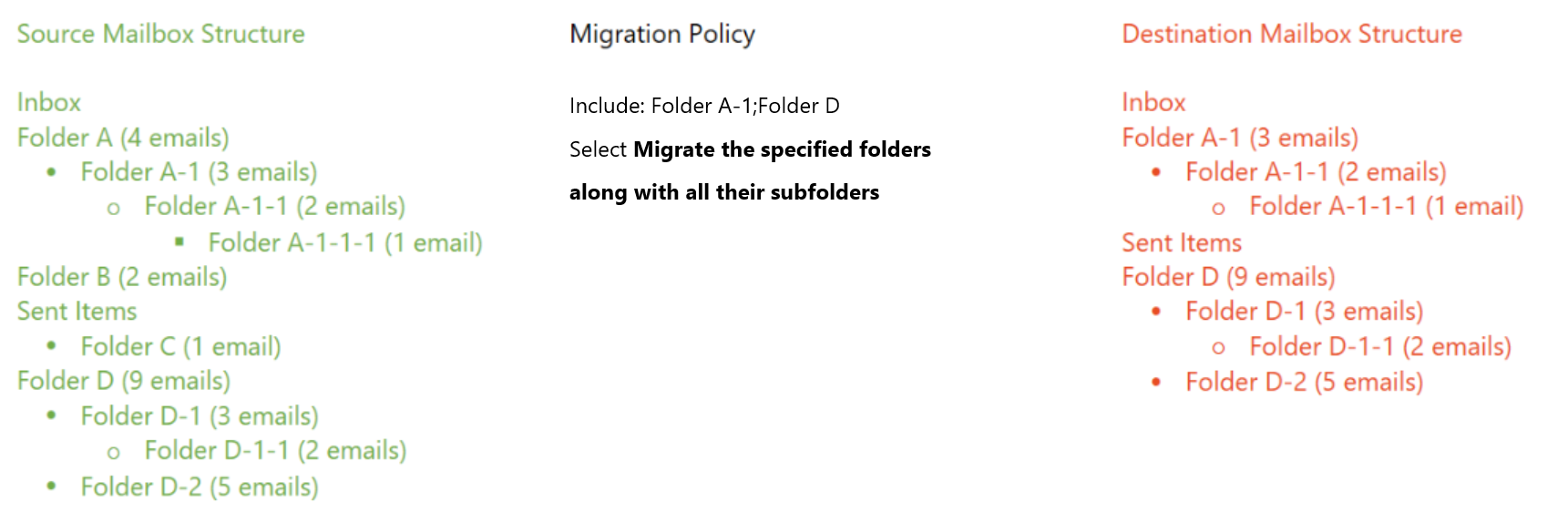
Include – Enter the folder names you want to migrate in the text box. Separate multiple folder names with a semicolon (;). You can select to migrate only the specified folders or include all their subfolders as well.
If the folders you specify are subfolders, they will be converted to root folders in the destination, and the folder structure will be preserved during migration. Source data will be migrated like the screenshot shown below.
-
Exclude – Enter the folder names you want to filter out in the migration in the text box. Separate multiple folder names with a semicolon (;). These folders, along with their subfolders and all contained items, will not be migrated.
-
-
Email time range – You can select the On or after and/or On or before checkboxes and select a sent time to only migrate items of email type in the specified time range. The item type depends on the folder where the item is stored. The type of meeting requests, and items in the Deleted Items and Recoverable Items folders are also email, and these items can be filtered by the Email time range filter.
-
-
In the Conflict resolution section, configure the conflict resolution when the source mailbox item conflicts with an existing one in the destination. Refer to the following detailed information on each conflict resolution.
Resolution Conflict No Conflict Skip Ignore the conflicting item and do nothing in the destination. A new item will be created. Overwrite Delete the conflicting item in the destination first and overwrite it with the source content. A new item will be created. -
Click Next after you finish configuring the conflict resolutions.
-
In the Additional options & mappings step, you can configure the following settings for migrations.
-
Synchronize deletion – With this checkbox selected, if source emails/tasks/contacts/contacts lists/journals/notes are deleted after a migration, destination migrated data can also be deleted in subsequent incremental migrations.
NOTEDeletion synchronization for calendar items including recurring occurrences and birthday items is always enforced, regardless of whether this checkbox is selected.
-
Replace email addresses of senders/recipients based on user mappings – Select this checkbox if you want to replace the source email addresses of email senders/recipients with the destination ones. To make this setting available in the migration, you must configure user mappings for the source email addresses.
-
Migrate emails received before the specific date to the archive mailbox – Select this checkbox and a sent date to migrate any source emails before that date to the destination archive mailbox. Make sure Archiving is enabled for the destination mailbox in the Exchange Admin center.
NOTEThis setting is unavailable for destination Microsoft 365 Group mailboxes.
-
Migrate source data to a specified destination folder – Select this checkbox and enter a folder name to migrate all data in folders of mail type in the source mailbox to the specified destination folder, including the archive folder, subfolders, deleted data, etc.
-
Select the source language to map the folders – By default, Fly migrates mailbox folders based on their WellKnownFolderName property. However, when migrating from Exchange 2010 (SP1 to SP3), Fly can only migrate mailbox folders based on their folder names instead of the WellKnownFolderName property due to an Exchange API limitation. If the languages of the source Exchange and destination Exchange are different, you can select the source language from the drop-down list to map the folders to avoid duplicate folders in different languages in the destination.
-
User mapping – With a user mapping, you can map a source user/group to a destination one. You can also map a domain in the source to a destination domain. Click the Add button to the right of the field to create a new one. Refer to Create User Mappings to view how to create a user mapping.
You can also select a previously created user mapping from the drop-down list and click View details to view the detailed information of the selected user mapping. You can enter the keyword of a user mapping in the Search user mapping text box and press Enter on the keyboard to search the user mapping.
Property User Principal Name User Principal Name Prefix Display Name Email Address Email Address Prefix Property Example JohnSimon@onmicrosoft.comJohnSimon@ JohnSimon JohnSimon@onmicrosoft.comJohnSimon@ -
Customized features – In Exchange On-Premises migrations, you can add an additional customized feature by entering the corresponding customized feature string. Click Add customized feature, and then enter a customized feature string to configure a customized feature. Refer to Customized Features for Exchange On-Premises Migration for details.
-
-
Click Next after you finish configuring the options, mappings, and customized feature strings.
-
Configure the Notifications setting to send migration email notifications to specific recipients after the migration.
-
Send project level notifications (all mappings within a project) – The migration email notifications are based on the project level, which summarizes the project name and the mapping count of each migration status.
-
Recurrence – Enter a positive integer to define the recurrence days for the notifications.
-
Start date and time – Select a start date and time to send the first notification. The later notifications will be sent at the selected time based on the recurrence.
If you want to configure the end date and time of the notifications, you can select the Configure end date and time checkbox and select a date and time.
-
Send migration email notifications to – Define the recipients who will receive the notifications.
-
Email template – Create an email template for the notifications by clicking the Add button. Refer to Manage Email Settings for details on how to create an email template. You can also select an existing email template from the drop-down list.
-
-
Send individual mapping level notifications – The migration email notifications are based on the mapping level, which summarizes the migration status, the project name, the source and destination email addresses, the migration start and finish time, and the migration person.
-
Define the notification scope for mappings – Select For failed mappings only to send notifications for the failed mappings only, or select For all mappings to send notifications for all mappings.
-
Send migration email notifications to – Define the recipients who will receive the notifications.
-
Source end users – The source end users in the migration will receive the notifications.
-
Destination end users – The destination end users in the migration will receive the notifications.
-
Person running the migration – The person who runs the migration will receive the notifications.
-
Additional recipients – Enter the email addresses of other recipients. Separate multiple email addresses with a semicolon (;).
-
-
-
Email template – Create an email template for the email notifications by clicking the Add button. Refer to Manage Email Settings for details on how to create an email template. You can also select an existing email template from the drop-down list.
-
-
Click Save to save the migration policy.
On the Migration policies page, you can manage existing policies.
-
Set as default – Select a policy and click Set as default to set it as the default policy. The default policy will be automatically selected when you create projects.
-
Edit – Click the policy name link to edit the policy.
-
Delete – Select a policy and click Delete to delete it. You can also select multiple policies and click Delete to delete them.
-
Copy – This allows you to quickly create a new policy with similar configurations by completing the following steps:
-
Select your target policy, and click Make a copy.
You can also open your target policy, and click Make a copy on the Edit migration policy page.
-
Check the settings and make updates if necessary on the Copy migration policy page.
-
Click Save.
-