
Home > Perform Power Platform Migrations > Required Permissions for Power Platform Migration > Permissions for Destination Power Platform
Download this articlePermissions for Destination Power Platform
To import data to the destination environment, you can choose to use a combination of service account and app profile, or use an app profile only as the authentication method.
-
The service account is used to connect to the destination environment.
-
The app profile is used to map the source parameters to the corresponding destination parameters automatically. You can use a default app with automatically-added permissions or use a custom delegated app with less permissions.
If the tenant has enabled a conditional access policy or if the service account has Multi-Factor Authentication (MFA) enabled, you can change to only use the Fly App for Power Platform or a custom delegated app profile for authentication and the consent user can have the MFA enabled.
Refer to the following sections to view the permissions required by the authentication methods.
Fly App for Power Platform Permissions (Default app)
The Tenant Owner and Service Administrators can create a default app profile for Power Platform in AvePoint Online Services.
Refer to the following steps to create a default app profile for Power Platform:
-
Click Create on the App management page.
-
On the Create app profile page, select a Microsoft 365 tenant where you want to create the app profile. Make sure your selected tenant has been connected to AvePoint Online Services.
-
Click Fly, and click Next.
-
Click Modern mode.
-
Click Consent of Fly for Power Platform.
-
On the Microsoft 365 sign-in page, sign in with a Microsoft 365 Global Administrator account to consent to the app. The Microsoft 365 Global Administrator account is a requirement from Microsoft. Refer to the Microsoft article for more information.
You can also use a Privileged Role Administrator account to consent to the app, but ensure it has the Power Platform Administrator role. Refer to How to Assign the Exchange Administrator Role to an App? for examples of role assignment.
On the Permissions requested page, review the permissions required for using Fly and click Accept to accept the permissions to ensure the AvePoint Online Services and Fly functionality works. (The required permissions are listed in the table below.)
-
Click Finish to create the app profile.
After the app profile is created, if you want to remove the Global Administrator role from the app profile, you can re-authorize the app profile and change to use the User consent method. Refer to Re-authorize an App Profile for Microsoft Tenants for more information.
After you re-authorize the app profile, you need to wait about one hour before using the app profile for your migration to refresh the token if there are permissions updated
Refer to the following API permissions of the default app required by Power Platform migrations.
| API | Permission | Type | Purpose |
|---|---|---|---|
| SharePoint/Office 365 SharePoint Online | Sites.Read.All (Read items in all site collections) | Application | Retrieve source trigger parameters. |
| Microsoft Graph | TeamSettings.Read.All (Read all teams’ settings) | Application | Retrieve Team settings. |
| Microsoft Graph | TeamworkTag.Read.All (Read tags in Teams) | Application | Retrieve team tags. (You can ignore this if your tenant is for Microsoft 365 Government High environment since the environment does not support Team tags.) |
| Microsoft Graph | ChannelSettings.Read.All (Read the names, descriptions, and settings of all channels) | Application | Retrieve channel settings. |
| Microsoft Graph | Sites.Read.All (Read items in all site collections) | Application | Retrieve the SharePoint site and list information. |
| Microsoft Graph | Group.Read.All (Read all groups) | Application | Retrieve Group information. |
| Microsoft Graph | Contacts.Read (Read contacts in all mailboxes) | Application | Retrieve user’s contact folder information. |
| Microsoft Graph | Mail.Read (Read mail in all mailboxes) | Application | Retrieve user’s mail folder information. |
| Microsoft Graph | Calendars.Read (Read calendars in all mailboxes) | Application | Retrieve user’s calendar information. |
| Microsoft Graph | Directory.Read.All | Application | Retrieve your organization’s Microsoft Entra data. Use this permission to get user list (user ID+UPN) to find the user information in apps and flows. |
| Microsoft Graph | Place.Read.All (Read all company places) | Application | Retrieve the room list parameter. |
| Commercial environment: PowerApps Service GCC environment: PowerApps Service – GCC GCC High environment: PowerApps Service – GCC L4 | User (Access the PowerApps Service API) | Delegated | Read/Create/Update Power Platform environments, apps, and cloud flows. |
| Power Automate | Flows.Manage.All (Allow the application to manage flows) | Delegated | Read/Create/Update flows. |
| Dataverse | user_impersonation (Access Common Data Service as organization users) | Delegated | Read/Create/Update Power Automate desktop flows and business process flows. |
| Microsoft Forms | Forms.Read.All (View forms) | Application | Map forms and generate a Forms ID mapping. |
Service Account Permissions
The Tenant Owner and Service Administrators can create a service account profile in AvePoint Online Services.
Users with Multi-Factor Authentication (MFA) enabled cannot be used as the service account to perform migrations.
Make sure the service account meets the following requirements:
-
Has a license for Microsoft Power Apps or Microsoft Power Automate
To assign the licenses to the service account, go to the Microsoft 365 admin center > Users > Active users, and select Power Apps for Office 365 and Power Automate for Office 365 under the Licenses and apps tab of the service account.
-
Must be the System Administrator of the corresponding environment
To add the System Administrator role to the service account, complete the following steps:
-
Go to the Microsoft 365 admin center> All admin centers.
-
Click Dynamics 365 Apps to access the Power Platform admin center.
-
Under the Environments tab, select the target environment, and click Settings on the ribbon.
NOTEThe Settings action will be unavailable if you do not add the Dataverse to your environment. Make sure you have added the Dataverse.
-
Click the Users + permissions section, and click Users.
-
Click the service account, click Manage roles, and select System Administrator for the service account.
-
Custom Delegated App Profile Permissions
Fly allows you to use the custom delegated app profile to connect to your destination.
If the consent user of the delegated app profile has Multi-Factor Authentication (MFA) enabled, you must authorize or re-authorize the delegated app profile after MFA is enabled. Otherwise, the migration jobs using the delegated app profile will fail.
If you re-authorize the app profile, you need to wait about one hour before using the app profile for your migration to refresh the token when there are permissions updated.
To use a custom delegated app profile with required permissions, refer to the following steps:
-
After registering an app in Microsoft Entra ID, add the required permissions to the app. The section below shows the required permissions of a custom app.
API Permission Type Purpose SharePoint/Office 365 SharePoint Online Sites.Read.All
(Read items in all site collections)Application Retrieve source trigger parameters. Microsoft Graph TeamSettings.Read.All
(Read all teams’ settings)Application Retrieve Team settings. Microsoft Graph TeamworkTag.Read.All
(Read tags in Teams)Application Retrieve team tags.
(You can ignore this if your tenant is for Microsoft 365 Government High environment since the environment does not support Team tags.)Microsoft Graph ChannelSettings.Read.All
(Read the names, descriptions, and settings of all channels)Application Retrieve channel settings. Microsoft Graph Sites.Read.All
(Read items in all site collections)Application Retrieve the SharePoint site and list information. Microsoft Graph Group.Read.All
(Read all groups)Application Retrieve Group information. Microsoft Graph Contacts.Read
(Read contacts in all mailboxes)Application Retrieve user’s contact folder information. Microsoft Graph Mail.Read
(Read mail in all mailboxes)Application Retrieve user’s mail folder information. Microsoft Graph Calendars.Read
(Read calendars in all mailboxes)Application Retrieve user’s calendar information. Microsoft Graph Directory.Read.All Application Retrieve your organization’s Microsoft Entra data.
Use this permission to get user list (user ID+UPN) to find the user information in apps and flows.Microsoft Graph Place.Read.All
(Read all company places)Application Retrieve the room list parameter. Microsoft Graph User.Read Delegated Authorize to AOS. PowerApps Service User
(Access the PowerApps Service API)Delegated Retrieve information of Power Platform environments, apps, and cloud flows. Power Automate Flows.Manage.All
(Allow the application to manage flows)Delegated Retrieve and manage flows. Dataverse user_impersonation
(Access Common Data Service as organization users)Delegated Retrieve information of Power Automate desktop flows and business process flows. Microsoft Forms Forms.Read.All
(View forms)Application Map forms and generate a Forms ID mapping. For easy use, you can directly use the following commands to add required API permissions through Manifest for Microsoft 365 Commercial tenants.
-
Click Authentication in the left navigation of the app.
-
Click Add a platform.
-
Select Web in the Configure platforms panel.
-
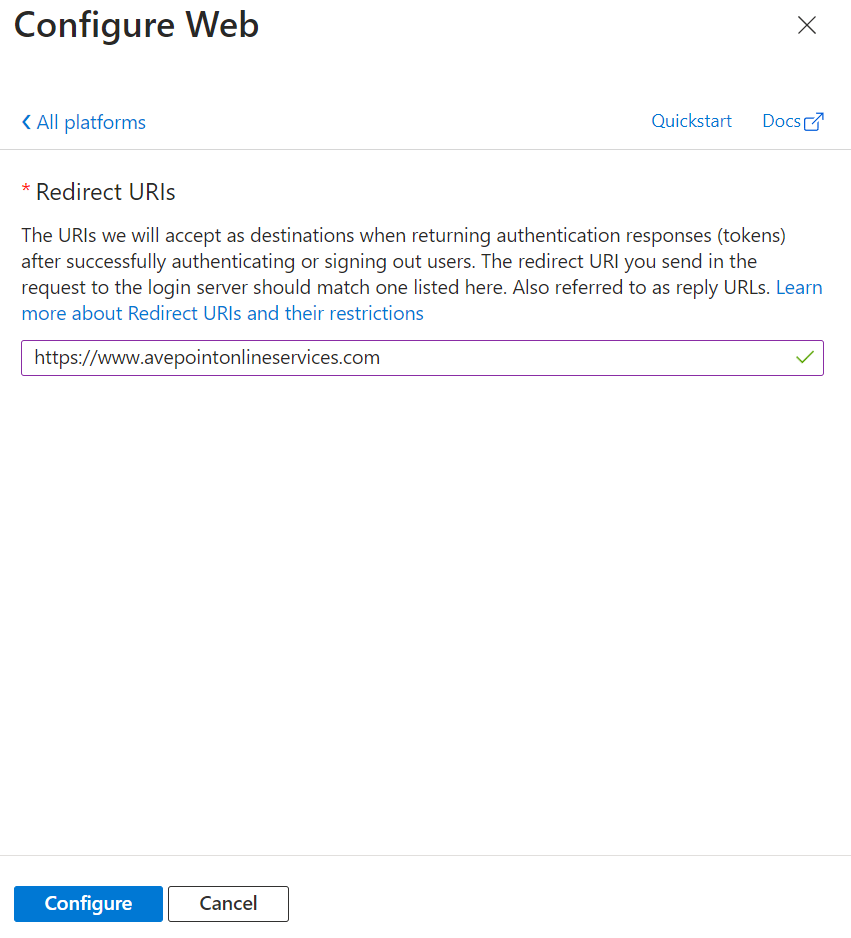
In the Configure Web panel, enter the AvePoint Online Services URL: https://www.avepointonlineservices.com for your commercial environment in the Redirect URIs field.
-
Click Configure.
-
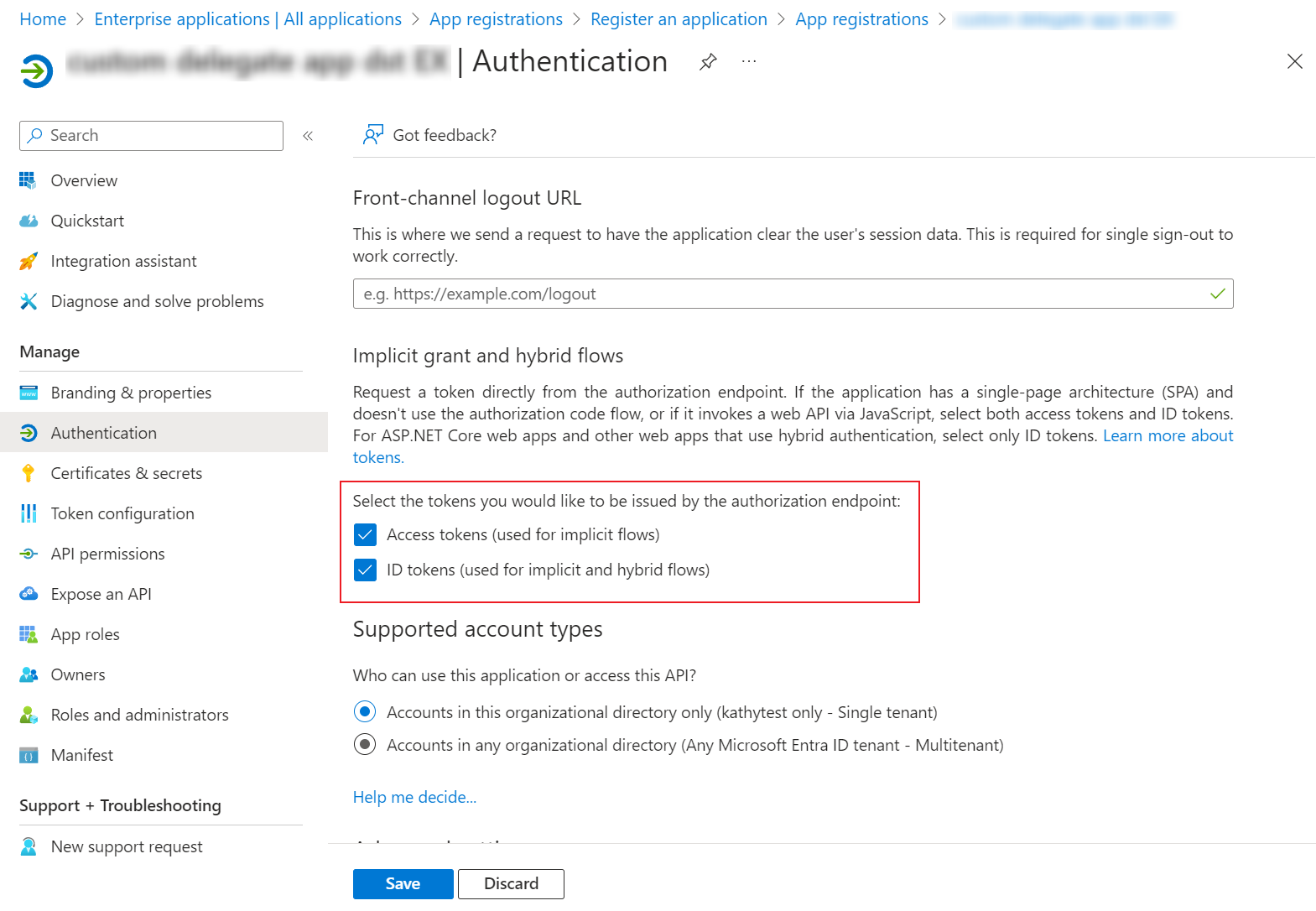
Select the Access tokens and ID tokens checkboxes on the Authentication page.
-
Click Save.
-
Create an app profile for the app using the Custom mode in AvePoint Online Services by referring to Consent to a Custom Azure App with Delegated Permissions.
NOTEWhen consenting to the app, if you have granted the admin consent and allowed public client flows for the permissions, you can choose to use the Global Administrator consent or the User consent method. If not, you can only use the Global Administrator consent method.