Migration Report
You can have an overview of your migrations across all projects and workspaces in Migration report.
Fly retrieves and generates reports for completed migration jobs in your tenant every day. Click Migration report in the left pane to access the Migration report page. On the page, select the source and destination tenants as the data scope and a date range as the time scope for the migration report. In the drop-down lists of source and destination tenants, you can enter the keyword of a tenant name in the search box and press Enter on the keyboard to search the tenant. The migration jobs that are not finished within the time scope for Fly to retrieve data will not be included in the report.
NOTE
The information of a completed project or mapping that are removed from Projects will still be displayed in Migration report.
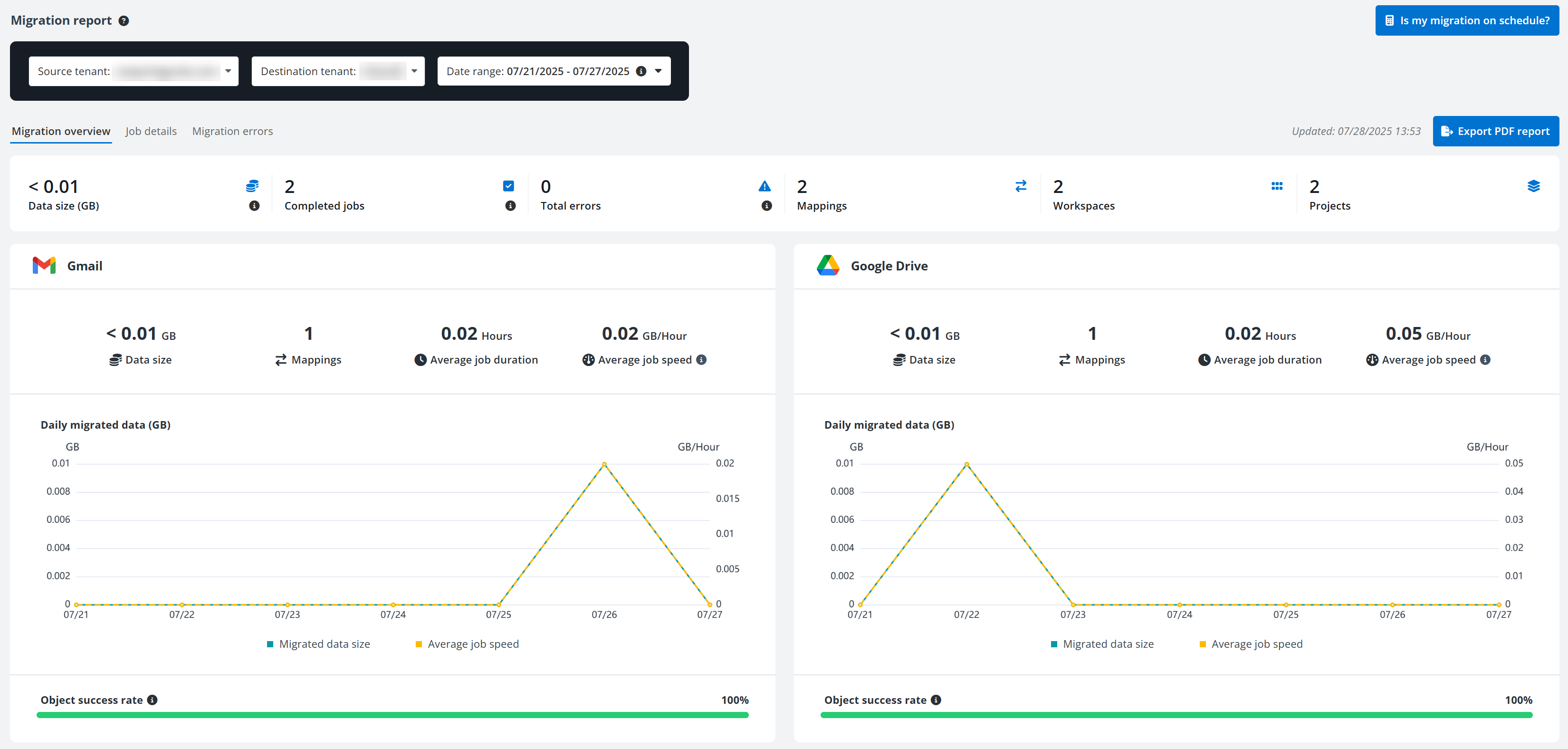
In the Migration overview tab, the general information of migration jobs in the report scope is displayed in tiles on the top, including the data size, the number of complete jobs, mappings, workspaces, and projects. You can click the number in the Errors field to access the Migration errors tab to view the error details.
NOTE
When the number in the Errors field is zero, the number is not clickable.
The migration job information is also displayed in tiles by workspaces. In each tile, you can view the data size, number of mappings, average job duration, average job speed, daily migrate data size, and object success rate of corresponding workspace.
You can click Export PDF report to download a PDF report of the current page to the current browser’s download location.
In the table of the Job details tab, you can view the detailed information of migration jobs in the report scope, including job ID, job type, job finish time, etc.
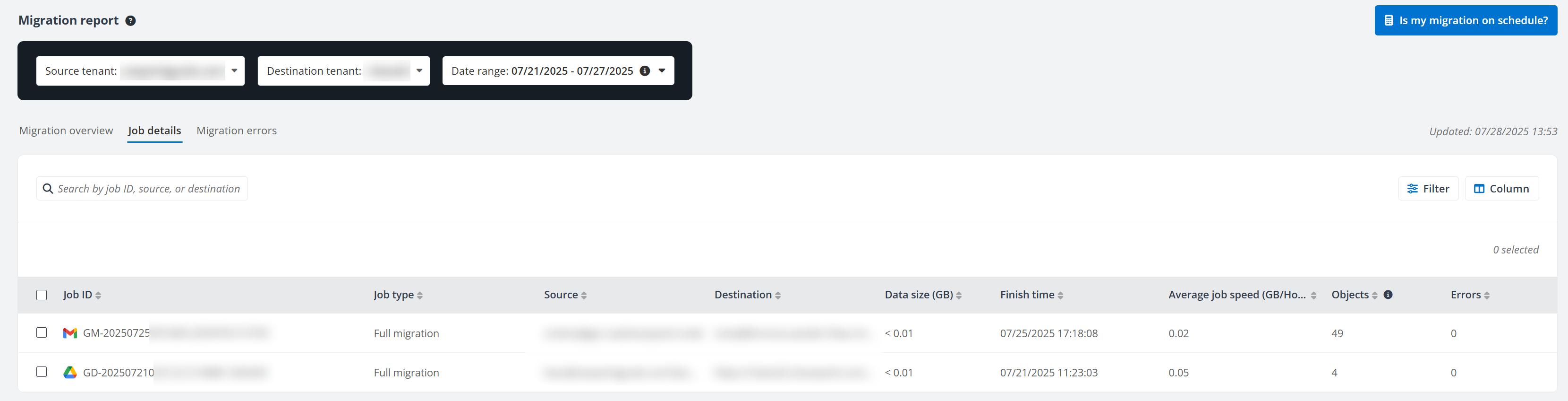
You can perform the following actions on this page:
- Search – Search jobs by entering the keyword of the job ID, source, or destination in the search box.

- Filter – Click **Filter** to filter jobs by **Workspace** and/or **Job type**.

- Manage columns – Click **Column** to select the columns you want to display on the page, and click **Apply** to apply the configurations. The **Job ID** column must be displayed and cannot be deselected.

- Export – Select your desired jobs and click **Export** to export the details of the jobs to an Excel file.

- Analyze – Select your desired jobs and click **Analyze** to analyze total and average data information of migration jobs to compare full and incremental migration job speeds.
In the Migration errors tab, you can view the detailed information of errors occurred in the migration jobs.
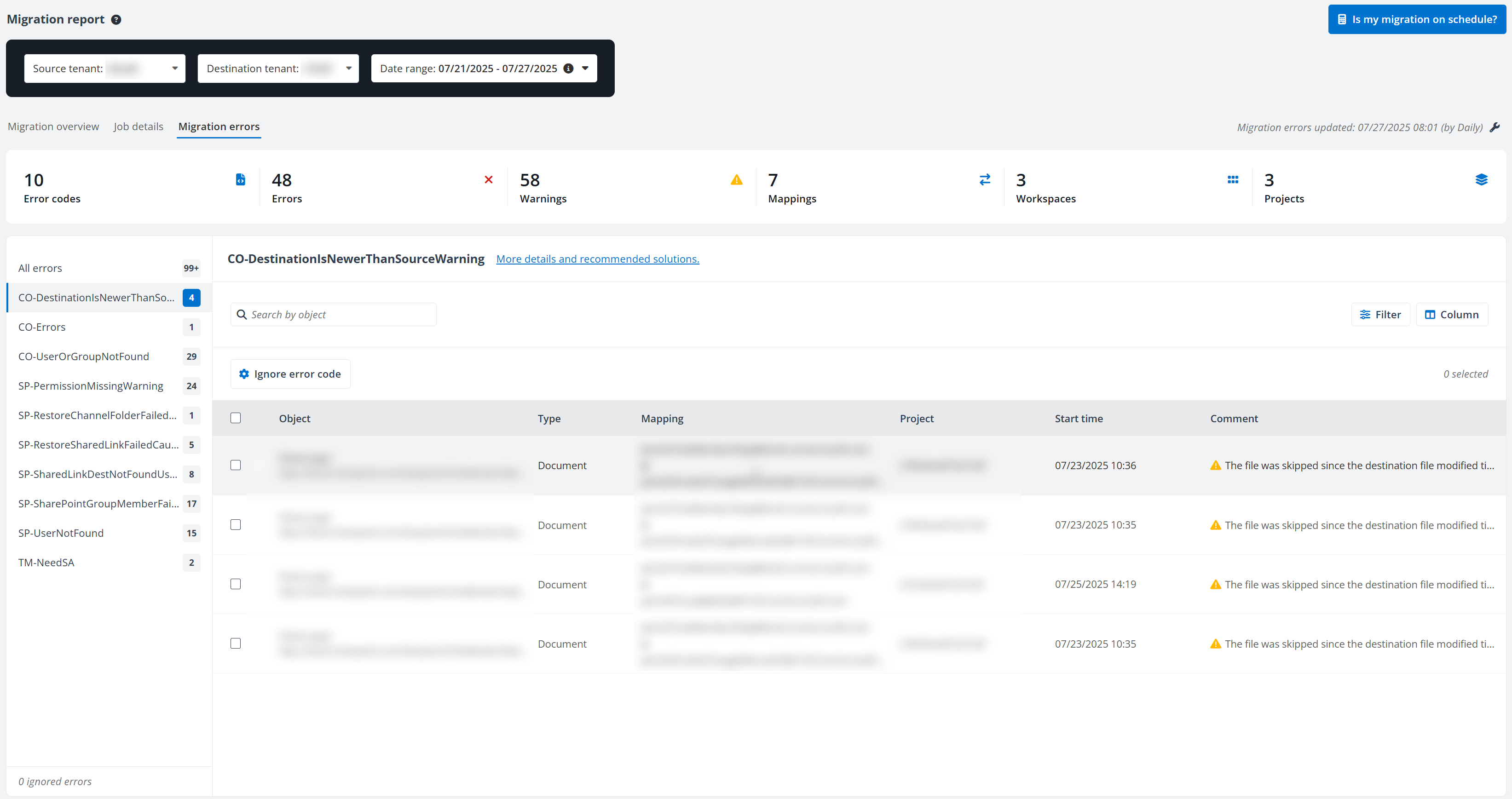
You can perform the following actions on this page:
- Configure update frequency – Click the Configure () button next to the update time, select an update frequency, and click **Apply** to update the update frequency.
- Search – Search errors by entering the keyword of an object in the search box.
- Filter – Click **Filter** to filter errors by **Status** and/or **Category color**.
- Ignore error code – Click **Ignore error code** and complete the following steps to ignore an error code:
1. If you click **Ignore error code** in the **All errors** tab without any error code selected, select an error code from the drop-down list.
2. If you click an error code in the **All errors** tab and click **Ignore error code**, the **Error code** field will be automatically filled in.
3. > ***Note**: If the error code has an inactive record in the **Settings** > **Ignored errors** section, the **Error code** field will be automatically filled in and cannot be edited.
4. Switch on the button to ignore this error.
5. Configure an ignore scope for the error.
6. Click **Save** to ignore the error code.
- Ignore errors – Select one or more items with the errors and click **Ignore**. The **Ignore errors** window appears. Click **Ignore items** to temporarily hide items with selected errors from the **Migration errors** section. The hidden items will be displayed again if these errors reoccur in the subsequent migration. To hide all items with selected errors permanently, click the error code from the error list and click **Ignore error code** to configure an ignore scope for the error.
- Configure settings for ignored errors – Click an error code in the ignored errors section and click **Configure settings for ignored errors** to access the **Ignore error code** panel. The **Error code** field will be automatically filled in and complete the following steps to update settings for the error:
- By default, the error is ignored. If you do not want to ignore the error, you can switch off the button and directly click **Save** to save the updates.
- If you want to keep the error ignored, update the ignore scope for the error and click **Save** to save the updates.
- Remove ignore – Click **Show** from the left panel to view all ignored errors. Click an error code to view items with this error. Select one or more items and click **Remove ignore** to show the items in the **Migration errors** section again.
- Categorize with color – You can categorize the errors with a desired color. What the applied color represents is left up entirely to your organization.
- You can hover your mouse over an error and click the apply color () button. Select a color in the **Select a color** window to apply to the error. Or, you can select one or multiple errors and click **Categorize with color**. In the **Select a color** window, select a color and click **Apply**.
- Export report – Select one or more items with errors and click **Export** **report** to export the details of the items to an Excel file.
