
Home > Aviator > Aviator for SharePoint Online > Permissions Required by Source SharePoint Online > Delegated App Profile Permissions
Export to PDFDelegated App Profile Permissions
Fly allows you to use the Fly delegated app profile or custom delegated app profile to connect to your workspace.
The license and permission requirements for the consent user are the same as those for the service account. Refer to Service Account Permissions for details.
If the consent user of the delegated app profile has Multi-Factor Authentication (MFA) enabled, you must authorize or re-authorize the delegated app profile after MFA is enabled. Otherwise, the migration jobs using the delegated app profile will fail.
If you re-authorize the app profile, you need to wait about one hour before using the app profile for your migration to refresh the token when there are permissions updated.
To use the Fly delegated app profile with required permissions, refer to Fly Delegated App Profile Permissions.
To use a custom delegated app profile with required permissions, refer to the following steps:
- After registering an app in Microsoft Entra ID, add the permissions in the table below to the app.
| API | Permission | Type | Purpose |
|---|---|---|---|
| Microsoft Graph | User.Read.All(Read user profiles) | Delegated | Retrieve and migrate Microsoft 365 users. |
| Microsoft Graph | RoleManagement.Read.Directory(Read directory RBAC settings) | Delegated | Retrieve and migrate Microsoft global groups. |
| Microsoft Graph | Group.Read.All(Read all groups) | Delegated | Retrieve owners, members, and more details of Microsoft 365 Groups related to source site collections. |
| SharePoint | AllSites.FullControlHave full control of all site collections | Delegated | Retrieve settings and permissions of SharePoint Online site collections. |
| SharePoint | TermStore.Read.All(Read managed metadata) | Delegated | Retrieve settings and permissions of SharePoint Online site collections. |
| Azure Rights Management Services*Note: For 21Vianet tenants, the API name is Microsoft Rights Management Services. | user_impersonation(Create and access protected content for users) | Delegated | Only required if you want to manage sensitivity labels of files/sites. |
| Microsoft Information Protection Sync Service | UnifiedPolicy.User.Read(Read all unified policies of the tenant) | Delegated | Only required if you want to manage sensitivity labels of files/sites. |
"requiredResourceAccess": [
{
"resourceAppId": "00000003-0000-0ff1-ce00-000000000000",
"resourceAccess": [
{
"id": "a468ea40-458c-4cc2-80c4-51781af71e41",
"type": "Scope"
},
{
"id": "56680e0d-d2a3-4ae1-80d8-3c4f2100e3d0",
"type": "Scope"
}
]
},
{
"resourceAppId": "00000003-0000-0000-c000-000000000000",
"resourceAccess": [
{
"id": "5f8c59db-677d-491f-a6b8-5f174b11ec1d",
"type": "Scope"
},
{
"id": "741c54c3-0c1e-44a1-818b-3f97ab4e8c83",
"type": "Scope"
},
{
"id": "a154be20-db9c-4678-8ab7-66f6cc099a59",
"type": "Scope"
}
]
},
{
"resourceAppId": "00000012-0000-0000-c000-000000000000",
"resourceAccess": [
{
"id": "c9c9a04d-3b66-4ca8-a00c-fca953e2afd3",
"type": "Scope"
}
]
},
{
"resourceAppId": "870c4f2e-85b6-4d43-bdda-6ed9a579b725",
"resourceAccess": [
{
"id": "34f7024b-1bed-402f-9664-f5316a1e1b4a",
"type": "Scope"
}
]
}
],
-
Click Authentication in the left navigation of the app.
-
Click Add a platform.
-
Select Web in the Configure platforms panel.
-
In the Configure Web panel, enter the AvePoint Online Services URL: https://www.avepointonlineservices.com for your commercial environment or https://usgov.avepointonlineservices.com for your U.S. Government environment in the Redirect URIs field.
-
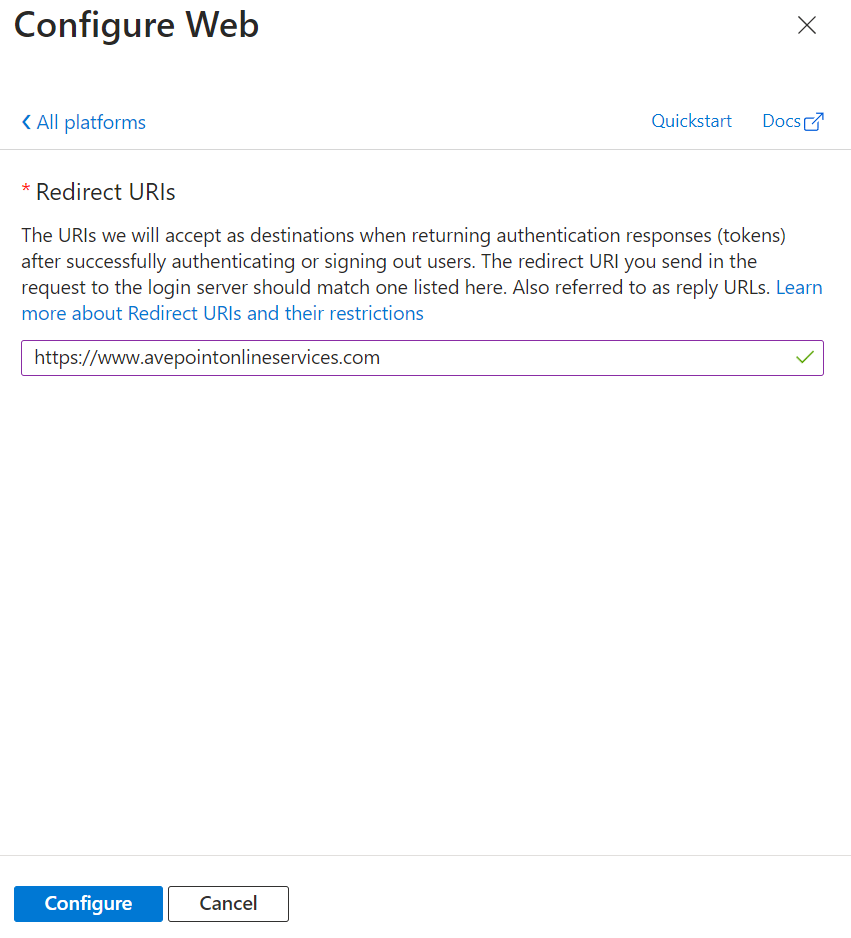
-
Click Configure.
-
Select the Access tokens and ID tokens checkboxes on the Authentication page.
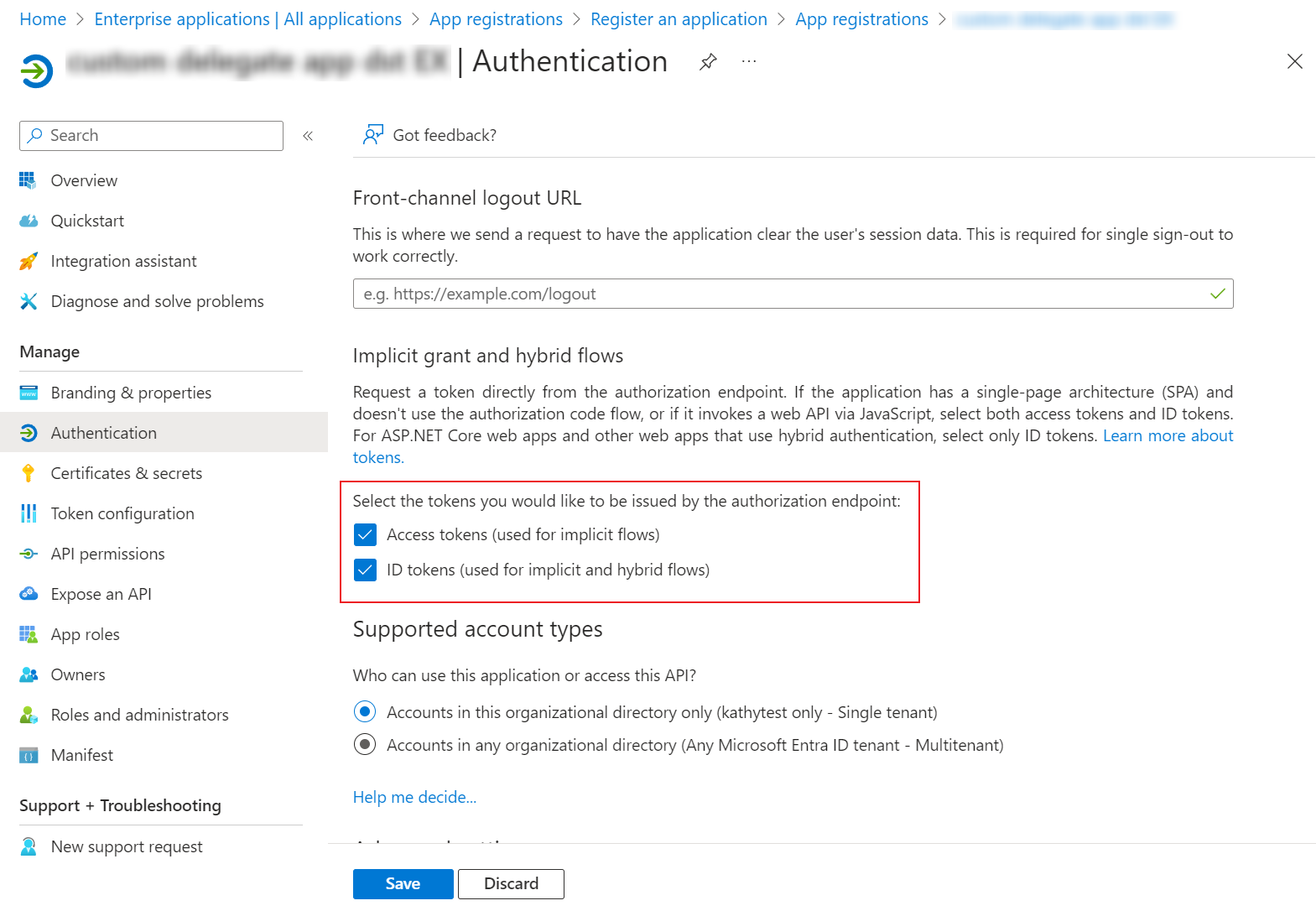
-
Click Save.
-
Create an app profile for the app using the Custom mode in AvePoint Online Services by referring to .
NOTEWhen consenting to the app, if you have granted the admin consent and allowed public client flows for the permissions, you can choose to use the Global Administrator consent or the User consent method. If not, you can only use the Global Administrator consent method.