
Home > Appendices > Tools for Teams Chat Migration > Tool to Hide Chats from Users
Export to PDFTool to Hide Chats from Users
If you have mapped your source chat members to unexpected destination users, and do not want to those destination users see the destination chats and chat messages, you can refer to the following steps hide the destination chats and chat messages from specific destination users:
-
Scan the source chats to identify where the source chat members of those destination users reside by completing the following steps:
- Create a custom app in source tenant and add the following permissions to the app.
| API | Permission | Type | Description |
|---|---|---|---|
| Microsoft Graph | User.Read.All | Application | Retrieve information of chat user profiles. |
| Microsoft Graph | Chat.ReadBasic.All | Application | Retrieve chat information. |
| Microsoft Graph | ChatMember.Read.All | Application | Retrieve chat users. |
-
Hide the chats from those destination users by completing the following steps:
-
Access the and download the LeaveAndHideChats.zip file.
-
Extract the ZIP file to a location with a network connection.
-
Run the Consent User.ps1 file with Windows PowerShell to consent required permissions.
-
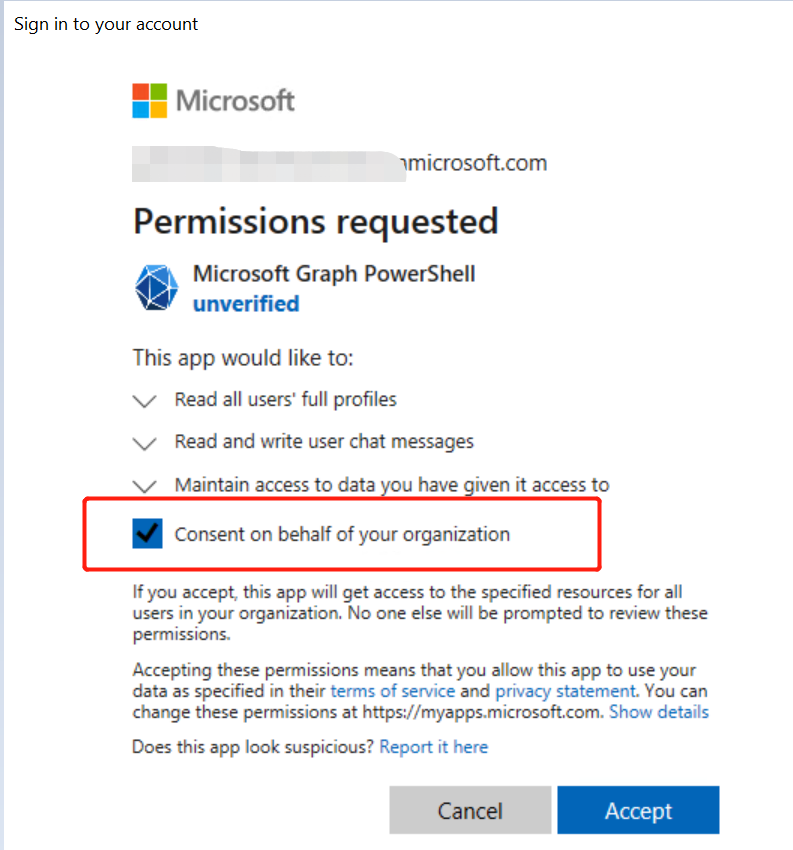
On the sign-in page, sign in using a Global Administrator of the destination tenant.
-
Select the Consent on behalf of your organization option, and click Accept to consent permissions to users of your organization.
-
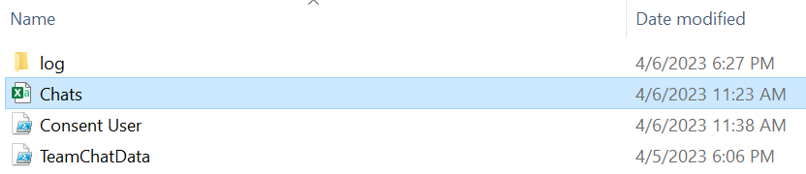
In the extracted folder, create a CSV file and name it as Chats.
-
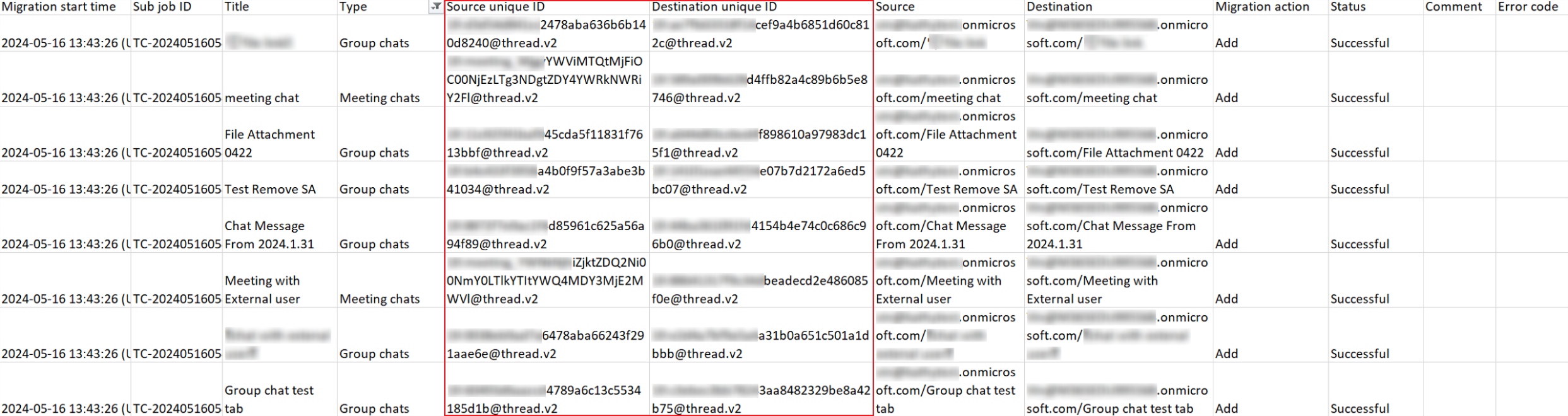
According to the source chat IDs scanned in step 1 > i, find the corresponding destination chat IDs in your migration job report.
-
-
Copy the IDs of destination chats that you want to hide from those destination users to the Chats.csv file.
-
Ask those destination users for which you want to hide the destination chats to run the TeamChatData.ps1 file with Windows PowerShell, and sign in with their credentials.
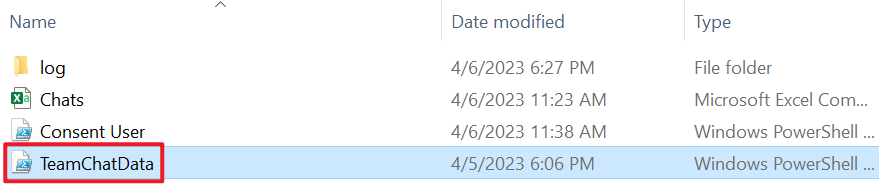
After the job is finished, the chats will be hidden from those destination users. A report file with the hidden results will be generated in the tool folder.
-
-
To migrate the chats to desired destination chat members, update the user mappings to map source chat members to the destination users, and rerun the migration job.