
Home > Terms and Rules > Manage Terms
Download this articleManage Terms
In the Terms and rules > Terms section, you can manage terms.
Create a Term
Refer to the following steps to create a term group:
-
Click the down arrow button next to the built-in Term groups node and select Create term group.
-
A text box appears below.
-
Enter a name for the term group in the text box, and press Enter on your keyboard.
-
Repeat the steps above to create multiple term groups.
Refer to the following steps to create a term set:
-
Click the down arrow button next to a term group and select Create term set.
-
A text box appears below.
-
Enter a name for the term set in the text box, and press Enter on your keyboard.
-
Repeat the steps above to create multiple term sets.
Refer to the following steps to create a term:
-
Click the down arrow button next to term set or term and select Create term.
-
A text box appears below.
-
Enter a name for the term in the text box, and press Enter on your keyboard.
-
Repeat the steps above to create multiple terms.
Manage a Term
Search for a Term
To search for a specific term, enter its name, description, or related rule name in the Search text box, and then click the Search button. Search results are displayed
Rename a Term
To rename a term group, term set, or term, click the down arrow button next to it, and select Rename term group, Rename term set, or Rename term. Enter a new name in the text box and press Enter on the keyboard.
Alternatively, you can double-click the term group, term set, or term that you want to rename to make the name editable.
Retire a Term
To retire a term, click the down arrow button next to it, and select Retire term. After retiring a term, you are still able to manage the rules associated with this retired term.
Reactivate a Term
To reactivate a retired term, click the down arrow button next to it, and select Reactivate term.
Delete a Term
To delete a term group, term set, or term, click the down arrow button next to it, and select Delete term group, Delete term set, or Delete term. Click OK in the confirmation window. Note that the built-in term group cannot be deleted.
Export Terms and Rules
To export all terms and rules in AvePoint Opus into a ZIP file, click Export terms with rules. An Export terms with rules job will start, and you can navigate to Job monitor to view details. A download process will start in Download center. When the download process is completed, you can download the file by clicking Download. A ZIP file will be downloaded to the default download location of your current browser. Extract the ZIP file to find the XLSX file in the name format of Export Terms with Rules_YYYYMMDDHHMMSS.
Import Terms and Rules
Prepare terms that you want to import to AvePoint Opus as below:
-
Click Import > Download template to download a template, add terms and rules to the template, and then import the template.
-
Click Export terms withrules to download terms together with rules as a template, update the template, and then import the template.
-
Export terms from SharePoint Online or SharePoint On-Premises to a CSV file, update the file if needed, and then import the file. For detailed instructions on exporting terms, refer to Export Terms from SharePoint.
To import terms and rules to AvePoint Opus via a CSV or XLSX file, complete the steps below:
-
Click Import on the ribbon of the Terms page. The Import panel appears.
-
Select an import method.
-
Import from a template – Click Browse, select the CSV or XLSX file that you want to import, and click Open to import the file.
-
Import from Google tenants (available for Google Drive) – With this option, labels in the selected tenants will be imported to the selected term group as terms.
Select a term group to store the imported terms, select the Google tenants from which you want to import labels as terms, and click OK.
A Google tenant will be greyed out if it has already been associated with another term group, as a Google tenant can only be associated with one term group.
If there is no existing term set named Term set during the first synchronization, a new term set with that name will be automatically created under the term group to store the imported terms.
-
-
Click Save. A Term import job will start, and you can navigate to Job monitor to view the job details.
The imported terms will be displayed on the Terms page, and the imported rules will be displayed on the Rules page.
Template
In the Import panel, there is a Download template button, allowing you to download a template for preparing terms and rules.
If the template has been updated in a new release, do not use templates from earlier releases to import data into Opus, as this may cause data mismatches. To ensure a successful import, download the latest template and prepare your data accordingly.
Terms Sheet
The following table explains the columns included in the Terms sheet of the template.
| Column Name | Column Value |
|---|---|
| Term group name | Enter the term group name, less than 255 characters. |
| Term set name | Enter the term set name, less than 255 characters. |
| Level 1 term name | Enter the term name, less than 255 characters. |
| Level 2 term name | Enter the term name, less than 255 characters. |
| Level 3 term name | Enter the term name, less than 255 characters. |
| Level 4 term name | Enter the term name, less than 255 characters. |
| Level 5 term name | Enter the term name, less than 255 characters. |
| Description | Enter the description of the term group, term set, or term, less than 5000 characters.If you want to synchronize the term group, term set, or term to the term store, make sure its description is less than 1000 characters. |
| Inherit parent settings | When rules have been applied to a term or when retention setting is enabled, enter TRUE (inherit) or FALSE (do not inherit) to indicate whether the nested term will inherit these settings from the parent term. |
| Rule name | Enter the name of the rule that you want to add to the term. Separate multiple rule names with semicolons. Rules will be applied to the term in the order they are listed. |
| Enforce retention | Enter TRUE (enforce retention) or FALSE (do not enforce retention) to indicate whether you want to enable the retention setting so that users cannot manually delete the objects classified with this term. |
| Content source | Select a content source where you want to apply the enforce retention policy: Any; SharePoint Online; Exchange Online; OneDrive. |
| Retention label for SharePoint Online | If you have chosen to enforce retention for SharePoint Online documents, enter the name of an existing Microsoft 365 retention label. |
| Retention label for Exchange Online | If you have chosen to enforce retention for Exchange emails, enter the name of an existing Microsoft 365 retention label. |
| Retention label for OneDrive | If you have chosen to enforce retention for OneDrive documents, enter the name of an existing Microsoft 365 retention label. |
| Term activation setting | Select a value to define when the term is available to use: Always active; Take effect from; Retire after; Active from...to... |
| Start time | Select a start time to specify when the term will become active. |
| End time | Select an end time to specify when the term will become inactive. |
| Time zone | Select a time zone for the start time and end time you set above. |
Rules Sheet
The following table explains the columns included in the Rules sheet of the template.
| Column Name | Column Value | Supported Content Source | Related Rule Action |
|---|---|---|---|
| Rule name | Enter the rule name, less than 255 characters. | - | - |
| Description | Enter the rule description, less than 5000 characters. | - | - |
| Rule container | Enter the name of the rule container where this rule will reside. | - | - |
| Object level | The object level is the artifact you are choosing to manage. Select an object level. | - | - |
| Disposal class | Enter the disposal class, less than 5000 characters. | - | - |
| Content source | The content source is the location or system that contains the content to be managed. Select a content source. | - | - |
| Rule criteria combination | If you want to add multiple rule criteria as part of a rule, select a criteria combination (And/Or) to define the logical relationship among these rule criteria. If you only want to add one rule criterion on an object level, leave this blank. | - | - |
| Criteria type | Select a rule criterion type. | - | - |
| Criteria name | Enter a rule criterion name. | - | - |
| Criteria condition | Select a rule criterion condition. | - | - |
| Condition value | Enter a rule condition value. | - | - |
| Condition value unit | When setting a rule based on time or size, select the appropriate unit for the value you enter. | - | - |
| Condition start time | When setting a rule based on time, enter the start time to define when the condition takes effect. | - | - |
| Condition end time | When setting a rule based on time, enter the end time to define when the condition stops working. | - | - |
| Rule action | Select a rule action to define how you want to manage content. | - | - |
| Export content format | Select an export format. | SharePoint Online; OneDrive; Exchange Online | Export content |
| Include related records | Enter TRUE (remove related records) or FALSE (do not remove related records) to indicate whether you want to remove the content together with their related records. | SharePoint Online; Physical Records | Destroy content |
| Include declared records | Enter TRUE (remove documents/items that have been declared as a record) or FALSE (do not remove documents/items that have been declared as a record) to indicate whether you want to remove the documents/items that have been declared as records in the content source. | SharePoint Online; OneDrive; SharePoint On-Premises | Destroy content |
| Include documents/items locked by records label | Enter TRUE (remove documents/items that have been locked by a records record) or FALSE (do not remove documents/items that have been locked by a records record) to indicate whether you want to remove the documents/items that have been locked by a records record in the content source. | SharePoint Online; OneDrive | Destroy content |
| Leave stub | Enter TRUE (leave a stub) or FALSE (do not leave a stub) to indicate whether you want to leave a stub in the content source for each removed document. | SharePoint Online; OneDrive; File System; SharePoint On-Premises; Azure File Share | Destroy content |
| Stub template | If you have chosen to leave a stub, enter the stub template name. | SharePoint Online; OneDrive; File System; SharePoint On-Premises; Azure File Share | Destroy content |
| Store before disposal | Enter TRUE (store the content before disposal) or FALSE (do not store the content before disposal) to indicate whether you want to store the content in a storage location before removing them from the content source. | SharePoint Online; OneDrive | Destroy content |
| Remove box when empty | Enter TRUE (mark boxes as Destroyed) or FALSE (boxes are not destroyed) to indicate whether you want to mark the box as Destroyed if all folders contained within are destroyed. | Physical Records | Destroy content |
| Remove retention label before a document/item is destroyed | Enter TRUE or FALSE to indicate whether you want to remove the retention label before a document/item is destroyed. | SharePoint Online; OneDrive | Destroy content |
| Declare as record | Enter TRUE (declare the item/document as a record) or FALSE (do not declare the item/document as a record) to indicate whether you want to declare each document/item as an immutable record in the content source. | SharePoint Online; OneDrive; SharePoint On-Premises | Declare or tag content |
| Tag document/item | Enter TRUE (tag the documents/items) or FALSE (do not tag the documents/items) to indicate whether you want to tag documents/items with additional metadata. | SharePoint Online; OneDrive; Exchange Online; SharePoint On-Premises. Exceptions: tagging columns and custom columns is unsupported for Exchange Online; tagging Microsoft 365 retention label is unsupported for SharePoint On-Premises. | Declare or tag content |
| Tag Archived (Yes/No) column | If you have chosen to tag documents/items, enter TRUE (yes) or FALSE (no) to indicate whether to add the Archived column. | SharePoint Online; OneDrive; Exchange Online; SharePoint On-Premises. Exceptions: tagging columns and custom columns is unsupported for Exchange Online; tagging Microsoft 365 retention label is unsupported for SharePoint On-Premises. | Declare or tag content |
| Tag Archived By column | If you have chosen to tag documents/items, enter TRUE (yes) or FALSE (no) to indicate whether to add the Archived By column. | SharePoint Online; OneDrive; Exchange Online; SharePoint On-Premises. Exceptions: tagging columns and custom columns is unsupported for Exchange Online; tagging Microsoft 365 retention label is unsupported for SharePoint On-Premises. | Declare or tag content |
| Tag Archived Time column | If you have chosen to tag documents/items, enter TRUE or FALSE to indicate whether to add the Archived Time column. | SharePoint Online; OneDrive; Exchange Online; SharePoint On-Premises. Exceptions: tagging columns and custom columns is unsupported for Exchange Online; tagging Microsoft 365 retention label is unsupported for SharePoint On-Premises. | Declare or tag content |
| Tag custom column | If you have chosen to tag documents/items, enter TRUE (yes) or FALSE (no) to indicate whether to add a custom column. | SharePoint Online; OneDrive; Exchange Online; SharePoint On-Premises. Exceptions: tagging columns and custom columns is unsupported for Exchange Online; tagging Microsoft 365 retention label is unsupported for SharePoint On-Premises. | Declare or tag content |
| Custom column type | If you have chosen to tag documents/items by adding a custom column, select the type of the custom column: Text; Number; Date and Time; Yes/No. | SharePoint Online; OneDrive; Exchange Online; SharePoint On-Premises. Exceptions: tagging columns and custom columns is unsupported for Exchange Online; tagging Microsoft 365 retention label is unsupported for SharePoint On-Premises. | Declare or tag content |
| Custom column name | Enter the name of the custom column. | SharePoint Online; OneDrive; Exchange Online; SharePoint On-Premises. Exceptions: tagging columns and custom columns is unsupported for Exchange Online; tagging Microsoft 365 retention label is unsupported for SharePoint On-Premises. | Declare or tag content |
| Custom column value | Enter the value of the custom column.This is what will be displayed in the configured column. | SharePoint Online; OneDrive; Exchange Online; SharePoint On-Premises. Exceptions: tagging columns and custom columns is unsupported for Exchange Online; tagging Microsoft 365 retention label is unsupported for SharePoint On-Premises. | Declare or tag content |
| Custom column time zone | If the custom column that you want to add is of the Date and Time type, select the time zone. | SharePoint Online; OneDrive; Exchange Online; SharePoint On-Premises. Exceptions: tagging columns and custom columns is unsupported for Exchange Online; tagging Microsoft 365 retention label is unsupported for SharePoint On-Premises. | Declare or tag content |
| Retention label name | If you want to tag documents/items with a Microsoft 365 retention label, enter the retention label name. | SharePoint Online; OneDrive; Exchange Online; SharePoint On-Premises. Exceptions: tagging columns and custom columns is unsupported for Exchange Online; tagging Microsoft 365 retention label is unsupported for SharePoint On-Premises. | Declare or tag content |
| Records label | Enter a retention label name that has the Mark items as a record setting enabled. | SharePoint Online; OneDrive | Declare or tag content |
| Destination | If the selected content source is SharePoint Online, OneDrive, or Exchange Online, enter the URL of the destination library where the source content will be moved. Make sure the destination library is a Document Library or Record Library. If the selected content source is File System, enter the folder path where the source content will be moved. | SharePoint Online; OneDrive; Exchange Online; File System. Exceptions: declaring the moved document as a read-only record in the destination is only available for SharePoint Online and OneDrive; keeping source classification in the destination is unsupported for File System. | Move content to new location |
| Conflict resolution | Select a conflict resolution if a file with the same name already exists in the destination: Skip; Overwrite; Add a suffix. | SharePoint Online; OneDrive; Exchange Online; File System. Exceptions: declaring the moved document as a read-only record in the destination is only available for SharePoint Online and OneDrive; keeping source classification in the destination is unsupported for File System. | Move content to new location |
| Declare moved document | Enter TRUE (declare the document as a record when it is moved) or FALSE (do not declare the document as a record when it is moved) to indicate whether you want to declare the moved document as an immutable record in the destination. | SharePoint Online; OneDrive; Exchange Online; File System. Exceptions: declaring the moved document as a read-only record in the destination is only available for SharePoint Online and OneDrive; keeping source classification in the destination is unsupported for File System. | Move content to new location |
| Remove source content | Enter TRUE (remove the content from Exchange) or FALSE (do not remove the content from Exchange) to indicate whether you want to remove the content from Exchange Online after the content is moved to the destination. | SharePoint Online; OneDrive; Exchange Online; File System. Exceptions: declaring the moved document as a read-only record in the destination is only available for SharePoint Online and OneDrive; keeping source classification in the destination is unsupported for File System. | Move content to new location |
| Keep source classification | Enter TRUE (keep source classification) or FALSE (do not keep source classification) to indicate whether you want to keep source classification in the destination after the content is moved to the destination. | SharePoint Online; OneDrive; Exchange Online; File System. Exceptions: declaring the moved document as a read-only record in the destination is only available for SharePoint Online and OneDrive; keeping source classification in the destination is unsupported for File System. | Move content to new location |
| Enable manual approval | Enter TRUE (enable manual approval) or FALSE (do not enable manual approval) to indicate whether you want to enable manual approval. | SharePoint Online; OneDrive; Exchange Online; File System; Physical Records; SharePoint On-Premises; Azure File Share; Connector; Box; Google Drive | Destroy content; Declare or tag content |
| Send Email Notification | If you have chosen to enable manual approval, enter TRUE (send email notification) or FALSE (do not send an email notification) to indicate whether you want to send an email notification to record reviewers when there are records waiting for their approval. | SharePoint Online; OneDrive; Exchange Online; File System; Physical Records; SharePoint On-Premises; Azure File Share; Connector; Box; Google Drive | Destroy content; Declare or tag content |
| Manual approval type | If you have chosen to enable manual approval, select a manual approval type: Manual Approval Process (this ensures a defined process is followed); Record Owner (this will send the notification to the configured reviewer, who can further choose to assign the review process to). | SharePoint Online; OneDrive; Exchange Online; File System; Physical Records; SharePoint On-Premises; Azure File Share; Connector; Box; Google Drive | Destroy content; Declare or tag content |
| Manual approval process name | If Manual Approval Process is set as the manual approval type, enter the manual approval process name. | SharePoint Online; OneDrive; Exchange Online; File System; Physical Records; SharePoint On-Premises; Azure File Share; Connector; Box; Google Drive | Destroy content; Declare or tag content |
| Record reviewer | If Record Owner is set as the manual approval type, enter the name of users or groups. Separate names with semicolons. | SharePoint Online; OneDrive; Exchange Online; File System; Physical Records; SharePoint On-Premises; Azure File Share; Connector; Box; Google Drive | Destroy content; Declare or tag content |
| Export content before action | Enter TRUE (export content) or FALSE (no, do not export content) to indicate whether you want to export content. | SharePoint Online; OneDrive; Exchange Online; Google Drive | Destroy content; Declare or tag content; Move content to archival storage |
| Export format | If you have chosen to export content, select an export format: VEO; NAA; NARA. | SharePoint Online; OneDrive; Exchange Online; Google Drive | Destroy content; Declare or tag content; Move content to archival storage |
| Storage location | Enter the name of the storage location for storing content. | SharePoint Online; OneDrive; Physical Records | Destroy content; Move content to archival storage |
| Export to destination library | If you have chosen to export content, enter the full URL of a library within the site managed by Opus to store the exported content. | SharePoint Online; OneDrive; Exchange Online | Export content before action; Export content |
| Export location | If you have chosen to export content, enter the name of an existing SFTP or Microsoft Azure Blob Storage storage location in Opus to store the exported content. Existing storage locations with the Google Cloud Storage type are specifically available for Google Drive. Note that Default Storage Location is not supported. | SharePoint Online; OneDrive; Exchange Online; Google Drive | Export content before action; Export content |
Configure Term Settings
Refer to the following sections to configure settings for a term group, term set, and term. After configuring the settings, click Synchronize above the term tree to synchronize the updated term group/term set/term to destination.
Settings for Term Group
To configure settings for a term group, select the term group from the Term groups panel, and the configurable settings appear on the Settings panel.
Description – The description of the term group.
Synchronization destination – The synchronization destination depends on your content source, as follows:
-
For SharePoint On-Premises or SharePoint Online / Teams & Groups, choose the SharePoint Managed Metadata Service or term store to which the term group will be synchronized.
-
All term stores – Synchronize the term group to all SharePoint Managed Metadata Services or term stores that are connected to all scanned site collections.
-
Specific term stores – Synchronize the term group to the specific SharePoint Managed Metadata Services or term stores that are associated with the configured site collections.
Enter a site collection URL and click Add. The site collection URL is displayed in the Site collection URL column, and the SharePoint Managed Metadata Service or term store that is connected to the site collection is displayed in the Term store column.
You can also click Delete in the Action column of a site collection to delete the site collection from the table.
-
-
For Google Drive, choose the Google tenants to which the terms within the term group will be synchronized as labels. Google Workspace allows up to 150 labels per Google tenant. Before synchronizing terms to a Google tenant as labels, ensure the total number of labels does not exceed this limit.
A Google tenant can only be associated with one term group. To find the Google tenants associated with the current term group, select the Specific Google tenants option, and the associated Google tenants will be automatically checked. To remove the association between a term group and a Google tenant, deselect the Google tenant, and click Save.
-
All Google tenants – Synchronize the terms to all Google tenants.
-
Specific Google tenants – Synchronize the terms to the selected Google tenants.
-
None – Do not synchronize the terms to any Google tenants.
-
Settings for Term Set
To configure settings for a term set, select the term set from the Term groups panel, and then the description appears on the Settings panel. You can update the description of the term set.
Settings for Term
To configure settings for a term, select the term from the Term groups panel, and then the configurable settings appear on the Settings panel.
Description – The description of the term.
Break inheritance – If a sub term inherits rules and retention setting from its parent term, the following message will appear: This term inherits rules and retention settings from its parent term. To change these settings, click Breakinheritance. You can click the Break inheritance link if you want to break the inheritance from its parent term.
By default, the newly created sub term will inherit the settings from its parent term. If you want to add rules or enable retention setting on a sub term, make sure the sub term has broken the inheritance from its parent term, and is active.
Inherit parent settings – If the term has unique rules and retention setting, the following message will appear: This term has unique rules and retention settings. To inherit these settings from its parent term, click Inherit parent settings. You can click the Inherit parent settings link if you want the sub term to inherit rules and retention setting from its parent term.
Rules – Associate term with rules.
-
Add Rule – Click Add rule and then select an object level. A new rule is listed in the Rules table. Select the rule that you want to associate with the selected term from the drop-down list. All rules created on the Rules page will be listed and selectable. After selecting a rule, you can click the View button to view rule details, or click the Remove button to remove the rule. You can also click the Create button in the same row to create a new rule. For information on creating a rule, refer to Manage Rules.
-
Change Rule Order – When more than one rule of the same object level is added, you can change the rule order. To change the rule order, click the down arrow displayed in the order column, and select a new order for this rule.
Retention setting – For Teams & Groups, SharePoint Online, OneDrive, and Exchange Online, you can choose whether to apply a Microsoft 365 retention label to documents and emails classified with this term to enforce retention, so that users are not allowed to manually delete these documents and emails – they will only be destroyed when they meet the criteria of a running rule that is configured for destruction.
Select a content source to enable the retention setting, and then enter a Microsoft 365 retention label that has already been published to the content source. An Enforce retention job can start any time between 10 p.m. to 4 a.m. each day to check the documents and emails that are classified using this term and then apply the retention label to them. For more information on the Microsoft 365 retention schemes, refer to the Microsoft article: Learn about retention policies and retention labels.
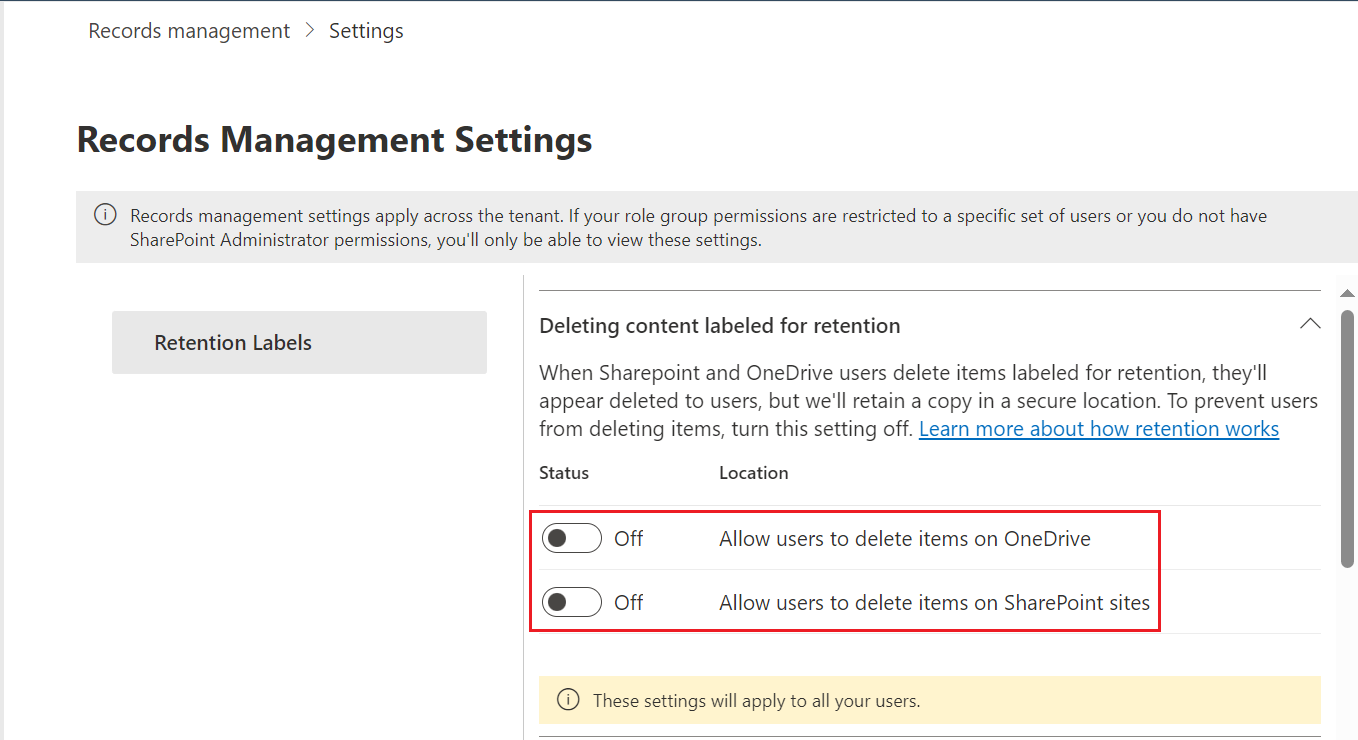
Microsoft has changed the behavior of restricting users from deleting an object where a retention label is applied - users can delete the object labeled for retention only. For Teams & Groups, SharePoint Online, and OneDrive, the deleted documents will be retained in the Preservation Hold library; for Exchange Online, the deleted emails will be retained in the Recoverable items folder.
To prevent users from manually deleting documents labeled for retention, you need to manually disable the related settings in Microsoft 365 Compliance center (Microsoft Purview) > Records management > Records management settings > Retention Labels.
Microsoft 365 retention label is a global setting. Once you define a Microsoft 365 retention label, all terms where retention is enabled will use the same retention label. After the Enforce retention job is completed, the retention label will be automatically added or updated to the Microsoft 365 objects classified using the terms where retention is enabled.
Note that Microsoft 365 retention label applied by rules takes precedence over the Microsoft 365 retention label applied by terms if a conflict occurs.
Term activation settings – Configure activation settings to define when the term is available to use. By default, the Always active checkbox is selected for a new term, which means the term never retires.
-
Take effect from – Select a date to specify when the term will become active.
-
Retire after – Select a date to specify when the term will retire.
-
Time range – Select a start date and an end date to define the time frame during which the term will be active.
Synchronize Terms
After creating or importing terms, you need to synchronize them to their respective destinations so that these terms will be available for content classification. The destination depends on your content source, as follows:
-
For SharePoint Online and Teams & Groups, terms will be synchronized the term store.
-
For SharePoint On-Premises, terms will be synchronized to the SharePoint Managed Metadata Services.
-
For Google Drive, terms will be synchronized to the Google tenant as labels.
The synchronization destination for each content source is determined by the settings you configured earlier for each term group. For detailed instructions, refer to Configure Term Settings.
Select a term group and click Synchronize above the term tree. A Term synchronization job will start, and you can navigate to Job monitor to view the job details.
There are several scenarios for synchronizing the term group, term set, and terms:
-
If there is no term group/term set/term with the same name as that of AvePoint Opus, a new term group/term set/terms will be created in the destination together with its settings and status.
-
If a term group/term set/term with the same name as that of AvePoint Opus already exists in the destination, there are two scenarios:
-
If the existing term group/term set/or terms in the term store are created by AvePoint Opus, then the name and description of the term group/term set/term settings will be synchronized, and the status of the term set/term will be synchronized.
-
If the existing term group/term set/or terms in the term store are not created by AvePoint Opus, there are two scenarios:
-
If a term group or term set with the same name already exists in the destination, the Term synchronization job will fail.
-
If a term with the same name already exists in the destination, only the term will be skipped in the synchronization.
-
-