Home > Dashboard
Download this articleDashboard
Refer to the following sections for detailed information.
Information Lifecycle
This dashboard displays reports in different graphs based on different conditions to help you gain a comprehensive understanding of records in your environment.
The dashboard data is not generated in real-time. You can view the last and next dashboard data sync time in the upper-right corner and click Sync now to sync the dashboard data immediately.
Before syncing the dashboard data, make sure you have run Content synchronization for search jobs to synchronize record information from content sources to AvePoint Opus.
The statistics displayed in blue are clickable. Clicking such a statistic allows you to access the Search page with the corresponding objects displayed.

Managed Records
Displays the number of records that are being managed by AvePoint Opus, including active records, archived records, destroyed records, and total records.
Manual Approval Status
Displays the number of records collected by the manual approval process, including awaiting approval records and Waiting-for-disposal records. By clicking View history, you will be redirected to the Records for review > History page to view the records that have been processed.
Terms
Displays the number of terms in AvePoint Opus, including terms that have rules applied, terms without rules applied, total terms.
Physical Records Requests
Displays the number of physical requests in the system, including creation requests, loan requests, and total requests.
Active Records by Content Source
Displays the number of active records in each content source.
Nodes with Settings Configured by Content Source
Displays the number of nodes in each content source that have settings configured. Nodes that have settings inherited from the parent node are not counted.
Records Awaiting Approval
Displays the number of records that are awaiting approval in each content source.
Record Count by Status
Displays the number of records in different statuses within a configured time frame. You can change the content source by selecting one from the content source drop-down list. To configure a time frame, select a time frame from the drop-down list.
Top 10 Users with the Most Records Awaiting Approval
Displays up to 10 record reviewers who have the most records that are awaiting approval in the selected content source.
Top 10 Most Used Terms
Displays the top ten most used terms in the selected content source. If you hover over a term, you can view the term’s full path in the format of term group/term set/term/sub term.
Top 10 Workspaces with the Most Records
The data displayed in this section differs based on the selected content source.
-
SharePoint Online – Displays the top 10 site collections with the most active records. If you hover over a site collection, you can view the URL of the corresponding site collection.
-
OneDrive – Displays the top 10 site collections with the most active records. If you hover over a site collection, you can view the URL of the corresponding site collection.
-
Exchange Online – Displays the top 10 mailboxes with the most active records. If you hover over a mailbox, you can view the corresponding email address.
-
Physical Records – Displays the top 10 locations with the most active records. If you hover over a location, you can view the full path of the corresponding location.
-
File System – Displays the top 10 connections with the most active records. If you hover over a connection, you can view the full path of the corresponding connection.
-
SharePoint On-Premises – Displays the top 10 site collections with the most active records. If you hover over a site collection, you can view the URL of the corresponding site collection.
-
Azure FileShare – Displays the top 10 Azure file share connections with the most active records. If you hover over a connection, you can view the file share URL.
-
Google Drive – Displays the top 10 drives with the most active records. If you hover over a drive, you can view the drive name.
As an end user in physical records management, you will see the following reports. Note that you can’t sync the dashboard data.
-
My physical records creation requests – Displays the number of creation requests that you have submitted, including the awaiting approval, approved, and rejected requests.
-
My physical records loan requests – Displays the number of loan requests that you have submitted, including the awaiting approval, approved, and rejected requests.
-
Records awaiting approval – Displays the number of records that are awaiting your approval.
Storage Optimization
This dashboard provides comprehensive insights into the volume of your archived SharePoint Online & OneDrive content, as well as the cost savings your organization has achieved from doing the archiving operation.
The dashboard data will be automatically synced when any account in your tenant first accesses the page. Subsequent updates occur automatically whenever archiving-related rule actions in jobs of Enforce rule actions, Storage optimization, Archive or destroy data are completed.
The archived data size refers to the amount of data stored to your archive storage after undergoing compression and encryption. It is not the volume of data deleted from your SharePoint Online & OneDrive. To find the precise amount of deleted data, please check the relevant job details.
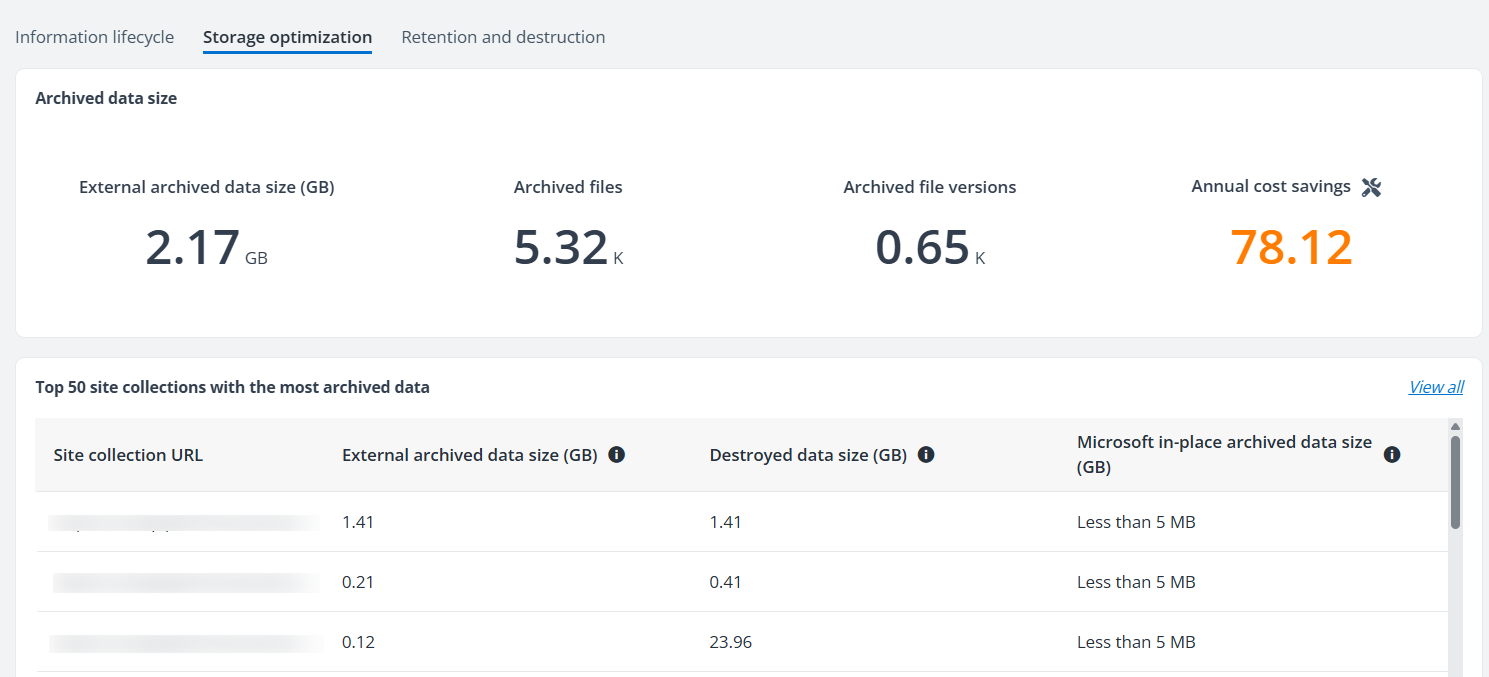
External Archived Data Size
Displays the size of the archived data stored in external archival storages.
Archived Files
Displays the number of archived files.
Archived File Versions
Displays the number of the archived file versions.
Annual Cost Savings
Displays the annual cost savings achieved from doing the archiving operation. To help AvePoint Opus calculate your yearly cost savings, you need to click the Configure button to specify the price of your SharePoint online storage and the price of your archived storage per GB/month.
Top 50 Site Collections with the Most Archived Data
Displays the top 50 site collections with the most archived data. By clicking View all, you will be redirected to the Reporting > Archived sites page where you can view the information of all archived site collections and export them.
Retention and Destruction
This dashboard enhances data governance by providing visibility into archived files scheduled for deletion. It displays key metrics including total data size, file count, and timing of the next automatic cleanup. Additionally, it displays each file alongside its storage location and applicable retention rule, empowering users to track and anticipate upcoming cleanup actions proactively.
The dashboard data is not generated in real-time. You can view the last and next dashboard data sync time in the upper-right corner.
You can click Export to export the retention and destruction data. An Export report job will start, and you can navigate to Job monitor to view details. A download process will start in Download center. When the download process completes, you can download the file by clicking Download.
The archiving functionality is available for the following content sources: Teams & Groups, SharePoint Online, OneDrive, and File System. However, this specific dashboard currently only reports on the archived files scheduled for deletion for the SharePoint Online and OneDrive content sources.
Configuration requirements:
-
Configure storage locations – When configuring storage locations to store the archived data, you need to configure retention rules to specify how long the archived data should be retained in the storage location. For detailed instructions, refer to Manage Your Storage.
-
Prune archived data – You need to configure a schedule to prune the archived data in storage locations based on the pre-configured retention rules. For detailed instructions, refer to Configure Schedule Settings.
-
Predict data to be deleted – Following the completion of each Prune archived data job, Opus automatically initiates a Data for pruning prediction job to forecast the data to be deleted in the next cleanup cycle and display the details directly on this dashboard.