
Home > Process Overview for Content Management > Information Lifecycle
Download this articleInformation Lifecycle
Refer to the following sections for information lifecycle management.
Teams & Groups
To manage the Teams & Groups content, refer to the steps below:
-
Upgrade to new Teams & Groups content source – Opus has supported Teams & Groups as a new content source, enhancing information lifecycle management. To begin with, you need to upgrade to new Teams & Groups content source. For detailed instructions, refer to Upgrade to New Teams & Groups Content Source.
-
Preparations
-
Storage locations – If you want to archive content to an archival storage, you need to configure storage locations to store the archived content. For detailed instructions, refer to Manage Your Storage.
-
Export locations and export formats – If you want to export content to an export location via a specified export format, you need to configure export locations to store the exported content and modify the configuration files for the export format. For detailed instructions, refer to Configure Export Settings.
-
Stub templates – If you want users to restore files directly in libraries, you need to configure stub templates to provide restore links for files. For detailed instructions, refer to Configure Stub Templates.
-
Job notifications – If you want to regularly monitor specific jobs, you need to create job notifications to specify the jobs and their statuses you want to monitor. For detailed instructions, refer to Configure Job Notifications.
-
-
Build file plan
-
Create rules – You need to create rules to identify the content that should be managed and define rule actions on how to manage the content. For detailed instructions, refer to Manage Rules.
-
Create terms – You need to create terms for content classification, associate terms with rules, and synchronize terms to term stores. For detailed instructions, refer to Manage Terms.
-
-
Configure and apply settings to content
-
Configure settings
-
To manage documents, you need to configure column settings to define a classification column and configure document-level term settings to define how to classify content with terms.
-
To manage containers, you need to configure container-level term settings to classify the container-level objects with term ID.
For detailed instructions, refer to Configure Settings.
-
-
Apply settings – You need to apply the configured settings to content. Thus, rules associated with terms will be applied to content. For detailed instructions, refer to Apply Settings.
-
Enforce rule actions on content – You need to enforce rule actions on content to manage the content. For detailed instructions, refer to Run Enforce Rule Actions Jobs.
-
SharePoint Online
To manage the SharePoint Online content, refer to the steps below:
-
Preparations
-
Storage locations – If you want to archive content to an archival storage, you need to configure storage locations to store the archived content. For detailed instructions, refer to Manage Your Storage.
-
Export locations and export formats – If you want to export content to an export location via a specified export format, you need to configure export locations to store the exported content and modify the configuration files for the export format. For detailed instructions, refer to Configure Export Settings.
-
Stub templates – If you want users to restore files directly in SharePoint Online libraries, you need to configure stub templates to provide restore links for files. For detailed instructions, refer to Configure Stub Templates.
-
Job notifications – If you want to regularly monitor specific jobs, you need to create job notifications to specify the jobs and their statuses you want to monitor. For detailed instructions, refer to Configure Job Notifications.
-
-
Build file plan
-
Create rules – You need to create rules to identify the content that should be managed and define rule actions on how to manage the content. For detailed instructions, refer to Manage Rules.
-
Create terms – You need to create terms for content classification, associate terms with rules, and synchronize terms to term stores. For detailed instructions, refer to Manage Terms.
-
-
Configure and apply settings to content
-
Configure settings
-
To manage documents, you need to configure column settings to define a classification column and configure document-level term settings to define how to classify content with terms.
-
To manage containers, you need to configure container-level term settings to classify the container-level objects with term ID.
For detailed instructions, refer to Configure Settings.
-
-
Apply settings – You need to apply the configured settings to content. Thus, rules associated with terms will be applied to content. For detailed instructions, refer to Apply Settings.
-
-
Enforce rule actions on content – You need to enforce rule actions on content to manage the content. For detailed instructions, refer to Run Enforce Rule Actions Jobs.
OneDrive
AvePoint Opus provides two methods for managing OneDrive content: with terms (requiring synchronization) and without terms (applying rules directly).
Because OneDrive does not support a managed metadata column type (unlike SharePoint Online), term properties cannot be stored directly in OneDrive. When you classify documents using terms, the associated term property is saved only in the Opus database. As a result, managing OneDrive content with terms requires a synchronization process that synchronizes content from OneDrive to Opus, during which Opus applies the relevant terms to the documents.
Alternatively, you can manage OneDrive content without terms. This approach skips term-based classification and instead add rules directly to tree nodes through settings. Since rules are applied to content as usual, no synchronization is needed.
The following sections outline the step-by-step procedures for each method, helping you choose the approach that best fits your content management needs.
Manage Content with Terms
To manage the OneDrive content with terms, refer to the steps below:
-
Preparations
-
Storage locations – If you want to archive content to an archival storage, you need to configure storage locations to store the archived content. For detailed instructions, refer to Manage Your Storage.
-
Export locations and export formats – If you want to export content to an export location via a specified export format, you need to configure export locations to store the exported content and modify the configuration files for the export format. For detailed instructions, refer to Configure Export Settings.
-
Stub templates – If you want users to restore files directly in OneDrive libraries, you need to configure stub templates to provide restore links for files. For detailed instructions, refer to Configure Stub Templates.
-
Job notifications – If you want to regularly monitor specific jobs, you need to create job notifications to specify the jobs and their statuses you want to monitor. For detailed instructions, refer to Configure Job Notifications.
-
-
Build file plan
-
Create rules – You need to create rules to identify the content that should be managed and define rule actions on how to manage the content. For detailed instructions, refer to Manage Rules.
-
Create terms – You need to create terms for content classification and associate terms with rules. For detailed instructions, refer to Manage Terms.
-
-
Configure settings – You need to configure settings on a tree node to enable classification with terms and configure terms to classify the content. For detailed instructions, refer to Configure Settings.
-
Sync content from OneDrive to Opus – You need to synchronize content from OneDrive to AvePoint Opus. The configured settings will be applied to the synced content at the same time, and therefore, rules associated with terms will be applied to the content. For detailed instructions, refer to Synchronize Content for Search.
-
Enforce rule actions on content – You need to enforce rule actions on content to manage the content. For detailed instructions, refer to Run Enforce Rule Actions Jobs.
Manage Content without Terms
To manage the OneDrive content without terms, refer to the steps below:
-
Preparations
-
Storage locations – If you want to archive content to an archival storage, you need to configure storage locations to store the archived content. For detailed instructions, refer to Manage Your Storage.
-
Export locations and export formats – If you want to export content to an export location via a specified export format, you need to configure export locations to store the exported content and modify the configuration files for the export format. For detailed instructions, refer to Configure Export Settings.
-
Stub templates – If you want users to restore files directly in OneDrive libraries, you need to configure stub templates to provide restore links for files. For detailed instructions, refer to Configure Stub Templates.
-
Job notifications – If you want to regularly monitor specific jobs, you need to create job notifications to specify the jobs and their statuses you want to monitor. For detailed instructions, refer to Configure Job Notifications.
-
-
Create rules – You need to create rules to identify the content that should be managed and define rule actions on how to manage the content. For detailed instructions, refer to Manage Rules.
-
Add rules to content – You need to configure settings on a tree node to disable classification with terms and add rules to the tree node. For detailed instructions, refer to Configure Settings.
-
Enforce rule actions on content – You need to enforce rule actions on content to manage the content. For detailed instructions, refer to Run Enforce Rule Actions Jobs.
Exchange Online
Based on whether to enable classification with terms, you can manage Exchange Online content with or without terms.
Manage Content with Terms
To manage the Exchange Online content with terms, refer to the steps below:
-
Preparations
-
Storage locations – If you want to export content to an export location, you need to configure storage locations of the SFTP or Microsoft Azure Blob Storage type. For detailed instructions, refer to Manage Your Storage.
-
Export locations and export formats – If you want to export content to an export location via a specified export format, you need to configure export locations to store the exported content and modify the configuration files for the export format. For detailed instructions, refer to Configure Export Settings.
-
Job notifications – If you want to regularly monitor specific jobs, you need to create job notifications to specify the jobs and their statuses you want to monitor. For detailed instructions, refer to Configure Job Notifications.
-
-
Build file plan
-
Create rules – You need to create rules to identify the content that should be managed and define rule actions on how to manage the content. For detailed instructions, refer to Manage Rules.
-
Create terms – You need to create terms for content classification and associate terms with rules. For detailed instructions, refer to Manage Terms.
-
-
Configure and apply settings to content
-
Configure settings – You need to configure settings on a tree node to enable classification with terms and configure terms to classify the content. For detailed instructions, refer to Configure Settings.
-
Apply settings – You need to run an apply settings job to apply the configured settings to the content. Therefore, rules associated with terms will be applied to the content. For detailed instructions, refer to Apply Settings.
-
-
Enforce rule actions on content – You need to enforce rule actions on content to manage the content. For detailed instructions, refer to Run Enforce Rule Actions Jobs.
Manage Content without Terms
To manage the Exchange Online content without terms, refer to the steps below:
-
Preparations
-
Storage locations – If you want to export content to an export location, you need to configure storage locations of the SFTP or Microsoft Azure Blob Storage type. For detailed instructions, refer to Manage Your Storage.
-
Export locations and export formats – If you want to export content to an export location via a specified export format, you need to configure export locations to store the exported content and modify the configuration files for the export format. For detailed instructions, refer to Configure Export Settings.
-
Job notifications – If you want to regularly monitor specific jobs, you need to create job notifications to specify the jobs and their statuses you want to monitor. For detailed instructions, refer to Configure Job Notifications.
-
-
Create rules – You need to create rules to identify the content that should be managed and define rule actions on how to manage the content. For detailed instructions, refer to Manage Rules.
-
Add rules to content – You need to configure settings on a tree node to disable classification with terms and add rules to the tree node. For detailed instructions, refer to Configure Settings.
-
Enforce rule actions on content – You need to enforce rule actions on content to manage the content. For detailed instructions, refer to Run Enforce Rule Actions Jobs.
Physical Records
To manage the Physical Records content, refer to the steps below:
-
Preparations
-
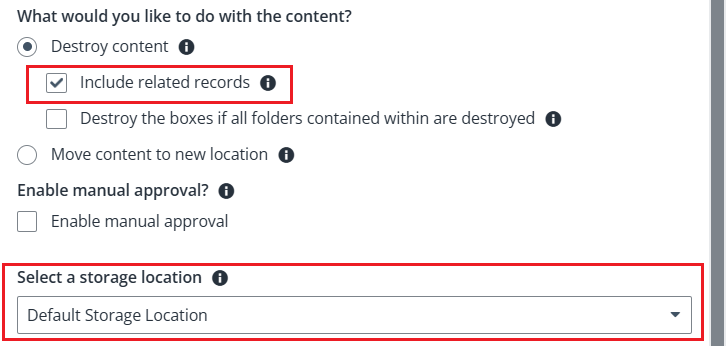
Storage locations – When creating rules to destroy content, if you want to destroy the related records, you need to configure a storage location. This storage location is used to store the documents and items in SharePoint Online that have been destroyed as related records. For detailed instructions, refer to Manage Your Storage.
-
Job notifications – If you want to regularly monitor specific jobs, you need to create job notifications to specify the jobs and their statuses you want to monitor. For detailed instructions, refer to Configure Job Notifications.
-
Create or import physical locations – You need to create or import hierarchical locations to reflect your storage structure for storing physical boxes, folders, and records. For detailed instructions, refer to Manage Locations.
-
-
Build file plan
-
Create rules – You need to create rules to identify the content that should be managed and define rule actions on how to manage the content. For detailed instructions, refer to Manage Rules.
-
Create terms – You need to create terms for content classification and associate terms with rules. For detailed instructions, refer to Manage Terms.
-
-
Configure settings on content – You need to configure settings on a tree node to classify the content. For detailed instructions, refer to Configure Settings.
-
Prepare physical records
-
Configure templates – You need to customize record templates and barcode templates to meet your organization’s requirements for physical content metadata. For detailed instructions, refer to Manage Templates.
-
Create or import records – You need to create or import the physical boxes, folders, and records that you want to be managed by Opus. For detailed instructions, refer to Explorer.
-
-
Enforce rule actions on content – You need to enforce rule actions on content to manage the content. For detailed instructions, refer to Run Enforce Rule Actions Jobs.
File System
To manage the File system content, refer to the steps below:
-
Preparations
-
Register agents – You need to register agents to establish connections between Opus and your File System server. For detailed instructions, refer to Register Agents.
-
Create connections – You need to create connection groups as containers of connections and create connections to browse the structure. For detailed instructions, refer to Configure Connections.
-
Storage locations – If you want to archive content to an archival storage, you need to configure storage locations to store the archived content. For detailed instructions, refer to Manage Your Storage.
-
Job notifications – If you want to regularly monitor specific jobs, you need to create job notifications to specify the jobs and their statuses you want to monitor. For detailed instructions, refer to Configure Job Notifications.
-
-
Create rules – You need to create rules to identify the content that should be managed and define rule actions on how to manage the content. For detailed instructions, refer to Manage Rules.
-
Add rules to content – You need to configure settings on a tree node to add rules to the tree node. For detailed instructions, refer to Configure Settings.
-
Synchronize content from File System to Opus – You need to synchronize content from File System to AvePoint Opus. The configured term settings will be applied to the synced content at the same time, and therefore, rules associated with the terms will be applied to the content. For detailed instructions, refer to Synchronize Content for Search.
-
Enforce rule actions on content – You need to enforce rule actions on content to manage the content. For detailed instructions, refer to Run Enforce Rule Actions Jobs.
SharePoint On-Premises
To manage the SharePoint On-Premises content, refer to the steps below:
-
Preparations
-
Register agents – You need to register agents to establish connections between Opus and your SharePoint On-Premises. For detailed instructions, refer to Register Agents.
-
Scan SharePoint On-Premises – You need to scan web applications and site collections from SharePoint On-Premises to Opus. For detailed instructions, refer to Configure Schedule Settings.
-
Job notifications – If you want to regularly monitor specific jobs, you need to create job notifications to specify the jobs and their statuses you want to monitor. For detailed instructions, refer to Configure Job Notifications.
-
-
Build file plan
-
Create rules – You need to create rules to identify the content that should be managed and define rule actions on how to manage the content. For detailed instructions, refer to Manage Rules.
-
Create terms – You need to create terms for content classification, associate terms with rules, and synchronize terms to the managed metadata services in SharePoint On-Premises. For detailed instructions, refer to Manage Terms.
-
-
Configure and apply settings to content
-
Configure settings – You need to configure settings on a tree node to classify the content with terms. For detailed instructions, refer to Configure Settings.
-
Apply settings – You need to run an apply settings job to apply the configured settings to the content. Therefore, rules associated with terms will be applied to the content. For detailed instructions, refer to Apply Settings.
-
-
Enforce rule actions on content – You need to enforce rule actions on content to manage the content. For detailed instructions, refer to Run Enforce Rule Actions Jobs.
Box
To manage the Box content, refer to the steps below:
-
Preparations
-
Create connections – You need to create connection groups as containers of connections and created connections to browse the structure. For detailed instructions, refer to Configure Conntions.
-
Job notifications – If you want to regularly monitor specific jobs, you need to create job notifications to specify the jobs and their statuses you want to monitor. For detailed instructions, refer to Configure Job Notifications.
-
-
Build file plan
-
Create rules – You need to create rules to identify the content that should be managed and define rule actions on how to manage the content. For detailed instructions, refer to Manage Rules.
-
Create terms – You need to create terms for content classification and associate terms with rules. For detailed instructions, refer to Manage Terms.
-
-
Configure settings – You need to configure term settings on a tree node to classify the content. For detailed instructions, refer to Configure Settings.
-
Sync content from Box to Opus – You need to synchronize content from Box to Opus. The configured term settings will be applied to the synced content at the same time, and therefore, rules associated with terms will be applied to the content. For detailed instructions, refer to Synchronize Content for Search.
-
Enforce rule actions on content – You need to enforce rule actions on content to manage the content. For detailed instructions, refer to Run Enforce Rule Actions Jobs.
Google Drive (Preview)
Based on whether to enable classification with terms, you can manage Google Drive content with or without terms.
The support for Google Drive is currently in public preview mode and is available as an on-demand feature. You can contact AvePoint’s support team or your sales representative for more information.
Manage Content with Terms
To manage the Google Drive content with terms, refer to the steps below:
-
Preparations
-
Storage locations – If you want to archive content to an archival storage, you need to configure storage locations to store the archived content. For detailed instructions, refer to Manage Your Storage.
-
Export locations and export formats – If you want to export content to an export location via a specified export format, you need to configure export locations to store the exported content and modify the configuration files for the export format. For detailed instructions, refer to Configure Export Settings.
-
Job notifications – If you want to regularly monitor specific jobs, you need to create job notifications to specify the jobs and their statuses you want to monitor. For detailed instructions, refer to Configure Job Notifications.
-
-
Build file plan
-
Create rules – You need to create rules to identify the content that should be managed and define rule actions on how to manage the content. For detailed instructions, refer to Manage Rules.
-
Create terms – You need to create terms or import labels from the Google tenant to Opus as terms for content classification, associate terms with rules, and synchronize terms (created in Opus) to the Google tenant as labels. For detailed instructions, refer to Manage Terms.
-
-
Configure and apply settings to content
-
Configure settings – To manage Google content, you need to configure term settings to define how to classify the content. For detailed instructions, refer to Configure Settings.
-
Apply settings – You need to apply the configured settings to the content. Thus, rules associated with terms will be applied to the content. For detailed instructions, refer to Apply Settings.
-
-
Enforce rule actions on content – You need to enforce rule actions on content to manage the content. For detailed instructions, refer to Run Enforce Rule Actions Jobs.
Manage Content without Terms
To manage the Google Drive content without terms, refer to the steps below:
-
Preparations
-
Storage locations – If you want to archive content to an archival storage, you need to configure storage locations to store the archived content. For detailed instructions, refer to Manage Your Storage.
-
Export locations and export formats – If you want to export content to an export location via a specified export format, you need to configure export locations to store the exported content and modify the configuration files for the export format. For detailed instructions, refer to Configure Export Settings.
-
Job notifications – If you want to regularly monitor specific jobs, you need to create job notifications to specify the jobs and their statuses you want to monitor. For detailed instructions, refer to Configure Job Notifications.
-
-
Create rules – You need to create rules to identify the content that should be managed and define rule actions on how to manage the content. For detailed instructions, refer to Manage Rules.
-
Add rules to content – You need to configure settings on a tree node to disable classification with terms and add rules to the tree node. For detailed instructions, refer to Configure Settings.
-
Enforce rule actions on content – You need to enforce rule actions on content to manage the content. For detailed instructions, refer to Run Enforce Rule Actions Jobs.