
Home > Content Sources > Information Lifecycle > Teams & Groups > Upgrade to New Teams & Groups Content Source
Download this articleUpgrade to New Teams & Groups Content Source
Opus has supported Teams & Groups as a new content source, enhancing information lifecycle management and storage optimization. It centralizes the management of both Teams and Groups collaboration data and the data of the connected SharePoint site collections.
Prior to utilizing the new Teams & Groups management experience, it is necessary to move the site collections connected to Teams and Groups from the SharePoint Online content source to the Teams & Groups content source. Once moved, the site collections will adhere to the Teams & Groups data structure, and you might need to update settings to align with the new Teams & Groups management framework.
Upgrading to new Teams & Groups content source is a once-time action. Once completed, you will not need to repeat it.
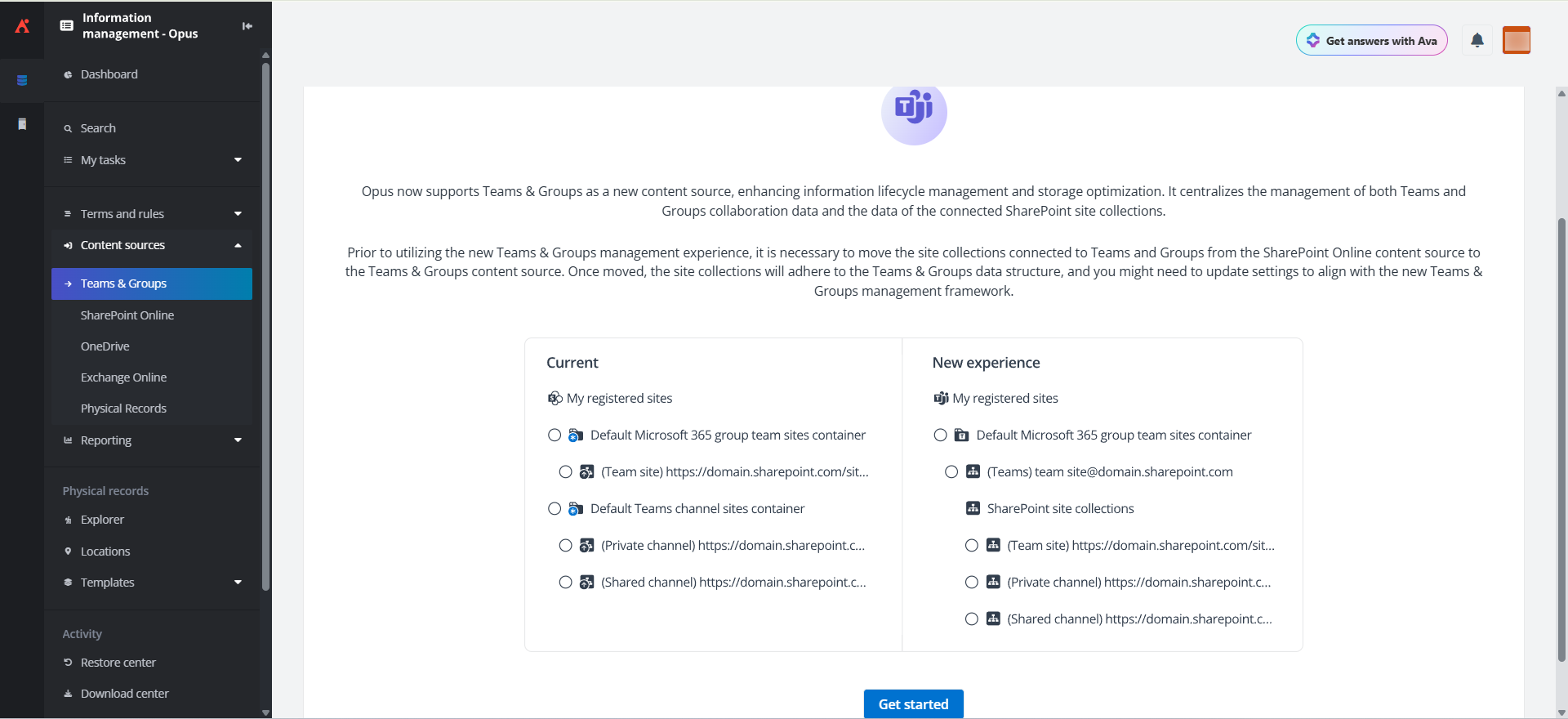
Refer to the following steps to get started with the Teams & Groups content source:
-
Click Get started.
-
In the Select a method pop-up window, select your preferred method for moving the site collections connected to Teams and Groups from the SharePoint Online content source to the Teams & Groups content source.
-
Move site collections only and reconfigure all settings manually – If you select this method, after Teams and Groups connected site collections are being moved, all configured settings will be permanently removed and must be reconfigured to align with the new Teams & Groups management framework.
To proceed, select the Move site collections only and reconfigure all settings manually option, click Yes in the pop-up confirmation message, and then click Start to begin moving the site collections.
-
Move site collections while maintaining the configured settings – If you select this method, all Teams and Groups connected site collections will be moved from the SharePoint Online content source to the Teams and Groups content source, and their existing settings will be maintained during the move.
Specific notes for Teams channel sites: Site collections associated with Teams channels often have custom settings that differ from their parent Team/Group. After the move, these site collections will be relocated under their corresponding Team/Group and will inherit its settings, potentially overwriting their original, unique configurations.
Recommendations for Teams channel sites: To prepare for this change, it is critical to scan and export the current settings of all channel-associated site collections before the move, as subsequent manual adjustments may be needed to ensure alignment with your organizational requirements.
Complete the following steps to proceed:
-
Select the Move site collections while maintaining the configured settings option and click Start.
-
Click Scan.
-
A progress bar will appear below, and you can click Refresh to update its status.
-
Once the scan is completed, the Move site collections page will appear showing a list of all Teams channel-associated site collections. For each one, you can find the URL and see if its settings are different from its parent Team/Group. Teams channel-associated site collections are organized under their respective modules: Information Lifecycle and Storage Optimization.
-
Click Export to export the settings of these Teams channel-associated site collections. Use this file to make manual adjustments after the move to align with your organizational requirements.
-
Click Start to begin moving the site collections.
-
-
Then, a Cloud workspace synchronization job will be automatically started to synchronize cloud workspaces from AvePoint Online Services to AvePoint Opus. You can go to Job monitor to check the progress and view job details.
Once the synchronization is completed, the nodes will appear on the tree. You can start using the new Teams & Groups content source.