
Home > Appendices > Manage Configuration Files for Export Formats
Download this articleManage Configuration Files for Export Formats
Refer to the following sections to prepare the configuration files before exporting content into a specific format.
Export Content into VEO Files
Before exporting content into VEO files, configuration files can be edited to define metadata and values for the VEO files and the manifest XML file.
To export SharePoint Online or OneDrive content into VEO files, you need to modify the following configuration files:
-
ArchiverSettings.config
-
ArchiverVEOSettings.config
-
FileVEO.xml
-
ManifestVEO.xml
-
RecordVEO.xml
To export Exchange Online content into VEO files, you need to modify the following configuration files:
-
ArchiverSettings.config
-
ArchiverVEOSettings.config
-
EXOFileVEO.xml
-
EXOManifestVEO.xml
-
EXORecordVEO.xml
Using exporting SharePoint Online content into VEO files as an example, refer to the following sections on how to modify the configuration files.
Define Metadata Values for VEO Files of Container
Configuring the FileVEO.xml file for exporting container level of objects into VEO files. Define metadata and values for VEO files.
Refer to the following steps to configure the FileVEO.xml file.
-
Open the FileVEO.xml file.
-
Fine the … node.
-
Edit the nodes in it.
-
MetadataName – The metadata name of VEO files.
-
SharePointMetadata – A SharePoint managed property, column, or the following format: @xxx@.
-
SharePointMetadataAsSource – The status of whether to use the SharePointMetadata parameter value to be mapped to the metadata.
-
DefaultValue – The default value of the metadata. This parameter value will be used only when the SharePointMetadataAsSource parameter value is false.
-
-
Save any changes to this file and close it.
Define Metadata Values for VEO Files of Content
Configuring the RecordVEO.xml file for exporting content level of objects into VEO files. Define metadata and values for VEO files.
Refer to the following steps to configure the RecordVEO.xml file.
-
Open the RecordVEO.xml file.
-
Find the … node.
-
Edit the nodes in it.
-
MetadataName – The metadata name of VEO files.
-
SharePointMetadata – A SharePoint managed property, column, or the following format: @xxx@.
-
SharePointMetadataAsSource – The status of whether to use the SharePointMetadata parameter value to be mapped to the metadata.
-
DefaultValue – The default value of the metadata. This parameter value will be used only when the SharePointMetadataAsSource parameter value is false.
-
-
Save any changes to this file and close it.
Define Metadata for the Manifest File
Configuring the ManifestVEO.xml file to define the metadata collected for the job and each item in the manifest XML file.
Refer to the following steps to configure the ManifestVEO.xml file.
-
Open the ManifestVEO.xml file.
-
Find the … node.
-
Modify or assign values of the following parameters in each node:
-
ElementName – The XML element name of metadata in VEO files.
-
DefaultValue – The default value of the metadata. The default value will be assigned to an item only when there is no value of the configured element.
-
-
Save any changes to the file and close it.
Merge VEO files
When you run an Enforce rule actions job to export data into VEO files, a folder will be created for each SharePoint Online site collection where the content meets the rule criteria in the export location configured in the rule. The content that meets the rule criteria will be exported as VEO files to the corresponding folder. A Manifest.xml file will also be exported to the folder to record some metadata of the VEO files. The folder will be named in the following format: JobID_Suffix (starts from 000). For example, AR20160711114512686584A0_000.
By configuring the ArchiverVEOSettings.config file, you can merge VEO files that are exported by an Enforce rule actions job from multiple folders in an export location into one or a few folders based on the configured settings. The Manifest.xml files will also be merged to record metadata for VEO files in the merged folders.
-
Open the ArchiverVEOSettings.config file with Notepad.
-
Configure the following nodes to customize your settings for merging VEO files.
-
– Choose whether to merge VEO files from multiple folders in an export location into one or a few folders.
-
Set the true value to enable this feature, and then configure the nodes below. The default value is true.
-
Set the false value to disable this feature.
-
-
– Choose whether to delete VEO files from their original folders after merging them into new folders.
-
Set the true value to delete VEO files from their original folders after the merge. The folders will be deleted together.
-
Set the false value to keep VEO files in their original folders after the merge. The default value is false.
-
-
– Configure this node to merge VEO files by size. A number with two decimal places is supported. The size unit is GB. By default, VEO files whose total size is 1 GB will be merged into a folder.
-
– Configure this node to merge VEO files by the number of VEO files. By default, 300 VEO files will be merged into a folder. If the two nodes above are all configured, the second folder will be created once either of the two conditions is met.
-
Merged Folder – Define the prefix for the folders that will be created to store the merged VEO files. The folders will be named in the following format: Prefix_JobID_Suffix (starts from 000). For example, Merged Folder_AR20160711114512686584A0_000.
-
-
Save any changes to the file and close it.
-
When the merge VEO feature is enabled, a VEO Merge job will automatically start after the Archive/Lifecycle Archive job finishes merging the Manifest.xml and VEO files.
-
If the settings configured in this configuration file are invalid, the default settings will be used to run the VEO Merge job.
Export Content into NAA Files
AvePoint Opus supports exporting documents together with their columns in a format that is compliant with the National Archives of Australia (NAA) standards.
-
To export SharePoint Online or OneDrive content into NAA files, you need to modify the NAA Configuration File.xml file.
-
To export Exchange Online content into NAA files, you need to modify the EXO NAA Configuration File.xml file.
Using exporting SharePoint Online content into NAA files as an example, refer to the following sections on how to modify the configuration files.
NAA Export Format
After running an Enforce Rule Actions job to export documents together with columns into a format that is compliant with NAA, the SharePoint Online content will be exported as follows:
-
In the export location, there is a Zip file named after the Enforce Rule Actions job’s job ID.
-
In the extracted Zip file, site collections, sites, and libraries where the documents that meet the rule criteria are located in SharePoint Online will be exported as folders. These folders will keep the same data structure as the corresponding container level objects in SharePoint Online, and the documents will be exported to the corresponding folders.
-
In the site collection folder, there is a CSV file where documents’ columns are exported. Column names displayed in the CSV file can be modified in the NAA Configuration File.xml file.
-
Values of the Created and Modified columns in SharePoint Online will not be changed after being exported to the CSV file.
Modify the NAA Configuration File
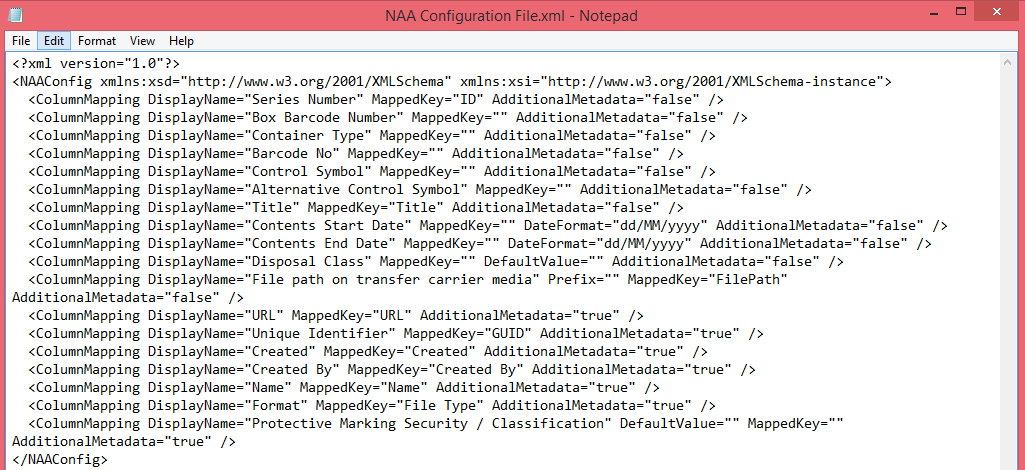
Configure the NAA Configuration File.xml file to define document columns that will be exported and their display names in the exported CSV file. You can also export the disposal class, a rule property defined on the rule page, to the CSV file. The disposal class can be used to mark documents that meet the same rule.
Refer to the following steps to configure the NAA Configuration File.xml file.
-
Open the NAA Configuration File.xml file with Notepad.
-
Edit the following parameters and values in each <ColumnMapping DisplayName=" " … /> node.
-
DisplayName – Enter a display name for the column that contains the values you want to export as column values or enter a display name for the disposal class rule property. A column with the display name will be created in the CSV file.
-
MappedKey – Enter the name of the document’s column in SharePoint Online whose column values you want to export. In the configuration file, there is a <… Mapped Key ="Disposal Class"… /> node where MappedKey is Disposal Class. To export the disposal class rule property, do not change the parameter’s value.
-
Default Value – When no value is configured for the MappedKey parameter or the configured value cannot be identified by the Enforce Rule Actions job, the value configured for this parameter will be exported as the value of the column defined by the DisplayName parameter in the CSV file.
-
Prefix – This parameter is used to indicate the location where the exported documents can be found. Configure the Prefix parameter with the full path of the location. The full path configured here and the relative paths recorded in the FilePath column will be combined and exported as the values of the column defined by the DisplayName parameter in the CSV file. This parameter only works when you enter FilePath as the value of the Mappedkey parameter. The FilePath column recording the relative paths of the documents in SharePoint Online.
-
AdditionalMetadata – Use this parameter to define whether to tag the column display name in the CSV file. Set the parameter value to true, and the DisplayName parameter value configured above will be displayed in the CSV file using the following format: AdditionalMetadata.
-
-
Save any changes to this file and close it.
Export Content into NARA Files
AvePoint Opus supports exporting documents together with their columns in a format that is compliant with the National Archives and Records Administration (NARA) standards.
-
To export SharePoint Online or OneDrive content into NARA files, you need to modify the NARA Configuration File.xml file.
-
To export Exchange Online content into NARA files, you need to modify the EXO NARA Configuration File.xml file.
-
To export Google Drive content into NARA files, you need to modify the Google NARA Configuration File.xml file.
Using exporting SharePoint Online content into NARA files as an example, refer to the following sections on how to modify the configuration files.
NARA Export Format
After running an Enforce Rule Actions job to export documents together with columns into a format that is compliant with NARA, the SharePoint Online content will be exported as follows:
-
In the export location, there is a Zip file named after the Enforce Rule Actions job’s job ID.
-
In the extracted Zip file, site collections, sites, and libraries where the documents that meet the rule criteria are located in SharePoint Online will be exported as folders. These folders will keep the same data structure as the corresponding container level objects in SharePoint Online, and the documents will be exported to the corresponding folders.
-
In the site collection folder, there is a CSV file where documents’ columns are exported. Column names displayed in the CSV file can be modified in the NARA Configuration File.xml file.
Modify the NARA Configuration File
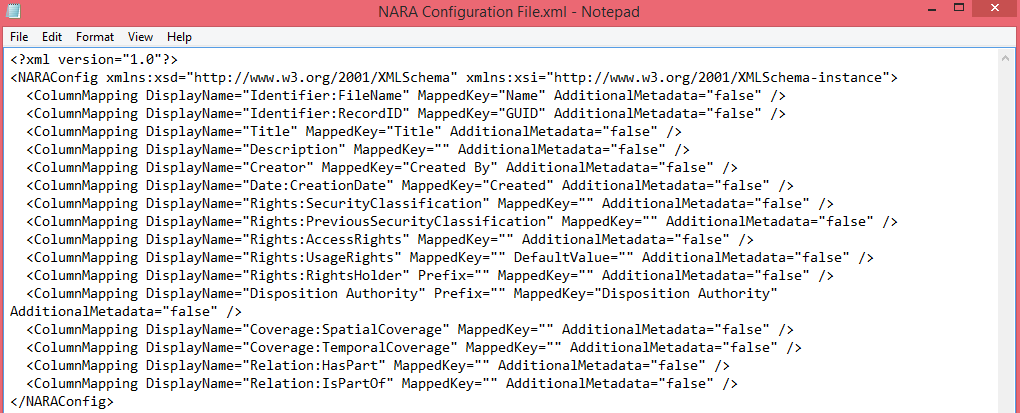
Before exporting SharePoint Online documents together with their metadata into a format that is compliant with the National Archives and Records Administration, you can configure the NARA Configuration File.xml file to define document columns that will be exported and their display names in the exported CSV file.
To configure the NARA Configuration File.xml file, complete the following steps:
-
Open the NARA Configuration File.xml file with Notepad.
-
Edit the following parameters and values in each <ColumnMapping DisplayName=" " … /> node.
-
DisplayName – Enter a display name for the column that contains the values you want to export as column values or enter a display name for the disposition authority rule property. A column with the display name will be created in the CSV file.
-
MappedKey – Enter the name of the document’s column in SharePoint Online whose column values you want to export. In the configuration file, there is a <… Mapped Key ="Disposition Authority"… /> node where MappedKey is Disposition Authority. To export the disposition authority rule property, do not change the parameter’s value.
-
Default Value – When no value is configured for the MappedKey parameter or the configured value cannot be identified by the Enforce Rule Actions job, the value configured for this parameter will be exported as the value of the column defined by the DisplayName parameter in the CSV file.
-
Prefix – This parameter is used to indicate the location where the exported documents can be found. Configure the Prefix parameter with the full path of the location. The full path configured here and the relative paths recorded in the FilePath column will be combined and exported as the values of the column defined by the DisplayName parameter in the CSV file. This parameter only works when you enter FilePath as the value of the Mappedkey parameter. The FilePath column records the relative paths of the documents in SharePoint Online.
-
AdditionalMetadata – Use this parameter to define whether to tag the column display name in the CSV file. Set the parameter value to true, and the DisplayName parameter value configured above will be displayed in the CSV file using the following format: AdditionalMetadata.
-
-
Save any changes to this file and close it.