
Home > Appendices > Manage Related Records > For SharePoint Online
Export to PDFFor SharePoint Online
AvePoint Opus supports using the Related Records feature to relate relevant records in SharePoint Online and then manage related records.
Since the February 2025 release, the related records app has been rebuilt to accommodate the retirement of SharePoint add-ins scheduled for April 2, 2026. As for the old Related Records app, you do not need to manually remove it.
If you want to continue using the related records functionality, please complete the operations in order:
-
Download the Related Records app package from the AvePoint Opus interface.
-
Create an App Catalog site if there is none in your Microsoft 365 tenant.
-
Upload the Related Records app package to your App Catalog site to deploy the Manage related records button to lists/libraries.
-
Configure and apply settings to enable the related records feature and deploy the Related Records column to lists/libraries.
-
Manage related records in SharePoint Online lists/libraries.
Download Related Records App Package
Refer to the following steps to download the Related Records app package:
-
On the AvePoint Opus interface, navigate to Content sources > SharePoint Online.
-
Select a sites container and click Column settings, or select a site collection and click Document level term settings.
-
Scroll down to the bottom to find the Enable related records management setting.
-
Select the checkbox and click the Download the Related Records app package link.
-
The related-records-app.sppkg file is downloaded to the download location of your current browser.
Create an App Catalog Site
Before deploying an app to Microsoft 365, make sure an App Catalog site already exists in your Microsoft 365 tenant.
Refer to the following steps to create an App Catalog site if there is none in your Microsoft 365 tenant:
-
Sign in to Microsoft 365.
-
Click the App Launcher (
 ) icon, and then select Admin to open Microsoft 365 admin center.
 -
In the left pane, under Admin centers, select SharePoint. The SharePoint admin center page appears.
-
Navigate to More features > Apps, and then click Open.
-
If there is an App Catalog site in your Microsoft 365 tenant, the Manage apps page will open.
If no App Catalog site exists in your Microsoft 365 tenant, a message will appear indicating that the App Catalog site is being created. The Manage apps page will open after the App Catalog site is created.
Upload Related Records App Package to App Catalog Site
Refer to the following steps to upload the Related Records app package to your App Catalog site to deploy the Manage related records button to lists/libraries:
-
Sign in to Microsoft 365.
-
Click the App Launcher (
 ) icon, and then select Admin to open the Microsoft 365 admin center.
 -
In the left pane, under Admin centers, select SharePoint. The SharePoint admin center page appears.
-
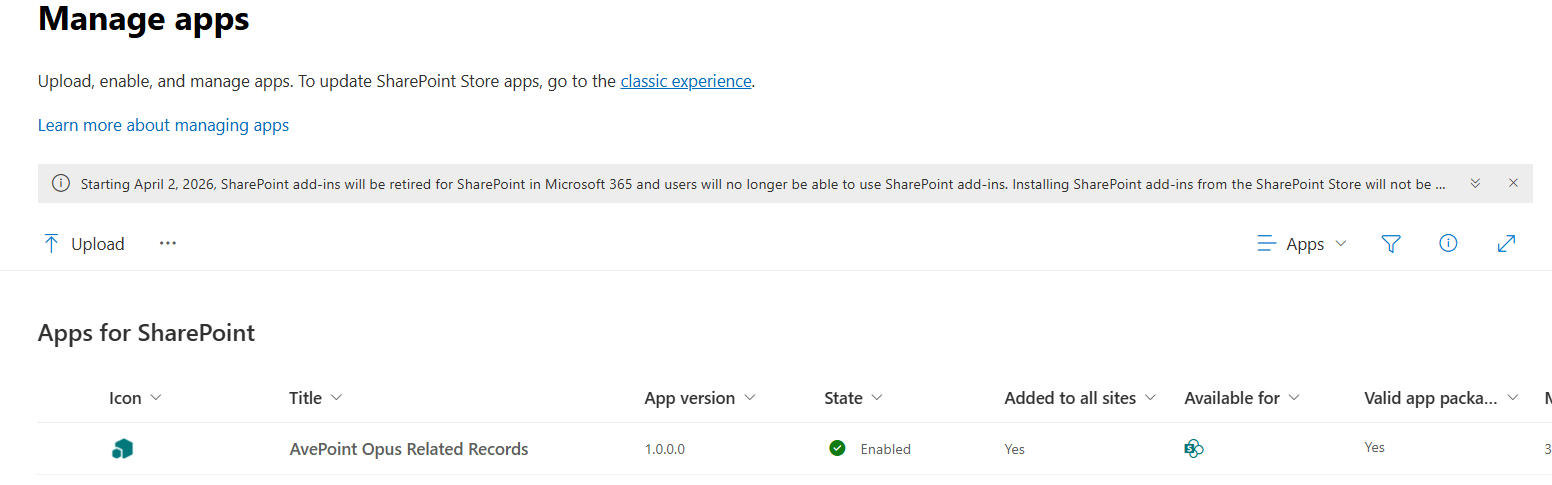
Navigate to More features > Apps, and then click Open to open the Manage apps page.
-
On the Manage apps page, click Upload to upload the related-records-app.sppkg file.
-
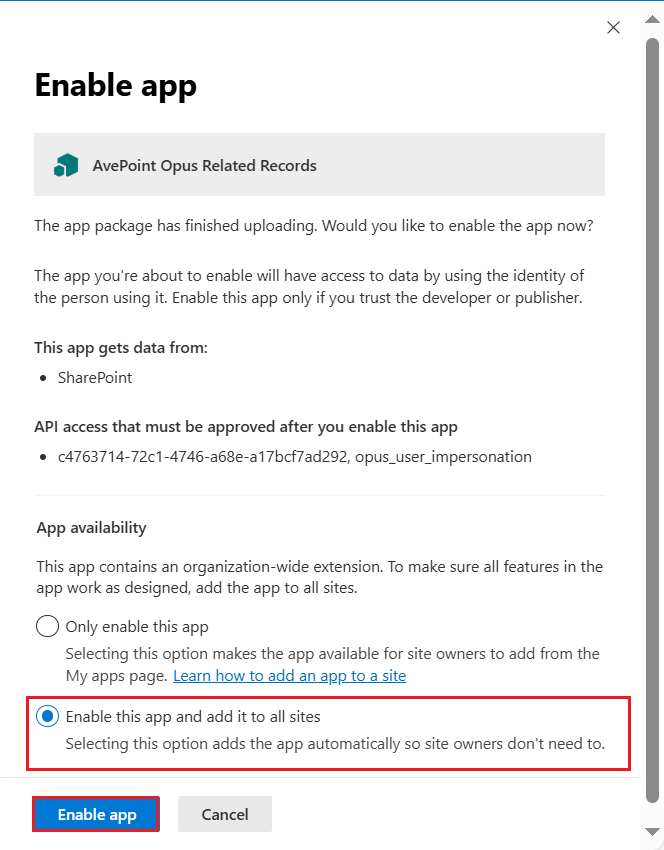
In the Enable app panel, make sure the Enable this app and add it to all sitesoption is selected, and click Enable app.
*Note: If you want to add this app only to some sites, select Only enable this app and refer to App an app to a site to add the app to those sites
-
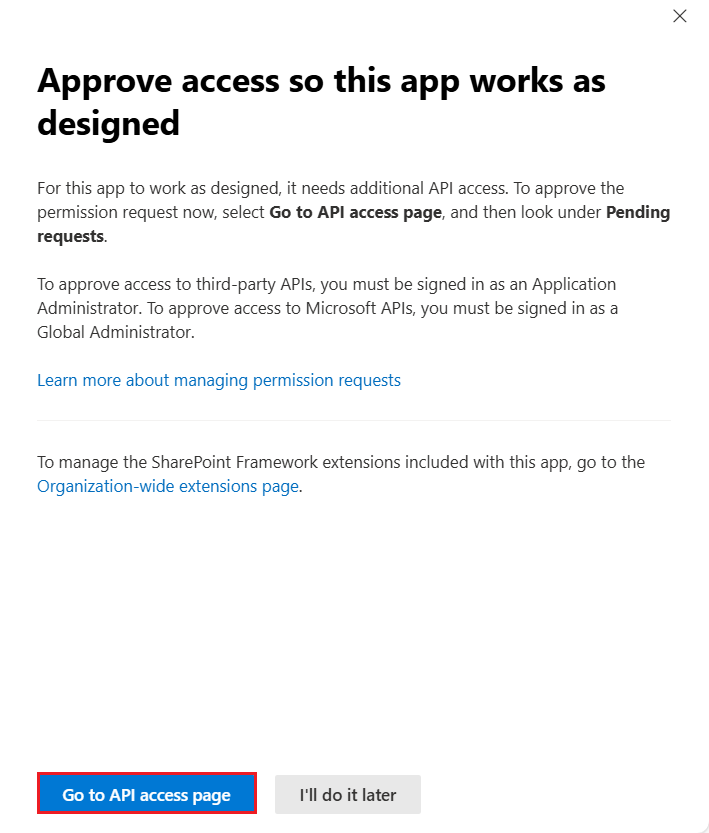
On the Approve access so this app works as designed panel, click Go to API access page to find the pending request.
-
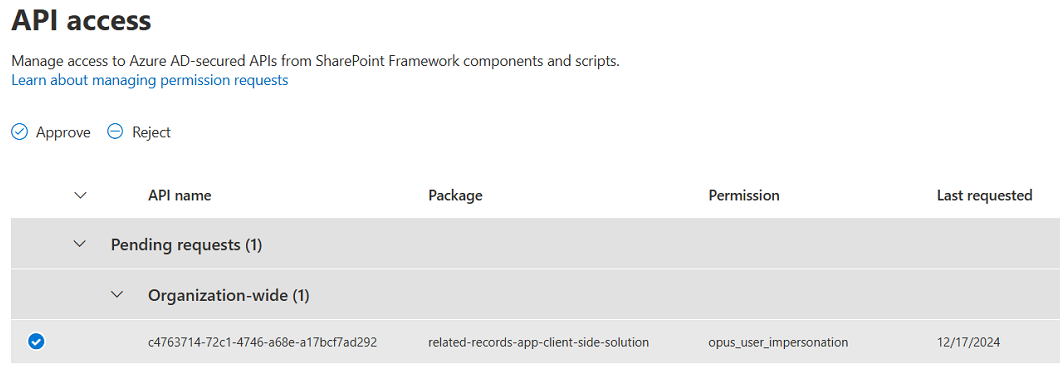
On the API access page, expand the Pending requests > Organization-wide section to find the pending request.
-
Select the pending request, and click Approve. In the Approve access panel, click Approve to approve the request.
Manage Related Records
Refer to the following steps to manage related records in SharePoint Online lists/libraries:
*Note: Make sure the related records feature has been enabled in the site collections where you want to manage related records, so that a Related Records column of the Multiple lines of text type will be added to all lists and libraries of the site collections.
-
Navigate to the list/library where the Related Records feature is enabled. For more information on how to enable the Related Records feature, refer to SharePoint Online.
-
Select an item/document, click the Show more actions (
 ) button next to it or from the ribbon, and then select Manage related records. The Manage related records panel appears.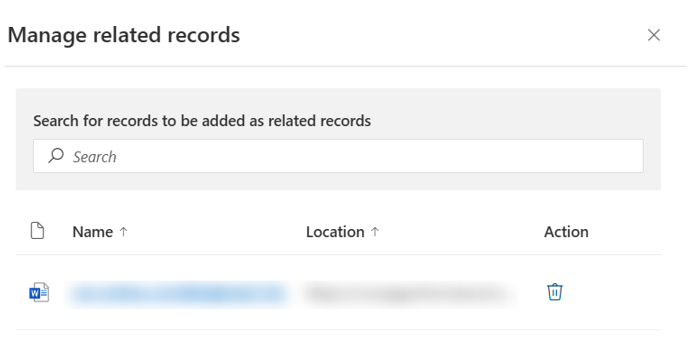
-
To add items/documents as the related records of the currently selected item/document, enter full or part of the name or document ID and then press Enter. From the suggestions list, select the desired item/document and click Add.
-
To remove the relation of an item/document from the currently selected item/document, you can click the Remove relation button.
-
Click Save to save the configurations.
After configuring related records, you can create rules to manage related records. For more information, refer to Manage Rules.