
Home > Appendices > Manage Related Records > For SharePoint On-Premises
Export to PDFFor SharePoint On-Premises
AvePoint Opus supports using the Related Records feature to relate relevant records in SharePoint On-Premises (Subscription Edition) and then manage related records.
If you want to continue using the related records functionality, please complete the operations in order:
-
Download the Related Records App package
-
Configure subscription settings service application
-
Configure app management service application
-
Deploy the Related Records App package
-
Deploy farm solution package
-
Add the Related Records App to site collections
-
Create a new content source for website crawling
-
Manage related records
Prerequisites:
Download Related Records App Package
Refer to the following steps to download the Related Records app package:
-
On the AvePoint Opus interface, navigate to Content sources > SharePoint On-Premises.
-
Select a sites container and click Column settings, or select a site collection and click Document level term settings.
-
Scroll down to the bottom to find the Enable related records management setting.
-
Select the checkbox and click the Download the Related Records app package link.
-
The Related_Records_Configurations.zip file is downloaded to the download location of your current browser.
-
Extract the ZIP file to find the following two files:
-
AvePointRelatedRecordsSPSESolution.wsp – The farm solution package.
-
related-records-spse-app.sppkg – The related records app package.
-
Configure Subscription Settings Service Application
Refer to the following steps to configure the subscription settings service application:
-
Enable Auto Provision for Microsoft SharePoint Foundation Subscription Settings Service
-
Go to the SharePoint Admin Center.
-
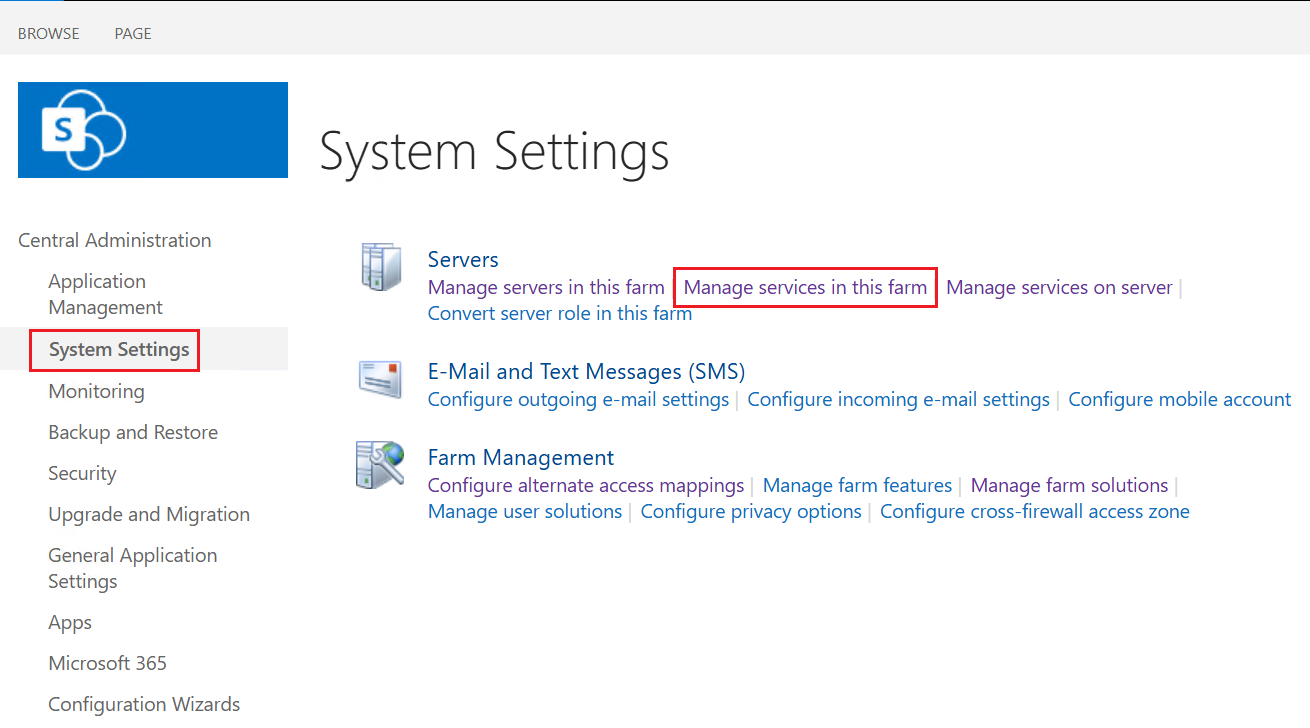
Click System Settings from the left navigation and then click Manage services in Farm.
-
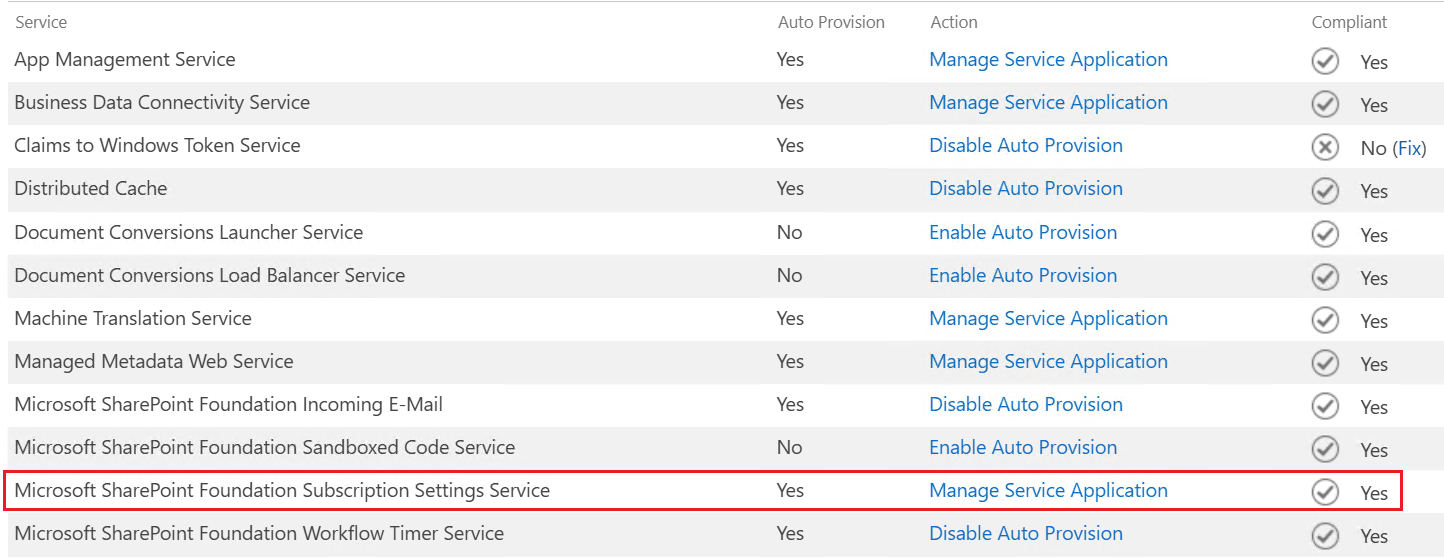
Locate Microsoft SharePoint Foundation Subscription Settings Serviceand click Enable Auto Provision. The status will be changed to Yes when it is finished.
-
-
Create Microsoft SharePoint Foundation Subscription Settings Service using PowerShell.
-
Use the Windows search bar to look for SharePoint 2019 Management Shell. Right-click on the app and select Run as administrator.
-
Run the command below and press Enter using your keyboard:
$sa = New-SPSubscriptionSettingsServiceApplication -ApplicationPool 'SharePoint Web Services Default' -Name 'Subscription Settings Service Application' -DatabaseName 'SubscriptionSettingsServiceApplicationDB'
New-SPSubscriptionSettingsServiceApplicationProxy -ServiceApplication $sa
-
After running these commands, you should see the server DisplayName, TypeName, and ID in a table format.
-
-
Verify if the subscription settings have been successfully configured.
Once done, you must verify if the subscription settings have been successfully configured. To do that,
-
Go to the SharePoint Admin Center.
-
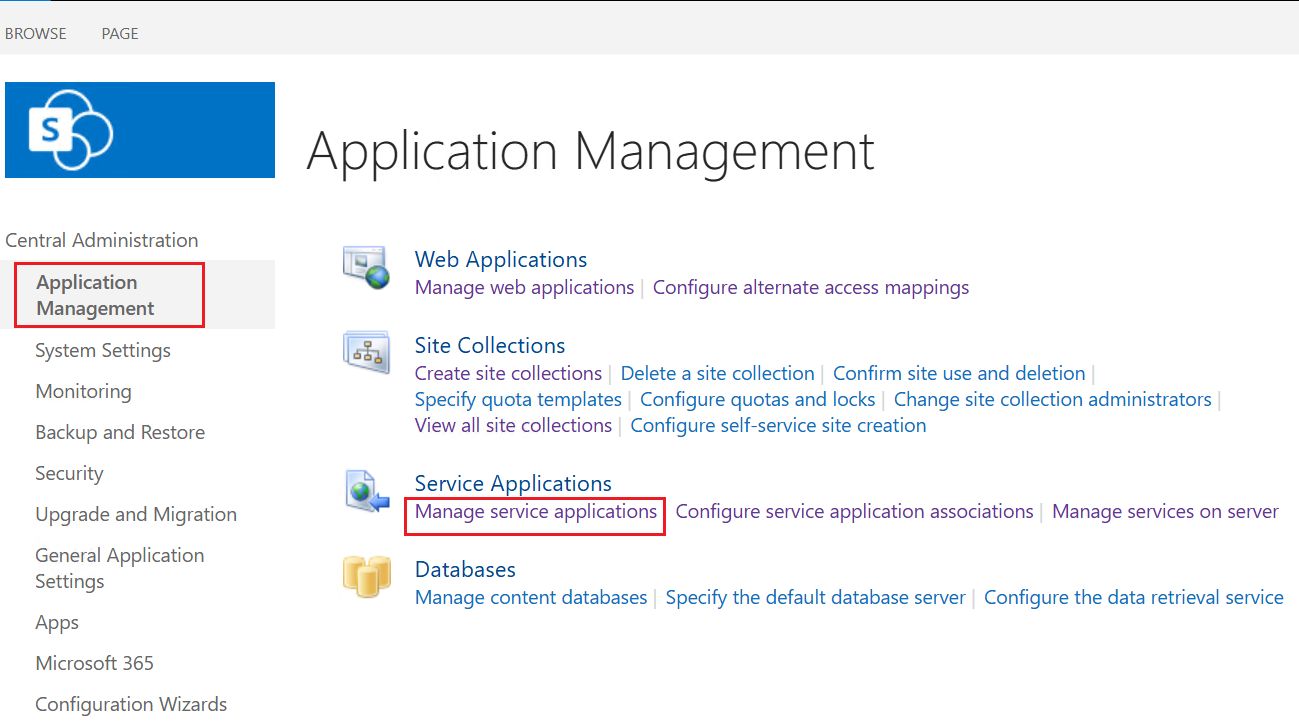
Click Application Management from the left navigation. Under Service Applications, click Manage Service Applications.
-
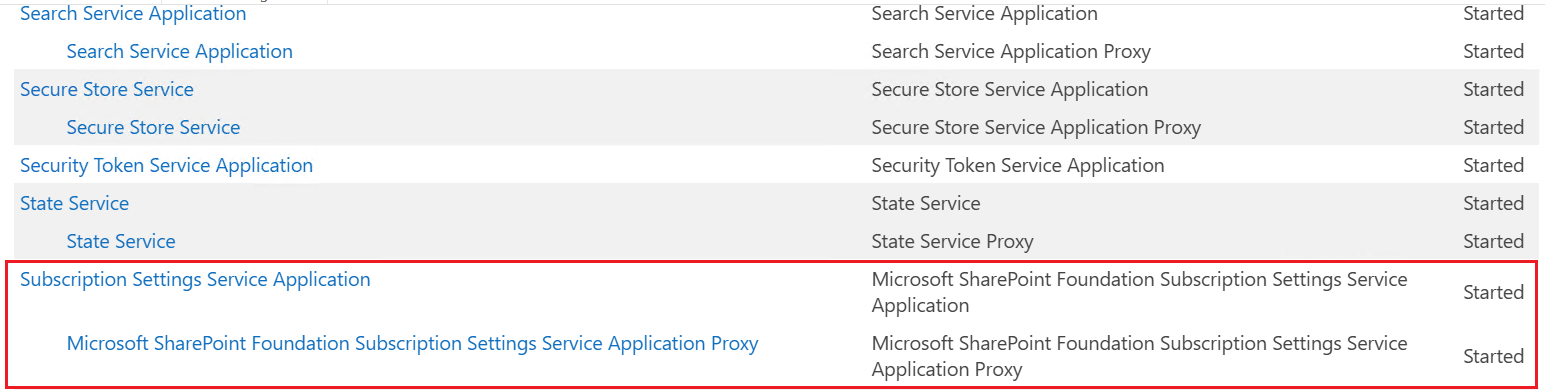
You should now see Subscription Settings Service Application and Microsoft SharePoint Foundation Subscription Settings Service Application Proxy.
-
Configure App Management Service Application
Refer to the following steps to configure the app management service application:
-
Go to the SharePoint Admin Center.
-
Click Application Management from the left navigation. Under Service Applications, click Manage service applications.
-
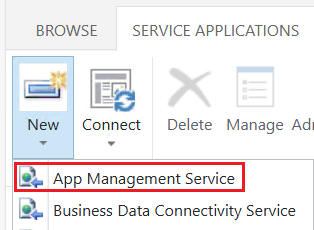
On the Manage service applications page, click New and select App Management Service.
-
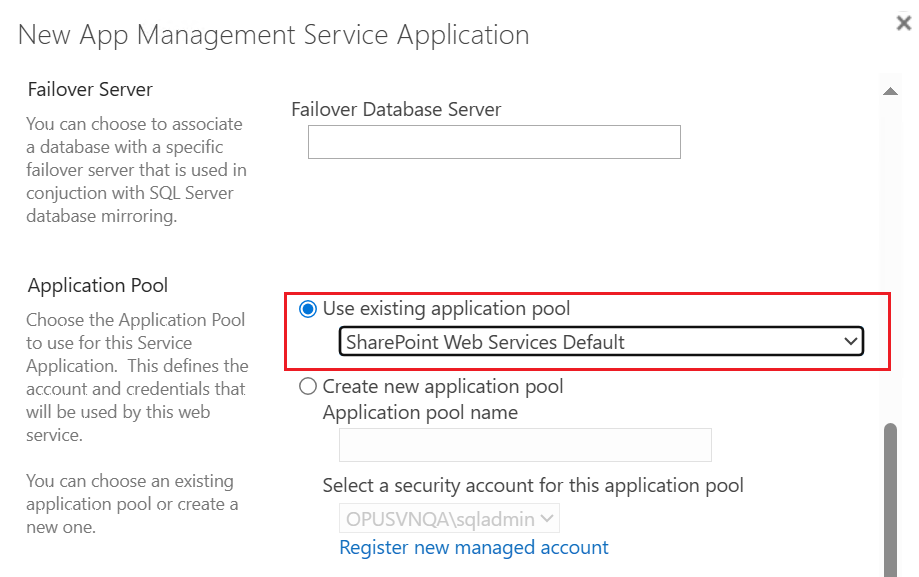
In the New App Management Service Application window, complete the following information:
-
Service Application Name – Enter a name for the service application.
-
Application Pool – Choose Use existing application pool and select SharePoint Web Services Default from the drop-down list.
-
-
Check if the service application is successfully created.
-
Go to the SharePoint Admin Center.
-
Click Application Management from the left navigation. Under Service Applications, click Manage service applications.
-
Look for App Management Service Application and App Management Service Application Proxy.

-
Deploy the Related Records App Package
Refer to the following steps to deploy the Related Records app package:
-
Go to the SharePoint Admin Center.
-
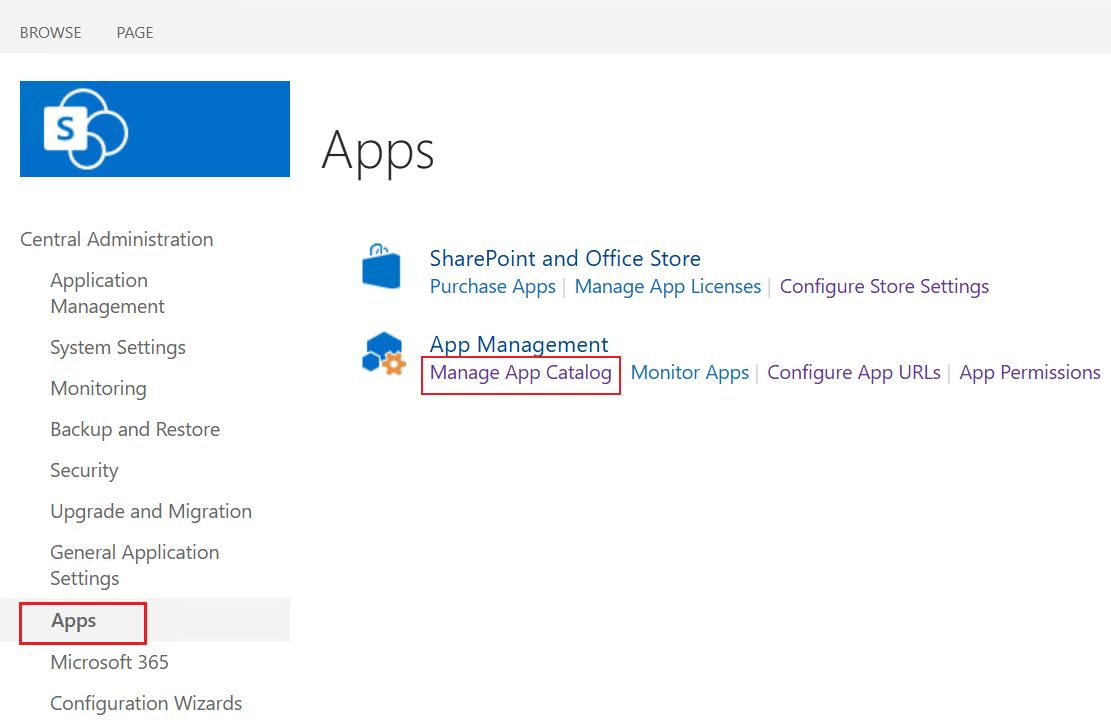
Click Apps from the left navigation. Click Manage App Catalog under App Management.
-
If an app catalog site has not been created yet, the system will prompt you to create one. Be sure to create it.
If an app catalog site has been created, the site URL and primary administrator will be displayed.
-
Navigate to your app catalog site.
-
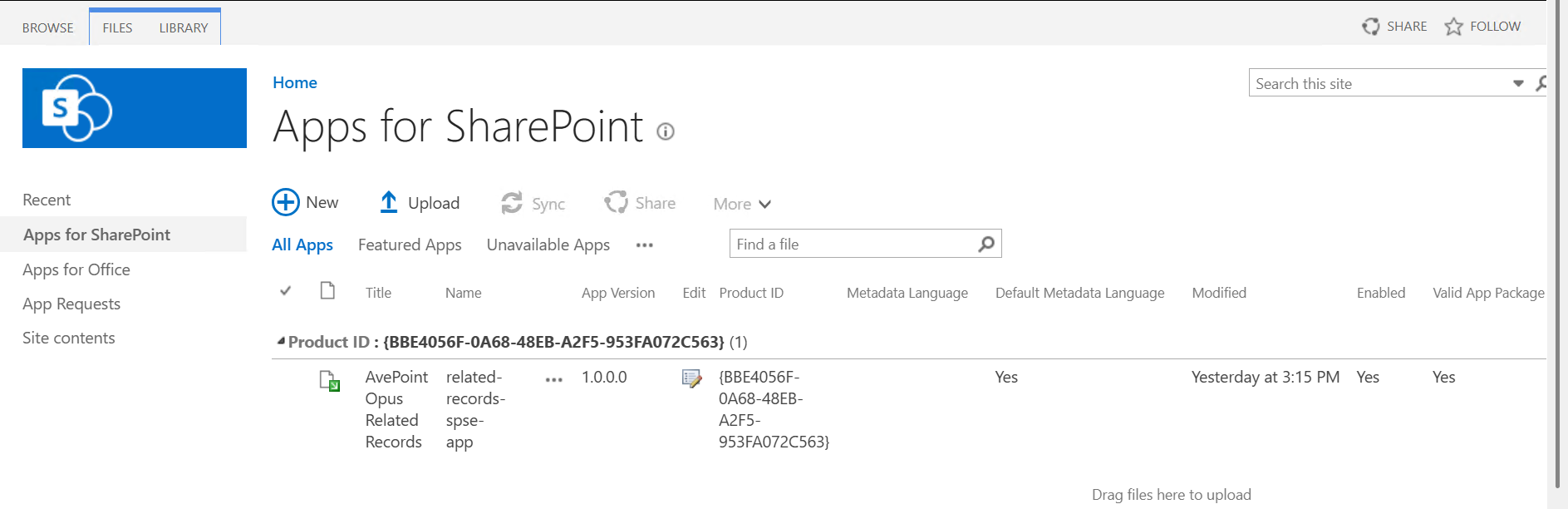
Click Apps for SharePoint from the left navigation.
-
Drag and drop the related-records-spse-app.sppkg file into this document library.
-
After uploading, SharePoint will display an important trust prompt dialog. It will ask if you trust and want to activate the client-side assets associated with this solution (typically the CDN path where your JavaScript files are located). Click Deploy.
-
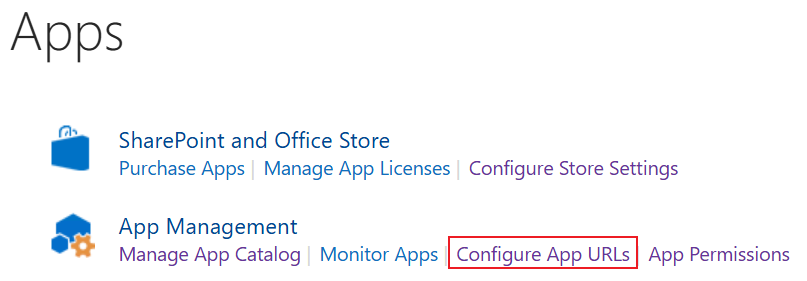
Go back to the Apps page. Click Configure App URLs under App management.
-
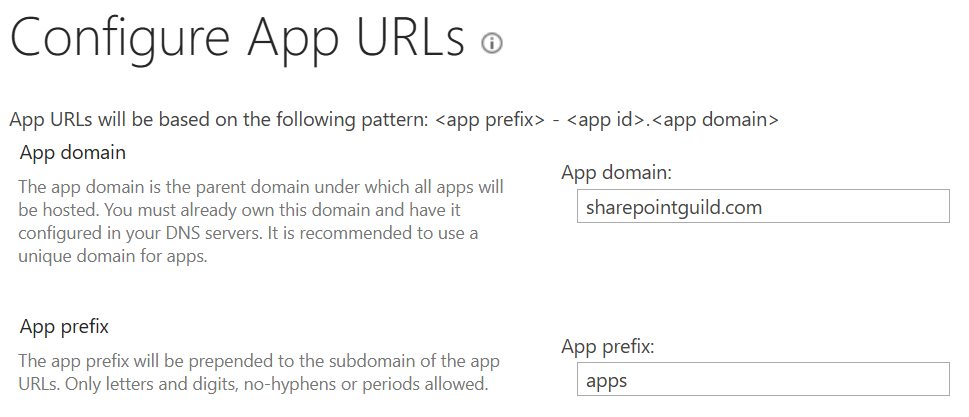
On the Configure App URLs page, configure URLs as below and click OK.
-
App domain – Enter sharepointguild.com.
-
App prefix – Enter apps.
-
Deploy Farm Solution Package
Deploy the farm solution package to your target web applications.
If this is the first time you are installing the solution, complete the following steps:
-
Run the SharePoint Management Shell as an Administrator.
-
Add the solution to the farm’s solution store:
Add-SPSolution -LiteralPath "…\ AvePointRelatedRecordsSPSESolution.wsp"
-
Install and deploy the solution to the target web application.
Install-SPSolution -Identity "AvePointRelatedRecordsSPSESolution.wsp" -WebApplication "http://your-web-app-url" -GACDeployment
-
Verify the deployment was successful.
Get-SPSolution -Identity "AvePointRelatedRecordsSPSESolution.wsp"
If you are updating the solution with a new version, you must first uninstall and remove the old one as below:
-
Run the SharePoint Management Shell as an Administrator.
-
Uninstall the solution from the web application.
Uninstall-SPSolution -Identity "AvePointRelatedRecordsSPSESolution.wsp" -Confirm:$false
-
Remove it from the farm solution store.
Remove-SPSolution -Identity "AvePointRelatedRecordsSPSESolution.wsp" -Confirm:$false
-
Add and install the new version of the solution package.
Add the Related Records App to Site Collection
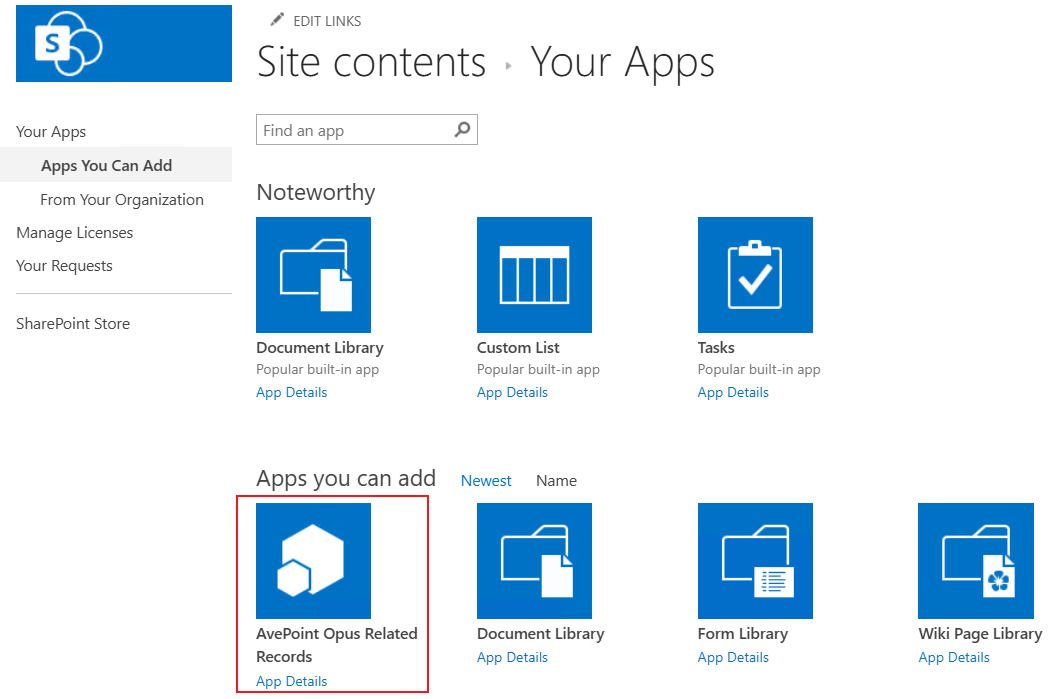
Navigate to the site collection where you want to add the Related Records app. Click the Settings ( ) button at the upper-right corner of the page and click Site Contents. Click New > App to open the Site contents > Your Apps page. A list of available applications are displayed. Locate and click the AvePoint Opus Related Records app tile to add the app to the site collection.
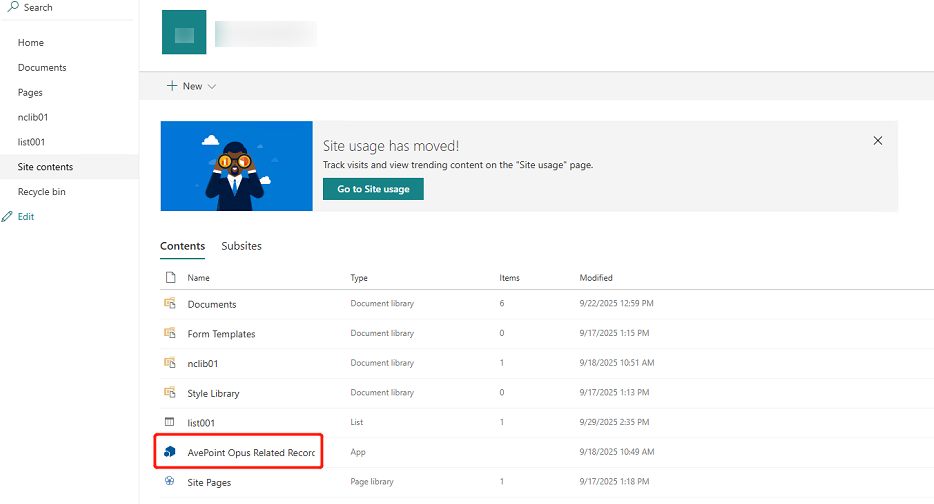
Once the app is added, you will be redirected to the Site Content page. You should now see the AvePoint Opus Related Records app listed.
Create a New Content Source for Website Crawling
To instruct your SharePoint search system to index a website, you must first define it as a content source.
Refer to the following steps to create a new content source for website crawling:
-
Go to the SharePoint Admin Center.
-
Click App Management from the left navigation. Under Service Applications, click Manage service applications.
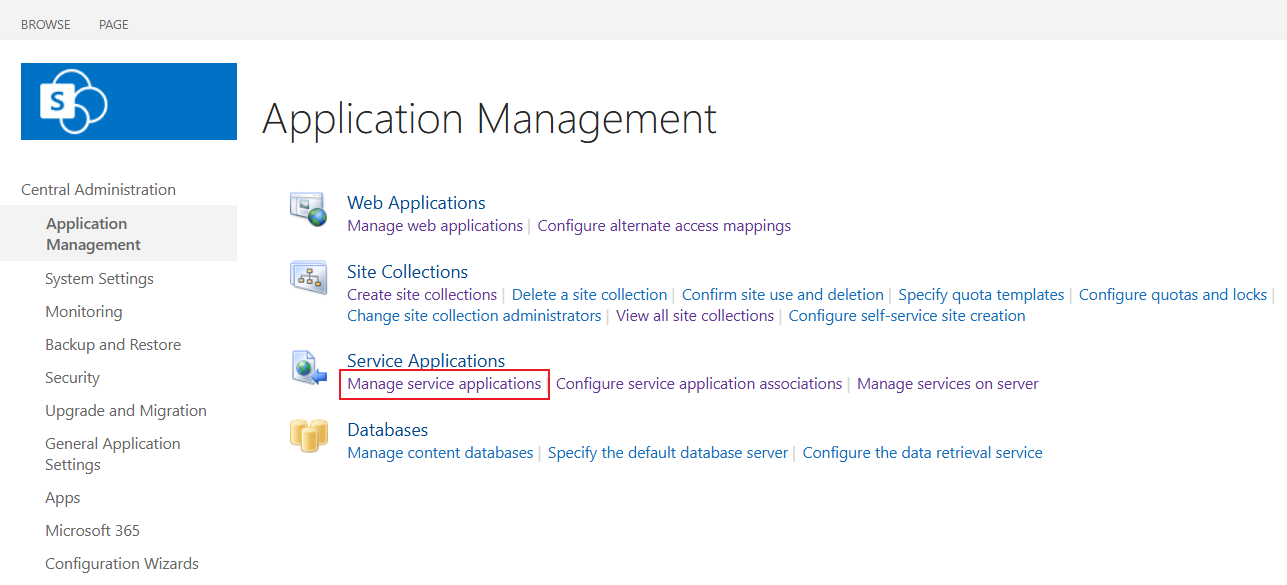
-
Click Search Service Application.

-
Click Content Sourcesfrom the left navigation, and then click New Content Source.
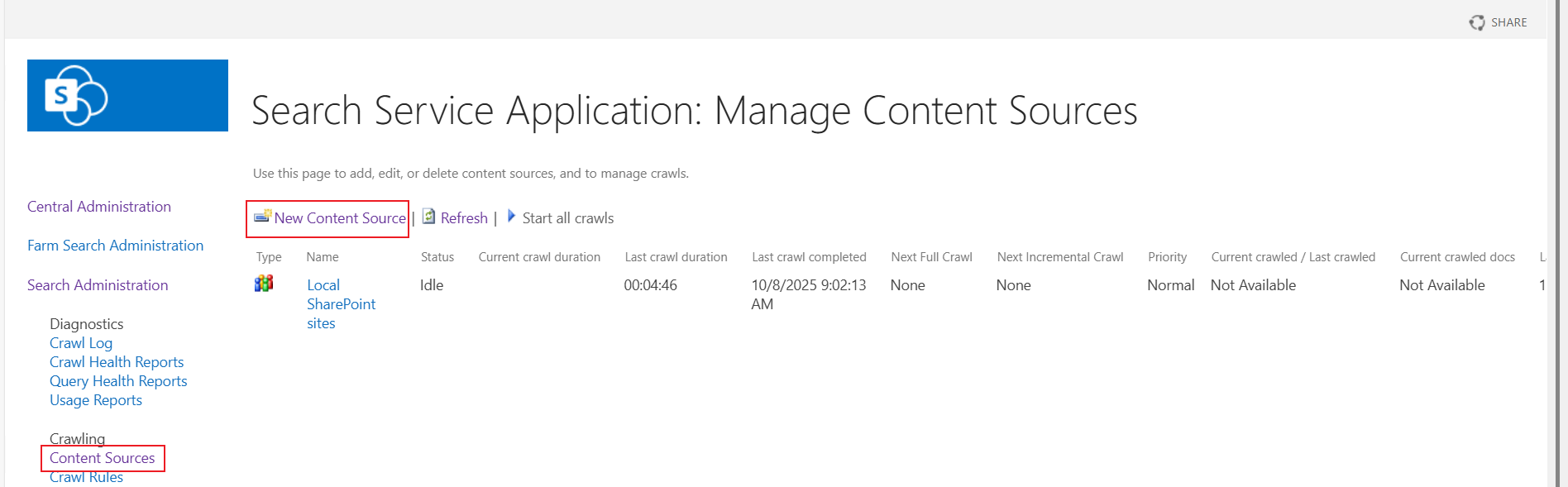
-
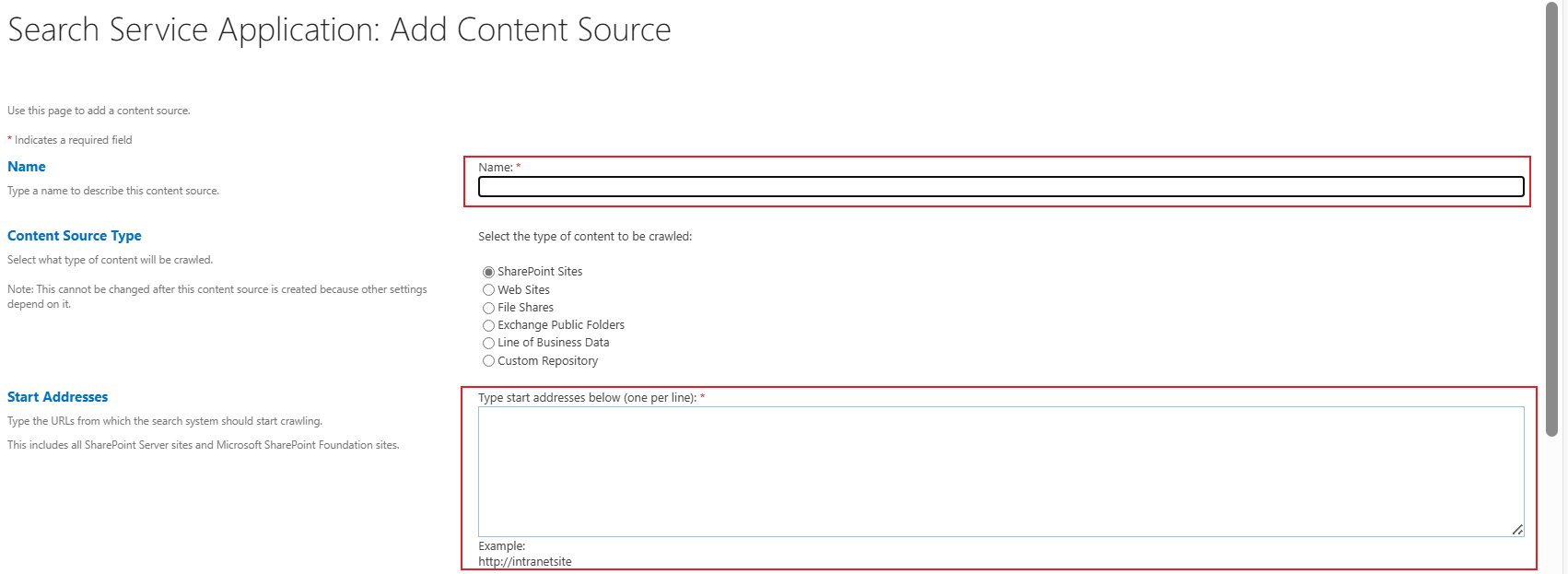
On the Add Content Source page, complete the following information:
-
Name – Enter a name to describe this new content source.
-
Start Addresses – Enter the full web application URL where the crawler should begin scanning the content. You can add multiple URLs to index several websites at once, one URL per line.
-
-
Once saved and started, SharePoint will begin crawling with the specified web applications, making its content searchable for your users.
Manage Related Records
Refer to the following steps to manage related records in SharePoint On-Premises lists/libraries:
*Note: Make sure the related records feature has been enabled in the site collections where you want to manage related records, so that a Related Records column of the Multiple lines of text type will be added to all lists and libraries of the site collections.
-
Navigate to the list/library where the Related Records feature is enabled. For more information on how to enable the Related Records feature, refer to SharePoint On-Premises.
-
Select an item/document and click Manage related records. The Manage related records panel appears.
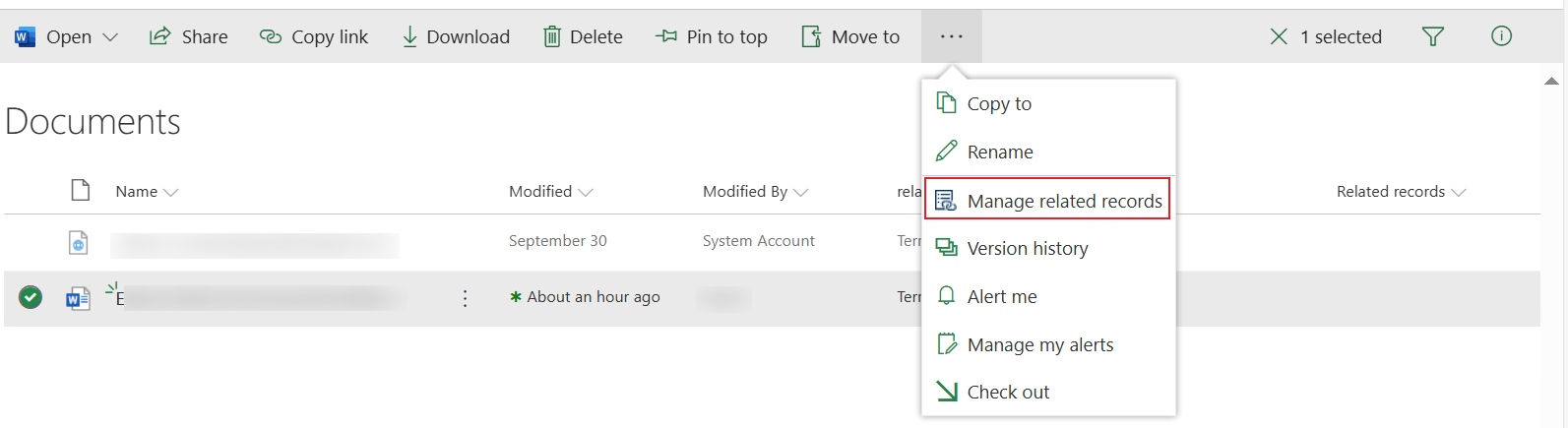
-
To add items/documents as the related records of the currently selected item/document, enter full or part of the name or document ID and then press Enter. From the suggestions list, select the desired item/document and click Add.
-
To remove the relation of an item/document from the currently selected item/document, you can click the Remove relation button.
-
Click Save to save the configurations.
After configuring related records, you can create rules to manage related records. For more information, refer to Manage Rules.