
Home > Appendices > How to Fix the Duplicate Unique ID Issue
Download this articleHow to Fix the Duplicate Unique ID Issue
When you copy a document, using the SharePoint Online out-of-the-box Copy to feature, across SharePoint Online libraries where the unique ID column exists, a duplicate unique identifier is assigned to the document in the destination after copying it.
To resolve the duplicate unique identifier issue by assigning a new unique identifier to the destination document, configure the following search settings in SharePoint Online:
-
Sign in to Microsoft 365 with an account of the SharePoint Online Administrator role.
-
In the left pane, under All admin centers, select SharePoint. The SharePoint admin center page appears.
-
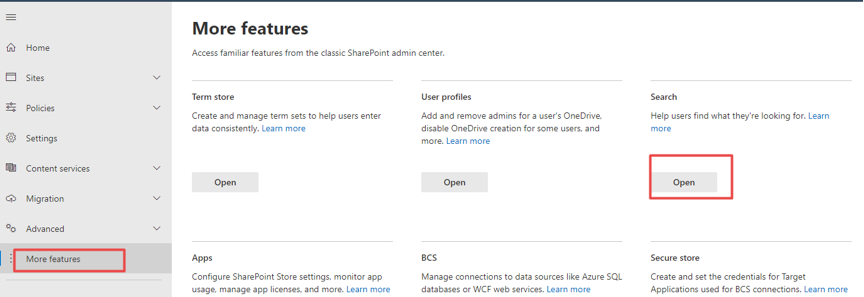
Navigate to More features > Search, and then click Open.
-
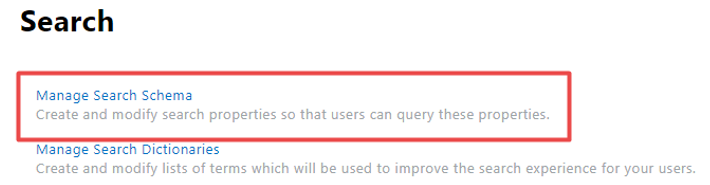
On the Search page, click Manage Search Schema.
-
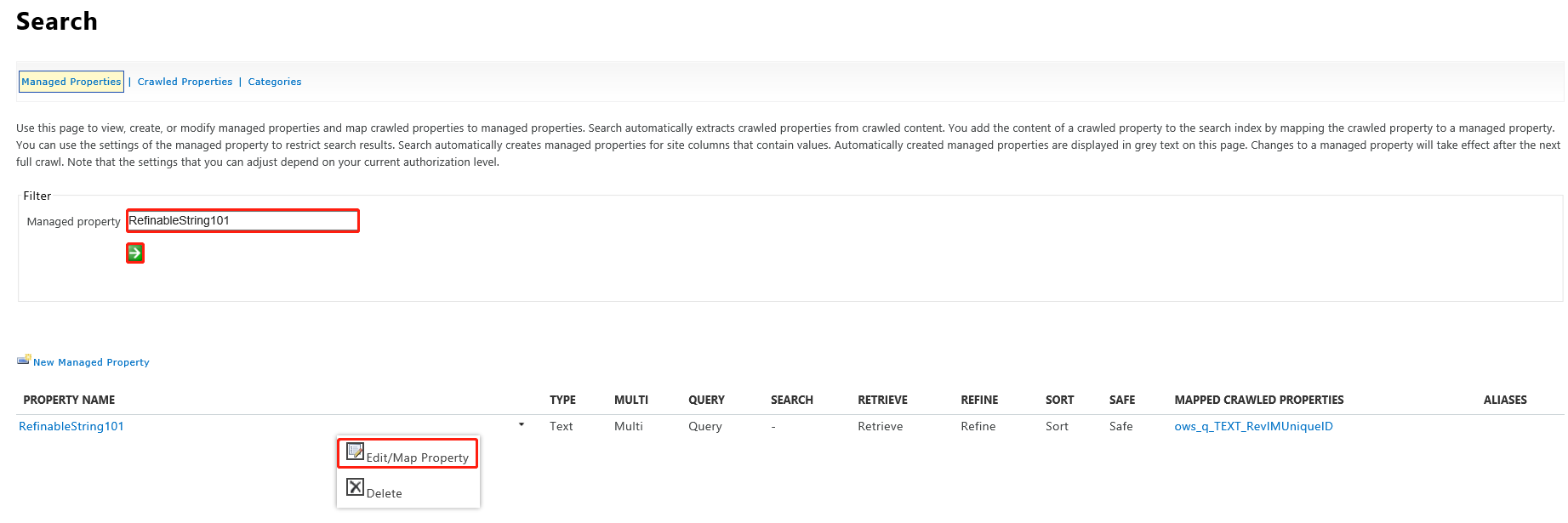
In the Managed property text box, enter RefinableString101, and then click the Apply button to apply the property. In the PROPERTY NAME section, select the property, and then select Edit/Map Property from the drop-down list to edit the property.
-
On the Edit Managed Property page, click Add a mapping.

-
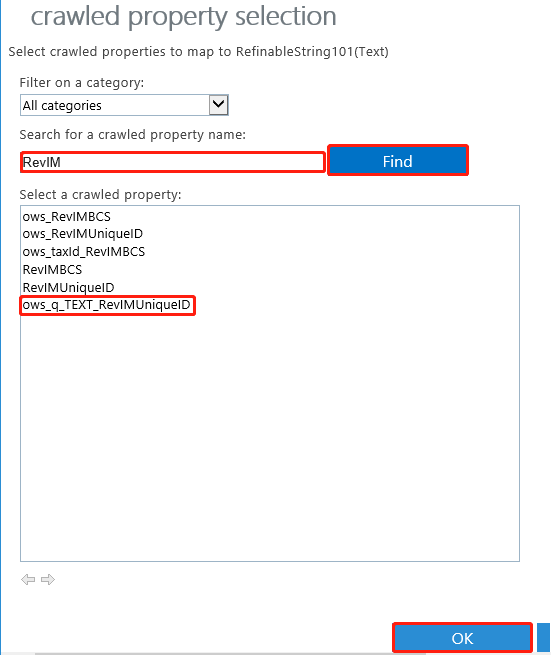
In the Crawled property selection window, enter RevIM, and then click Find to search for the property. Select the ows_q_TEXT_RevIMUniqueID property from the search results, and then click OK.
-
On the Edit Managed Property page, the property is added to the Mappings to the crawled properties text box. Click Save to save your changes.
When finished configuring the property, complete the following steps to do a re-indexing of your SharePoint Online sites:
-
Navigate to the source and destination site collections where the duplicate unique ID issue exists, and then click Site settings.
-
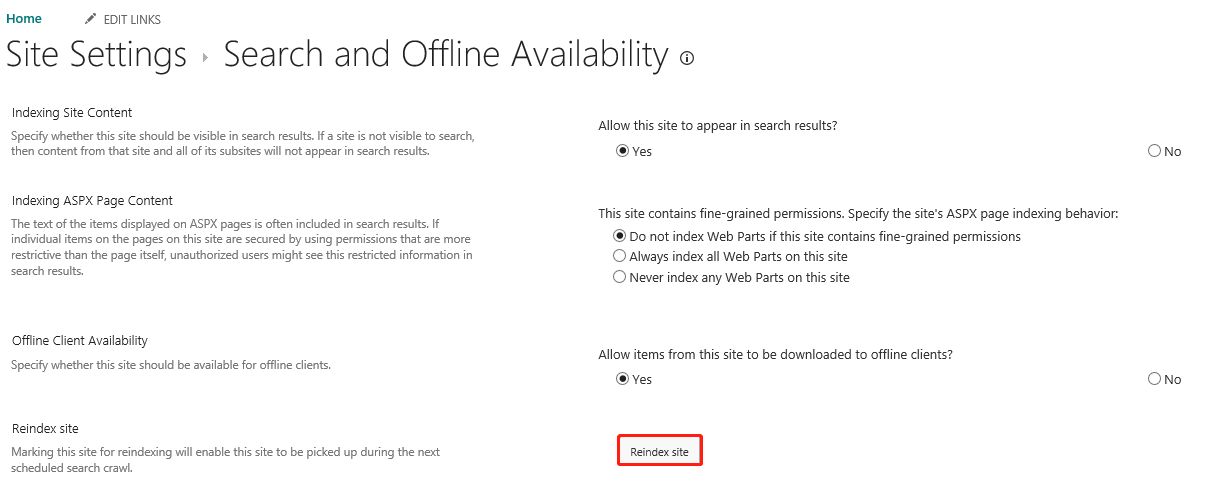
Select Search and offline availability from the Search heading.
-
Click Reindex site, and then click OK.
Re-indexing a SharePoint Online site can cause a massive load on your search system. It will take you about 24 hours to finish re-index the SharePoint Online site.
When a unique ID settings job is completed, a new unique identifier will be assigned to the copied document in the destination to fix the duplicate unique identifier issue.