Home > Appendices > How to Use Records Label
Download this articleHow to Use Records Label
This section describes how to create and publish a records label in Microsoft Purview, configure Opus to use the records label to lock content for compliance and retention, and migrate legacy declared records so they can be managed by the new records label.
Operations in Microsoft 365
Refer to the following operations to create and publish a records label in Microsoft Purview.
License Requirements
To use retention labels in Microsoft Purview, your organization must obtain one of the following licenses:
-
Microsoft 365 or Office 365 suites:
-
E5
-
A5
-
G5
-
-
Add-on licensing for E3, A3, or G3 plans:
-
Microsoft 365 E5 Compliance
-
Microsoft 365 E5 Information Protection and Governance
-
-
Add-on licensing for frontline plans (F1 or F3):
-
Microsoft 365 E5 Compliance
-
Microsoft 365 E5 Information Protection and Governance
-
Create and Publish a Records Label
Follow the sections below to create a records label and publish it to your organization’s workspaces in Microsoft Purview.
Prerequisites:
Before you begin, ensure that your account meets the following requirements:
-
Has one of the required licenses listed above.
-
Has sufficient rights to create labels in Microsoft Purview.
Create a Records Label
Refer to the following steps to create a records label:
-
Sign in to Microsoft Purview.
-
In the left navigation pane, select Solutions, and then select Records Management.
-
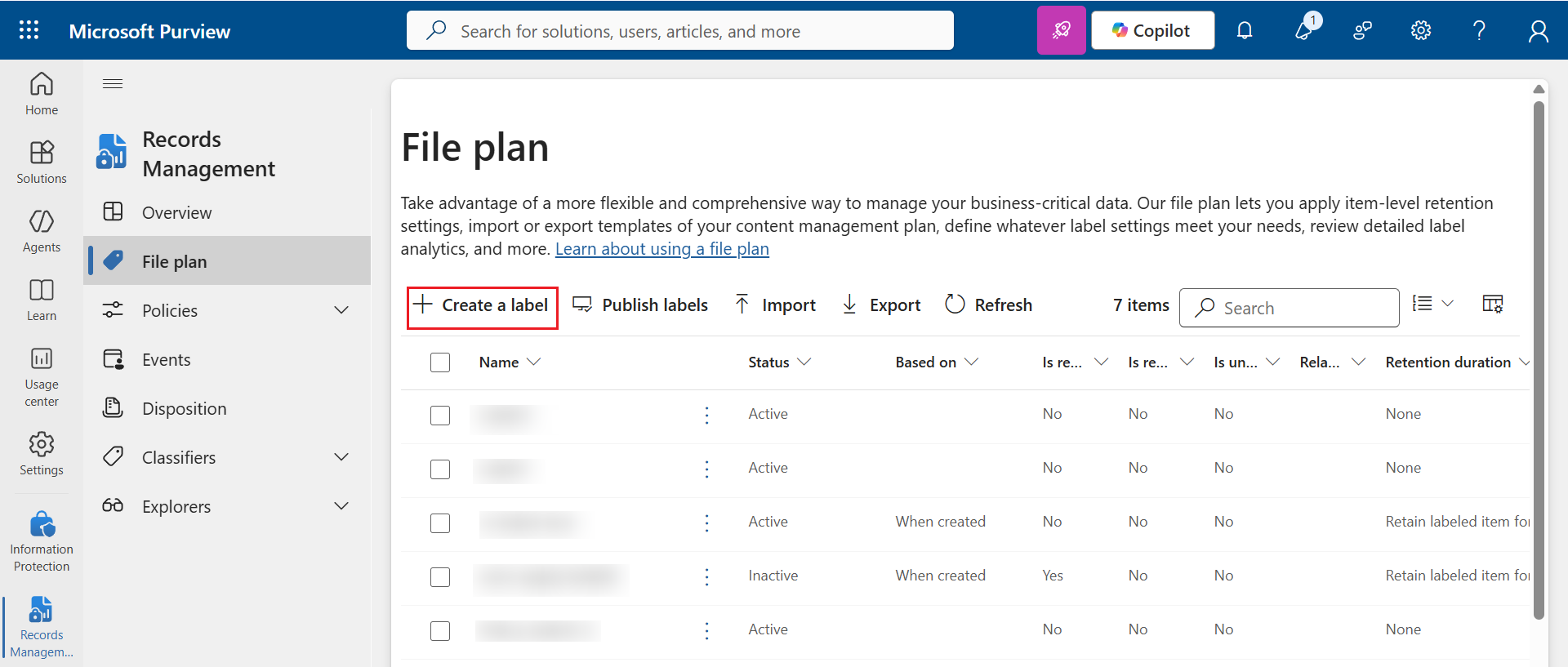
On the Records Management page, select File Plan.
-
On the ribbon, click Create a label. A step-by-step wizard opens.
-
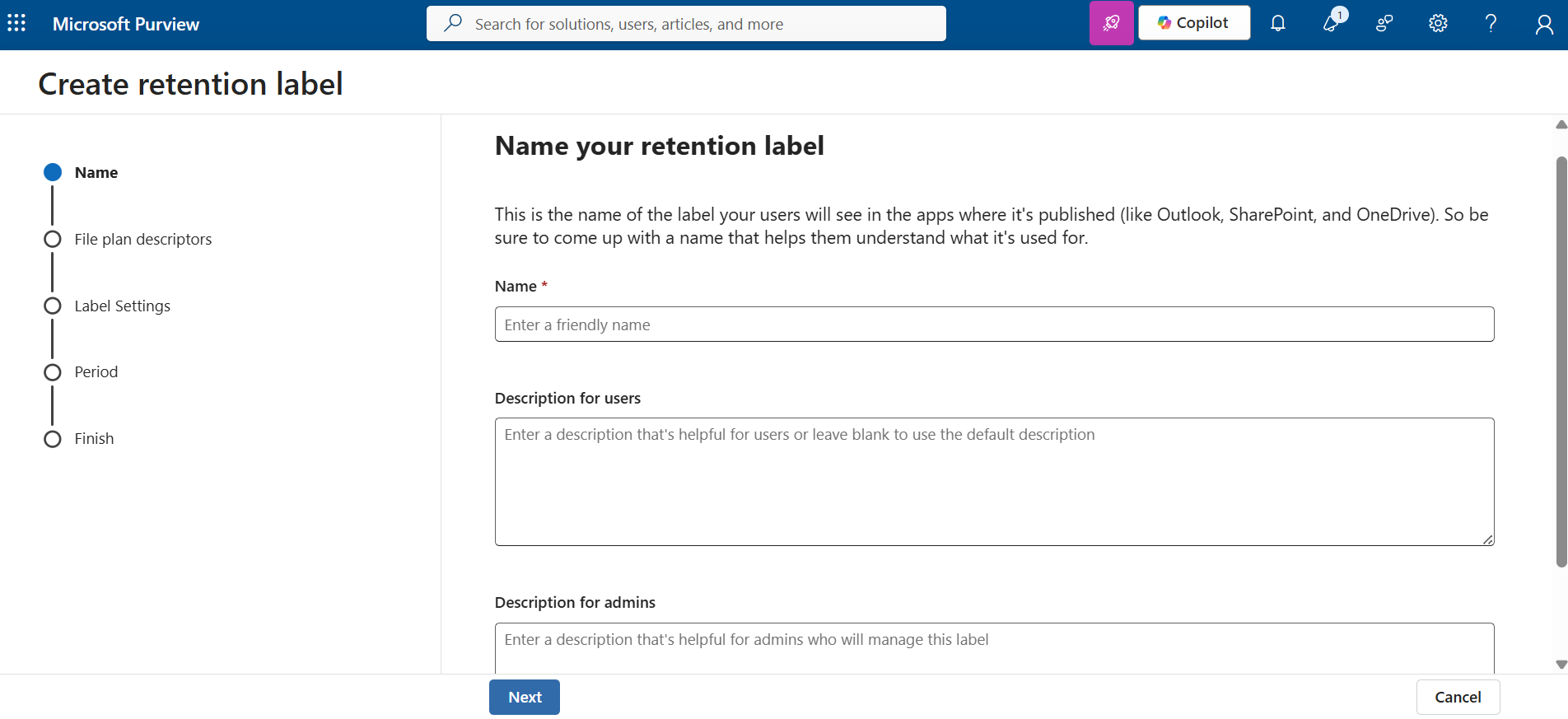
In the Name step, enter a name for the retention label, and click Next.
-
In the File plan step, select the file plan you want to associate with this label, and click Next.
-
In the Label settings step, select Retain items forever or for a specific period, and click Next.
-
In the Period step, set Retain items for to Forever, and click Next.
-
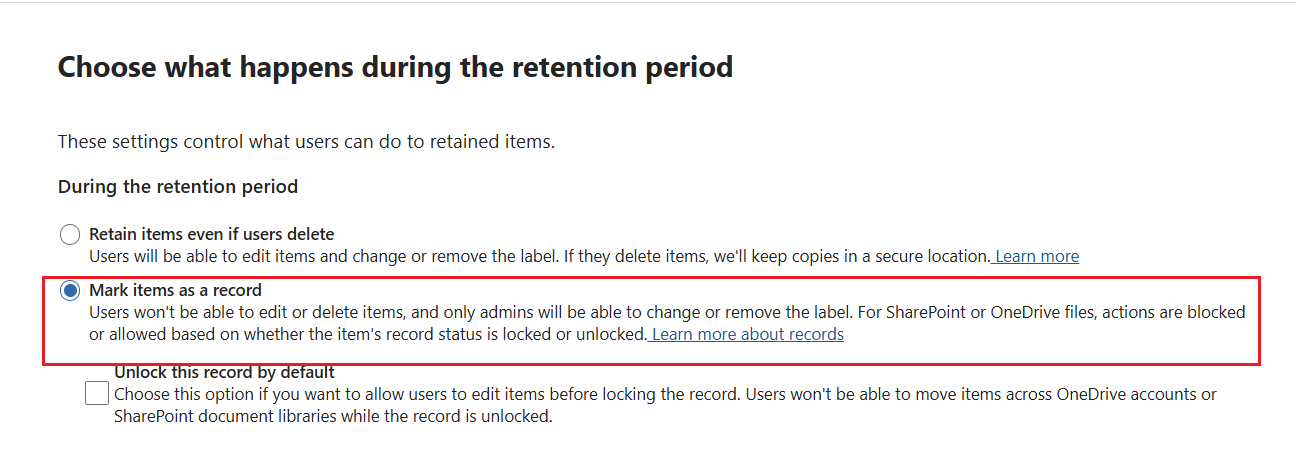
In the Setting during period step, select Mark items as record, ensure that Unlock this record by default is not selected, and click Next.
-
In the Finish step, review your settings. Make any necessary changes, and then click Create label.
-
After the page refreshes, a confirmation message appears indicating that the label was created.
-
By default, Publish this label to Microsoft 365 locations is selected. To proceed with publishing now, click Done and follow the steps in the Publish a Records Label section below.
To exit the wizard without publishing, select Do Nothing and then click Done. You will be directed back to the File Plan page, where you can publish the label later by selecting the label and clicking Publish label on the ribbon.
Publish a Records Label
Refer to the following steps to publish a label:
-
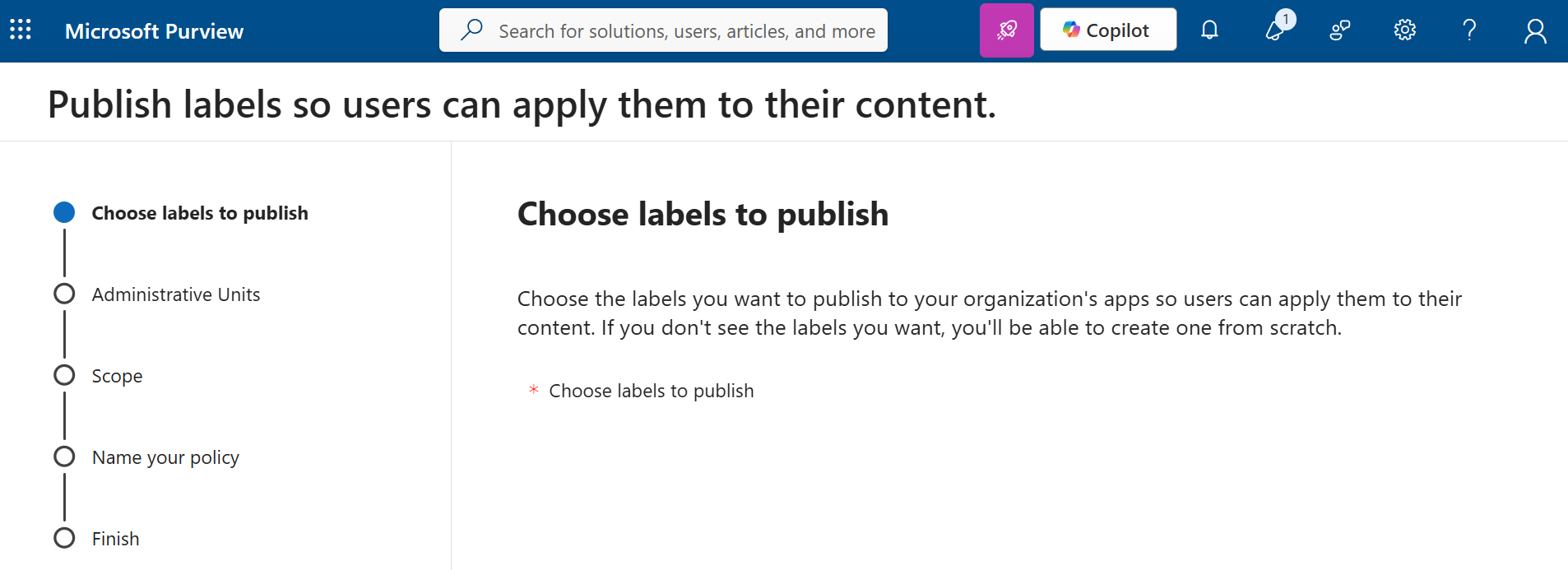
On the File Plan page, click Publish labels. A step-by-step wizard opens.
-
In the Choose labels to publish step, select the label that you want to publish, and click Next.
-
In the Administrative Units step, add administrative units as needed. Note that this may affect your scope. Click Next.
-
In the Scope step, select the policy type that best meets your organization's needs, and then click Next.
-
Adaptive policy - Uses site attributes to maintain a dynamic list of workspaces. For example, newly created sites are automatically added to the policy.
-
Static policy - Requires manual site selection. You must update the list manually as sites change over time.
Ensure that the scope includes all sites and workspaces that contain records you want to manage with the records label. Opus cannot migrate legacy declared records if the site or workspace is not included in this policy.
-
-
In the Name your policy step, enter a name for the policy and click Next.
-
In the Finish step, review your settings. When ready, click Submit and then Done.
-
You will be taken back to the File Plan page, where you can see the publish status of the label.
Monitoring Publish Status
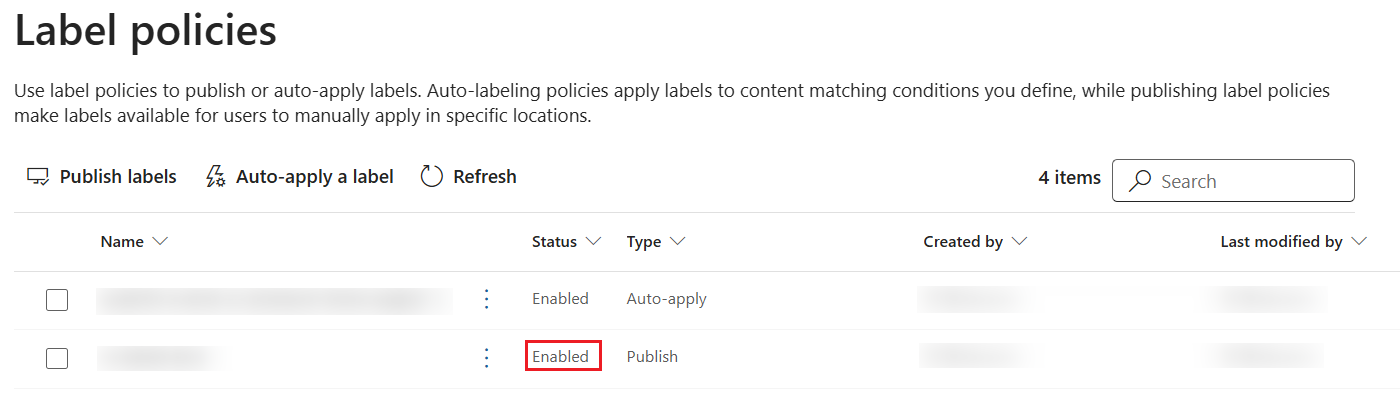
To verify that your policy was published successfully, go to Records Management > Policies > Label policies and review the Status column. Proceed with the next steps in Opus only after the policy status shows Enabled.
Operations in Opus
Refer to the following operations to configure Opus to use the records label you created in Microsoft Purview, and to migrate legacy declared records to the new records label.
Configure a Records Label
To use this records label in Opus, enter the records label name on the General Settings page in Opus. For detailed instructions, refer to Configure General Settings.
Migrate Legacy Declared Records
Opus can migrate legacy declared records so they can be managed by the new records label. For detailed instructions, refer to the Migrate Legacy Declared Records section in the following content sources: Teams & Groups, SharePoint Online, and OneDrive.
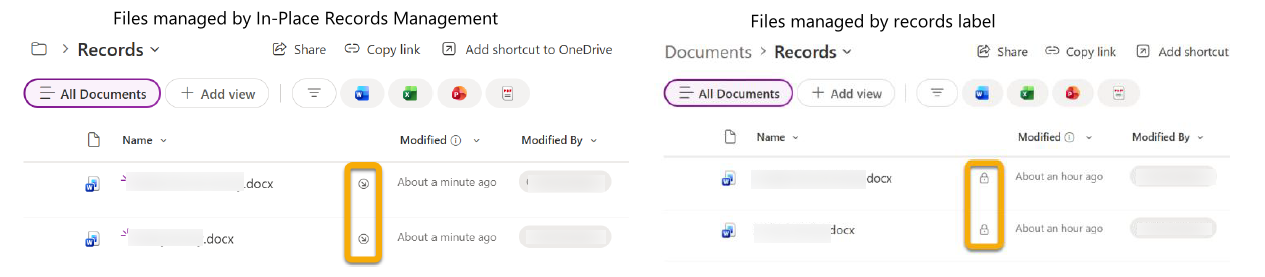
Visual differences between legacy in-place records and items marked as records by a retention label:
-
Legacy in-place records typically appear with a checked-out indicator. Hover over the icon to verify that the item is checked out to the system account.
-
Items marked as records by a retention label typically display a padlock indicator, rather than the checked-out indicator used by legacy in-place records.