
Home > The Working Environment
Download this articleThe Working Environment
AvePoint Cloud Governance provides an intuitive working environment. The pages and windows within AvePoint Cloud Governance share similar features and are navigated in the same ways.
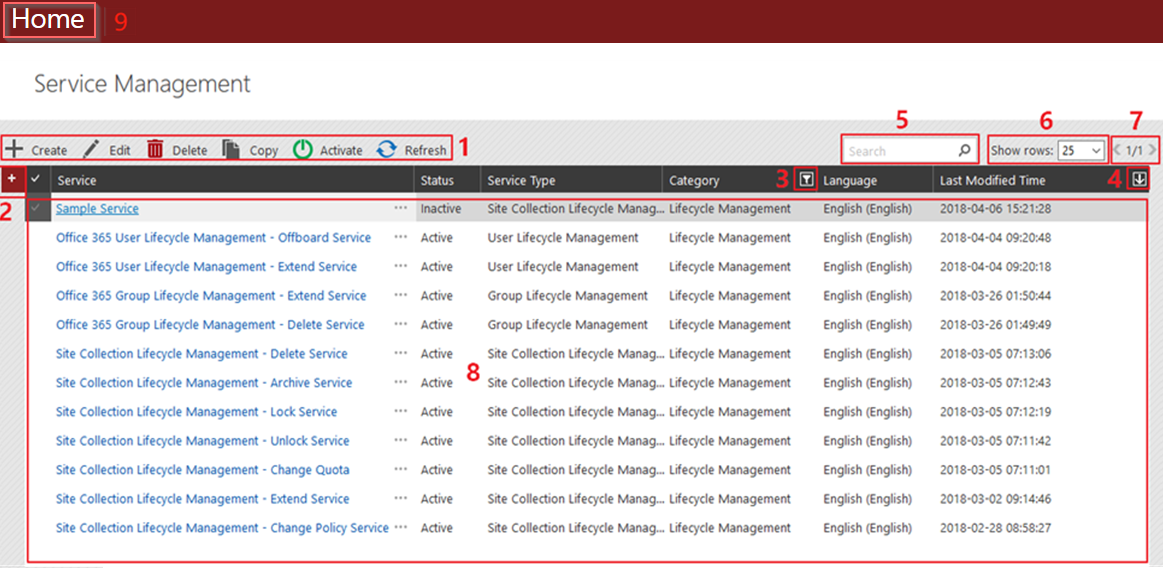
Below is a sample page in AvePoint Cloud Governance. It features a familiar, dynamic ribbon and a searchable content list view.
-
Ribbon Panes – Allows you to access the functionalities.
-
Create – Click Create to create a new item.
-
Edit – Select an item and click Edit to change the item.
-
Delete – Select one or more items and click Delete. A pop-up window appears asking for your confirmation. Click OK to confirm.
-
Copy – On some pages, you can duplicate an existing item to make minor changes to save it as a new item. Select an item with the status of Inactive and click Copy.
-
Activate – Select one or more items with the status of Inactive and click Activate.
-
Deactivate – Select one or more items with the status of Active and click Deactivate.
-
Refresh – Click Refresh to refresh the current page.
-
-
Manage columns – Allows you to manage which columns are displayed in the list so that only information you want to see is displayed. Click the manage columns button, then select the checkbox next to the column name to have that column shown in the list.
-
Filter items – Allows you to filter which item in the list is displayed. Click the filter item button of the column you want to filter, then select the checkbox next to the item name to have that item shown in the list.
-
Sort items – Allows you to sort the displayed items. Click the sort button in a column heading that supports sorting.
-
Search – Allows you to search for items by the keyword you designate. The tooltip of the search box shows the columns that support the search. Only the content in the column displayed in the current view can be searched.
-
Show rows – Allows you to change the number of items displayed per page. Select the desired number from the Show rows drop-down list.
-
Page turning – Allows you to navigate to the previous or next page.
-
Management pane – Displays the actionable content of the current page. You can click the name of an item to view the details of the item.
-
Home – Click to go back to the Settings page.