Home > Appendices > Appendix C - Use Custom Actions
Download this articleAppendix C - Use Custom Actions
To use the Custom Action feature in AvePoint Cloud Governance, there must be a published Web Service with defined methods. Follow the instructions in the sections below in order.
Create and Configure a Web Service
To create and configure a Web Service, complete the following steps:
-
In Microsoft Visual Studio, navigate to File > New > Project….
-
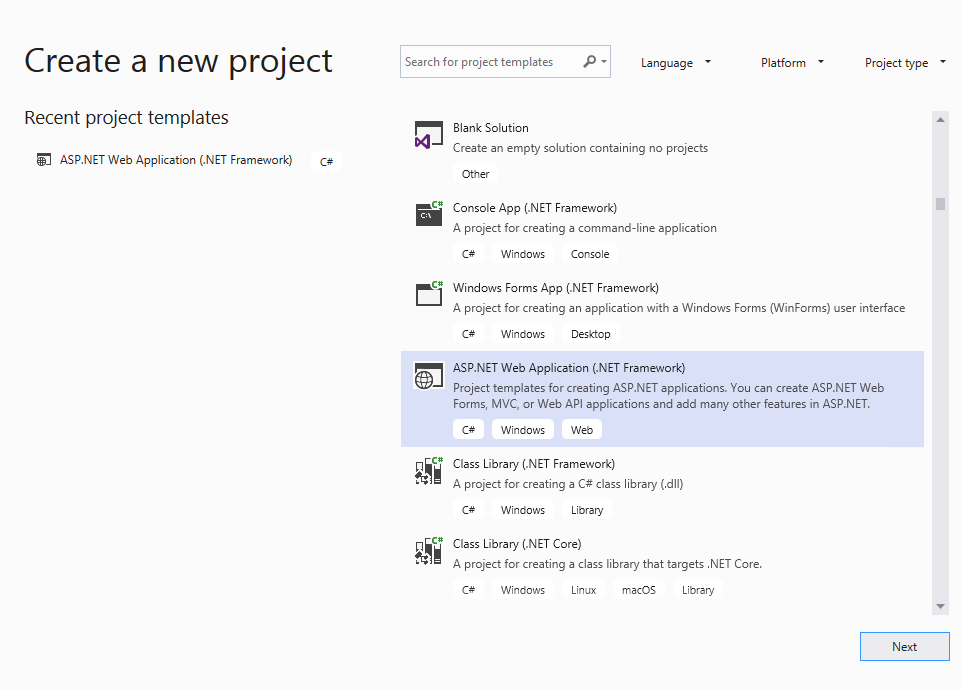
In the Create a new project window, select ASP.NET Web Application (.NET Framework) and click Next.
-
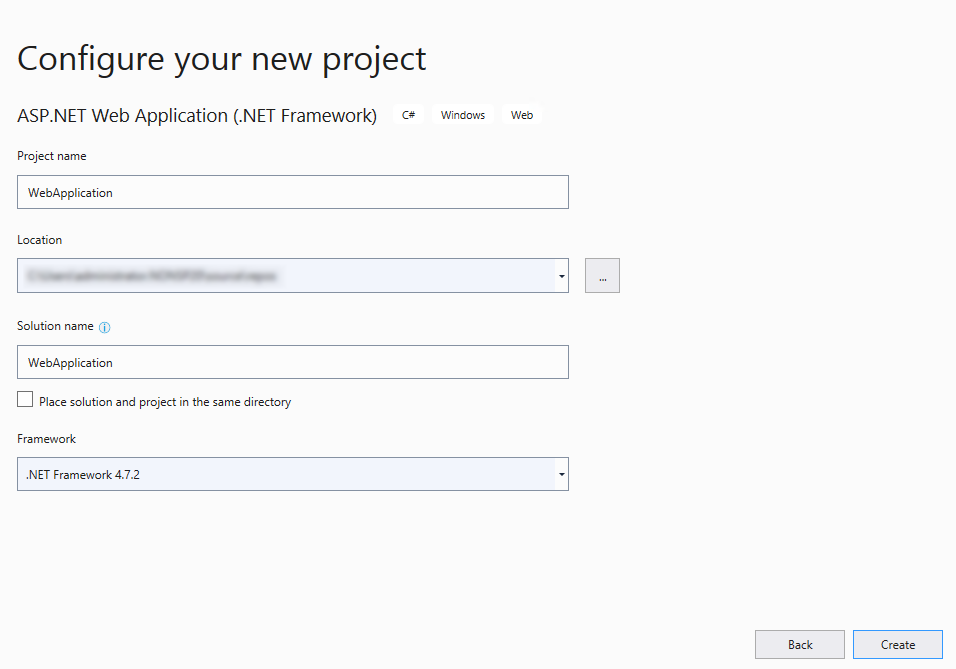
In the Configure your new project window, complete the fields and click Create.
 NOTE
NOTEIn the Framework field, AvePoint recommends that you select the latest version of .NET Framework.
-
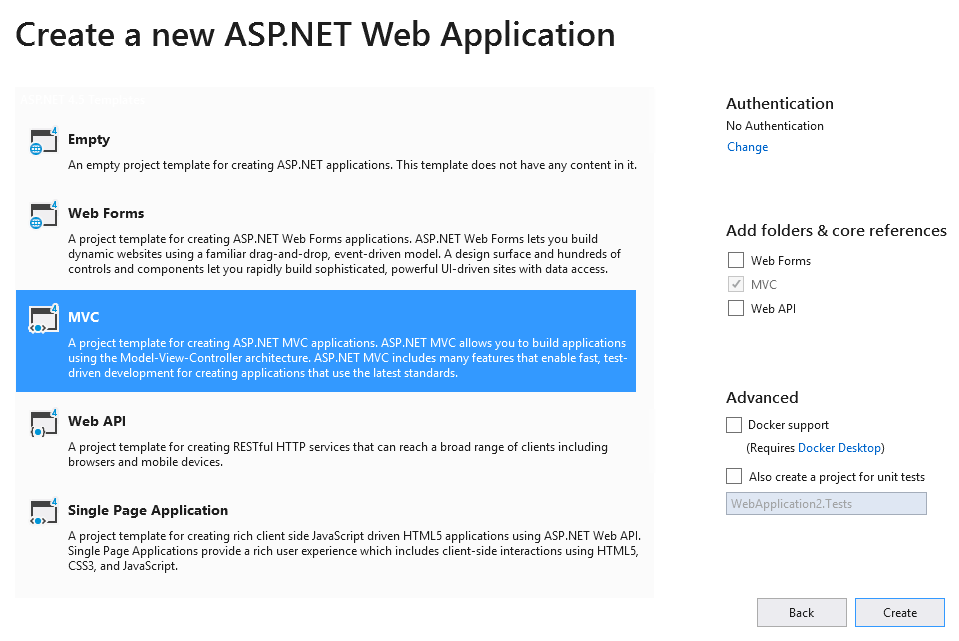
In the Create a new ASP.NET Web Application window, select MVC and click Create.
-
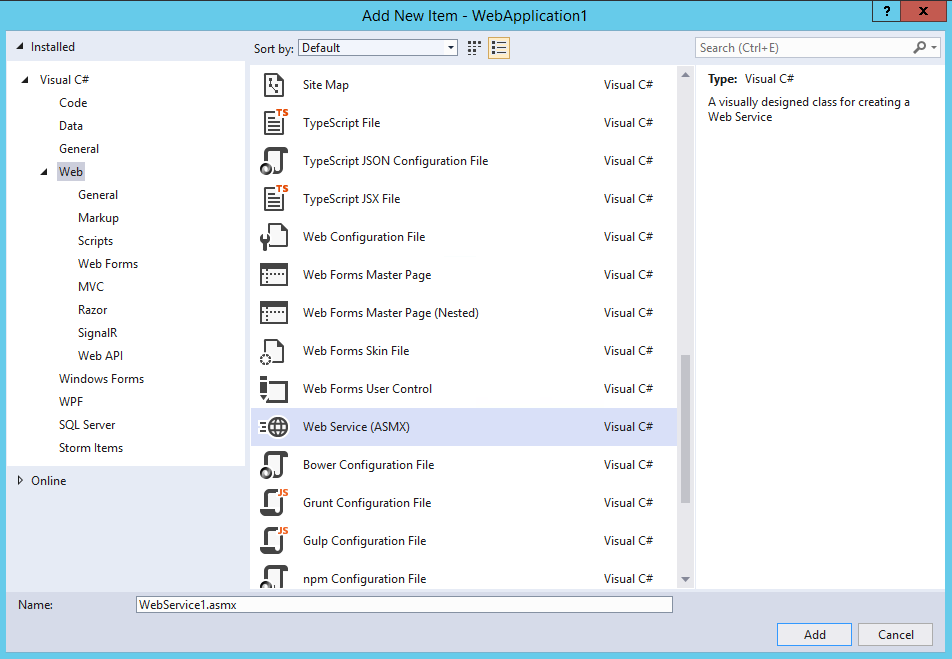
Add a new item to this project. Select Web Service (ASMX) on the middle pane.
-
Click OK to create the Web Service. The default Web Service WebService1.asmx.cs appears.
-
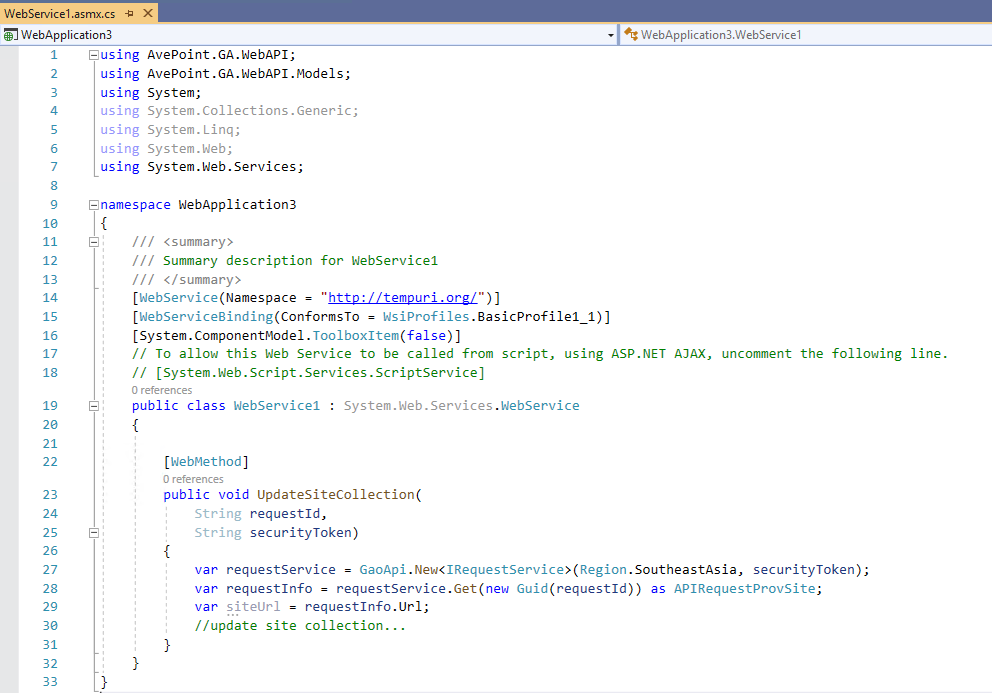
In Web Service1.asmx.cs, define the method for your custom actions. The screenshot below shows the sample method.
Publish a Web Service
To publish a Web Service, complete the following steps:
-
In Microsoft Visual Studio, on the right pane, right-click the Web Service name and click Publish….
-
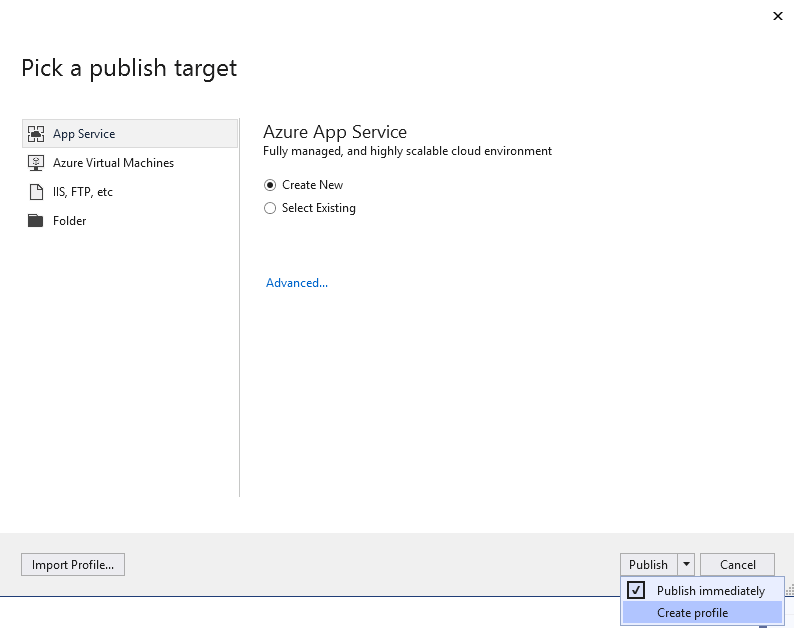
In the Pick a publish target window, click the select button next to Publish and select Create profile.
-
Sign in with your Azure account.
-
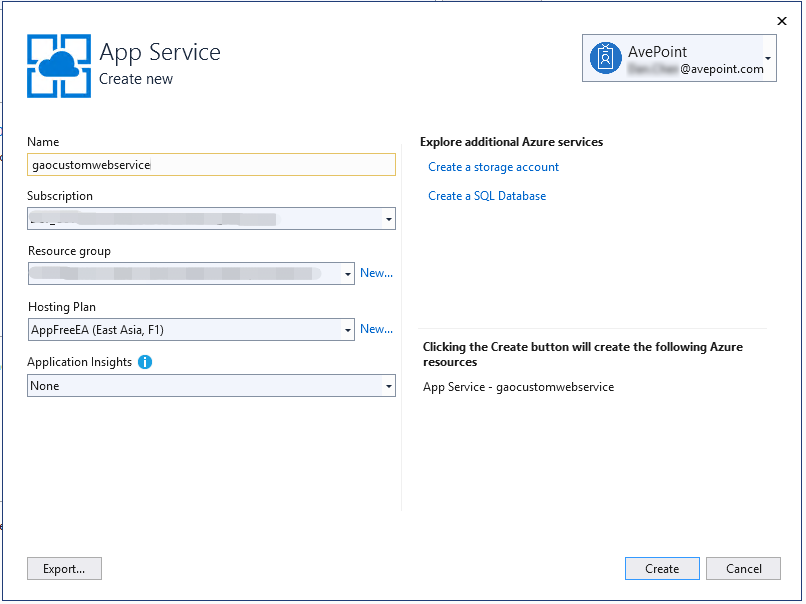
In the App Service window, complete the fields and click Create.
-
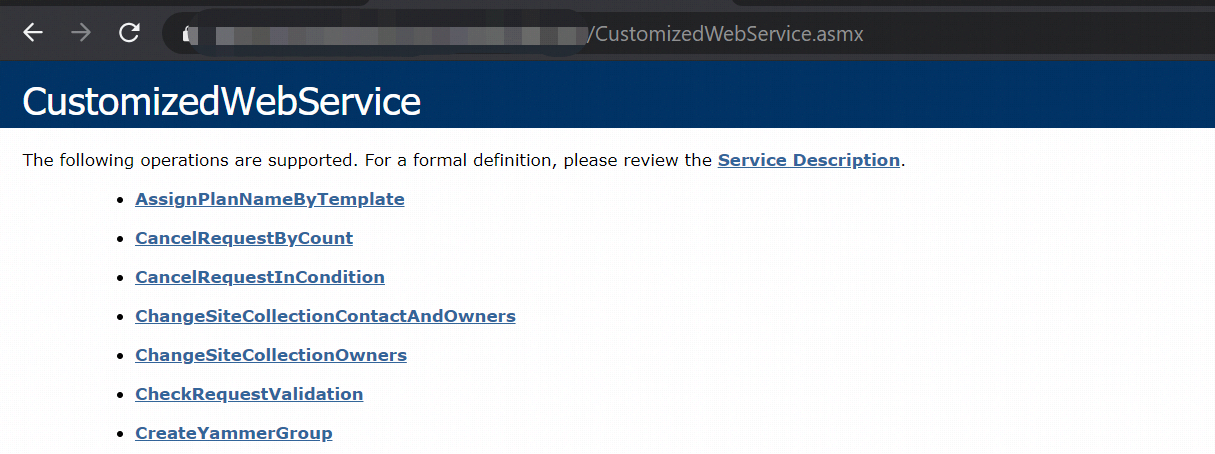
Now you can access the Web Service by accessing the URL in the format of [WebSiteAddress]+[ServiceName].asmx.
Apply a Web Service to a Custom Action
To apply Web Service to an AvePoint Cloud Governance custom action, complete the following steps:
-
In the Custom Action section of an AvePoint Cloud Governance service, choose Before approval, After approval, or After execution.
-
In the Web Service Address text box, enter the URL of your published Web Service.
-
Select Anonymous Access or Microsoft Entra Authentication as the authentication type that will be used to access the Web service from the drop-down list. If you select Microsoft Entra Authentication as the authentication type, you must enter the Client ID of the Microsoft Entra application in the text box.
NOTETo use the Microsoft Entra account to access the Web service, you must configure your App service application first. Refer to the following Microsoft technical article to configure your App service application: Configure your App Service or Azure Functions app to use Microsoft Entra sign-in.
-
Click Retrieve to retrieve the methods in the Web Service.
-
Select your desired method from the drop-down list. The parameters defined in the selected method are displayed in a table.
-
Choose one of the following options to define the parameter values:
-
Enter the value for a parameter in the text box.
-
Enter $ and then select the custom metadata that is created in AvePoint Cloud Governance.
When the custom metadata is applied to the service, the requester will define a value for the metadata. The defined metadata value will become the parameter value.
-
AvePoint Cloud Governance will send the parameter values to the Web Service and the parameter values will be used to execute the method in the Web Service.
The screenshot below details an example of a custom action:
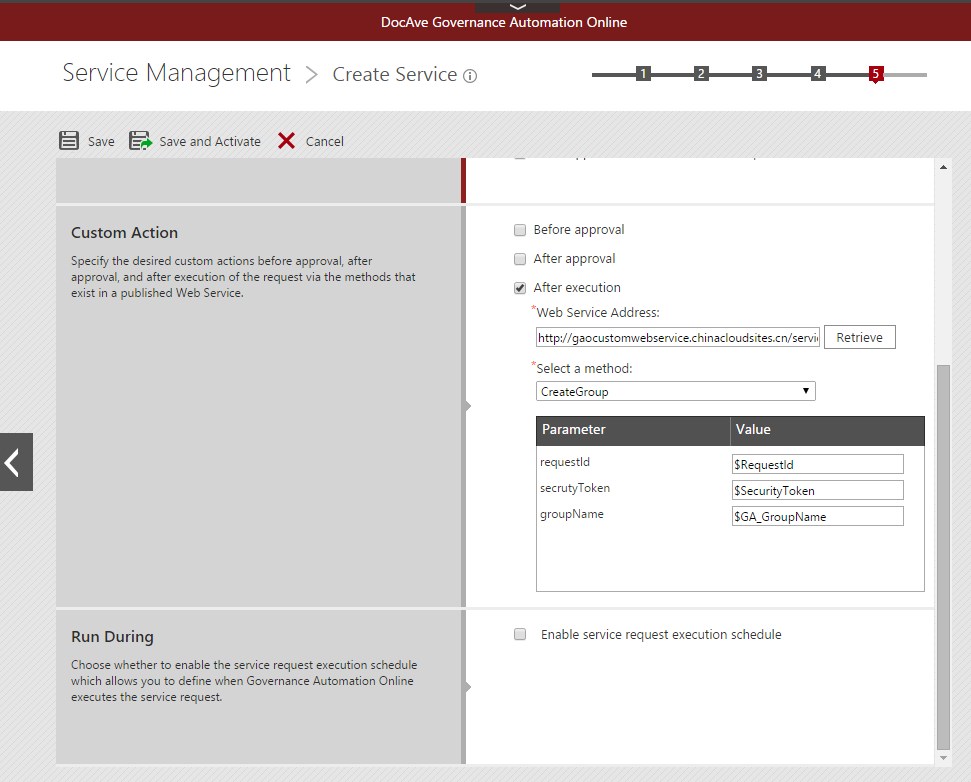
CreateGroup is selected as the method.
For the groupName parameter, the value of the GA_GroupName metadata is set to the parameter value.
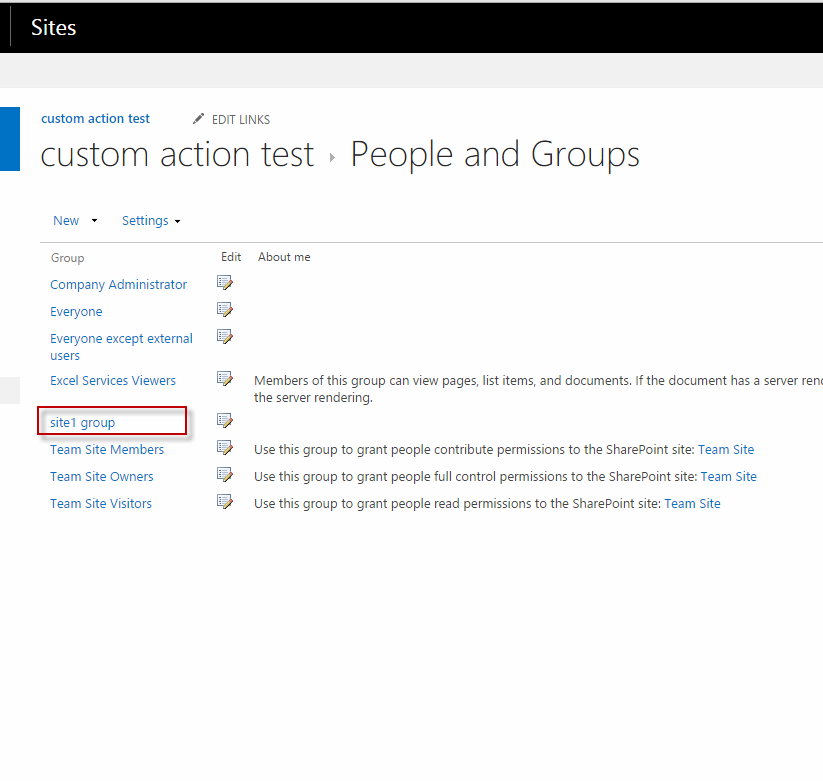
In the sample request below, the requester enters site1 group as the value of the GA_GroupName metadata.
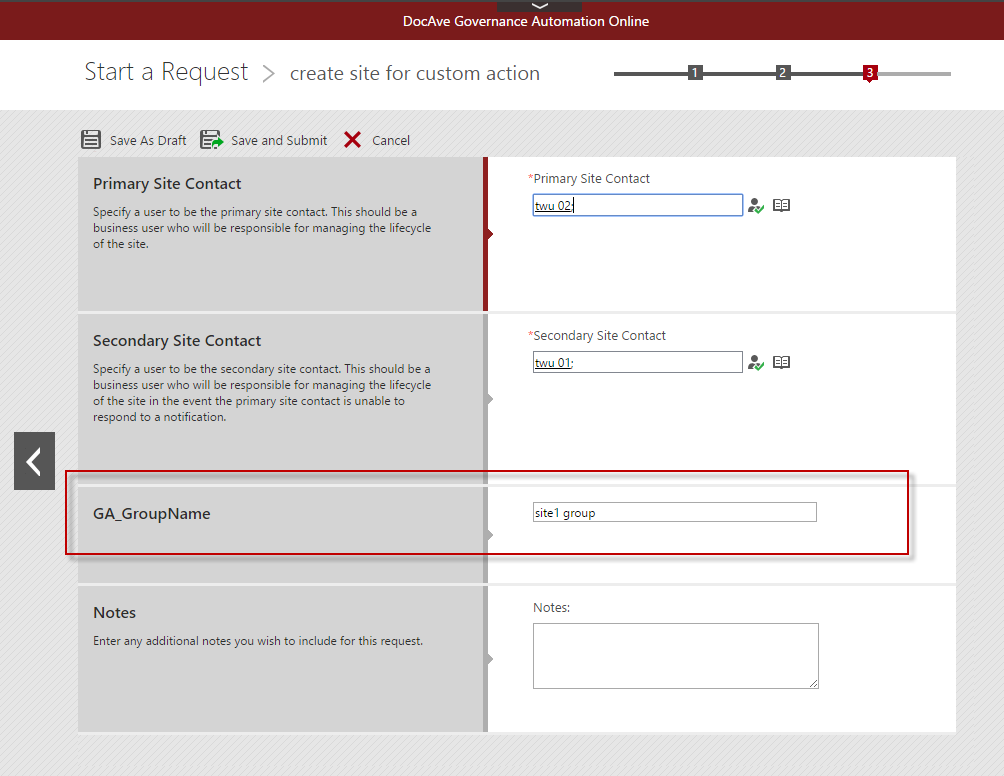
After the CreateGroup method in the Web Service is executed, site1 group is created in SharePoint Online.