Home > Additional Configurations > Allow AvePoint Agent Servers to Access Your Storage Account
Download this articleAllow AvePoint Agent Servers to Access Your Storage Account
If you are using or plan to use your own storage device, read the instructions in this section carefully and complete the settings upon your need. Otherwise, you can skip this topic.
When you are using your own storage device, you may have set up the storage firewall to only allow the trusted clients for security concerns. To ensure that AvePoint cloud products can access your storage, complete the settings as required in the following conditions:
If you are using a trial subscription and the storage account you want to use in the trial has a firewall enabled, read the conditions below and contact AvePoint Support for the corresponding reserved IP addresses or ARM Vnet IDs.
-
If you are using a storage type other than Microsoft Azure storage, you must add reserved IP addresses to your storage firewall. To get the list of the reserved IP addresses, refer to Download a List of Reserved IP Addresses.
-
If you are using Microsoft Azure storage, refer to the following:
-
If your storage account is in the same data center as the one you use to sign up for AvePoint Online Services or your storage account is in its paired region, you must add the Azure Resource Manager (ARM) vNet subnets where the AvePoint agents are running on to your storage networking. You can find additional details in this Microsoft article: Grant access from a virtual network. To get the ARM Vnet subnet IDs for your data center, go to AvePoint Online Services > Administration > Security > ARM VNet IDs. For detailed instructions, refer to Add ARM Virtual Networks.
-
Other than the condition above, you need to add all the reserved IP addresses to the Azure storage firewall. For details, refer to Add Reserved IP Addresses.
Add Reserved IP Addresses
Follow the steps below:
-
Navigate to AvePoint Online Services interface > Administration > Security > Reserved IP addresses to download the list of reserved IP addresses of AvePoint Online Services. For details, refer to Download a List of Reserved IP Addresses.
-
Go to the storage account that you want to secure.
-
Select Networking on the menu.
-
Check that you’ve selected to allow access from Selected networks.
-
Enter the IP address or address range under Firewall > Address Range.
-
Select Save to apply your changes.
Add ARM Virtual Networks
To grant access to a subnet in a virtual network belonging to another tenant, use PowerShell, CLI, or REST API.
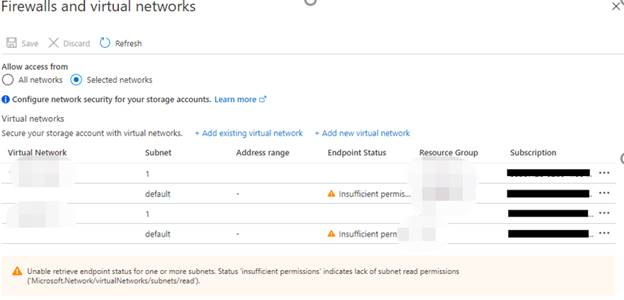
You will see the virtual network rules in Azure Portal, as the screenshot below shows. You may also notice that a warning message “Insufficient Permission…” is displayed. It is because the subnet is not in your subscription. You can ignore it.