
Home > Manage the Backup Scopes for Virtual Machines > Create a New Backup Scope for Google VM Instance
Download this articleCreate a New Backup Scope for Google VM Instance
The Google VM Instance service supports two modes for backup scope configuration:
-
SaaS infrastructure mode - Provides centralized management, automation, and robust data protection to empower organizations with scalable, policy-driven backup solutions. For details, refer to Use the SaaS Infrastructure Mode.
-
CAP Gateway mode - Reduces network latency while enhancing backup performance. Create a CAP Gateway and use this mode for your backup operations. For details, refer to Use the CAP Gateway Mode and Manage CAP Gateways.
For details on choosing a backup mode, you can see How to choose a backup mode: SaaS infrastructure mode VS CAP Gateway mode in the Best Practices section.
Use the SaaS Infrastructure Mode
To create a new backup scope, follow the steps below:
-
Go to the Backup page on the new UI.
-
Click on the Virtual Machine service tile or click the More actions button on the upper-right corner of the Virtual Machine service tile and click Configure backup scope from the drop-down list.
-
In the Configure backup scope for virtual machines page, all the existing backup scopes for Azure virtual machines, Amazon EC2 instances, and Google VM instances are listed in the table. You can use the search box to search for the backup scopes by name and manage the columns to adjust the view of the backup scopes.
NOTEYou can click the Refresh button in the upper-right corner of this page to retrieve the latest data list for Azure VMs, Amazon EC2 instances, and Google VM instances. The Last refreshed time is displayed next to the Refresh button. Additionally, the data list will be automatically refreshed daily at 00:00 local time.
-
Click the Create button and select Google VM instance
-
In the Select VM instances step, select the instances that you want to add to the backup scope. You can use Filters to find the instances you want to protect or use the Search box to search for the instances via the keywords in the name. The VMs are grouped by projects. Selecting the checkbox in the column header will select all instances in the current project. The number of your selection will be displayed on the row of the project name.
-
Click Next.
-
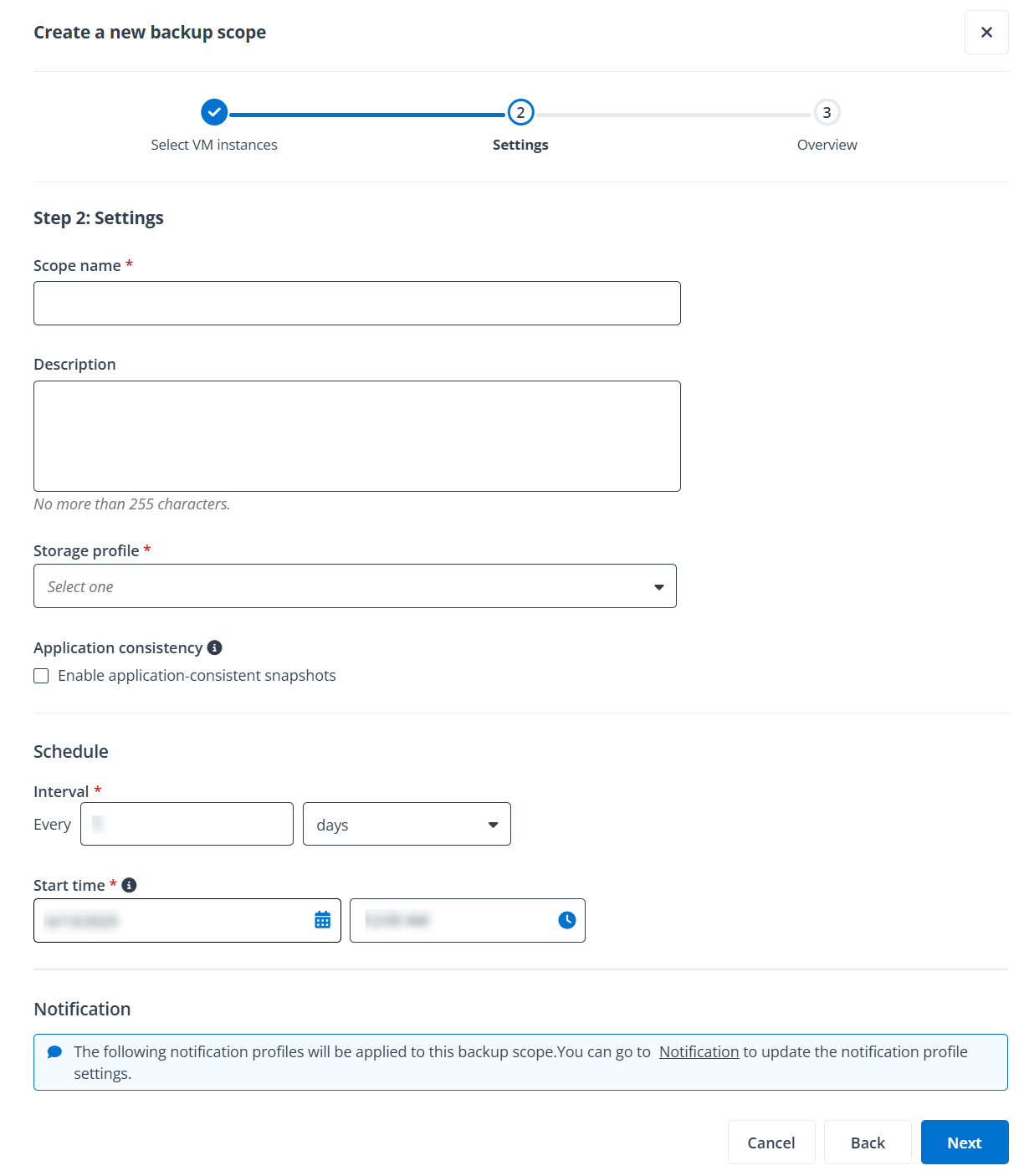
In the Settings step, complete the following settings:
-
Scope information - Enter a name and description for the scope you are creating. The description is optional.
-
Storage profile - You can select a storage profile from the drop-down list to use or click the + Create a storage profile link next to the list to create a new storage profile for this backup scope. For details on configuring storage profiles, refer to Manage Your Storage.
-
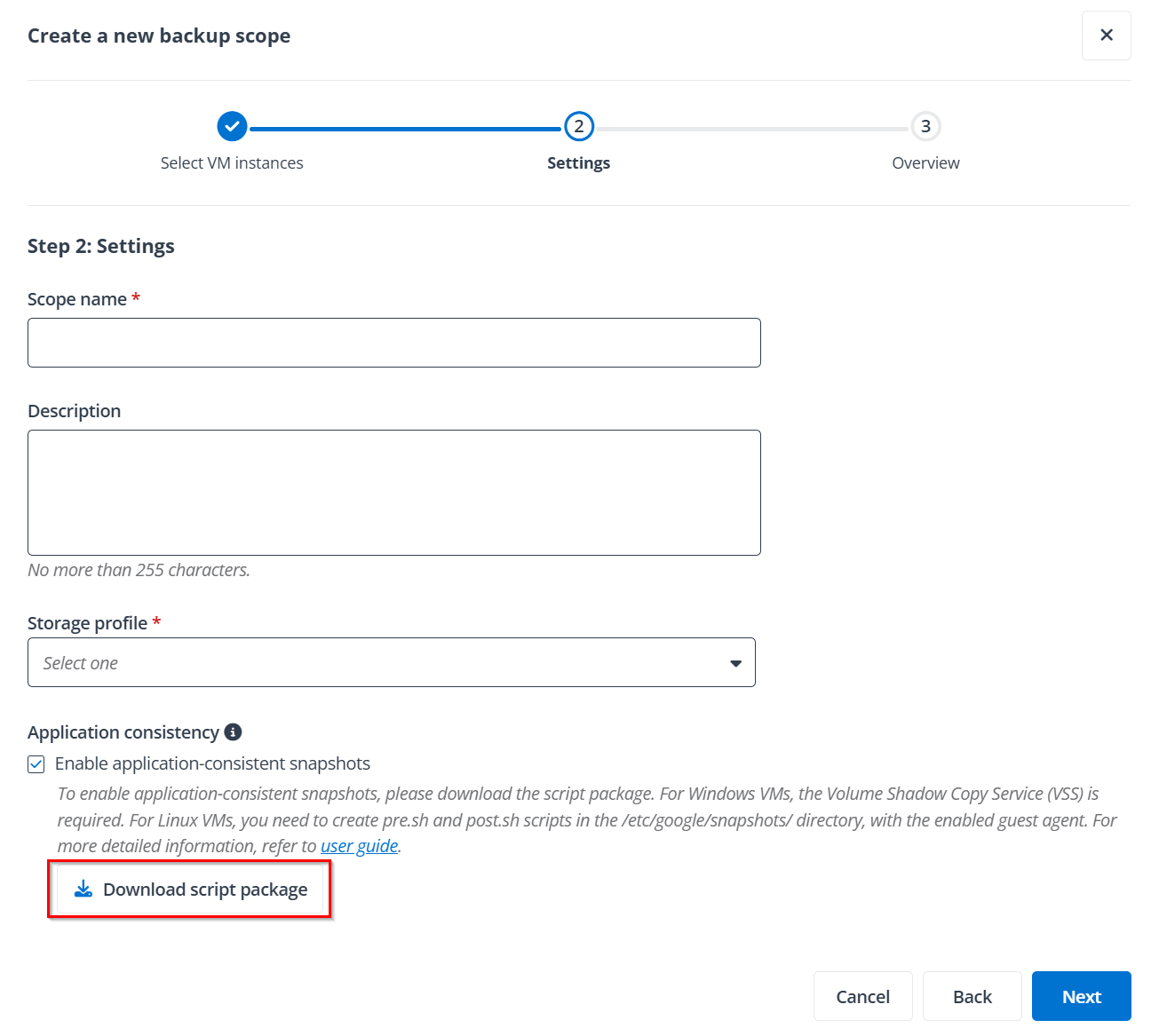
Application consistency - Select the Enable application-consistent snapshots option if you want to achieve a consistent backup without requiring VM shutdown. For details on how to enable application-consistent snapshots, refer to Enable Application-consistent Snapshots for Windows VMs or Enable Application-consistent Snapshots for Linux VMs.
-
Schedule - Select days, weeks, months, or years as the unit of time for the backup interval, enter a number in the text box after Every, and then configure the start time for your first backup job.
-
Notification - Check the notification profiles which will be applied to the backup scope.
-
Retention policy - Configure when to prune the snapshots from Google Cloud Platform. You can choose the number of the latest snapshots to retain or choose for how long the snapshots will be retained after generation.
NOTEThe snapshots are created with the prefix ACBVM. To ensure the resource protection, please do not manually delete them.
-
-
Click Next to review your settings.
-
Click Save to save this backup scope. The backup for the storages in this backup scope will roll out as scheduled. For more details about monitoring the backups, refer to Monitor Your Backup.
Enable Application-consistent Snapshots for Windows VMs
Follow the steps below to enable application-consistent snapshots for Windows VMs:
-
Press Win + R to open the Run dialog.
-
Type services.msc and click OK.
-
In the Services window, locate "Volume Shadow Copy". Ensure the VSS service status is Running.
Enable Application-consistent Snapshots for Linux VMs
Follow the steps below to enable application-consistent snapshots for Linux VMs:
-
Click Download script package to download the provided scripts.
-
Find the Linux instance you want to enable application-consistent snapshots for in your GCP environment.
-
Open the downloaded package
-
Use the pre script to create the pre-process script file with the name pre.sh in the /etc/google/snapshots/ directory.
-
Use the post script to create the post-process script file with the name post.sh in the /etc/google/snapshots/ directory.
-
Open or create your guest environment configuration file.
-
Add the following section to the configuration file:
NOTE- enabled - The default value is false. To enable application-consistent snapshots, set the value to true.
- timeout_in_seconds - The timeout setting determines how many seconds the pre- or post-snapshot script is allowed to run before timing out, with valid values ranging from 0 to 300. The default value is 68. Note that the entire snapshot operation has a fixed timeout limit of 300 seconds per disk, which cannot be adjusted.
-
Save your configuration settings.
-
Execute the following command to restart the Guest Agent to save your configuration settings:
Use the CAP Gateway Mode
To create a new backup scope, follow the steps below:
-
Go to the Backup page on the new UI.
-
Click on the Virtual Machine service tile or click the More actions button on the upper-right corner of the Virtual Machine service tile and click Configure backup scope from the drop-down list.
-
In the Configure backup scope for virtual machines page, all the existing backup scopes for Azure virtual machines, Amazon EC2 instances, and Google VM instances are listed in the table. You can use the search box to search for the backup scopes by name and manage the columns to adjust the view of the backup scopes.
NOTEYou can click the Refresh button in the upper-right corner of this page to retrieve the latest data list for Azure VMs, Amazon EC2 instances, and Google VM instances. The Last refreshed time is displayed next to the Refresh button. Additionally, the data list will be automatically refreshed daily at 00:00 local time.
-
Click the Create button and select Google VM instance
-
Select CAP Gateway mode and click Next.
-
In the Select VM instances step, select the project and instances that you want to add to the backup scope. You can use Filters to find the instances you want to protect or use the Search box to search for the instances via the keywords in the name. The VMs are grouped by projects. Selecting the checkbox in the column header will select all instances in the current project. The number of your selection will be displayed on the row of the project name.
-
Click Next, and you will go to the Configure storage and gateway based on zone step to configure a storage profile and CAP Gateway for each zone.
-
You can use an existing storage profile or create a new storage profile to store the backup data for the storages in the same region. For details on configuring storage location, refer to Manage Your Storage.
-
You can select a CAP Gateway from within the same project as your VM instances, or from a different project. If you select a gateway from a different project, ensure that service accounts have been created for both projects and that the necessary permissions have been granted to them. For details on how to create a service account, refer to Create a Service Account in Google Cloud Platform. For details on configuring CAP Gateways, refer to Manage CAP Gateways.
NOTEIf you have enabled a firewall for your Google VM instances, you need to add the AvePoint IP addresses to your Google VM instance account firewall.
-
-
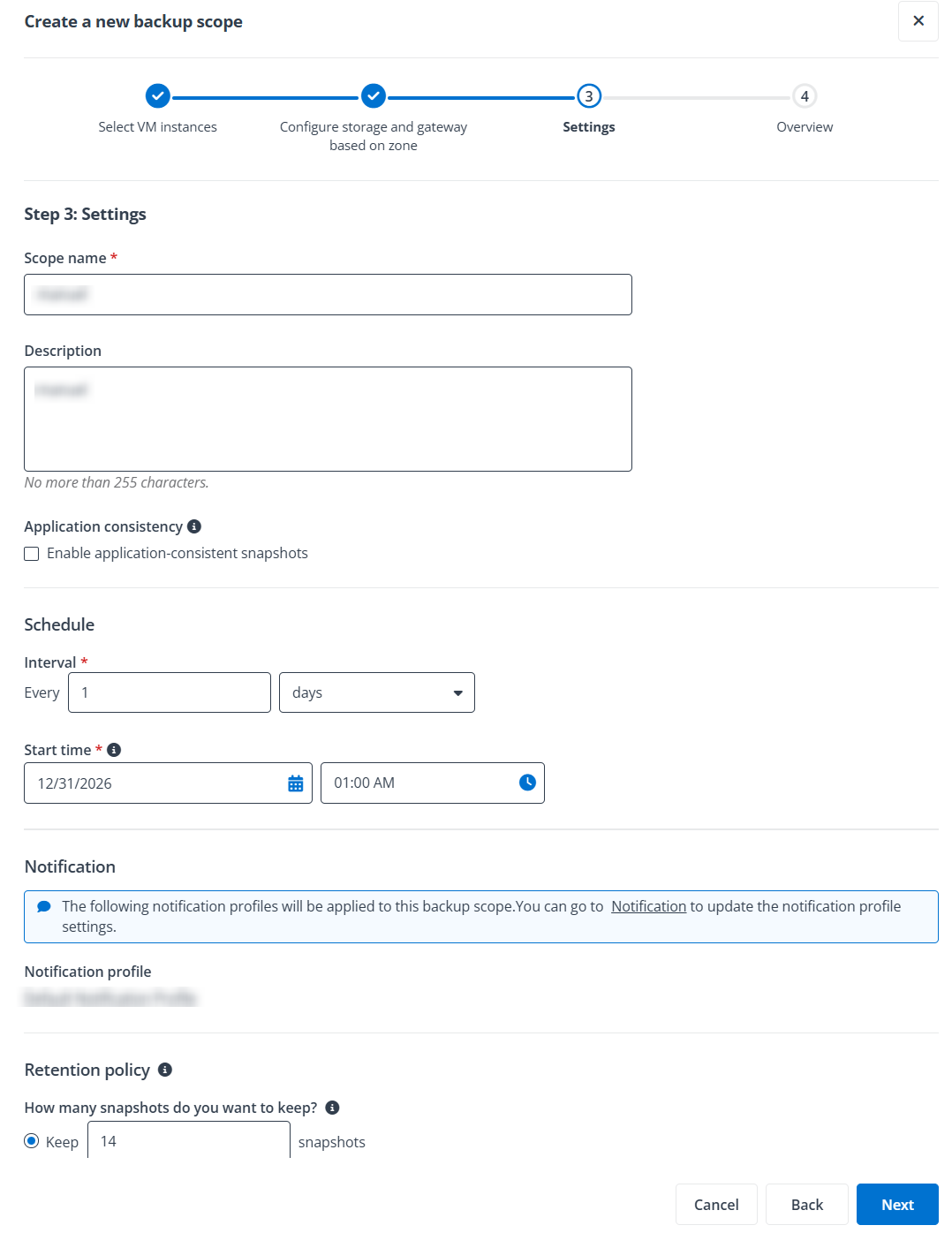
After you finish the storage configuration for each region, click Next to configure the scope information, schedule, and data retention settings. Refer to the following:
-
Scope information - Enter a name and description for the scope you are creating. The description is optional.
-
Application consistency - Select the Enable application-consistent snapshots option if you want to achieve a consistent backup without requiring VM shutdown. For details on how to enable application-consistent snapshots, refer to Enable Application-consistent Snapshots for Windows VMs or Enable Application-consistent Snapshots for Linux VMs.
-
Generate index for file-level data export - Select this option if you want to perform file-level data export using the backup data. Otherwise, keep this option deselected. The backup job will take longer to finish to generate an index. The retention period to keep the index will follow the retention policy configured for the backup data.
NOTE- If you use the Windows gateway, the index-generation and file-level data export will be unavailable.
- To generate an index for file-level data export, the OS Config Viewer role is required for your service account. For details on how to grant the role, refer to Create a Service Account in Google Cloud Platform.
- To generate an index for file-level data export, the user of your CAP Gateway service needs to be updated to root user: For details, refer to Required Configurations for Index Generation.
-
Schedule - Select days, weeks, months, or years as the unit of time for the backup interval, enter a number in the text box after Every, and then configure the start time for your first backup job.
-
Notification - Check the notification profiles which will be applied to the backup scope.
-
Retention policy - Configure when to prune the snapshots from Google Cloud Platform and the backup data from the storage location. Note that if you are using AvePoint storage, the retention policy for backup data is subject to your agreement and you can configure a retention period up to the retention policy in your subscription.
-
For snapshots in Google Cloud Platform - You can choose the number of the latest snapshots to retain or choose for how long the snapshots will be retained after generation.
NOTE- The number of the latest snapshots to retain must be less than 500.
- The snapshots are created with the prefix ACBVM. To ensure the resource protection, please do not manually delete them.
-
For backup data in storage - Configure the retention period to keep the backup data in the storage.
-
Daily/Hourly recovery point - Enter a number in the text box and select days or weeks from the drop-down list. The retention period must be between 7 and 28 days.
-
Weekly recovery point - Enter a number in the text box and select weeks or months from the drop-down list. The retention period must be between 2 and 12 weeks.
-
Monthly recovery point - Enter a number in the text box. The retention period must be between 1 and 12 months.
-
Yearly recovery point - If you are using AvePoint default storage with unlimited retention period, the Unlimited option is selected automatically. If you want to use a custom retention period, select Custom.
-
-
-
-
Click Next to review your settings.
-
Click Save to save this backup scope. The backup for the storages in this backup scope will roll out as scheduled. For more details about monitoring the backups, refer to Monitor Your Backup.
Required Configurations for Index Generation
Follow the steps below to update the user of your CAP Gateway to root user.
-
Execute the following command:
-
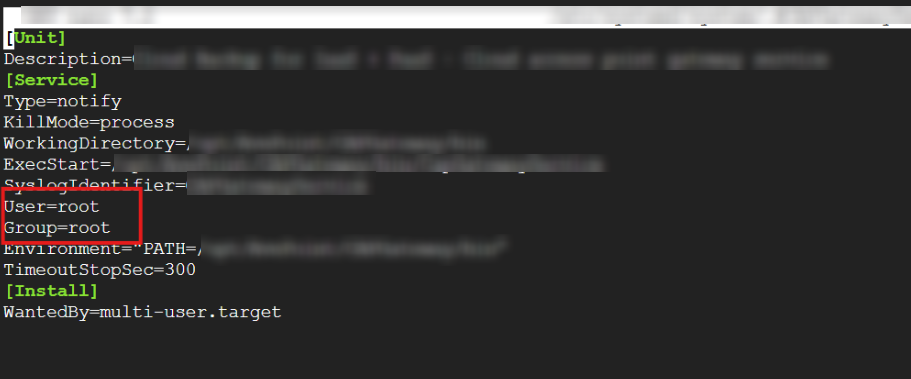
Update the value of User and Group to root.
-
Execute the following command lines:
-
Execute the following command to check results to make sure the user of your CAP Gateway is root user:
