
Home > Manage Cache Storage
Download this articleOverview
Cache storage serves as a temporary, high-performance staging area during data operations to help ensure secure and efficient data transfer. By processing and caching data locally before transmitting to permanent storage, cache storage reduces the impact of network latency and instability, improving the reliability and speed of your data protection activities.
To enable CAP Gateway mode, cache storage is required if you manually install the CAP gateway. Configure cache storage to store system files and ensure secure data transfer. Cache storage is available for both the AvePoint default storage type and the BYOS storage type. Currently, the following storage types are supported:
-
Microsoft Azure Blob Storage
-
Amazon S3
-
Google Cloud Storage
Before configuring the cache storage, note the following:
-
Google Cloud Storage is not supported if you are using Cloud Backup for IaaS + PaaS in the data center operated by 21Vianet in China.
-
The following permissions are required for the Google Cloud Storage. For permission details, refer to IAM permissions for Cloud Storage.
-
storage.buckets.get
-
storage.buckets.list
-
storage.objects.list
-
storage.objects.create
-
storage.objects.delete
-
storage.objects.get
-
-
If you use Google Cloud Storage for both backup and cache storage profiles, it is recommended that you use separate buckets for each.
-
It is recommended that the storage profile zone match the zone of the protected objects in the backup scope.
Follow the instructions below to create a cache storage profile:
-
Navigate to Settings > Storage profiles > Cache storage.
-
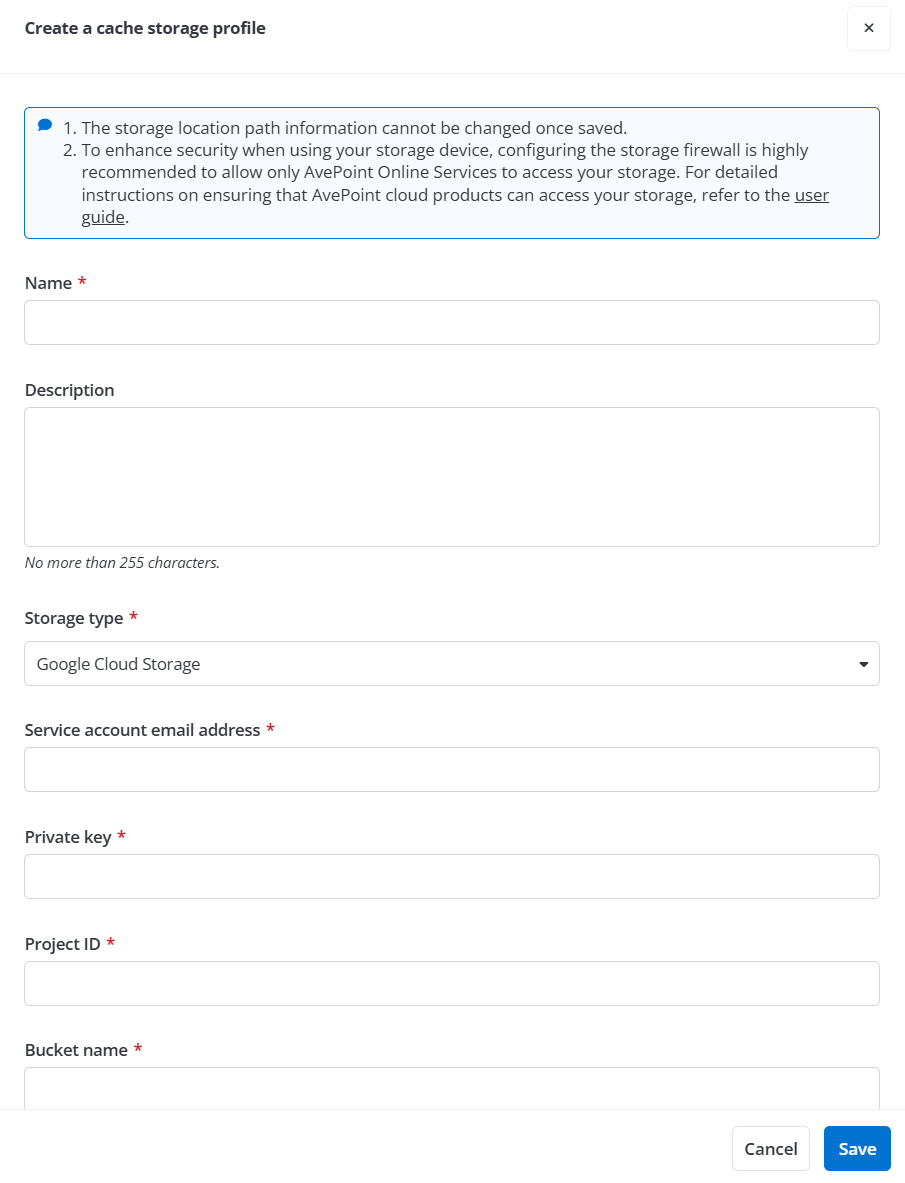
In the Cache storage tab, click the Create button. The Create cache storage profile pane appears on the right.
-
Enter a profile name for the storage location that you want to connect to and provide an optional description.
-
In the Storage type field, select a storage type from the list and then refer to the following sections for the storage configuration.