
Home > Manage CAP Gateways > Create a New CAP Gateway
Download this articleCreate a New CAP Gateway
To create a new CAP Gateway, follow the steps below:
There will be additional costs for hosting CAP Gateways if you perform backups using the CAP Gateway mode.
-
Go to the Settings > CAP Gateways page.
-
Click Create.
-
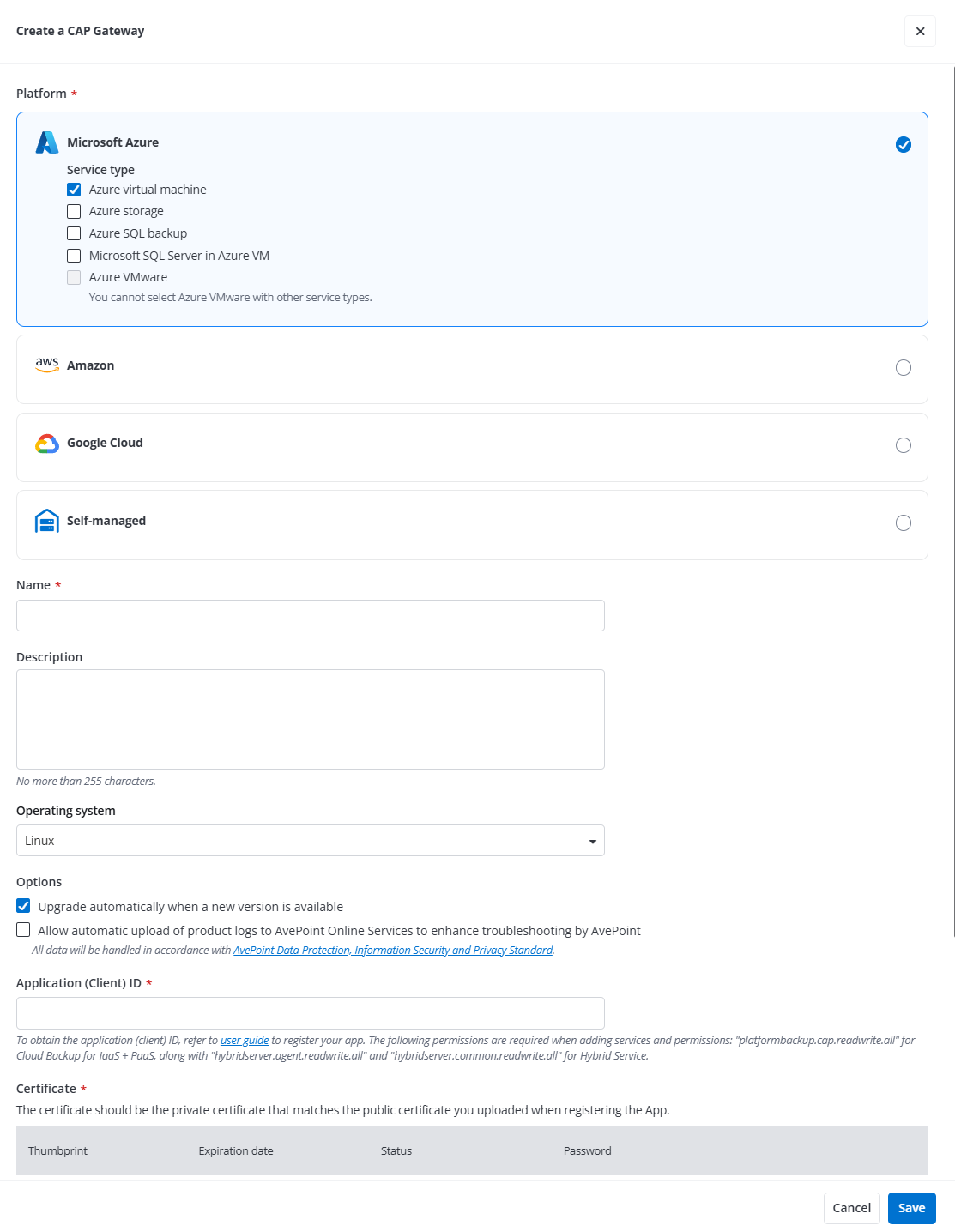
In the Create a CAP Gateway panel, complete the following settings:
-
Platform - Select a platform and a service.
-
Gateway information - Enter a name and description for the scope you are creating. The description is optional.
-
Platform - Select a platform and services.
-
Operating system - Select Linux or Windows as needed.
-
Options - Configure whether to allow automatic gateway updates and automatic upload of product logs to AvePoint Online Services.
-
Update automatically when a new version is available - Select this option to allow the CAP gateway to automatically update itself when a new version is released. To receive email notifications when the auto-update fails after 7 retries, you can refer to Configure Notifications to configure a notification profile.
-
Allow automatic upload of product logs to AvePoint Online Services to improve troubleshooting by AvePoint - Select this option to automatically send product logs to AvePoint Online Services, which helps resolve issues more effectively.
-
-
Application (Client ID) - Enter the application (client) ID. To get the application (client) ID, go to AvePoint Online Services to register an app. For details on how to register an app, refer to Register an App.
-
Certificate - Click Add new certificate to add the private certificate which matches the public certificate you uploaded when registering app in the previous step. For details on how to prepare certificates, refer to Prepare a Certificate for the Custom Azure App.
-
Complete the following steps below to add the private certificate:
-
In the Add new certificate panel, click Browse to upload a certificate file (.pfx file).
-
Enter the certificate password.
-
Click Add.
-
-
How would you like to install the gateway? - Select an installation method.
NOTEOnly manually install is supported for SQL Server (Self-managed) and VMware.
-
Auto install -The gateway will be automatically installed to your environment after being created. In the How many CAP Gateways would you like to create? field, enter the desired number of gateways and click Next. For the following configuration steps, refer to Auto Installation Configurations.
-
Manually install - You need to install this created gateway to your environment manually. For detailed steps, refer to Install a CAP Gateway.
-
-
Cache storage - Select a cache storage profile. For details on how to configure cache storage profiles, refer to Manage Cache Storage.
NOTE- The field will appear when selecting Manually install as the installation method.
- To ensure CAP gateways can access your storage, add the network of the CAP Gateway VMs to the cache storage whitelist.
-
-
If you are about to create a gateway for Azure VMware, click Next to complete the following configurations; if you are about to create a gateway for other services, proceed to the next step.
-
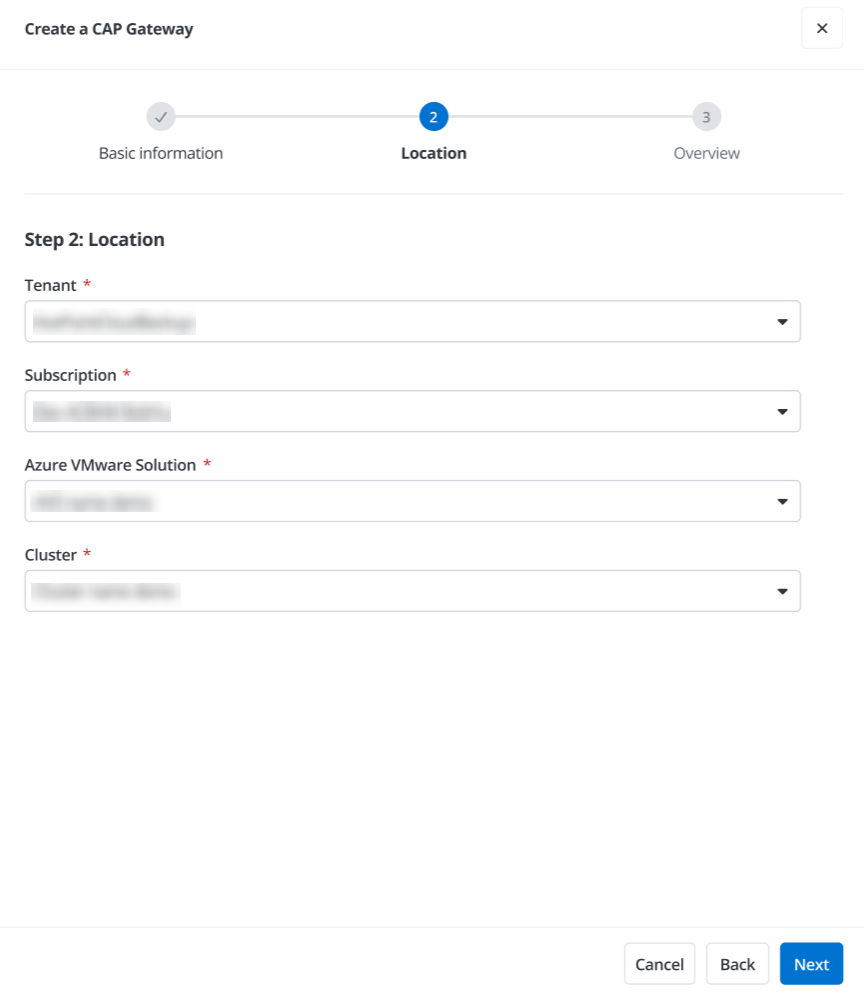
In the Location step, select tenant, subscription, Azure VMware Solution, and cluster for the gateway.
NOTEThe cluster you select should be the same one that contains the protected VMs.
-
Click Next to review your settings in the Overview step.
-
-
Click Save to save this gateway.
Auto Installation Configurations
CAP Gateway auto-installation is supported for the following services:
-
Azure VM
-
Azure Storage
-
Azure SQL Backup
-
Amazon EC2
-
Amazon S3
-
Google VM Instance
-
Microsoft SQL Server in Azure VM
-
Google Cloud Storage
-
Azure PostgreSQL
-
Cosmos DB
Follow steps in the sections below to complete the configurations for gateway auto-installation.
For the default settings VM image, VM size, and disk size applied during gateway auto-installation, refer to Default Settings for Gateway Auto Installation. If you require customized settings, contact AvePoint Support for assistance.
Azure VM, Azure Storage, Azure SQL Backup, Microsoft SQL Server in Azure VM, and Cosmos DB
Follow the steps below to complete configurations for auto installation:
-
In the How many CAP Gateways would you like to create? field, enter a number to configure the number of gateways you want to create. Click Next.
NOTEYou can create up to 10 gateways. The gateways will be named based on the name you defined, with a unique suffix appended.
-
In the Subscription step, complete the following settings:
-
Destination tenant - Select a destination tenant.
-
Destination subscription - Select a destination subscription.
-
Destination region - Select a destination region.
-
Host virtual machine - Enter a host virtual machine name. If multiple gateways are created, each corresponding VM will be automatically named using this base name with a unique suffix appended.
-
Cache storage - Create a new cache storage profile or select an existing one.
-
Create a new one - Enter a cache storage profile name. If multiple gateways are created, each corresponding storage profile will be automatically named using the base name you provided, with a unique suffix appended to it.
-
Select an existing one - Select a cache storage profile from drop-down list.
NOTETo ensure CAP gateways can access your storage, add the network of the CAP Gateway VMs to the cache storage whitelist.
-
-
-
Click Next to continue.
-
In the Network step, complete the following settings:
-
Destination resource group - Create a new resource group or select an existing one.
-
Create a new one - Enter the resource group name to create a new group.
-
Select an existing one - Select a resource group from drop-down list.
-
-
Virtual network - Select a virtual network from drop-down list.
-
Virtual subnet - Select a virtual subnet from drop-down list.
-
Network interface name - Enter a network interface name.
-
Public IP address - Enter a public IP address.
-
Network security group - Select a network security group from drop-down list.
-
-
Click Next to continue.
-
Review the restore settings in the Overview step. Click Save to save this CAP Gateway.
Amazon EC2 and Amazon S3
Follow the steps below to complete configurations for auto installation:
-
In the How many CAP Gateways would you like to create? field, enter a number to configure the number of gateways you want to create. Click Next.
NOTEYou can create up to 10 gateways. The gateways will be named based on the name you defined, with a unique suffix appended.
-
In the Subscription step, complete the following settings:
-
Account - Select an account.
-
Region - Select a region.
-
Zone - Select a zone.
-
Host instance - Enter a host instance name. If multiple gateways are created, each corresponding instance will be automatically named using this base name with a unique suffix appended.
-
Cache storage - Create a new cache storage profile or select an existing one.
-
Create a new one - Enter a cache storage profile name. If multiple gateways are created, each corresponding storage profile will be automatically named using the base name you provided, with a unique suffix appended to it.
-
Select an existing one - Select a cache storage profile from drop-down list.
NOTETo ensure CAP gateways can access your storage, add the network of the CAP Gateway VMs to the cache storage whitelist.
-
-
-
Click Next to continue.
-
In the Network step, complete the following settings:
-
VPC network - Select a VPC network from drop-down list.
-
Virtual subnet - Select a virtual subnet from drop-down list.
-
Network security group - Select a network security group from drop-down list.
-
-
Click Next to continue.
-
Review the restore settings in the Overview step. Click Save to save this CAP Gateway.
Google VM Instance and Google Cloud Storage
Follow the steps below to complete configurations for auto installation:
-
In the How many CAP Gateways would you like to create? field, enter a number to configure the number of gateways you want to create. Click Next.
NOTEYou can create up to 10 gateways. The gateways will be named based on the name you defined, with a unique suffix appended.
-
In the Subscription step, complete the following settings:
-
Service account - Select a service account.
-
Project - Select a project.
-
Region - Select a region.
-
Zone - Select a zone.
-
Host virtual machine - Enter a host virtual machine name. If multiple gateways are created, each corresponding VM will be automatically named using this base name with a unique suffix appended.
-
Cache storage - Create a new cache storage profile or select an existing one.
-
Create a new one - Enter a cache storage profile name. If multiple gateways are created, each corresponding storage profile will be automatically named using the base name you provided, with a unique suffix appended to it.
-
Select an existing one - Select a cache storage profile from drop-down list.
NOTETo ensure CAP gateways can access your storage, add the network of the CAP Gateway VMs to the cache storage whitelist.
-
-
-
Click Next to continue.
-
In the Network step, complete the following settings:
-
Network interface - Select a network from the project you selected in Subscription step or use one shared with you from a host project.
-
Networks in this project - Select a network and subnet from the drop-down lists.
-
Networks shared with me - Select a network and subnet from the drop-down lists.
-
-
VPC network - Select a VPC network from drop-down list.
-
Virtual subnet - Select a virtual subnet from drop-down list.
-
-
Click Next to continue.
-
Review the restore settings in the Overview step. Click Save to save this CAP Gateway.
Azure PostgreSQL
Follow the steps below to complete configurations for auto installation:
-
In the How many CAP Gateways would you like to create? field, enter a number to configure the number of gateways you want to create. Click Next.
NOTEYou can create up to 10 gateways. The gateways will be named based on the name you defined, with a unique suffix appended.
-
In the Subscription step, complete the following settings:
-
Destination tenant - Select a destination tenant.
-
Destination subscription - Select a destination subscription.
-
Destination region - Select a destination region.
-
Host virtual machine - Enter a host virtual machine name. If multiple gateways are created, each corresponding VM will be automatically named using this base name with a unique suffix appended.
-
Cache storage - Create a new cache storage profile or select an existing one.
-
Create a new one - Enter a cache storage profile name. If multiple gateways are created, each corresponding storage profile will be automatically named using the base name you provided, with a unique suffix appended to it.
-
Select an existing one - Select a cache storage profile from drop-down list.
NOTETo ensure CAP gateways can access your storage, add the network of the CAP Gateway VMs to the cache storage whitelist.
-
-
-
Click Next to continue.
-
In the Network step, complete the following settings:
-
Destination resource group - Create a new resource group or select an existing one.
-
Create a new one - Enter the resource group name to create a new group.
-
Select an existing one - Select a resource group from drop-down list.
-
-
Virtual network - Select a virtual network from drop-down list.
-
Virtual subnet - Select a virtual subnet from drop-down list.
-
Network interface name - Enter a network interface name.
-
Public IP address - Enter a public IP address.
-
Network security group - Select a network security group from drop-down list.
-
-
In the PostgreSQL client installation step, follow the instructions to download and install the PostgreSQL to enable PGDUMP. Skip this step if the client is already installed.
-
Click Next to continue.
-
Review the restore settings in the Overview step. Click Save to save this CAP Gateway.
Default Settings for Gateway Auto Installation
Please refer to the table below for the default VM image, VM size, and disk size applied during gateway auto-installation:
If you require customized settings, contact AvePoint Support for assistance.
| Cloud Platform | Items | Default Settings |
|---|---|---|
| Microsoft Azure | Azure Linux Image | ubuntu-24_04-lts |
| Microsoft Azure | Azure Linux VM Size | Standard_D4s_v5 |
| Microsoft Azure | Azure Linux Disk Size | default is 128 GB, minimum is 32 GB |
| Microsoft Azure | Azure Windows Image | 2022-Datacenter |
| Microsoft Azure | Azure Windows VM Size | Standard_D4s_v5 |
| Microsoft Azure | Azure Windows Disk Size | default is 128 GB, minimum is 128 GB |
| AWS | AWS Linux Image | ubuntu/images/hvm-ssd-gp3/ubuntu-noble-24.04-amd64-server-* |
| AWS | AWS Linux VM Size | t3.xlarge |
| AWS | AWS Linux Disk Size | default is 128 GB, minimum is 30 GB |
| AWS | AWS Windows Image | Windows_Server-2022-English-Full-Base-* |
| AWS | AWS Windows VM Size | t3.xlarge |
| AWS | AWS Windows Disk Size | default is 128 GB, minimum is 30 GB |
| Google Cloud | GCP Linux Image | ubuntu-2404-noble-amd64.* |
| Google Cloud | GCP Linux VM Size | e2-standard-4 |
| Google Cloud | GCP Linux Disk Size | default is128 GB, minimum is 10 GB |
| Google Cloud | GCP Windows Image | projects/windows-cloud/global/images/family/windows-2022 |
| Google Cloud | GCP Windows VM Size | e2-standard-4 |
| Google Cloud | GCP Windows Disk Size | default is 128 GB, minimum 50 GB |