
Home > Restore and Recover Your Data > Microsoft Entra ID > Restore Enterprise Applications
Download this articleRestore Enterprise Applications
To restore enterprise applications, follow the steps below:
-
Go to the Restore page and click the Microsoft Entra ID tile.
-
Click the Recovery point tile.
-
In the restore wizard, a calendar displays all the data recovery points. You can choose whether to display the finished with the exception jobs in the calendar by selecting the Include jobs with only partial backup data option. If you want to restore data backed up by Entra ID Express mode, select Only show Express recovery points.
-
Hover over the data recovery point to view the job details, including the job status, job start time, scope name, scope ID, job ID, backup size, and the number of objects in a backup, and click the data recovery point that you want to use in the calendar.
-
In the Recovery point page, you can select all enterprise applications or click the Enterprise application link to drill down to the specific enterprise applications.
-
Select the enterprise application that you want to restore and then click the Restore button. The View properties step displays the enterprise application information in a table. Click Next to continue the restore.
NOTEIf you select multiple enterprise applications, you can directly configure restore options following the steps below in the Restore groups panel.
-
In the Restore options step, select a restore mode and select Merge, Overwrite, or Skip as the conflict resolution. If a conflict occurs, Merge adds the backup data to the destination for properties that support adding new items. Existing properties with unique values are replaced with the backup data. Overwrite removes the conflicting object from the destination and restores the backup data. Skip skips restoring the backup data and keeps the destination object intact.
NOTE- The Restore mode field is required when restoring data by Entra ID Express mode.
- If you select Entra ID Express as the restore mode, the conflict resolution setting is automatically set to Overwrite.
- The restore job can restore the single sign-on (SSO) configuration for the enterprise application directly if the enterprise application has not yet been permanently deleted. If the enterprise app has been permanently deleted, to restore the SSO configuration for this enterprise app, the Restore options step will display the Single sign-on configuration field for you to choose to allow AvePoint to generate an SSO certificate during the restore or you can import the certificate manually. Note that if you choose to allow AvePoint to generate the certificate, you must download the certificate later from Job Monitor and then send it to your service provider of this enterprise application to update your certificate.
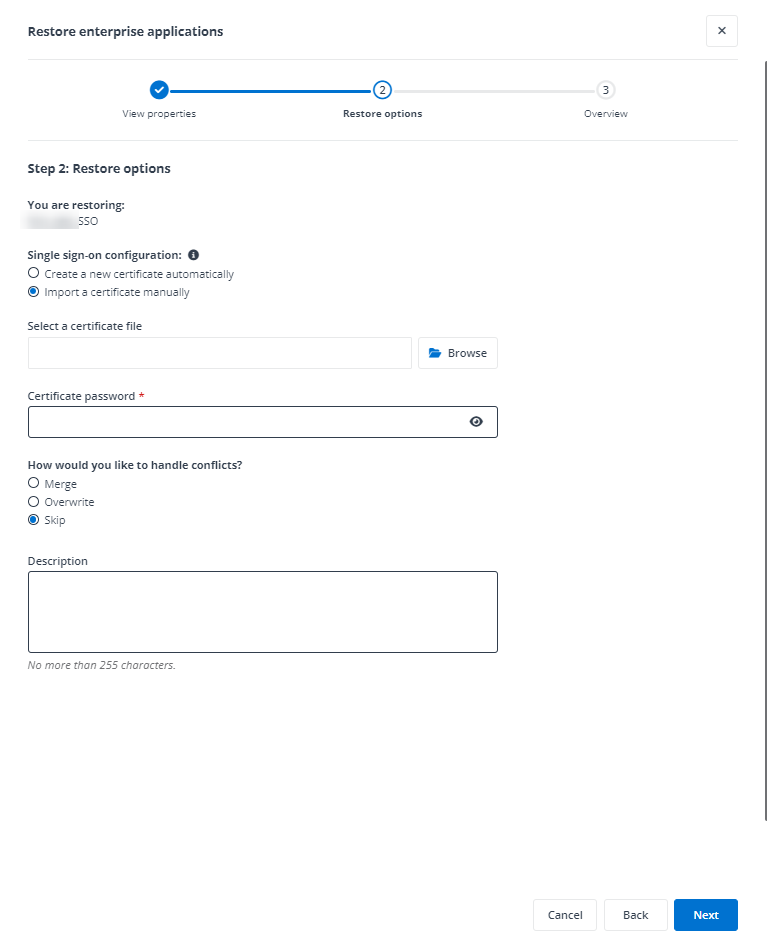
- The Attributes and Claims, Identifier (Entity ID), currentSingleSignOnMode, ParentAppId, or IsCustomApp of the SSO configuration can only be restored if you have configured a service account with the Application Administrator role.
The roles and administrators directly related to the selected enterprise applications can be restored as well.
-
You can enter a description for this restore job for further reference.
-
Click Next to go to the Overview step. Review the restore settings. You can click Back to go back to the previous steps in the restore wizard to modify the settings.
-
Click Restore to run the restore job.