
Home > Restore and Recover Your Data > Azure Virtual Machines > Restore Folders/Files
Download this articleRestore Folders/Files
To restore folder/files to their original locations, follow the steps below:
- The restoration of signed scripts is now supported. To ensure the security and integrity of signed scripts, you can verify the scripts after restoring. For details, refer to Verify Windows Signed Scripts and Verify Linux Signed Scripts.
- The file-level restore job for Azure VMs supports both VMs of Linux system and Windows system. If you would like to perform file-level data restoration of Azure VM backup data, you must have generated an index for the backup data.
- The index generation for the following file systems is unsupported: UFS-BSD default fs, ZFS-BSD alternative fs, BitLocker-Windows encrypted fs, LUKS-Linux encrypted fs, ReFS -Windows new fs. Running index generation on these file systems will result in folders without indexes in restore recovery points.
-
Go to the Restore page, and click the Virtual Machine tile.
-
In the Restore wizard, a calendar displays all the data recovery points. Click Azure virtual machines.
You can choose whether to display the finished with the exception jobs in the calendar by selecting the Include jobs with only partial backup data option.
-
Hover over the data recovery point to view the job details, including the job status, job start time, scope name, scope ID, job ID, backup size, and the number of objects in a backup.
-
Click the data recovery point in the calendar. The VMs backed up in the selected backup job are displayed in the table.
-
You can use the Tenant filter, Subscription filter, and Resource group filter to find the VMs of specific properties or use the Search box to search for VMs via keywords in the name. You can also manage the columns to adjust the view of VMs.
-
Click the VM to drill down to the folder/files that you want to restore, select the object, and click Restore.
-
In the Restore options step, provide an optional description for further reference and click Next to continue.
-
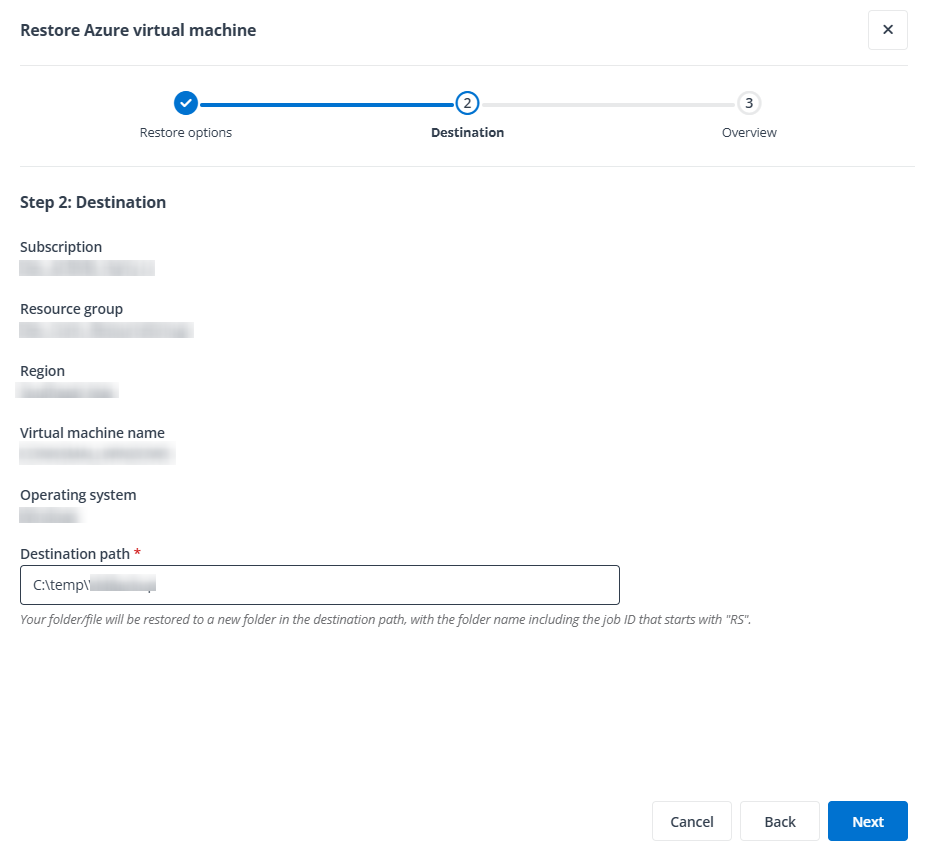
In the Destination step, configure the destination path and click Next.
-
Review the restore settings in the Overview step and then click Restore.
-
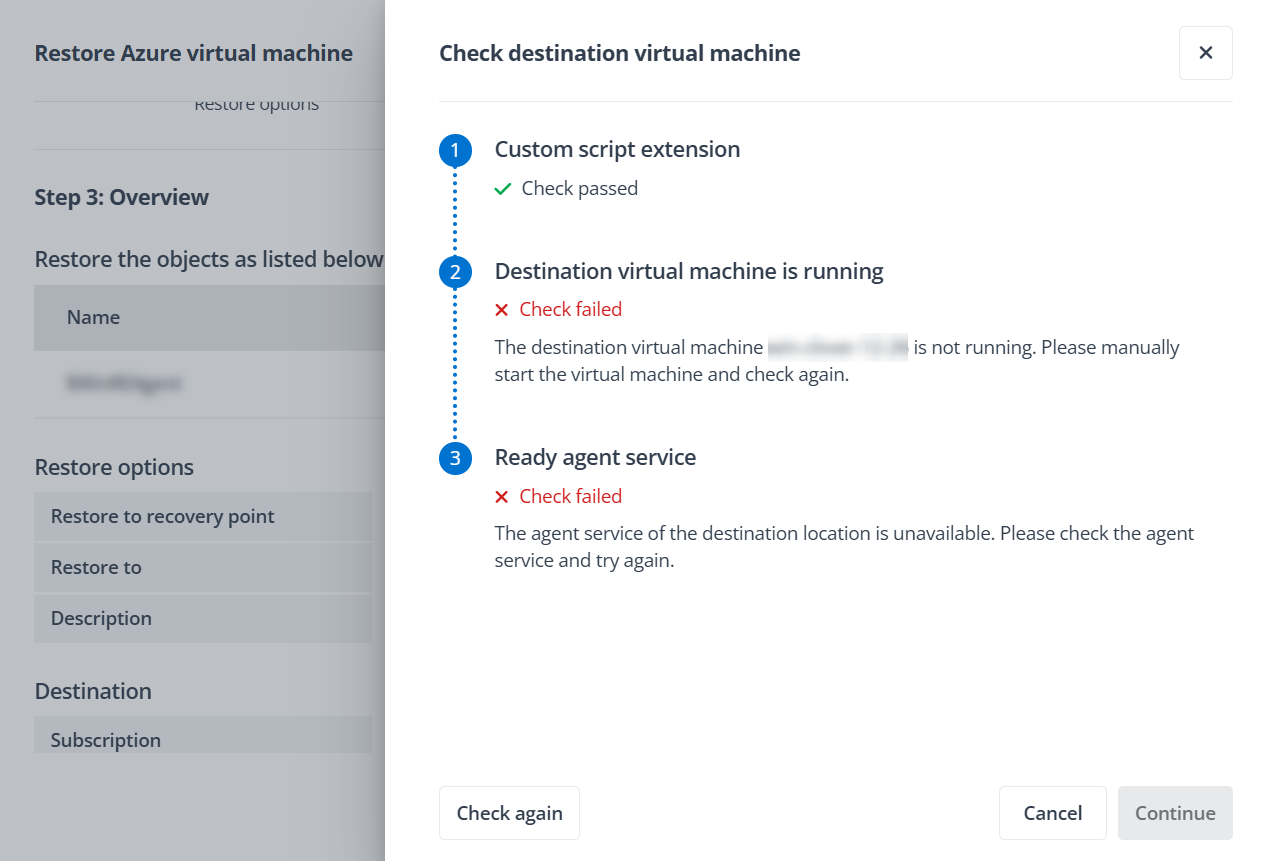
In the Check destination virtual machine panel, the custom script extension, running status, and agent service of the destination virtual machine will be checked. Note that restoring files/folders in Azure VMs will create custom script extensions in your environment. To run the created custom script extensions, the agent service of the destination virtual machine must be available.
If all required conditions are valid, click Continue to perform the restore job.
If any conditions fail, you can follow the provided instructions to update them, then return here to click Check again to re-verify.
Verify Windows Signed Scripts
Follow the steps below to verify the signed script of Windows system:
-
Run PowerShell on your computer.
-
Execute the following command lines in PowerShell:
If the command status is valid, the signed script has passed verification.
Example
Restore destination path: C:\temp\VMBackup
Restore Job ID: RS SerialNumber
Follow the steps below to verify the signed script:
-
Run PowerShell on your computer.
-
Execute the following command lines in PowerShell:
If the command status is valid, the signed script has passed verification.
Verify Linux Signed Scripts
Follow the steps below to verify the signed script of Linux system:
-
Copy the signed script from Linux system to Windows system.
-
Download and save the signed script to Windows system as a ".ps1" file.
-
Run PowerShell and execute the following command in PowerShell:
If the command status is valid, the signed scripts have passed verification.
Example
Root path where the script file is saved: D:\TestFolder
Restore Job ID: RS SerialNumber
Follow the steps below to verify the signed scripts:
-
Copy the signed scripts from Linux system to Azure storage.
-
Download and save the script as a ".ps1" file.
-
Execute the following command lines in PowerShell:
If the command status is valid, the signed script has passed verification.