
Home > Configure Notifications
Download this articleConfigure Notifications
With AvePoint Cloud Backup for IaaS + PaaS, you can define certain statuses of jobs that will trigger alerts, including backup, restore, export, retention, index generation, and unprotected warning.
To create a new notification profile, follow the steps below:
-
Navigate to Settings > Notification.
-
Click the +Create button. The Create a new notification profile panel appears.
-
In the Create a new notification profile panel, complete the following settings:
-
Profile information – Enter a name and description for the profile you are creating. The description is optional.
-
Send email notifications to the following email addresses – Enter the email addresses in the text box to configure the recipients for the email notifications. You can enter the email addresses of users or groups. For groups, you must ensure the group you entered can receive emails. Otherwise, the group members will not be notified of the activities in AvePoint Cloud Backup for IaaS + PaaS.
-
Notification condition – Configure whether to apply the notification profile to specific backup scopes. You can turn on the switch for Apply the notification profile to specific backup scopes and then select backup scopes from the drop-down list to configure the backup scopes to which the notification profile will be applied.
-
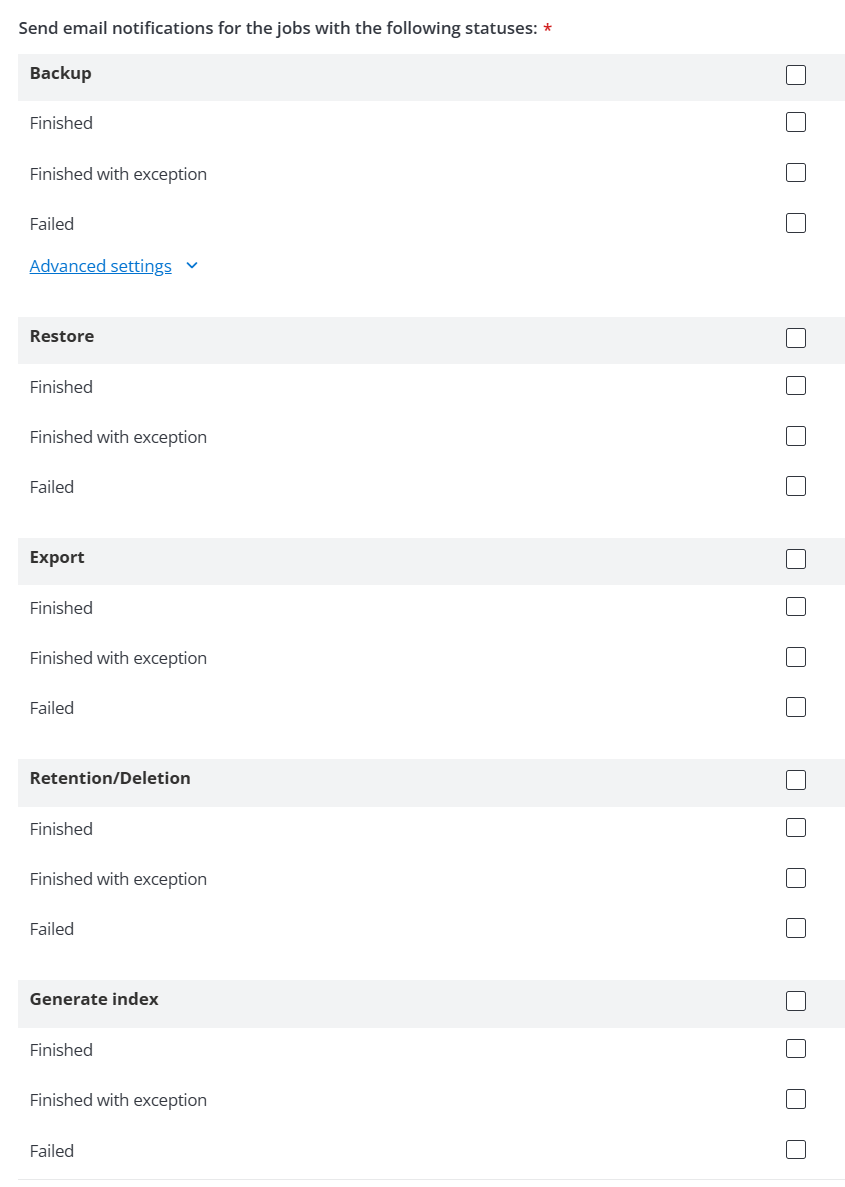
Send email notifications for the jobs in the following statuses – Select the job status for the Backup, Restore, Export, Retention, and Generate index jobs which will trigger the notification. Note that you can configure whether to attach the Azure virtual machine backup job report in email notifications through Advanced settings in the Backup section.
-
Unprotected virtual machines notification – Configure whether to send email notifications for the unprotected virtual machines. You can turn on the switch for Send warning notification for unprotected virtual machines and then configure the frequency of sending this notification. In the Frequency section, enter a number in the text box and then select Days or Weeks from the drop-down list to configure an interval of sending this notification.
- CAP Gateway version update – Configure whether to send email notifications for gateway version update failure. You can turn on the switch to receive email alerts when the gateway auto-update fails after 7 retry attempts.
-
-
Click Save when you finish configuring the profile.