
Home > Generate and Download a Job Report
Download this articleGenerate and Download a Job Report
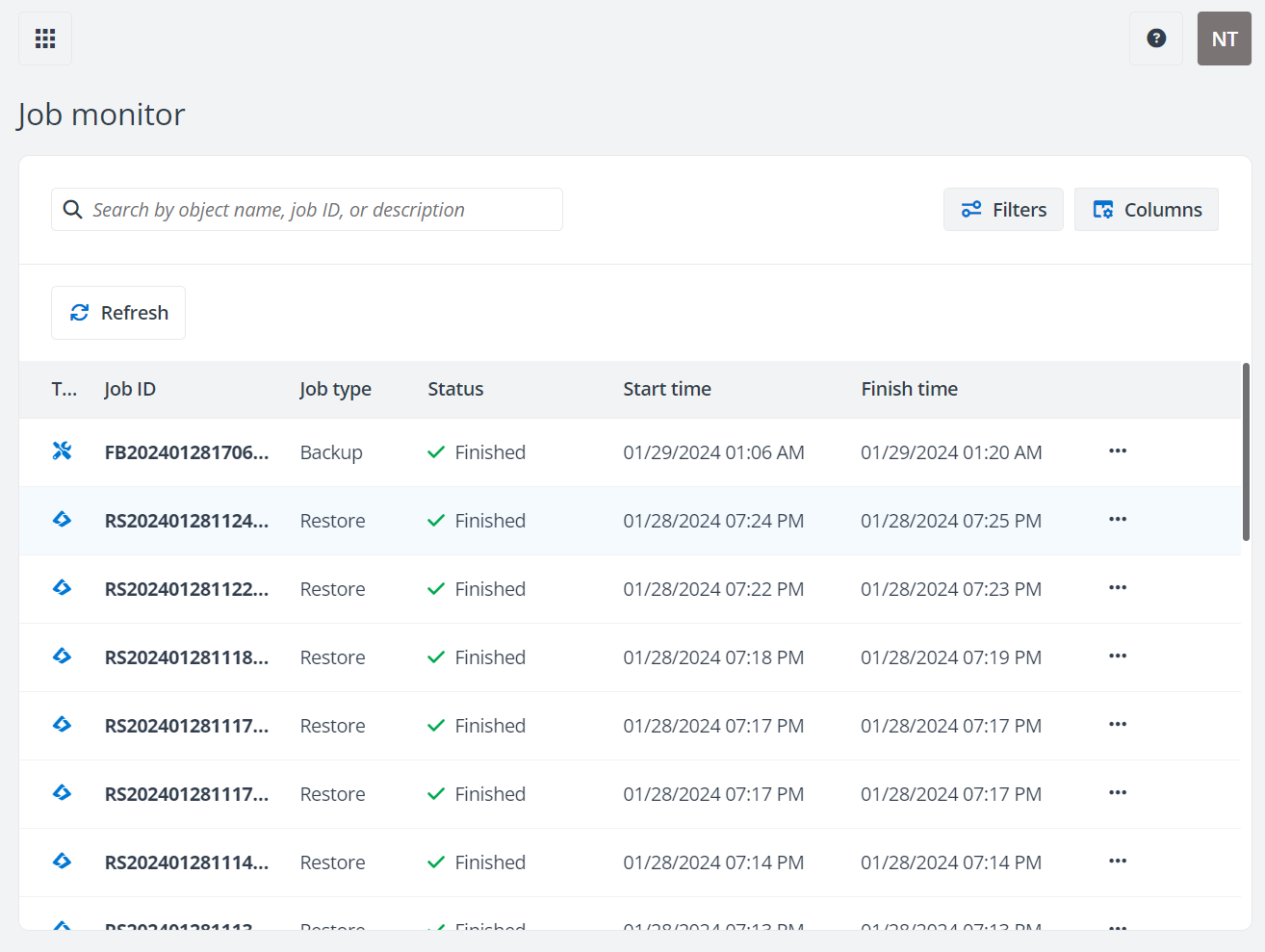
The Job monitor page displays the user activities of backup, restore, and export. You can use the Filters (such as, , Service type, Job type, Job status and Date range) or the Search box to search for the backup, restore, and export jobs.
For the export jobs, you can download the exported content in a ZIP file after the job is completed and get the password from Job monitor to extract the ZIP file. For details, refer to Download the Exported Data.
To generate and download a job report, follow the steps below:
Go to the Job monitor page.
-
You can use the search box or the Filters feature to find the job. You can also customize the view by adjusting the columns in display.
-
In the search box, enter the keyword in object name, job ID, or description (for restore jobs) to search for the jobs.
-
Click Filters and use the, Service type, Job type, Job status, and Date range filters to find the jobs for which you want to generate report.
-
-
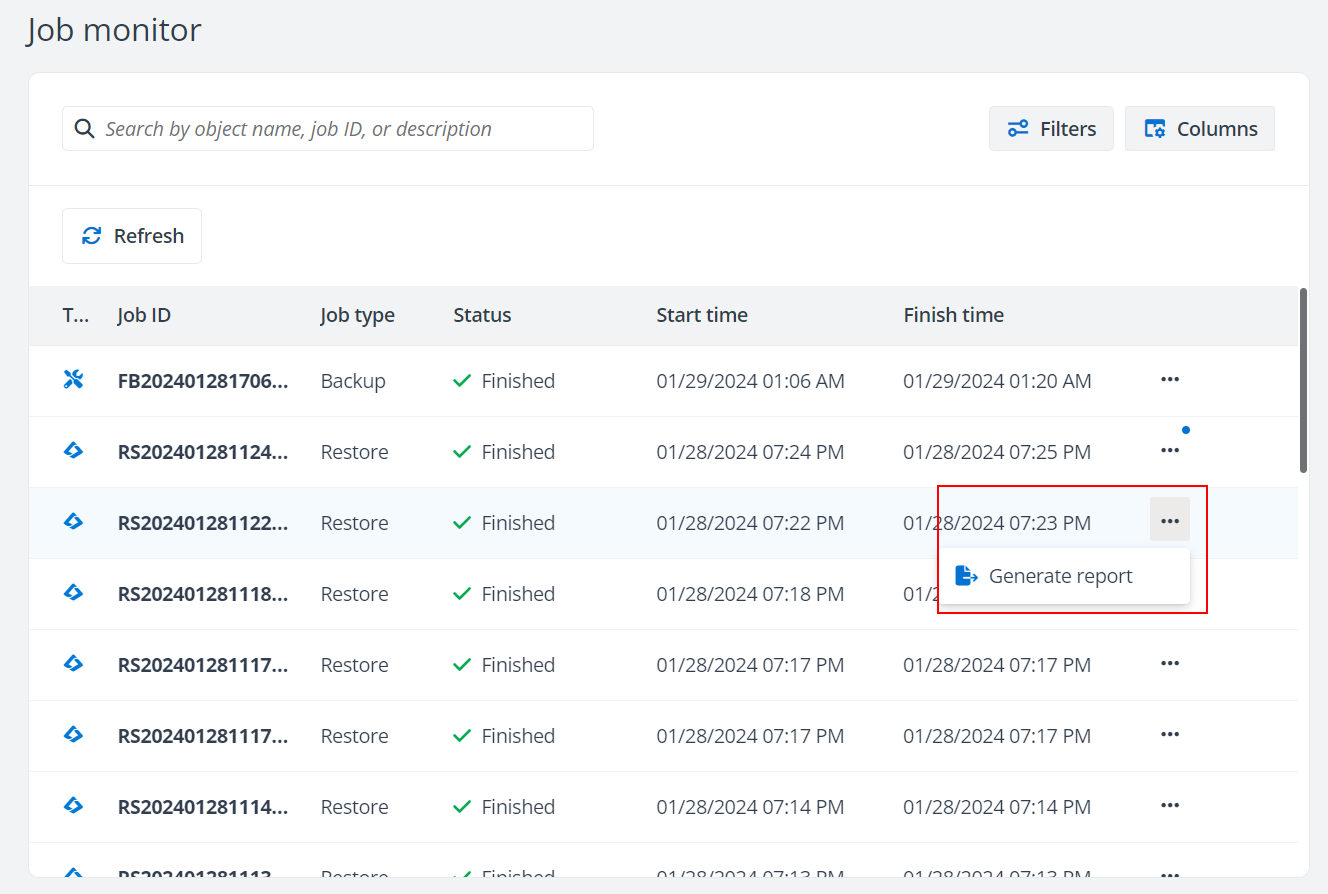
You can click the job ID to view the job details first or click the More actions button next to the job record directly to find the Generate report action.
In the Job details panel, you can also click the More actions button to find the Generate report action.
-
After the job to generate report is completed, a blue dot will be displayed on the More actions button. Click the button and click Download report action from the list to download the generated report.
-
Save the job report to a local location.