
Home > Restore and Recover Your Data > Microsoft Entra ID > Restore Groups
Download this articleRestore Groups
To restore groups, follow the steps below:
Before you restore a temporarily deleted group, ensure the Cloud Backup for Azure service app has the Global Administrator role.
-
Go to the Restore page and click the Microsoft Entra ID tile.
-
Click the Recovery point tile.
-
In the restore wizard, a calendar displays all the data recovery points. You can choose whether to display the finished with the exception jobs in the calendar by selecting the Include jobs with only partial backup data option. If you want to restore data backed up by Entra ID Express mode, select Only show Express recovery points.
-
Hover over the data recovery point to view the job details, including the job status, job start time, scope name, scope ID, job ID, backup size, and the number of objects in a backup, and click the data recovery point that you want to use in the calendar.
-
In the Recovery point page, click the Group link to drill down to the specific Microsoft 365 Groups, Distribution lists, Security groups, or Mail-enabled security groups.
-
Select the group that you want to restore, and then click the Restore button. You can view the group information in the View properties step. Click Next to continue the restore.
NOTEIf you select multiple groups, you can directly configure restore options following the steps below in the Restore groups panel.
-
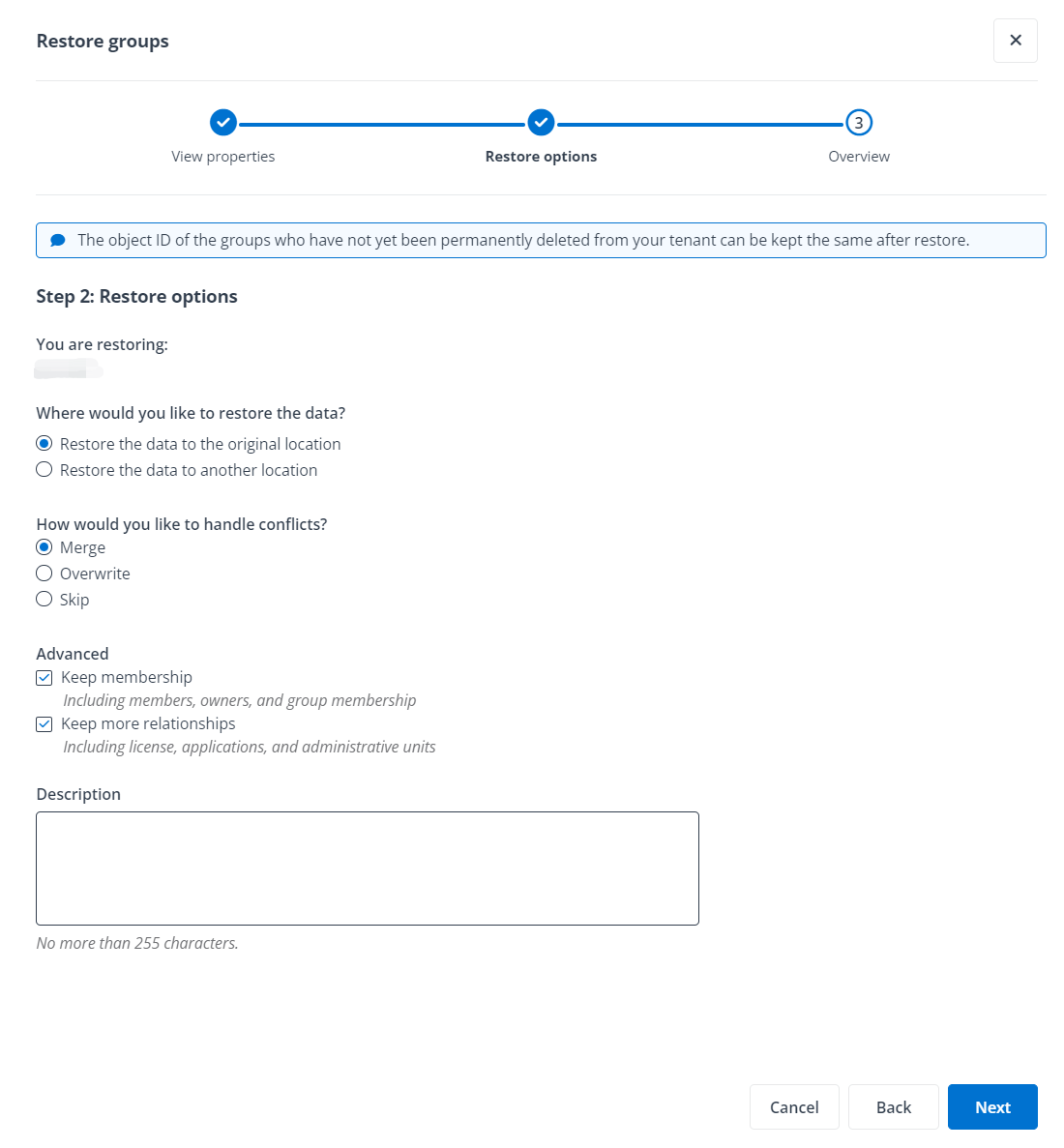
In the Restore options step, you can expand the list to view all the selected groups,select the restore mode, choose where you would like to restore the group, and then select Merge, Overwrite, or Skip as the conflict resolution.
If a conflict occurs, Merge is to add the backup data to the destination. If you select Merge as the restore option for groups, you must also configure the Advanced options so that the properties in the relationship backed up at the recovery point can be added to the target group. Overwrite removes the conflicting group from the destination and restores the backup data. Skip skips restoring the backup data and keeps the destination group intact.
NOTE- The Restore mode field is required when restoring data by Entra ID Express mode.
- If you select Entra ID Express as the restore mode, data is restored to the original location and the conflict resolution setting is automatically set to Overwrite.
-
In the Advanced field, you can select the Keep membership option if you would like to restore the members, owners, or group membership. If you also want to restore the license, applications, roles and administrators, and administrative units for the selected groups, select the Keep more relationships option.
-
You can enter a description for this restore job for further reference.
-
Click Next.
-
If you have chosen to restore the backup data to its original location, you will go to the Overview page to review the restore settings and the group that you have selected for restore. Click Restore after you finish reviewing the settings; if you have chosen to restore the backup data to another location, you need to configure the destination where you would like to keep the recovered data. Continue with the steps below.
-
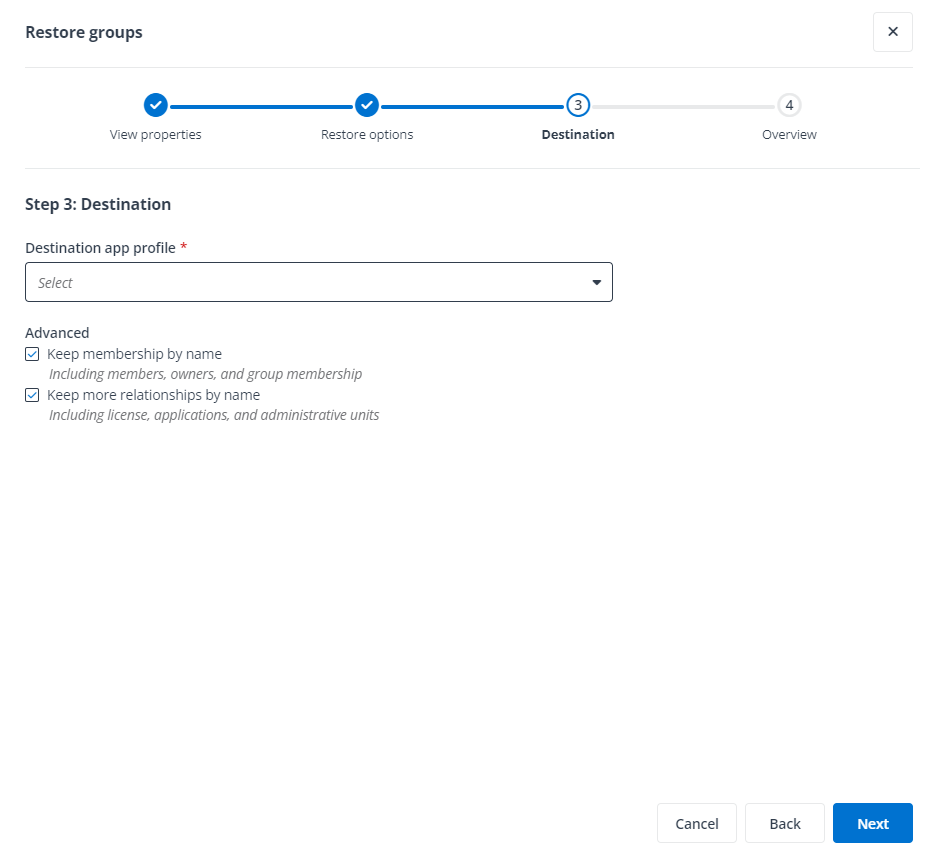
In the Destination step, select a destination app profile. Configure the Advanced options if you select Merge as the restore options for groups, to ensure that the properties in the relationship backed up at the recovery point can be added to the target group.
-
Click Next.
-
Review the restore settings in the Overview step and click Restore to run the restore job.