
Home > Restore and Recover Your Data > Use the Compare Method > Admin Portal Settings
Download this articleAdmin Portal Settings
The Admin Portal Settings service supports comparing two modules: Microsoft Entra ID (Conditional Access, General, Expiration, Naming Policy, and Named Locations) and Intune (Configuration Profile, Conditional Access, and Compliance Policies). To compare all data, follow the steps below:
-
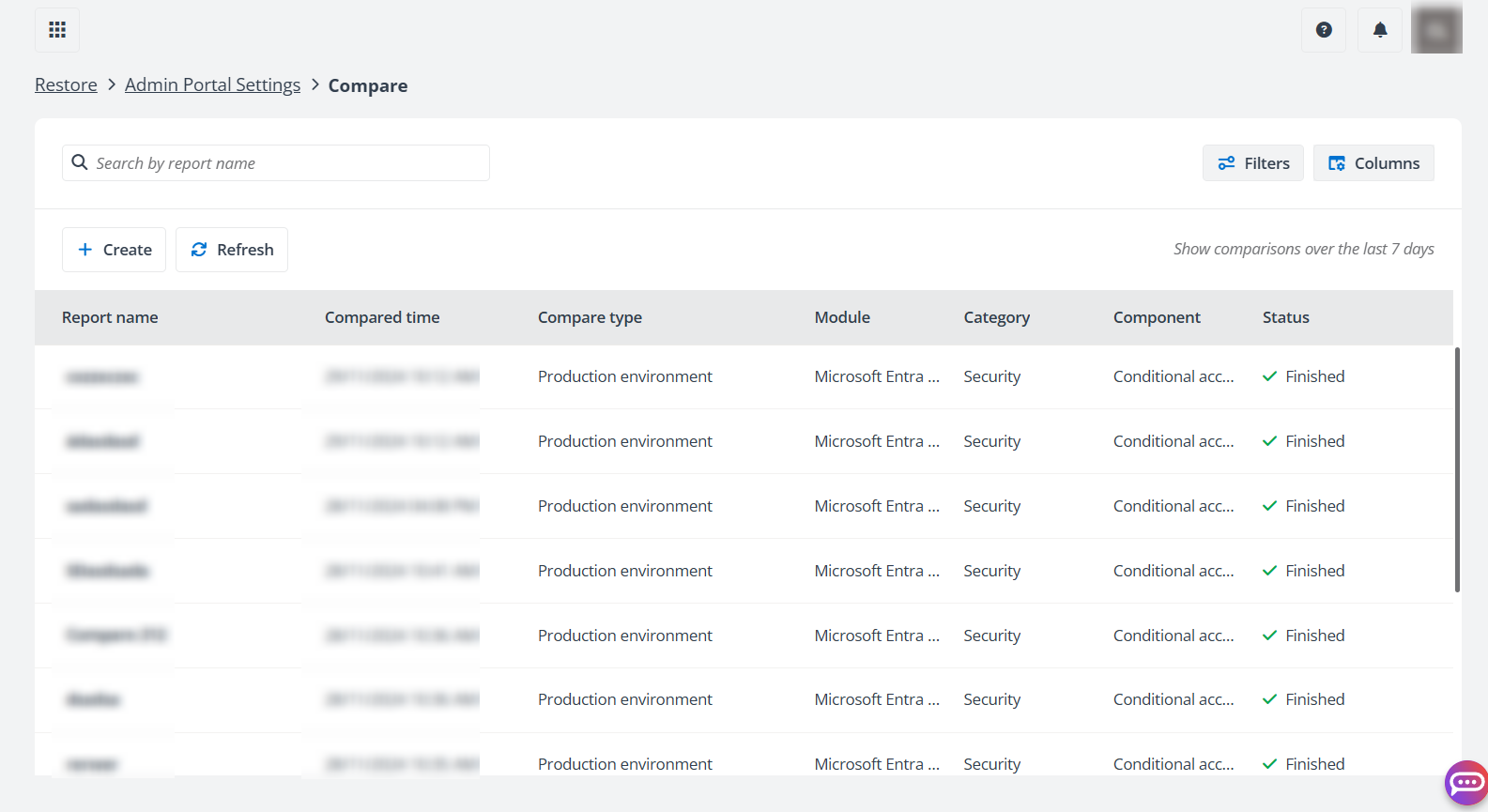
In the Restore page, click Admin Portal Settings, and then click the Compare tile. All the existing comparison reports are displayed in the Compare page.
-
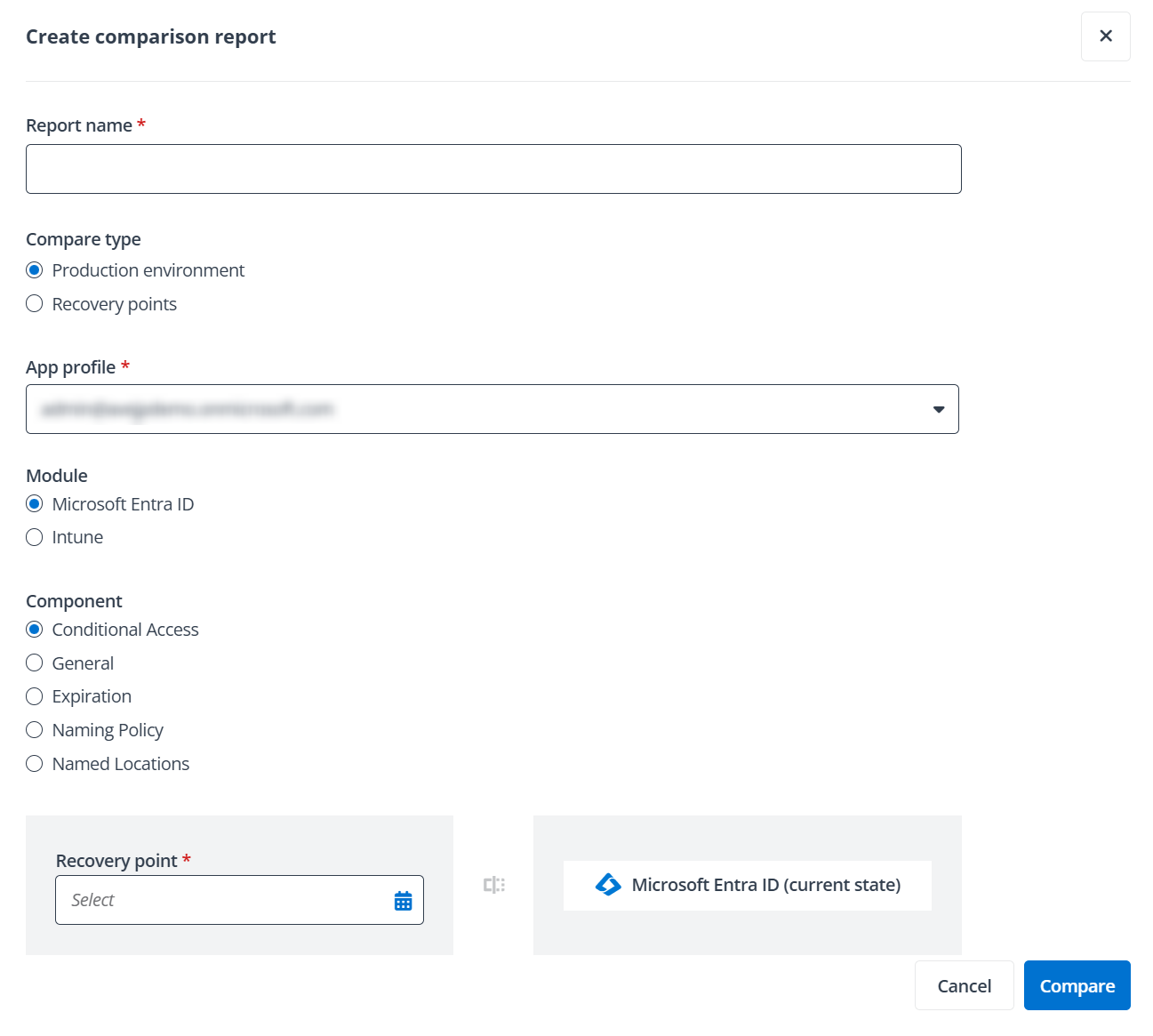
Click the Create button to create a comparison report. Complete the settings below:
-
Report name - Enter a report name for the comparison report that you are about to create.
-
Compare type - Choose to compare two recovery points or compare the selected recovery point with the current state of Microsoft Entra ID.
-
App profile - Select the app profile from the list.
-
Module - Select the module you want to compare.
-
Object type - Select the object type you want to compare.
-
Recovery points - Select the recovery point from the calendar according to the compare type that you have configured.
-
-
Click Compare. The comparison job will start, and you can view the job progress in the Compare page.
-
After the comparison job is finished, click the report name to open the comparison report.
-
In the View comparison report page, you can get the basic information of this comparison report, including the tenant name and the recovery points selected to compare. If only one recovery point is displayed, this comparison report was generated for comparing the backup data against the current state of the Microsoft Entra environment. On the Summary section, you can also get a summary of the report for the total number in the scope and the number of policies being added, modified, not found, or unchanged.
-
You can use the Name to search for the data or use the Filters (such as, Data from, Component, Category, or Status) to find the data.
-
You can select the data that you want to restore and click Restore. For details, refer to Restore Admin Portal Settings.