
Home > Protected Data Size Calculation > SQL Server
Download this articleSQL Server
Follow the instructions below to extract the protected data size for SQL Server:
-
Make sure you have downloaded the script package. Extract the package to locate the script for SQL Server.
-
Connect to the SQL server form either a local machine or a virtual machine (remote desktop). Choose one of the following methods:
-
Connect from a local machine – Follow the steps below:
NOTEPort 1433 must be open on the VM firewall and Network Security Group (NSG). If the connection fails, ask your administrator to allow TCP 1433 inbound.
-
Open SQL Server Management Studio (SSMS).
-
Complete the following connection details:
-
Server name – VM IP address or hostname (for example, 192.168.1.10 or 192.168.1.10,1433)
-
Authentication – SQL Server Authentication
-
Login – Your SQL Server login
-
Password – Your SQL Server password
-
Connect to database – Leave this field blank (default: master)
-
-
-
Connect from a virtual machine – Use this option if port 1433 is not open. Follow the steps below:
-
Connect to the VM using Remote Desktop (RDP).
-
Sign in with the Windows administrator account.
-
Open SQL Server Management Studio.
-
Connect to the local instance using the following values:
-
Server name – localhost, ., or .\INSTANCENAME (for example, .\SQLEXPRESS)
-
Authentication – Windows Authentication
-
Connect to database – Leave this field blank
-
-
-
-
In SSMS, navigate to File > Open > File. Open the SQL Server script and click F5 to execute the script.
-
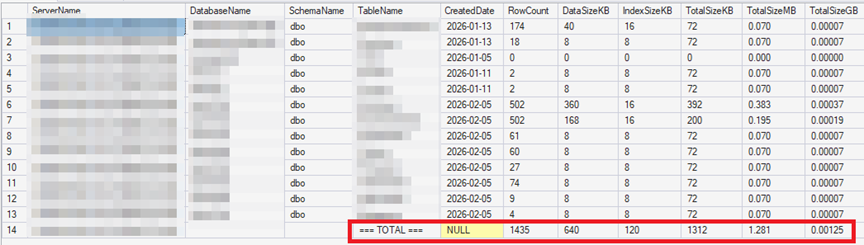
Upon execution, the protected size of each table across the database and the total protected data size of the SQL Server instance will be listed in the Results tab.
-
To save the results, right-click anywhere in the Results grid, select Save Results As, and save the output file as SQLServerSize.csv.