
Home > Get Started > Enable Backup for SQL Server > Enable Microsoft Entra ID Authentication
Download this articleEnable Microsoft Entra ID Authentication
To use the backup and restore services for Microsoft SQL Server in Azure VM, enable Microsoft Entra ID for your SQL Server in Azure VM.
To enable authentication with Microsoft Entra ID for your SQL Server in an Azure VM, follow the steps below. For additional guidance, you may also refer to the official Microsoft article on enabling Microsoft Entra ID authentication.
These steps apply only to SQL Server 2022 and later. For detailed information, refer to the Microsoft article.
-
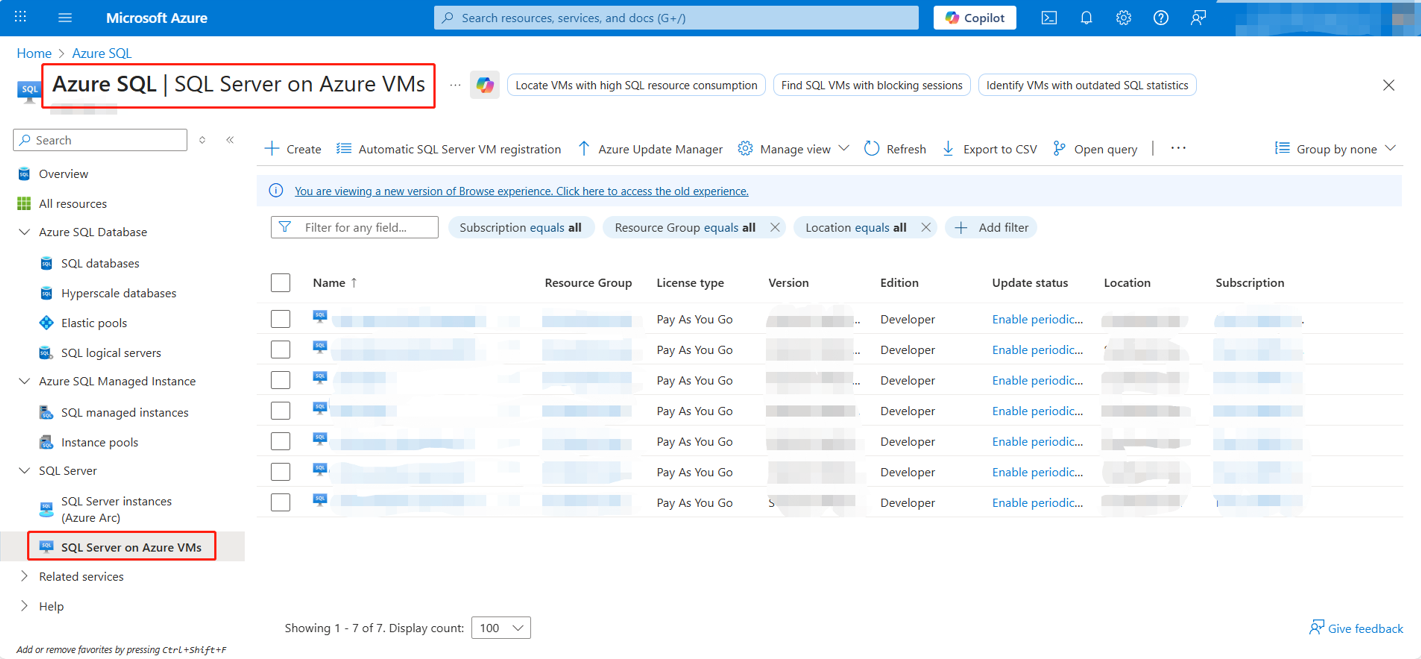
Sign in to the Azure portal and go to Azure SQL > SQL Server on Azure VMs. You can check your SQL Servers on the SQL Server on Azure VMs page.
-
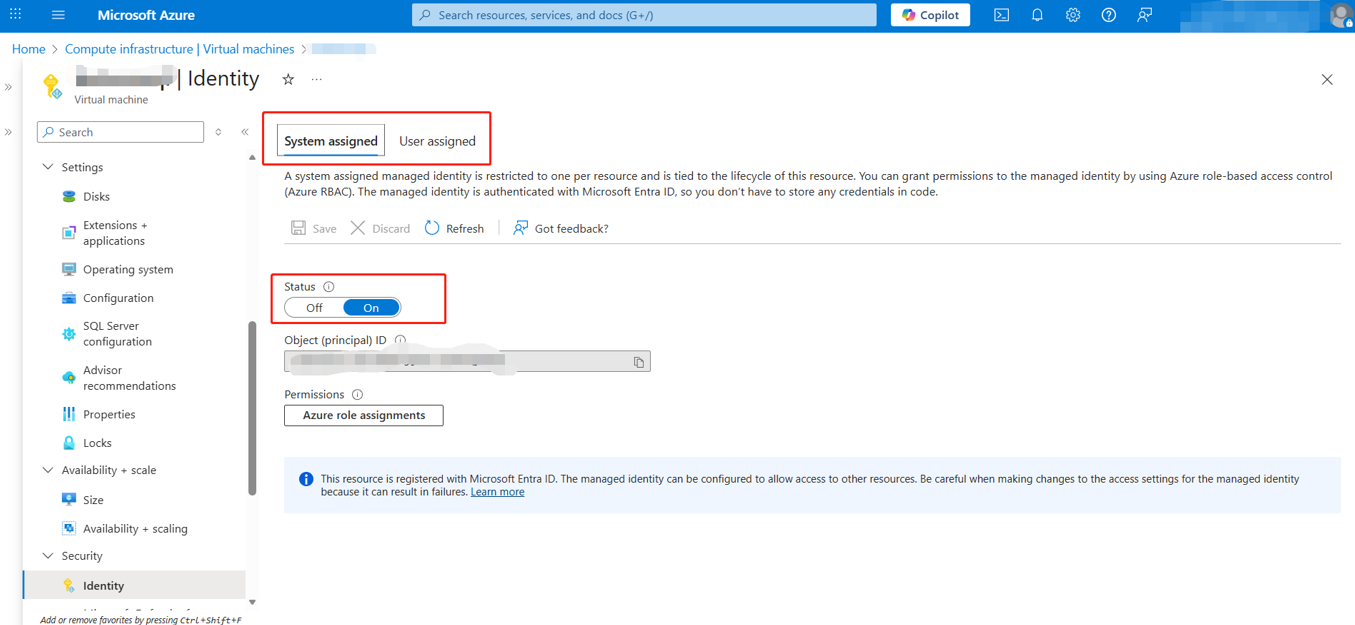
Navigate to the desired VM in the Security section and select Identity to make sure that there is an enabled system-assigned or use-assigned managed identity in the same Microsoft Entra tenant as your SQL Server VM. For details, refer to Configure managed identities using the Azure portal.
-
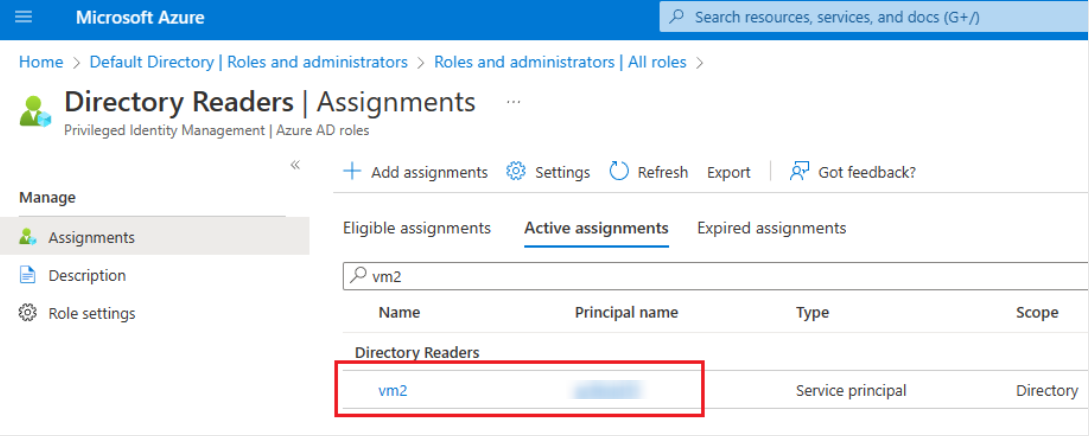
Open Microsoft Entra ID Roles and administrators in the Azure portal and navigate to the Directory Readers > Assignments page.
-
On the Directory Readers > Assignments page, click Add assignments to add the managed identity you want to use with your SQL Server VM to the Directory Readers role. For details on how to add your managed identity to the Directory Readers role, refer to Add managed identity to the role.
-
Enable Microsoft Entra authentication for the registered instance. For detailed steps, refer to Enable Microsoft Entra authentication for the registered instance.
-
Create logins and users, then grant sysadmin permissions to the specific service principal (the delegated app in Microsoft Entra ID used for SQL Server backup, typically “AvePoint Online Services – Delegated App”) or SQL admin group, into which the delegated app must be added. Below are example scripts for how to create logins and grant permissions. Replace 'SQLAdminSecurityGroupName' in the command with the actual name of your SQL admin security group.
You can also refer to Microsoft Entra tutorial to create logins and users for the managed identity.
-
Navigate to Cloud Backup for IaaS + PaaS. First, go to Settings > CAP Gateways page to verify that the configured CAP Gateway server can successfully connect to your registered SQL Server instance. Then, go to Configure a backup scope for SQL Server page to create a backup scope and verify that the target databases can be loaded. Once confirmed, the backup service is enabled.